Endorsing a Scheduled Payments Policy
Cancelling a Scheduled Payments Policy
Introduction
Scheduled Payments introduces the ability to split premiums across multiple invoices, with separate due dates and credit terms for the configured Classes of Risks.
If Scheduled Payments is not activated for the class of risk, the option to create a Scheduled Payments policy will not be included in the transaction wizard.
NOTE: Scheduled Payments are different from Instalment policies. With a Schedule Payments policy, payments are due to be paid to the broker and the balance is outstanding on the client's account. Whereas with Instalment policies, payments are due to be paid to the insurer and there is nothing outstanding on the client's account.
Key Features
 | Allows you to issue and collect invoices, Quarterly, Monthly or Bi-Annually for classes of risk such as Workers Compensation or Aviation. |
 | You can have different credit terms for the first and subsequent invoices. |
 | Only available for Manual poclies. |
 | You can change from Annual to Scheduled Payments or vice versa on Renewal. |
Initiating Scheduled Payments
You can initiate a new Scheduled Payments policy through a New Business or Renewal transaction.
Enter information as per normal in the Policy Summary page of the wizard. At the bottom of the page, locate the Scheduled Payments field and select Yes - this will add the Scheduled Payments page and its features.
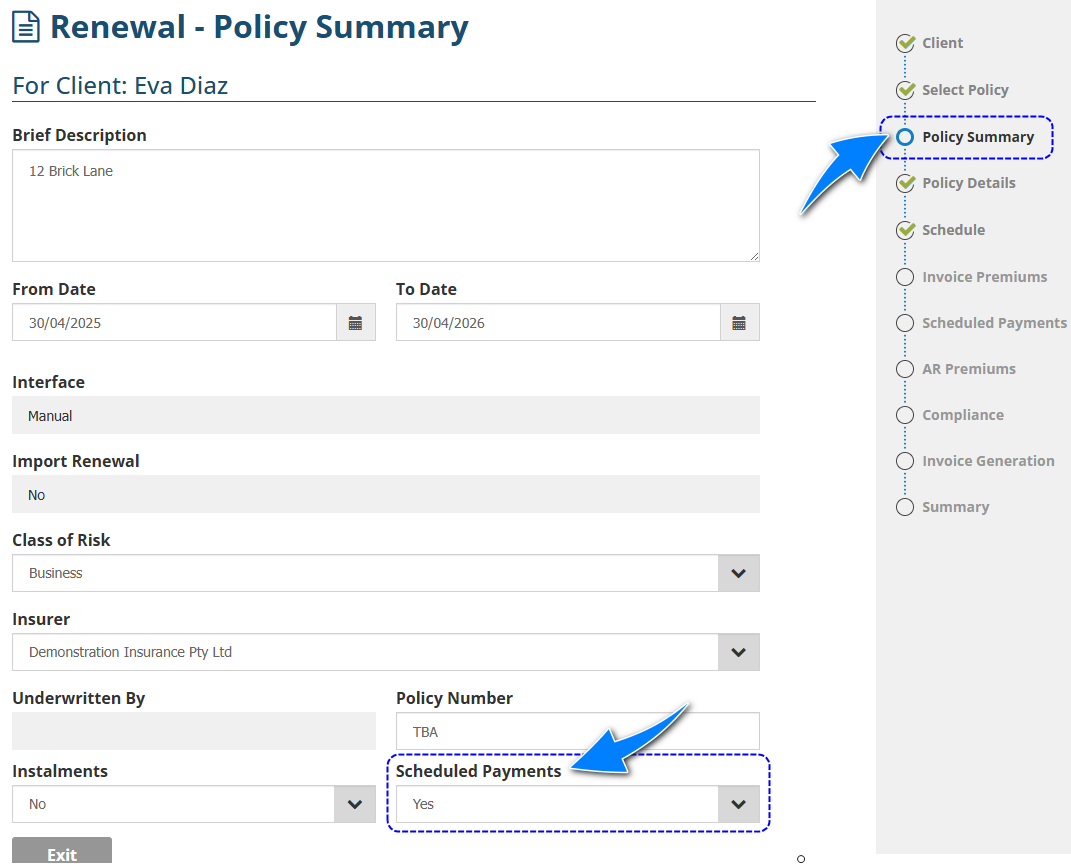
Transaction Wizard
Schedule Payments
The Scheduled Payments page is where you specify the following:
 | The number of Scheduled Payments (2, 4 or 12). |
 | The Effective Date of each payment - by default, it's set to the same day as the present day. For example, if the present day is the 30th, then the quarterly scheduled payments will be on the 30th every quarter. However, you can manually change the effective date as needed. |
 | The Premium Breakdown - by default, the Base Premium, Levies and Commission are divided equally between the number of payments and the UW Fee and Broker Fee are collected in the first payment. Select Edit Scheduled Payments Plan to manually change the breakdown or spread out the UW Fee or Broker Fee. |
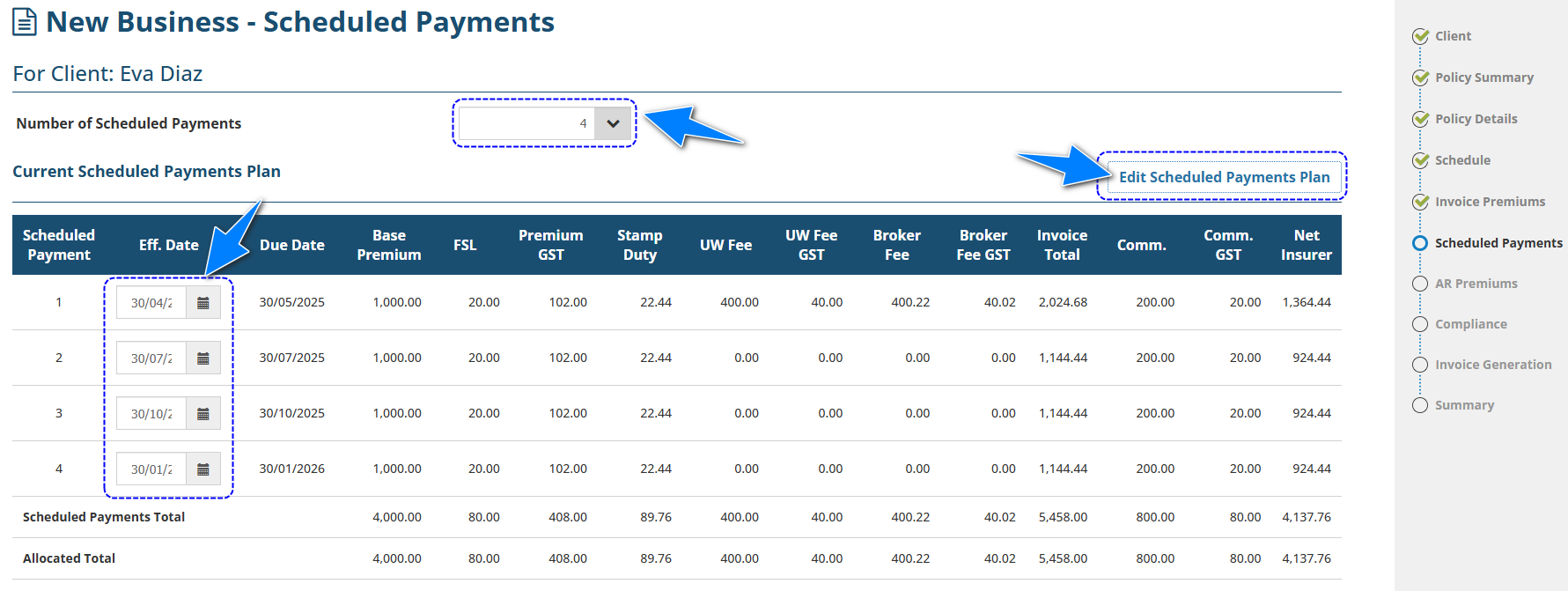
IMPORTANT: When manually editing the plan, the total values will display in the Scheduled Payments Total row. These total values must be the same as the values in the Allocated Total row to make sure that the premiums match with the annual premium entered in the Invoice Premiums page. If there is a mismatch, a message will alert you & won't allow you to proceed to the next page.
Invoice Generation
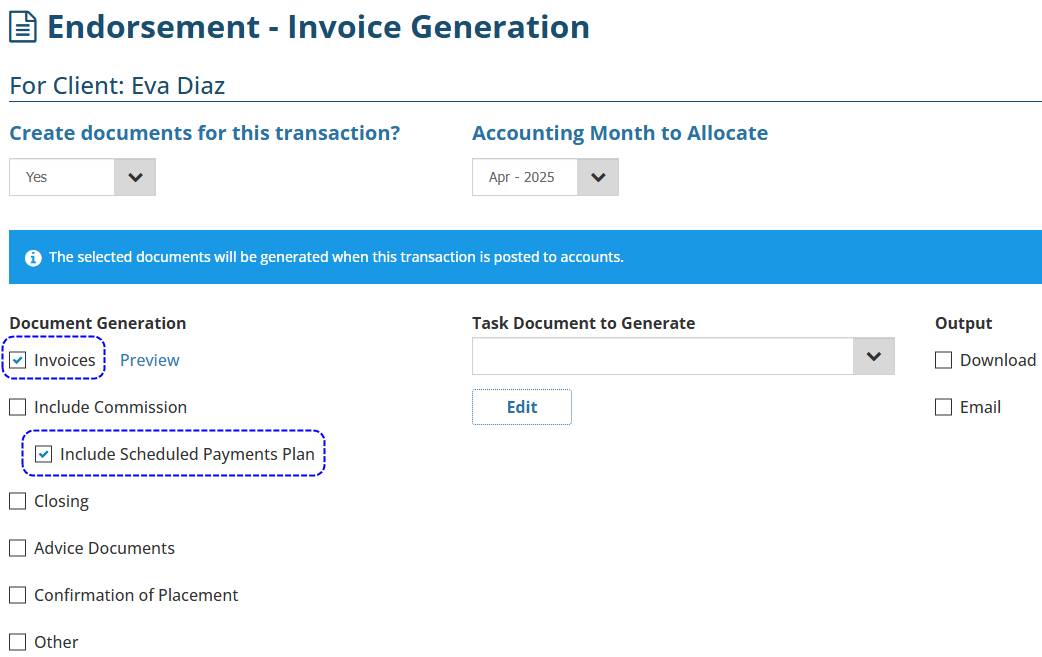
Each scheduled payment will have its own invoice number. When generated, a zip folder containing the invoices will be downloaded or attached to an email. It is up to you whether you will send all the invoices at once or closer to each scheduled payment.
All invoices are auto-saved in the Documents tab of each subsequent scheduled payment. You can re-download these invoices when following up debtors for the next scheduled payment.
Selecting the Include the Scheduled Payments Plan will insert the plan underneath the schedule. When endorsing, please ensure that you remove the previous plan inserted in the Schedule page, so that there is only the latest plan when the new plan is inserted.
Endorsing a Scheduled Payments Policy
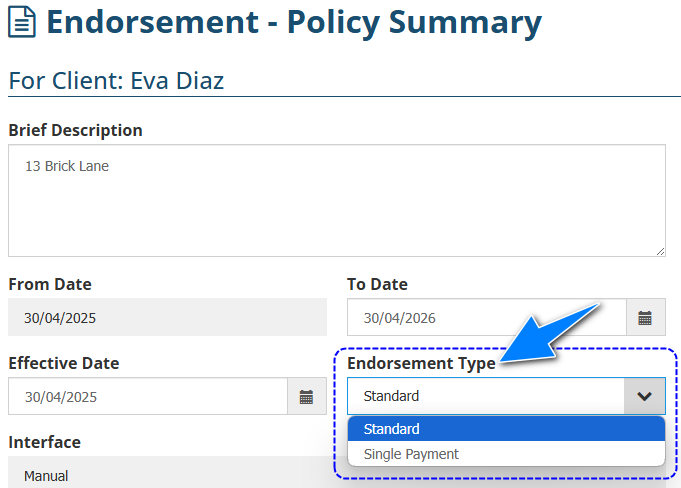
There are 2 types of Endorsements for Scheduled Payments:
 | Standard: | Spreads the endorsement amount across the scheduled payments based on the effective date of the endorsement. For example, if the endorsement effective date is after the first payment, the amount for the first payment does not change, however all following scheduled payments will be adjusted accordingly. If the endorsement effective date doesn't fall on the regular scheduled date, the latest scheduled payment will be the endorsement effective date, then the following scheduled payments will return to the regular scheduled date. |
 | Single Payment: | Does not adjust the scheduled payments amounts; Collected as a single payment of a standalone endorsement. Use this type of endorsement when making a previous period adjustment for Workers Compensation - this likely when you are wanting to refund or get extra premiums and not adjust the amount of the last payment. |
Cancelling a Scheduled Payments Policy
Process a cancellation as per normal, the pro-rata amount is calculated based on the effective date and any return premium is treated as a single invoice amount.
Was this article helpful?
That’s Great!
Thank you for your feedback
Sorry! We couldn't be helpful
Thank you for your feedback
Feedback sent
We appreciate your effort and will try to fix the article