| Version 2.0 | January 2023 |  |
Table of Contents |
Policy ProcessingInstalment Plan
| CancellationsRenewal |
Policy Processing |
Manual (Non-EDI) Instalment Policy
1. Select the New Business button from within an existing Client or select New Business options from the side menu.
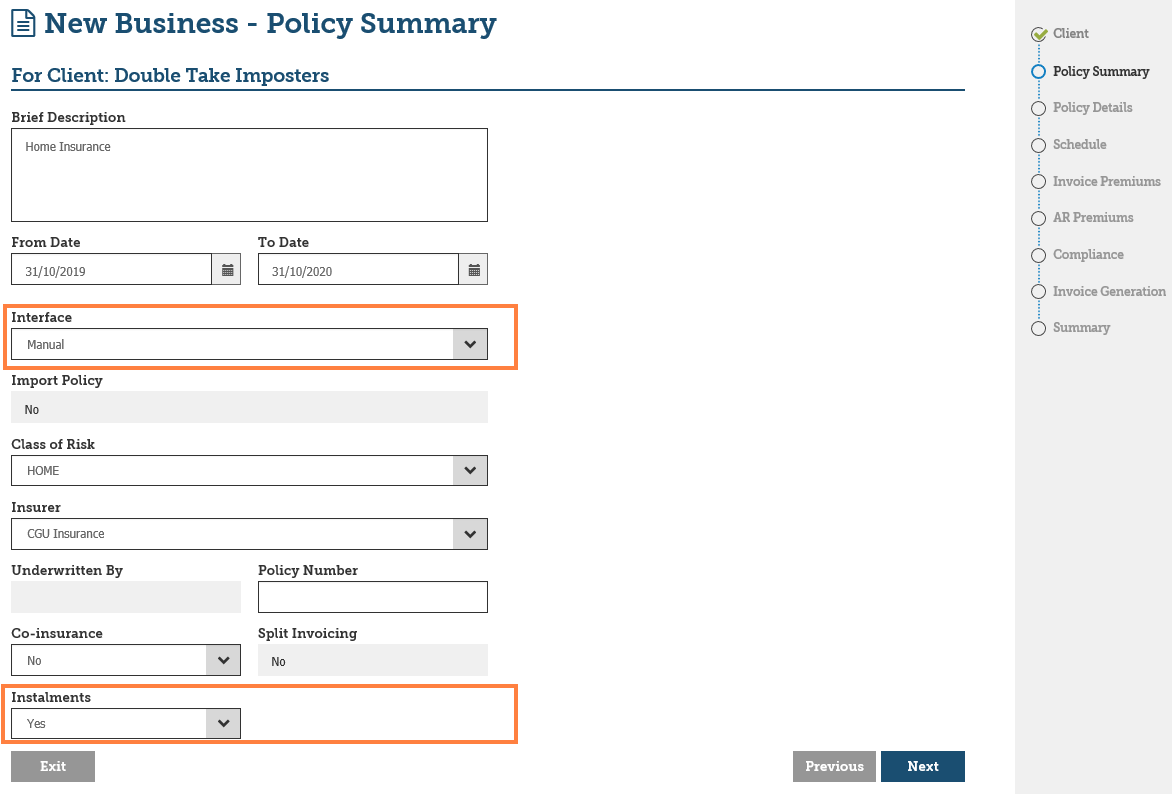
2. Select the Class of Risk and set the Interface type to Manual. The Instalments option will only be available when the Insurer is configured for Manual Instalments.
 NOTE: Instalments will not be available if co-insurance or split invoicing is selected.
3. Progress to the Invoice Premiums page and enter the total Transaction Premiums and Broker Fee. INSIGHT will calculate and display the Instalment Plan on the Instalment Plan page. The header section of the Instalment Plan shows the Policy Total, Income Received, Total Broker Income and Total Income Due. These fields update as instalments are receipted. Additionally, the Number of Instalments defaults to 12 but can be amended if required. Altering the Number of Instalments will recalculate and refresh the Instalment Plan.
 NOTE: INSIGHT does not support quarterly instalments. Instalments are due every 30 days regardless of the number of instalments chosen. To process quarterly invoices refer to scheduled payments in the online help portal.
The Broker fee may be included in the first instalment of the plan by selecting Yes on the Include Broker Fee in Plan drop down.
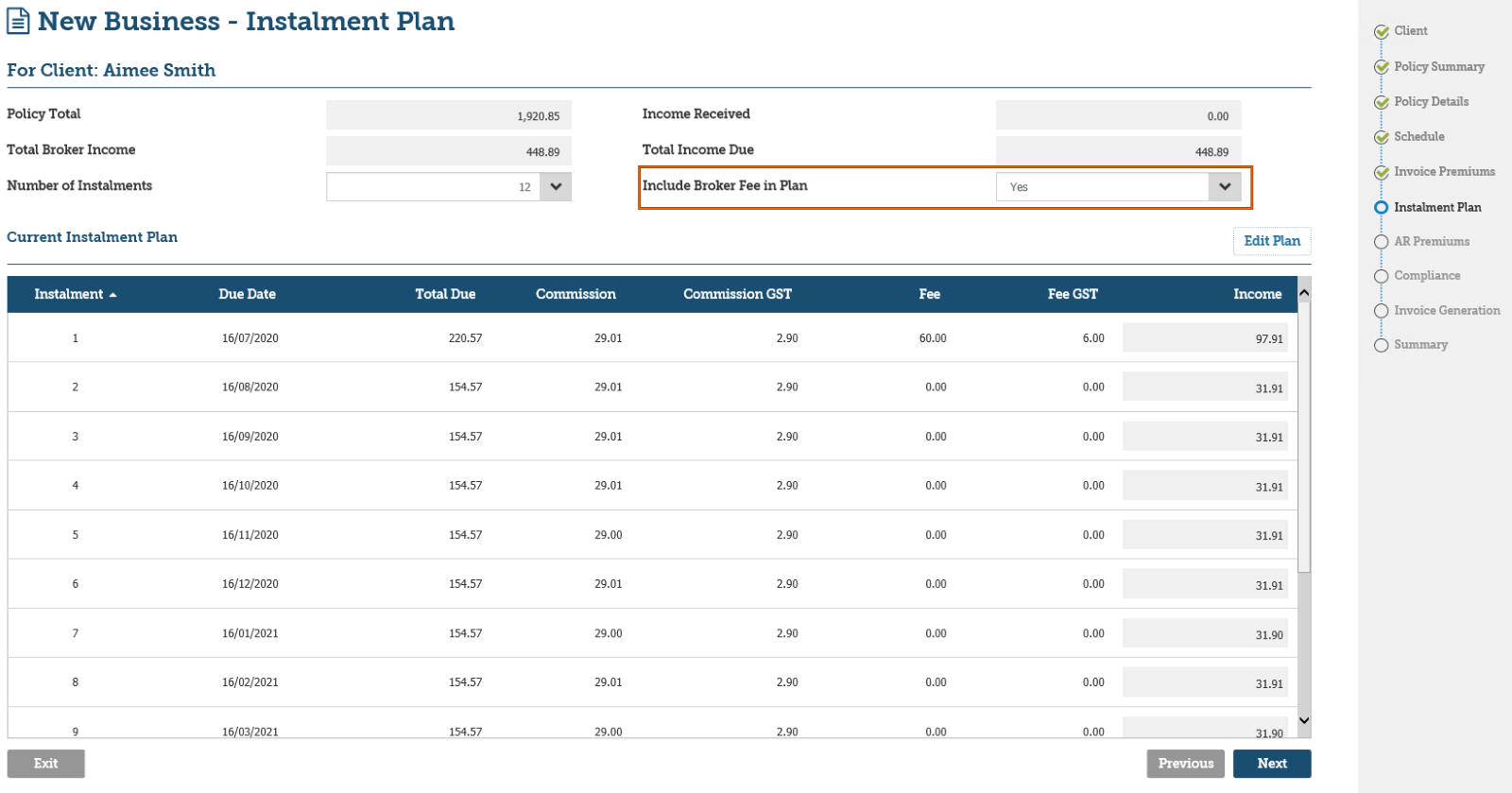
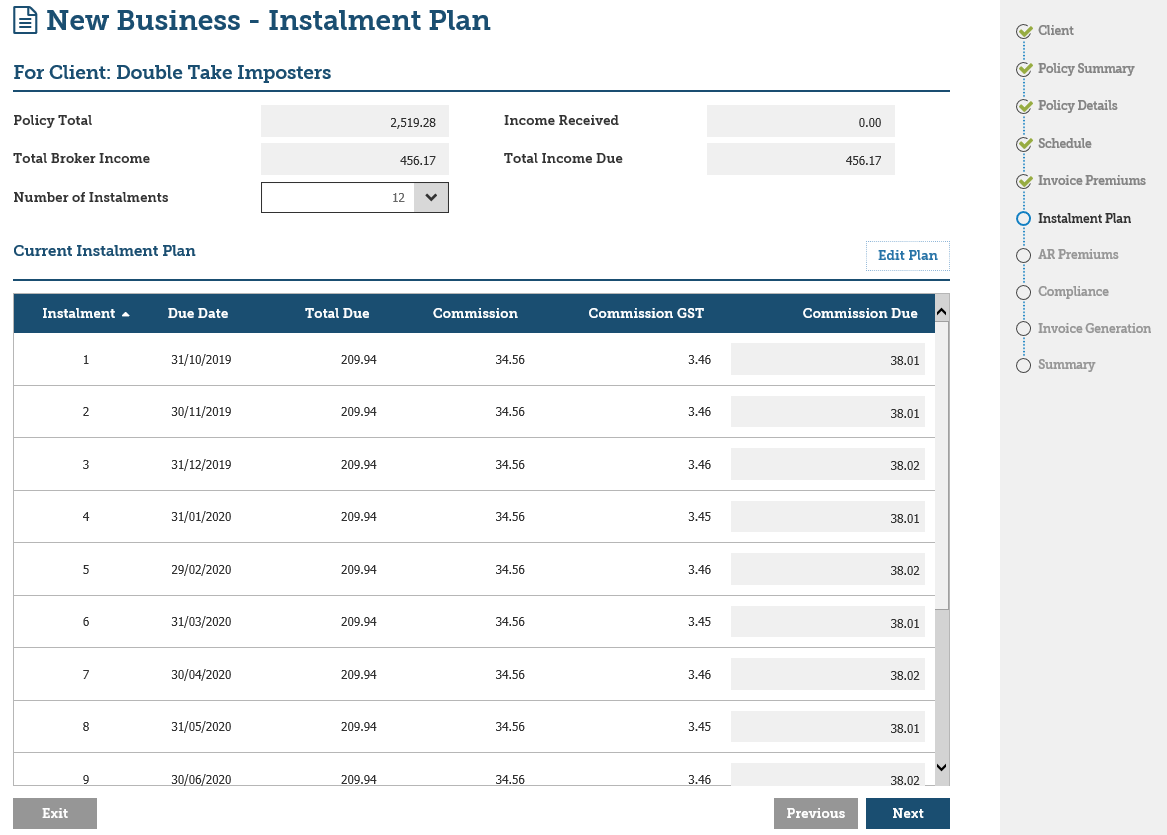
4. If required, select Edit Plan to activate the Instalment Plan in edit mode. This enables the Plan to be updated to match the Instalment Plan supplied by the Insurer and ensure Instalment totals matches the Invoice amount, this validation means you will not be able to complete the wizard until the amounts match.
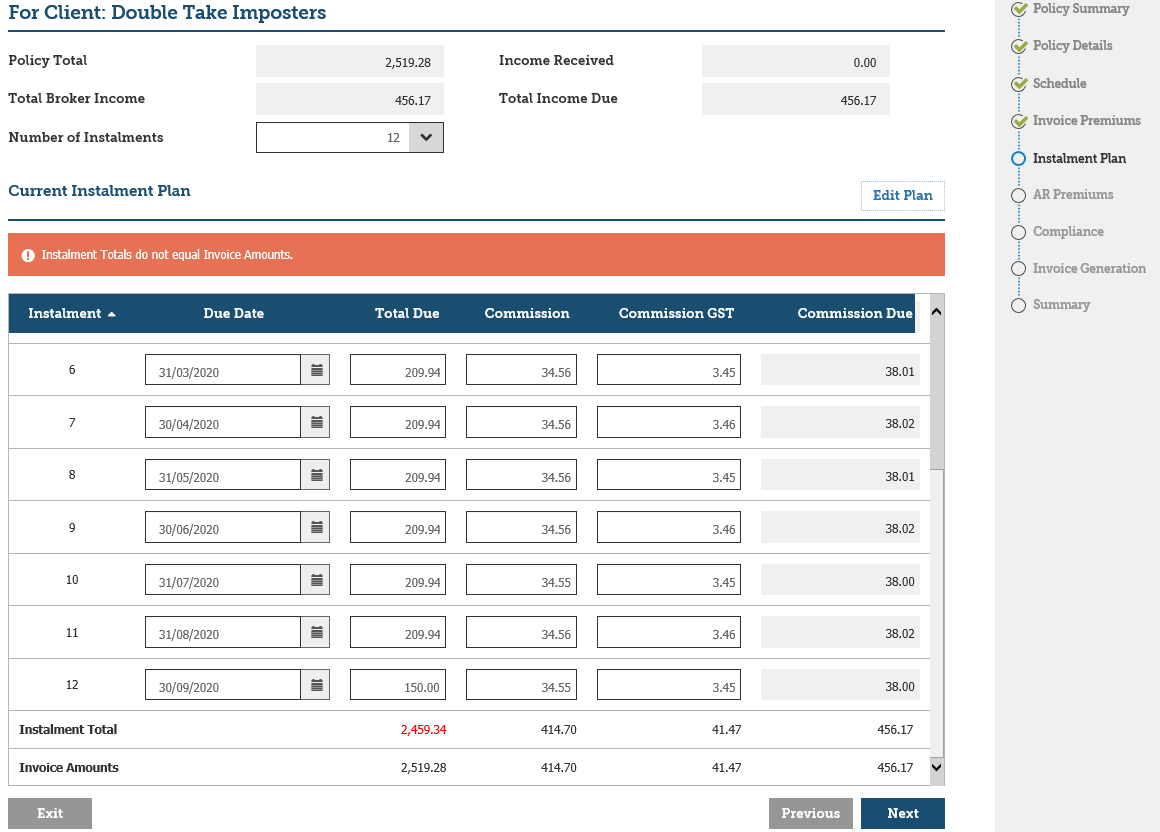
5. Progress through the wizard to the Invoice Generation page. Select Invoice > Include Instalment Payment Plan to insert the Instalment Plan into the Schedule (if no schedule exists the plan will not be added). This will be inserted when Post to Accounts is selected and will not appear in the preview of the document.
Alternatively, do not select this option and insert the Insurer supplied Instalment Plan into the Schedule instead. To do this you may navigate back to the schedule step of the wizard and update accordingly. Then the policy can be posted to accounts and the appropriate documentation produced.
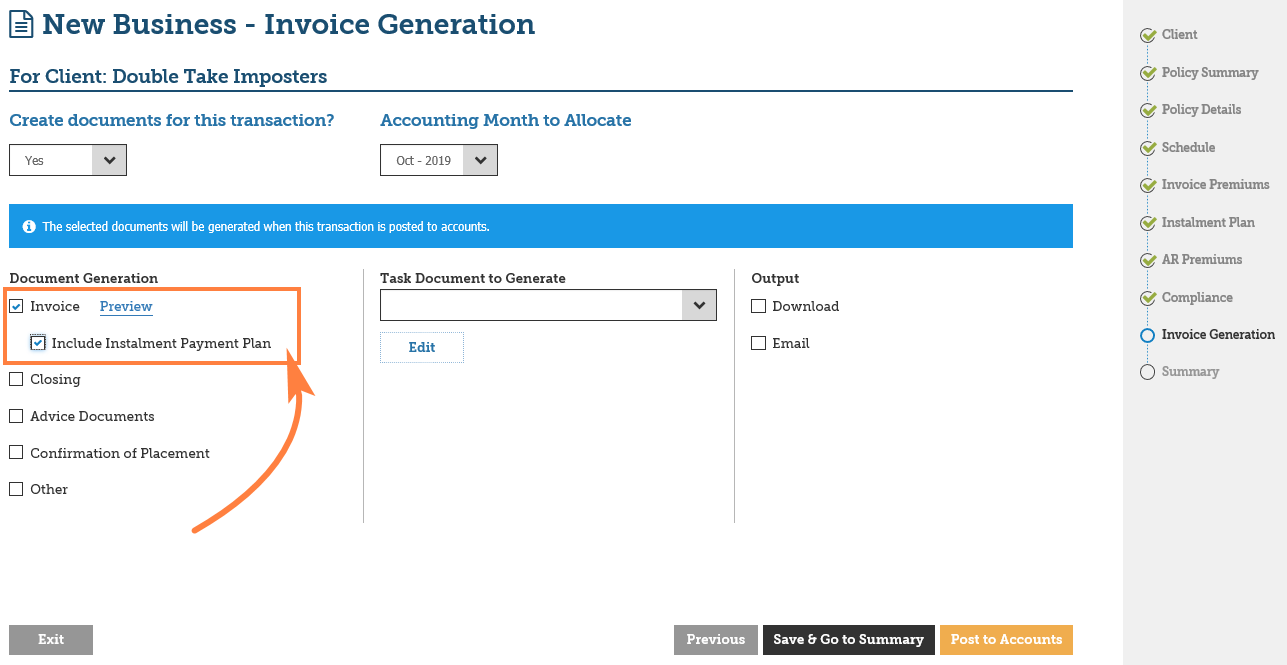
6. The Invoice for manual instalments will contain the Broker Fee and Broker Fee GST amount to be payable to the Broker. It will also detail the overall policy premium amounts.

SCTP Instalment Policy
1. Select the New Business button from within an existing Client or select New Business options from the Home page
2. Proceed with entering Class of Risk and set Interface type to SCTP.
3. Select Create Quote and complete the quote details.
4. In the Instalment Details section, set the options as follows to initiate Instalment Billing. The insured can nominate the preferred day of the month for the deduction to occur. The Broker Fee may also be entered.
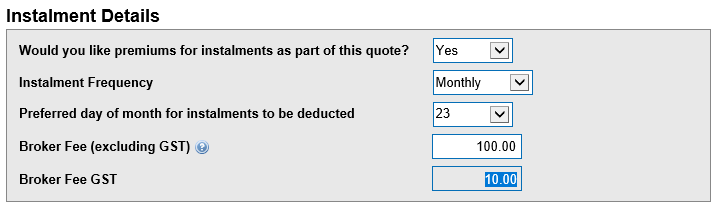
5. Select the Send button
6. When the quote response is received bind the quote.
7. The Instalment Plan displays as follows:
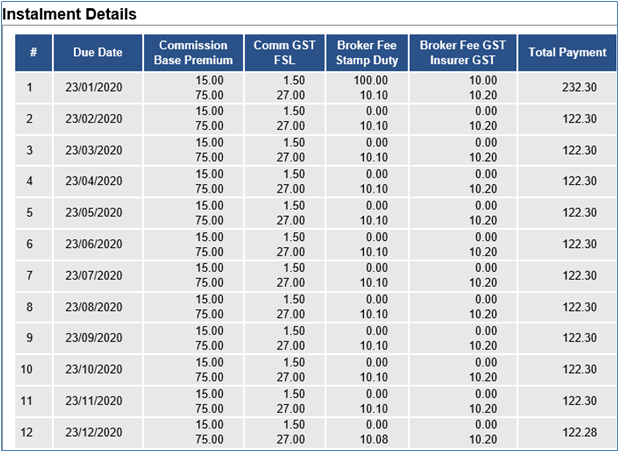
8. Select the Manage Payments link to enter the payment details.
9. Select Done and return to INSIGHT.
10. The Policy Wizard is updated with the Instalment Plan and Details page.
11. Proceed through the Policy Wizard. Note: The Instalment Plan details are displayed in the Policy Schedule step of the Policy wizard.
12. The header section of the Instalment Plan displays Policy Total, Income Received, and Outstanding. These fields update as instalment payments are receipted.
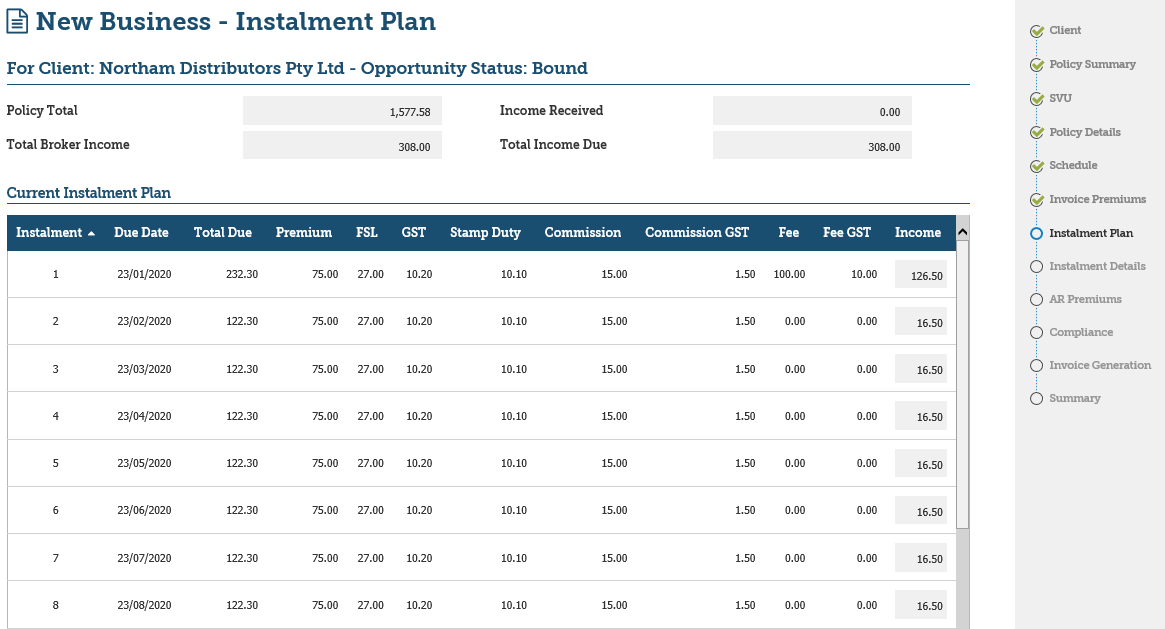
13. Select Next. The Instalment Details page is displayed as follows. These details are provided by the insurer’s product and are not editable:
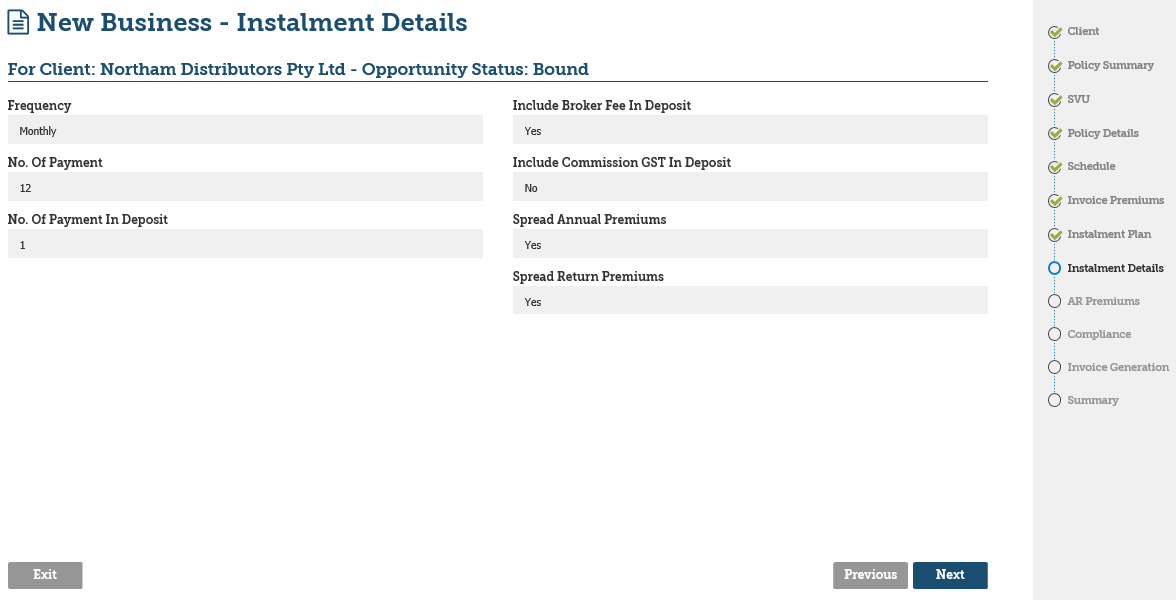
14. Select Next and continue to the Invoice Generation page. The policy can be posted to accounts and the appropriate documentation can be produced.
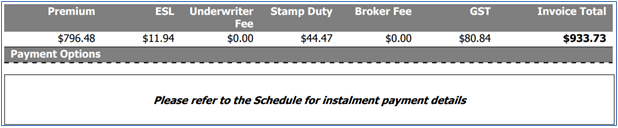
15. The Invoice for EDI instalments will contain the breakdown of the premium, fees and levies and payment options will be replaced with an instruction to refer to the policy schedule for instalment payment details.
Sunrise Instalment Policy
Sunrise Instalment-billed policies are created in the same way as a manual INSIGHT policy.
1. Select the New Business button from within an existing Client or select New Business options from the side menu.
2. Proceed with entering Class of Risk and set Interface type to Sunrise .
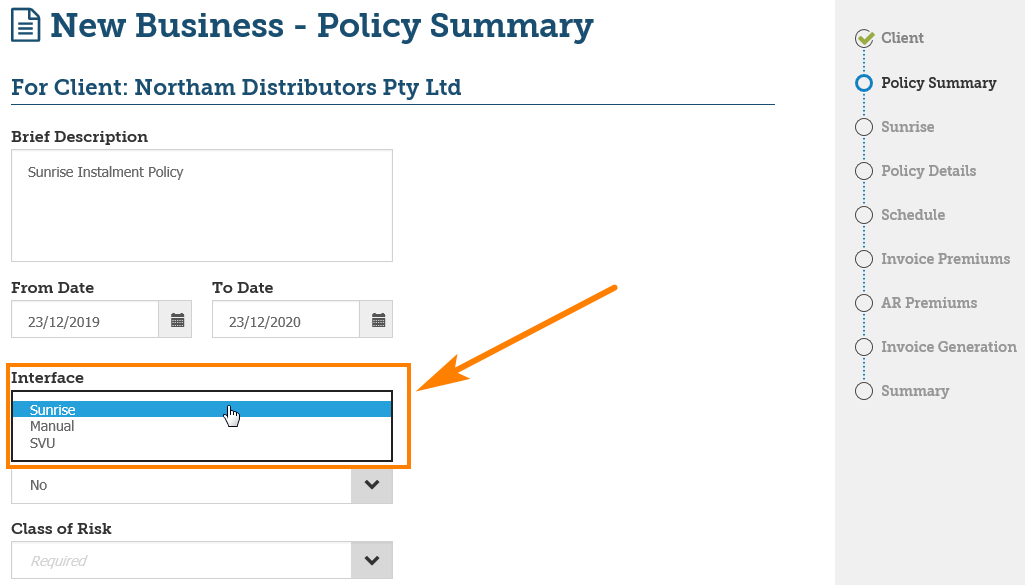
3. Select the relevant Class of Risk.
 NOTE: The Class of Risk is likely to be configured and labelled differently at your site
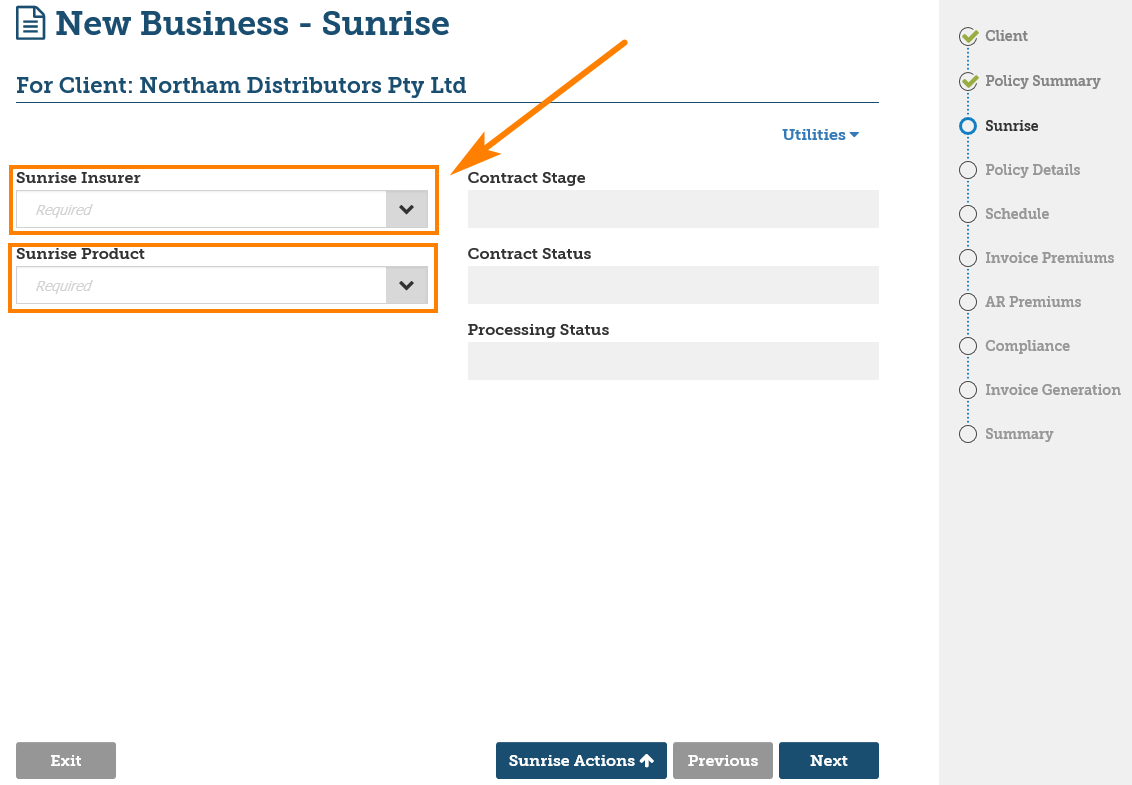
4. On the Sunrise Wizard, select the insurer and product required and proceed to access the Sunrise Insurer product.
5. Enter the insurance coverage details and continue through the insurer’s product to the Payment or Finish tab, as shown below, and set the Payment Method to Monthly Direct Debit.
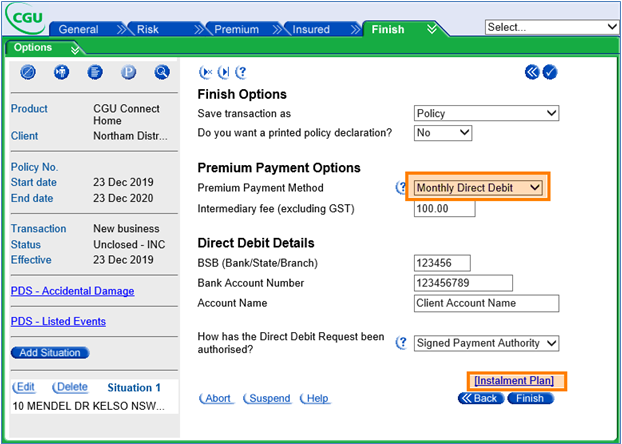
6. Enter the insured’s bank account or credit card details.
7. Enter the Broker’s Fee in the Intermediary field.
 NOTE: Sunrise product screens vary depending on which insurer and product you use. The Example shown here is for CGU only. Refer to your insurer for training on their specific product.
 8. The Instalment Plan is calculated and can be viewed by selecting the Instalment Plan link:
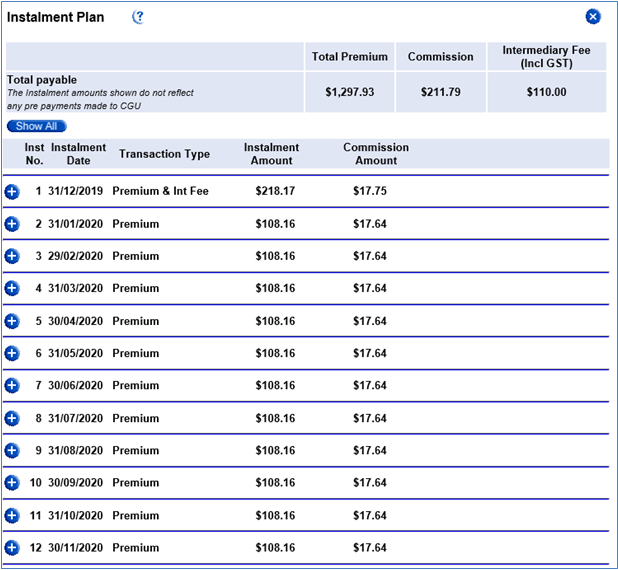
9. Complete the Sunrise product wizard to return to INSIGHT.
10. Proceed through the Policy Wizard. Note: The Instalment Plan details are displayed in the Policy Schedule step of the Policy Wizard.
11. The Policy Wizard is updated with the Instalment Plan and Details page steps:
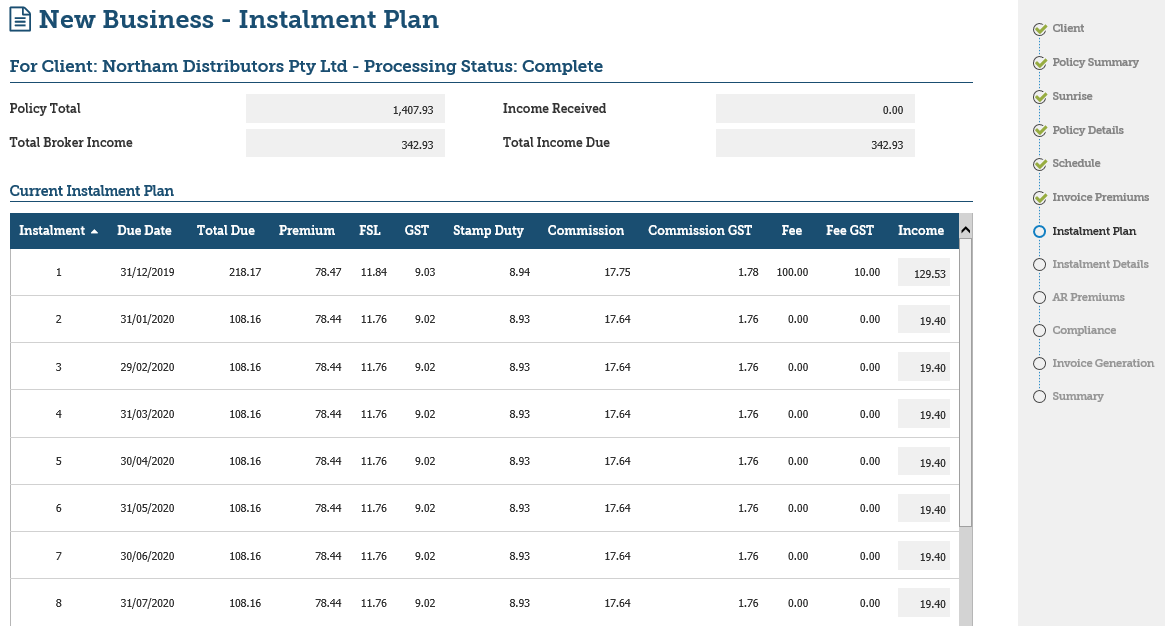
12. The header section of the Instalment Plan shows the Policy Total, Income Received, and Outstanding. These fields update as instalment payments are receipted.
13. Select Next. The Instalment Details page is displayed as follows. These details are provided by the insurer’s product and are not editable.
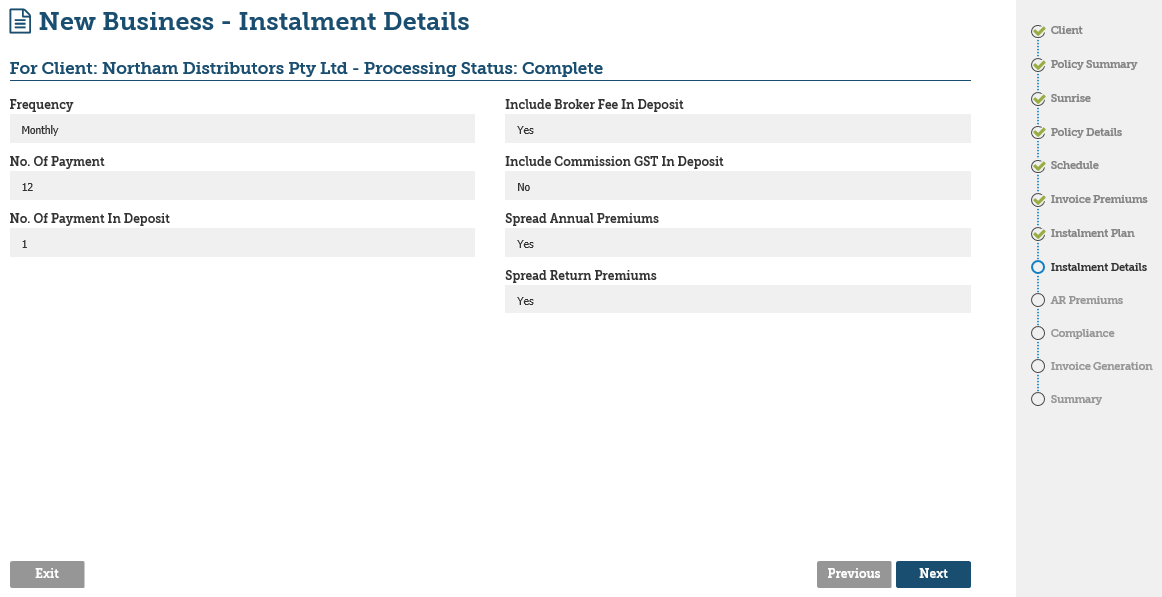
14. Select Next and continue to the Invoice Generation page. The policy can be posted to accounts and the appropriate documentation produced.
Instalment Plan |
Viewing an Instalment Plan
The policy instalment details can be viewed from a number of locations within INSIGHT. This section will walk you through where they are located.
This viewing method applies to both EDI and Manual Instalment policies.
1. From the Home page, search for the client.
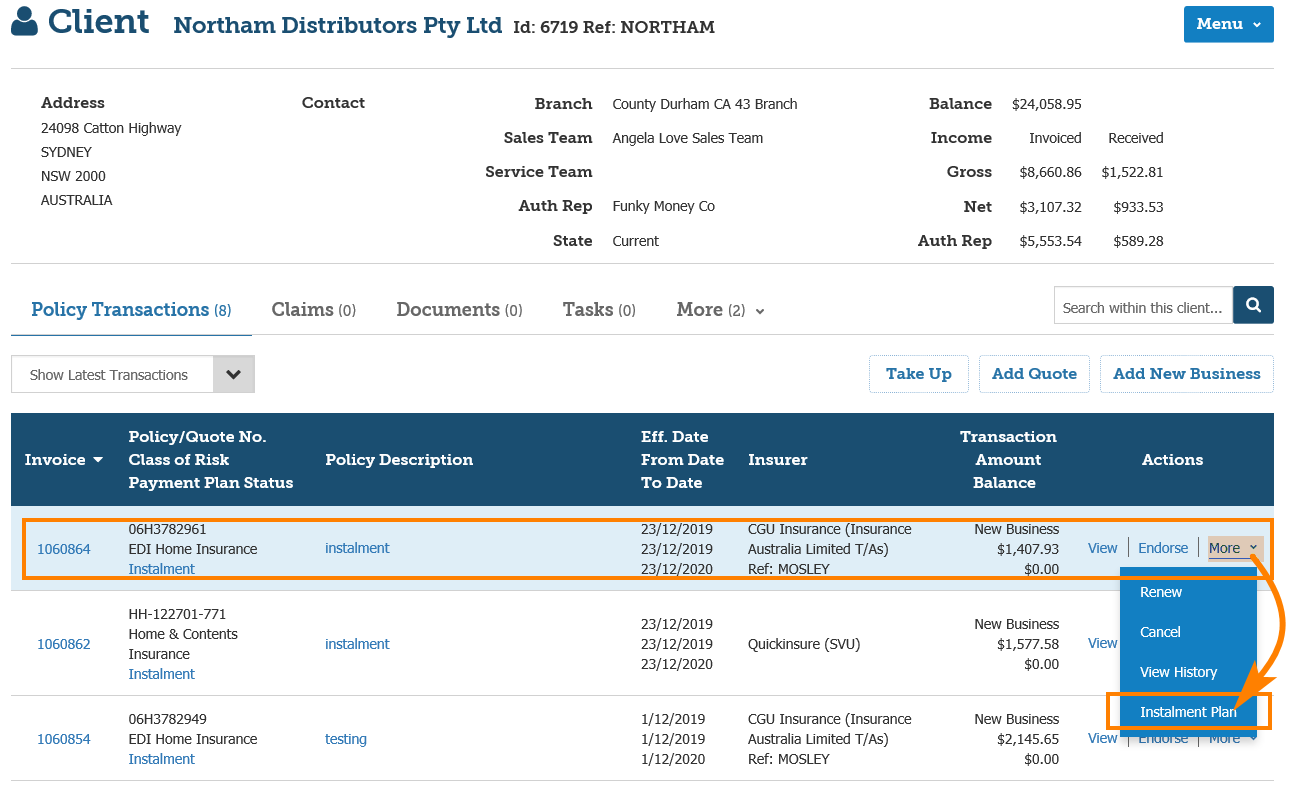
2. The Client details page is displayed listing the latest policy transactions. Policies that have Instalment Billing setup display a link to the Instalment Plan. The plan can also be accessed from the Action menu as displayed below:
3. The Instalment payment plan can also be accessed from Policy Transaction –> Menu –> Instalment Plan
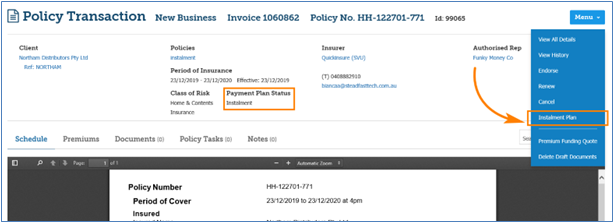
4. The Policy Header is also updated with the Instalment Plan’s status.
Manual (non-EDI): Instalment Plan and Receipts
The Instalment Plan displays the financial breakdown of the policy transaction(s). There is only one Instalment Plan for a policy period and the Plan updates to reflect the impact of any Endorsements made.
 NOTE: Release 7.0 of INSIGHT will allow the broker fee to be included in the instalment plan. The broker fee is included in the first instalment as shown in the following screenshots.
A New Business followed by Renewal would display a different Instalment Plan on each policy record. Paid Instalment Receipts can be viewed by selecting the Instalment Receipts toggle link on the Instalment Plan page:
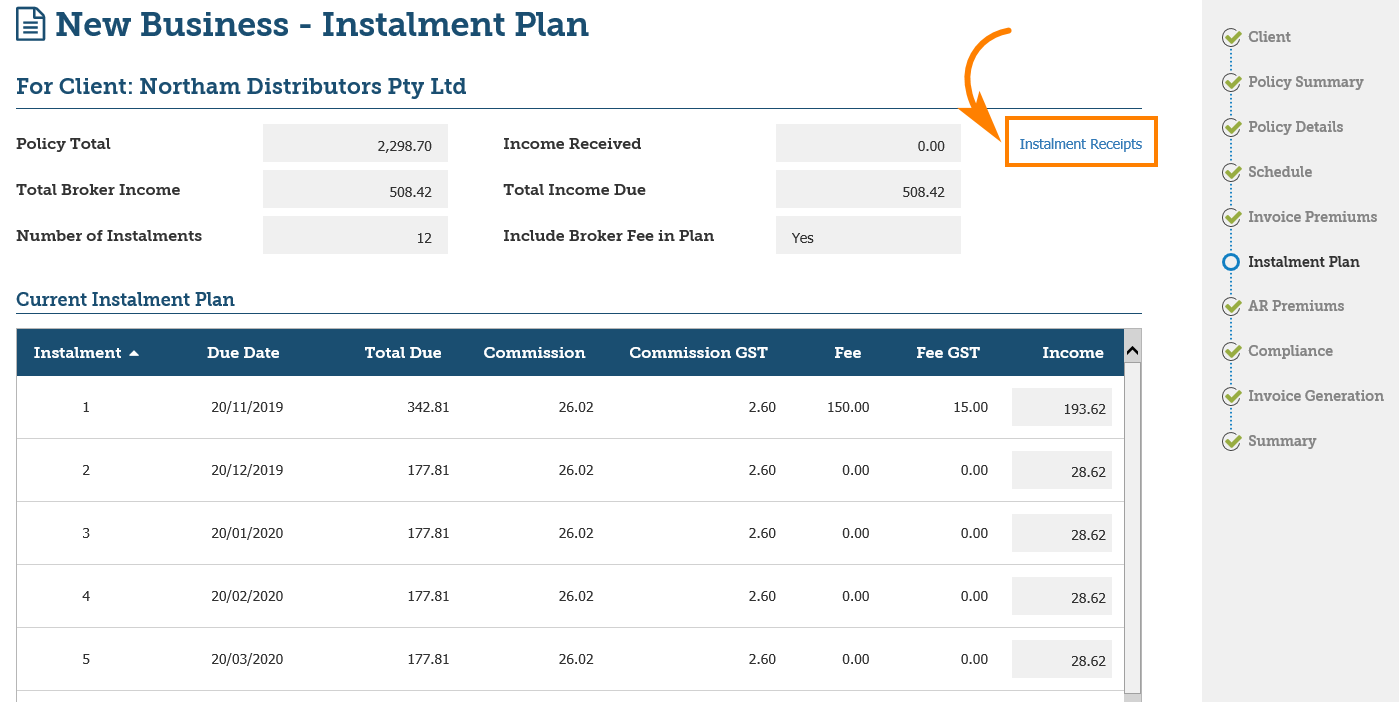
You are able to toggle between the Plan and the Payment receipts. The Instalments Receipts link is only available after the policy has been posted to accounts.
The Instalment Receipts page will display payments only after the Receipts > Instalment Payment process has been run.
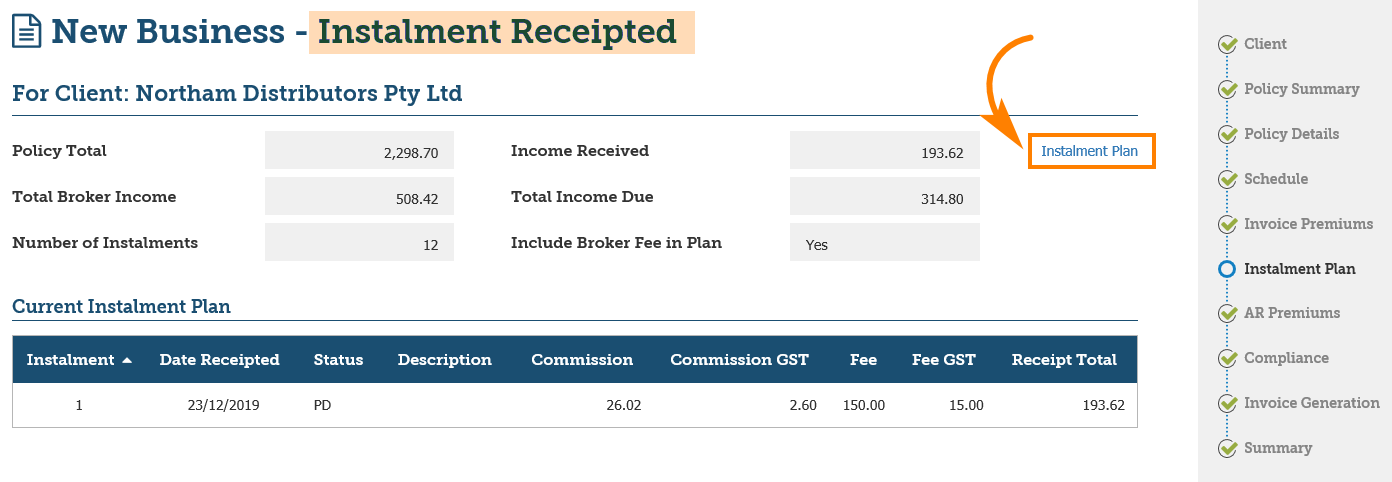
The Income Received and Total Income Due fields update as instalments are receipted.
EDI: Instalment Plan and Receipts
The Instalment Plan displays the financial breakdown of the policy transaction(s). For a New Business followed by Endorsement, there is only one Instalment Plan. The instalments are amalgamated into the one plan.
A New Business followed by Renewal would display a different Instalment Plan on each policy record.
The Broker fee is usually calculated into the first instalment payment. Part of the commission is also calculated on the first instalment payment and the balance is then calculated for the remaining instalment payments.
Paid Instalment Receipts can be viewed by selecting the Instalment Receipts toggle link on the Instalment Plan page.
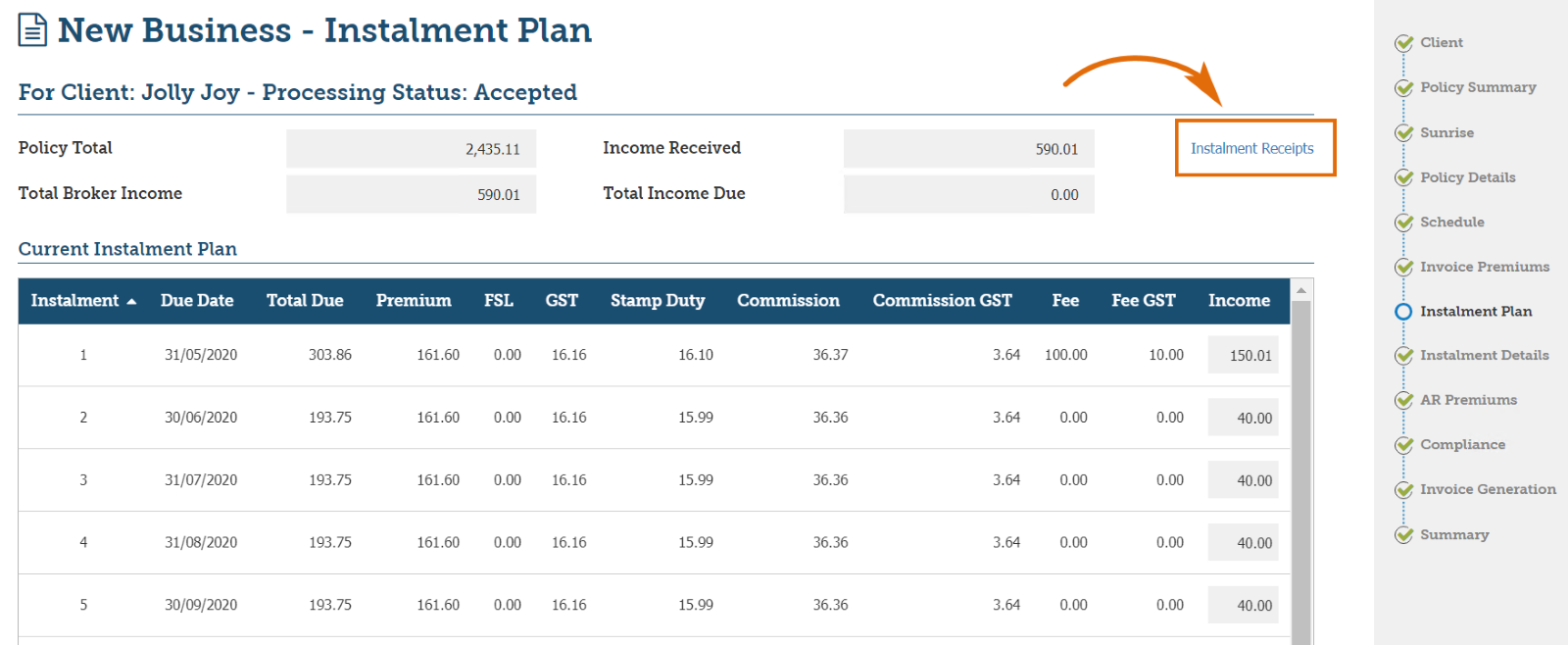
You are able to toggle between the Plan and the Payment receipts. The Instalments Receipts link is only available after the policy has been posted to accounts.
The Instalment Receipts page will display payments only after the Receipts -> Instalment Payment process has been run.
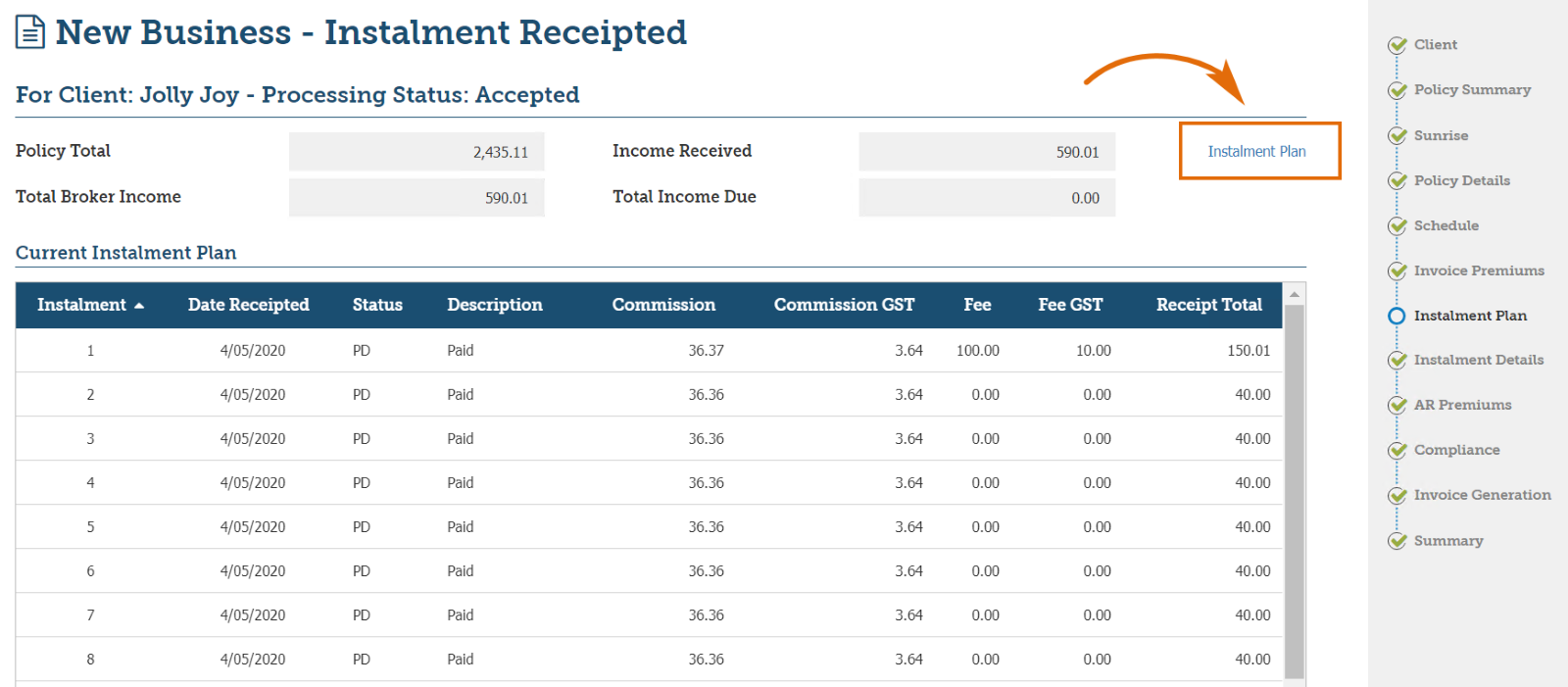
The Income Received and Outstanding fields update as instalment receipts are imported into INSIGHT.
Payments that have been sent by the insurer and imported are displayed as Payments with the status “PD”.
In the event of a Dishonour transaction being sent from the insurer, the Instalment Plan will display a Dishonour with the status “DS” as highlighted above. The entry simply reverses the previous transaction. At this stage, only Sunrise insurers use this Dishonour function.
Endorsements |
Manual (non-EDI) Endorsements
Financial endorsements processed for Manual instalments can be spread across the remaining instalments in the plane or marked as a “one off premium charge”.
1. To complete endorsement as “one off premium charge” on the Invoice premiums page, tick the box next to transaction premium:
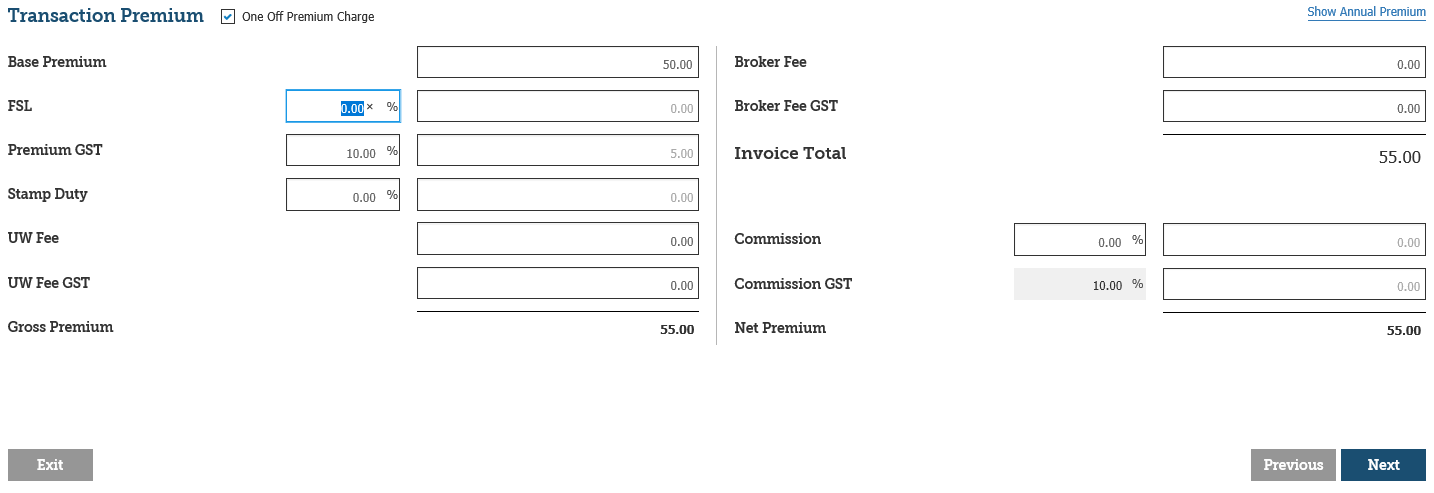
This amount will not be added to the remaining instalments and unless broker fee is added no amount will be due from insured as it is automatically marked as paid direct to the insurer.
If one off premium charge is not selected any change to the premium from the Endorsement will be spread evenly across the remaining instalments that are due after the Endorsement effective date.
If the Endorsement is from the policy inception date, the premium changes will be calculated from the first instalment.
The Instalment Plan can be edited to match the Plan supplied by the Insurer.
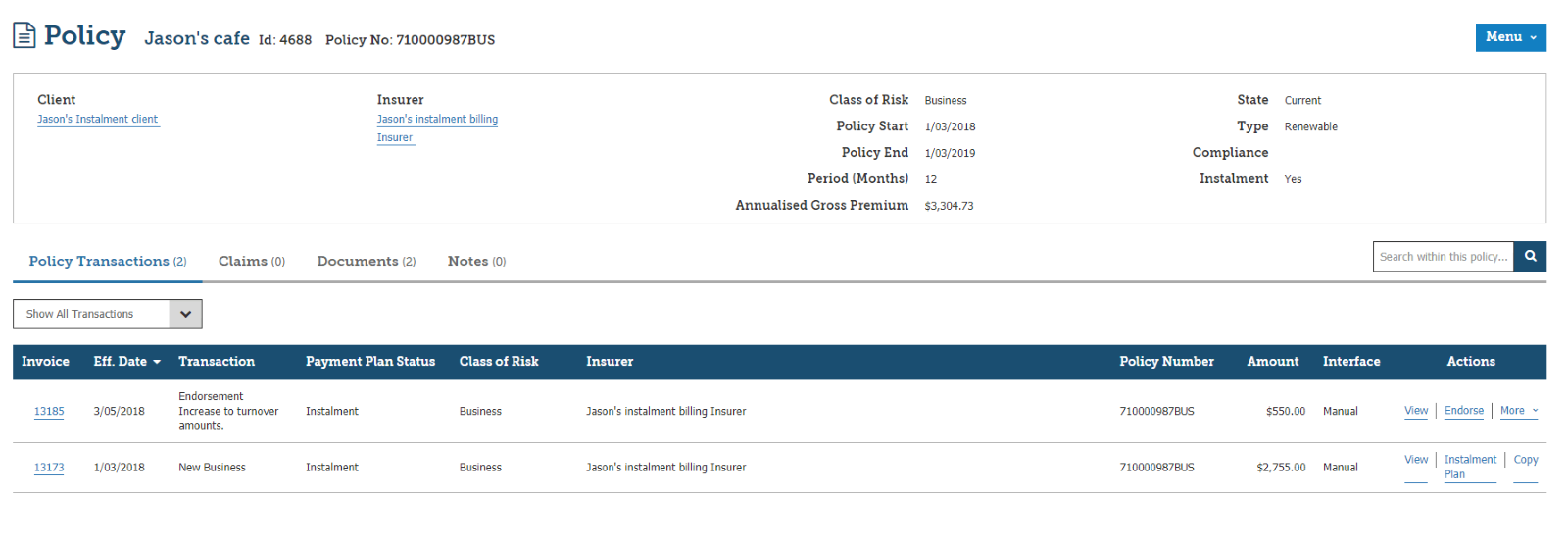
In the below example, the instalment values increased for the fourth instalment due to the extra premium endorsement.
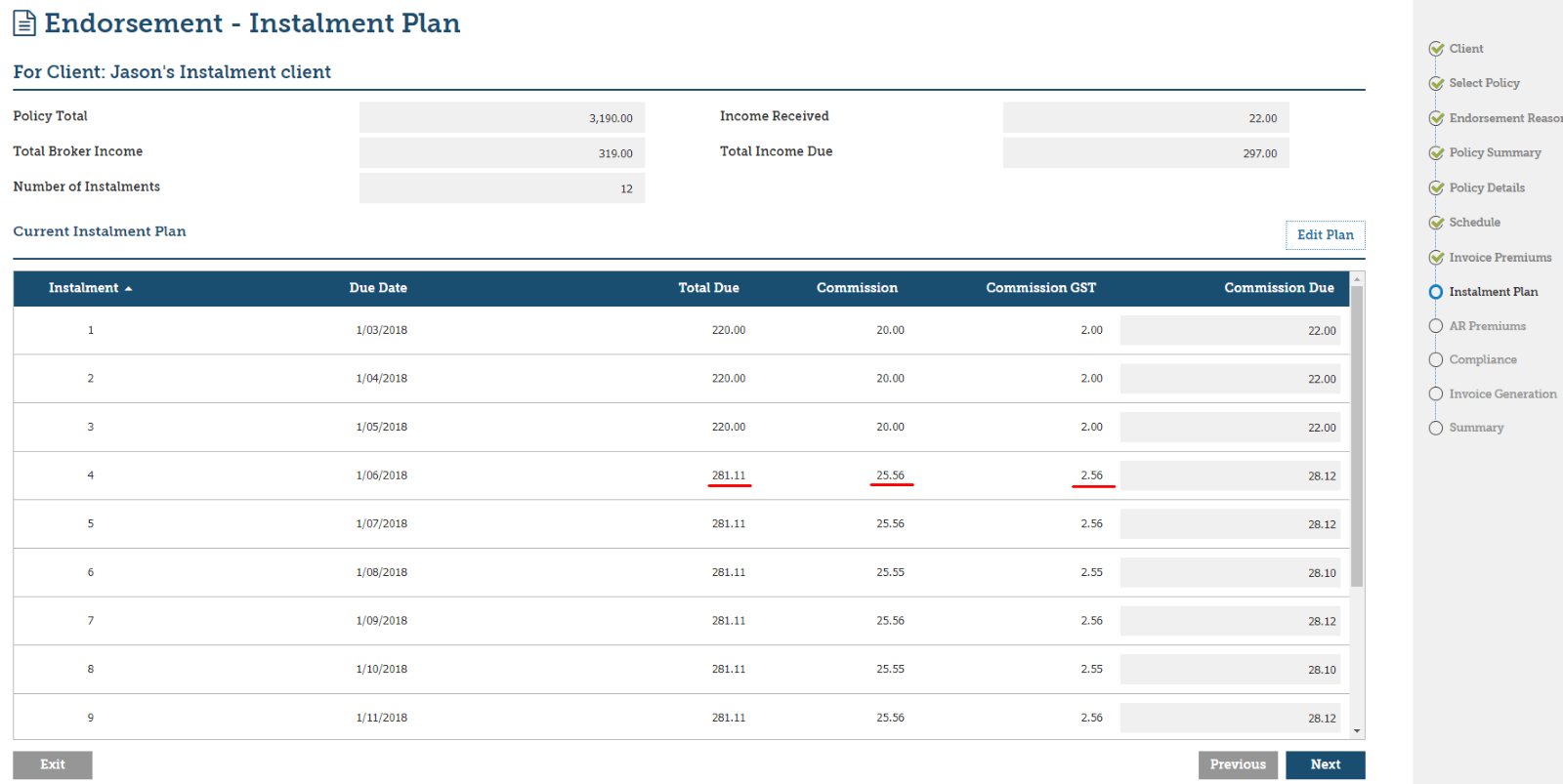
2. On the Invoice Generation page, Select Invoice > Include Instalment Payment Plan to insert the updated Instalment Plan into the Schedule. This will be inserted when Post to Accounts is selected.
 NOTE: The schedule will need to be edited to remove the previous plan.
As per the New Business transaction, the Invoice will contain the Broker Fee and Broker Fee GST amount to be payable to the Broker and will also details the overall policy premium amounts Below is an example of the Policy Transaction view when a New Business is followed by an extra premium Endorsement:
EDI Endorsements
Financial endorsements processed for Sunrise and SVU instalment polices will update the balances in the Instalment Plan. Any change to the premium from the Endorsement will be spread evenly across the remaining unpaid instalments.
If the endorsement is from the policy inception date, the premium changes will be calculated from the first instalment.
After the endorsement transaction in Sunrise or SVU is completed, the updated instalment details will be reflected in INSIGHT only after the policy has been posted to accounts, to view the updated Instalment plan the transaction must be posted first and then the plan can be viewed.
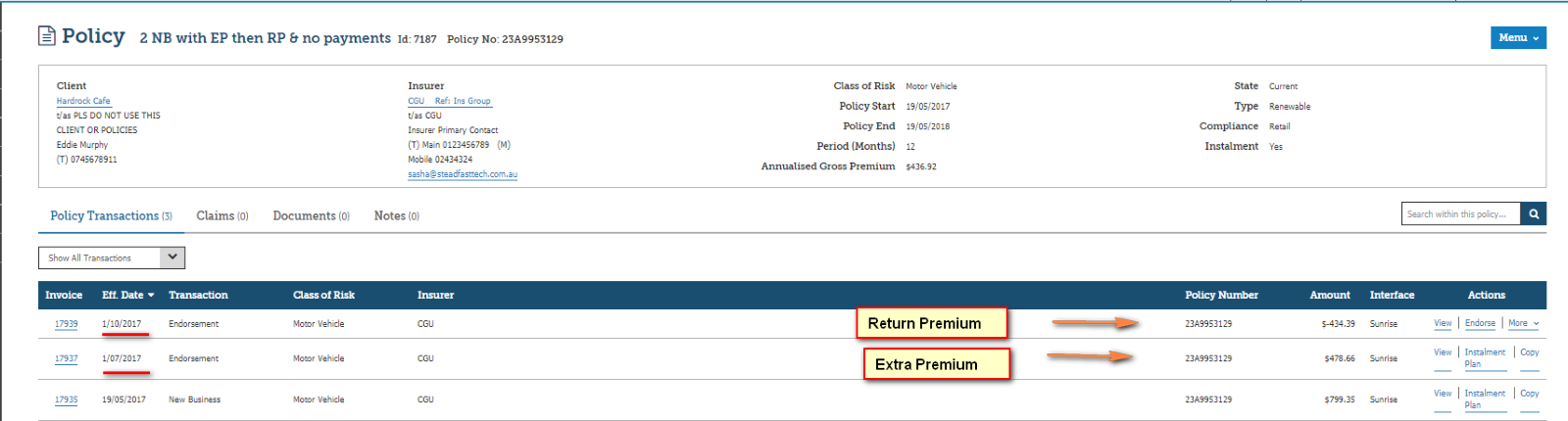
Below is an example of a New Business followed by an extra premium endorsement and return premium endorsement later in the year:
Policy History
Instalment Plan
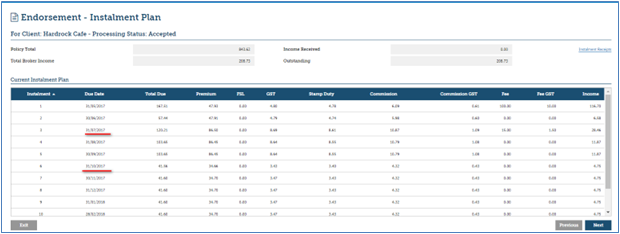
The instalment values increased for the third instalment due to the extra premium endorsement. The instalment plan then decreased for the sixth instalment due to the return premium endorsement.
Cancellations |
It is important to remember if cancelling and wishing to retain income/charge a broker fee, that it is processed on the relevant premium screens.
 NOTE: For EDI transations, this will be within the insurer interface and NOT in INSIGHT.
Manual (non-EDI) Cancellations
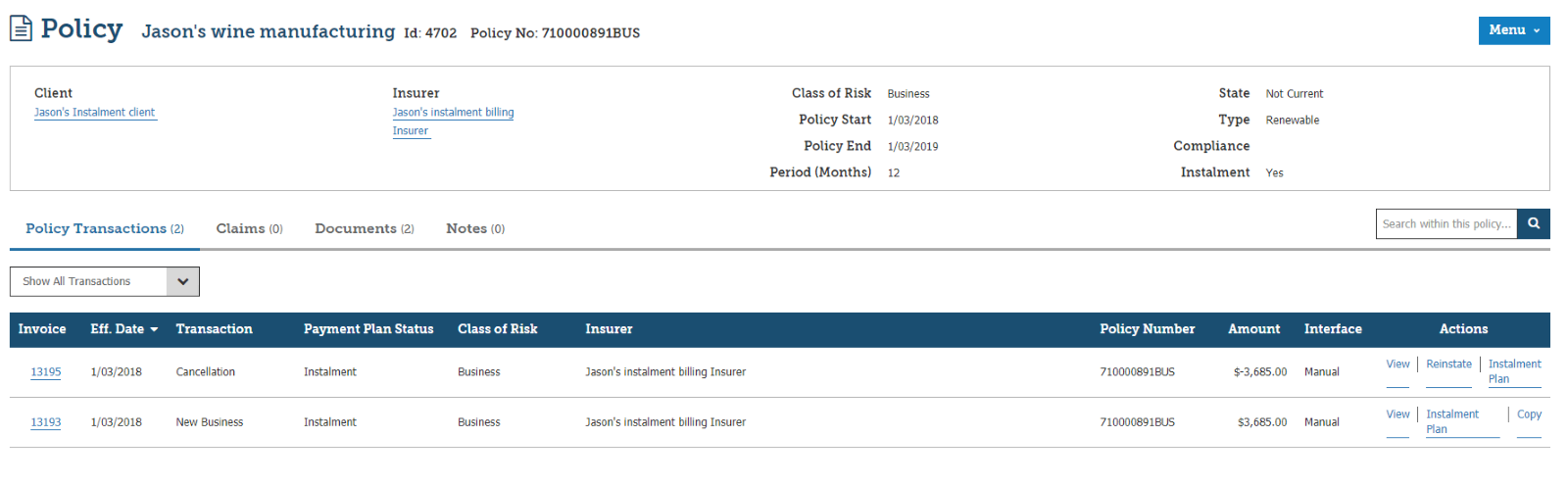
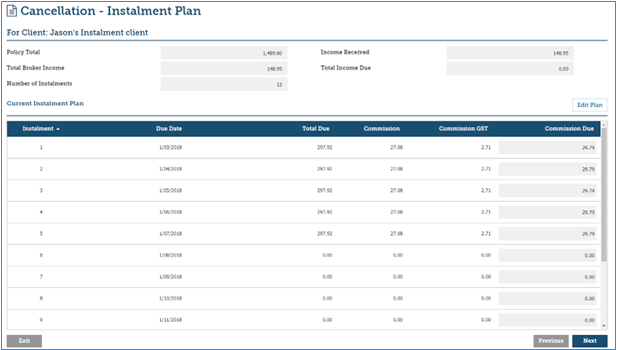
Full-term and mid-term cancellations can be processed for instalment billed manual policies. For a Full-term cancellation, the Instalment Plan will display $0 because there are no instalments due.
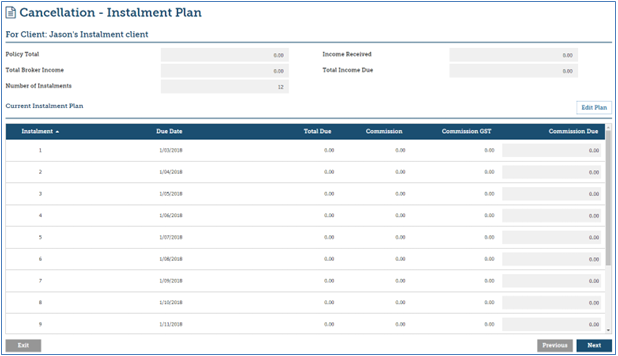
Shown below is a full-term cancellation for an instalment-billed policy with no instalments receipts received from the insurer.
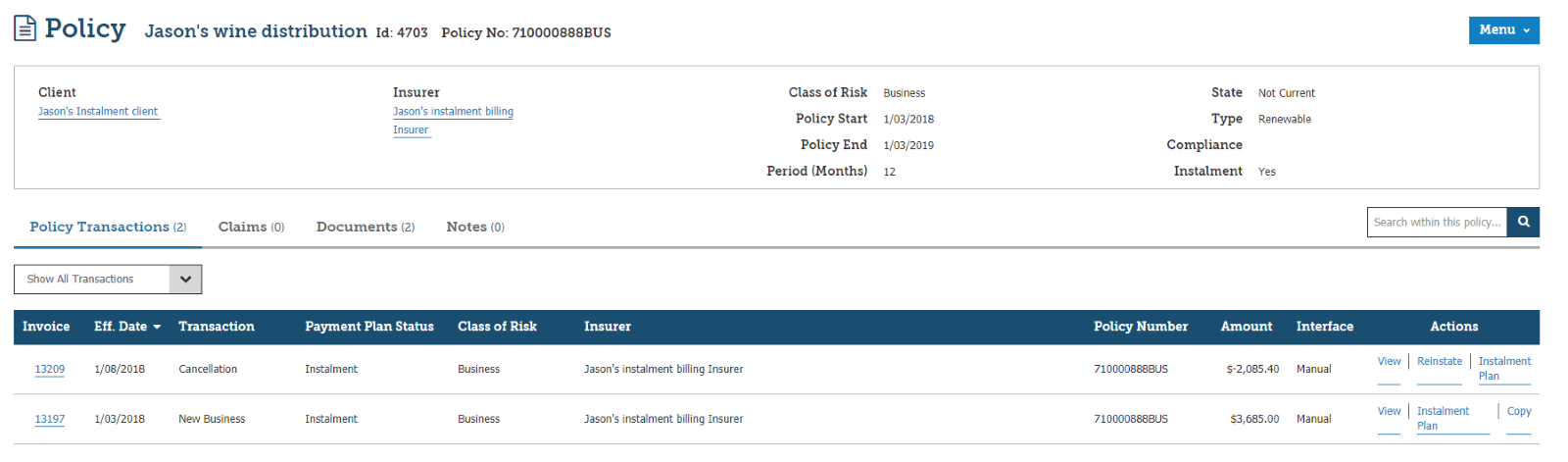
If the cancellation date was mid-term, the Instalment Plan displays the original values for the instalments prior to the cancellation date and then $0.00 instalments beyond the mid-term cancellation date. The Plan can be edited to reflect any altered Instalment Plan details and to align with the overall premium totals, based on the Cancellation details supplied by the Insurer.
Shown below is a mid-term cancellation for an instalment-billed policy.
EDI Cancellations
Full-term and mid-term cancellations can be processed for instalment-billed Sunrise and SVU policies. The Instalment Plan in INSIGHT is updated by the insurer’s product when you return to INSIGHT. The INSIGHT Instalment Plan for a cancellation transaction is not updated until the policy has been posted to accounts.
Shown below is a full-term cancellation for an instalment-billed policy with no instalments receipts received from the insurer.
 QUICK TIP: To retain income/charge a broker fee, this can be transacted within the insurer interface.
 Policy History
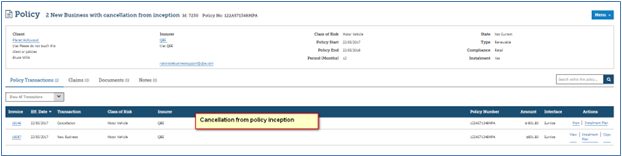
Instalment Plan after cancellation has been processed and posted to accounts
The outstanding amount has been reversed by the cancellation transaction:
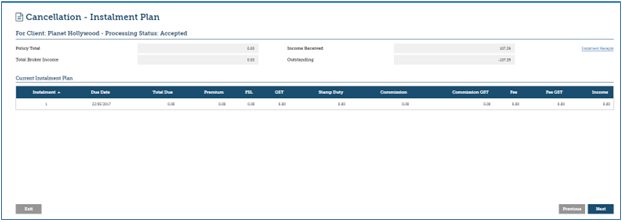
If the cancellation date was mid-term, the Instalment Plan displays the cancellation values from the appropriate instalment number in the plan.
Renewal |
Manual (non-EDI) Renewals
Instalment billed Manual policies can be renewed as an instalment billed policy or you can switch the policy back to annual billing arrangement by selecting Instalments → No on the Policy Summary page. Conversely, a non-instalment policy can be activated as instalment during the Renewal transaction.
The renewal transaction will display a new instalment plan after the Invoice Premiums are updated to reflect the renewal amounts.
EDI Renewals
Instalment-billed Sunrise and SVU policies can be renewed as an instalment-billed policy or you can switch the policy back to annual billing arrangement. This must be done within the insurer’s renewal policy.
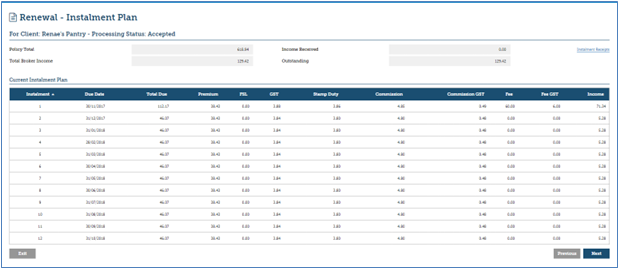
The policy is renewed in the usual manner after the renewal has been downloaded by the insurer to INSIGHT. The renewal transaction will display a new instalment plan. Any previous policy’s instalment plan or payments that have not been completed are not affected by the new renewal instalment plan.
Was this article helpful?
That’s Great!
Thank you for your feedback
Sorry! We couldn't be helpful
Thank you for your feedback
Feedback sent
We appreciate your effort and will try to fix the article