Browser Settings & Troubleshooting
Supporting Insurer
As Steadfast Apps and SCTP are browser based, the settings of the browser in use need to be updated with the following to ensure a smooth user experience.
Please note that the same can be said when using Sunrise and Premium Funders. Kindly contact the respective 3rd parties for their own browser settings preferences.
Internet Options
Go to your computer's File Explorer, search for and select Internet Options, then update the Security and Privacy tabs.
Click the Details button to view step by step instructions.
Security
| 1. Select the Security Tab, Trusted Sites and Sites. 2. Check that the Require server verification (https:) for all sites in this zone checkbox is NOT selected - if it is selected, ensure to de-select the checkbox. 3. Use the Add this website to the zone field to add one of the following websites. For AU brokers only: http://172.27.1.* http://10.125.80.* http://10.251.1.* For All: https://*.insightbroking.com.au https://*.steadfasthub.com.au 4. Select Add, then repeat steps 4 & 5 till all websites are added, then select Close. |
Privacy
| 1. Select the Privacy tab, locate the Turn on Pop-up Blocker checkbox, ensure it is selected and beside it, select Settings. 2. Use the Address of website to allow field to add one of the following websites. For AU brokers only: http://172.27.1.* http://10.125.80.* http://10.251.1.* For All: https://*.insightbroking.com.au https://*.steadfasthub.com.au 3. Select Add. 4. Repeat steps 2 & 3 till all websites are added, then select Close and OK. |
Browser Updates
To allow for a smooth user experience, locate your browser and follow the steps to enable third party cookies and allow pop-ups for Steadfast Apps and SCTP.
Microsoft Edge
Click the Details button to view step by step instructions.
| 1. Select the three dots, then Settings. 2. On the left menu, select Privacy, search, and services. 3. Select Manage and delete cookies and site data. 4. Select Cookies, locate Allowed to save cookies, and beside it, select Add site. 5. In the empty field, add one of the following websites: For AU brokers only: http://10.125.80.50 http://10.125.80.110 For All: https://[yourledger].insightbroking.com.au https://[youraccount].steadfasthub.com.au http://172.27.1. http://10.251.1. qbe.com.au qbepartner.b2clogin.com 6. Select Include third-party cookies on this site checkbox, then select Add. 7. Repeat steps 5 & 6 till all websites are added. 8. On the left menu, select Privacy, search, and services. 9. Select Site permissions, All permissions, then Pop-ups and redirects. 10. Locate Allowed to send pop-ups and use redirects and beside it, select Add site. 11. Use the empty field and add one of the following websites: For AU brokers: http://10.125.80.50 http://10.125.80.110 For All: https://[yourleger].insightbroking.com.au https://[youraccount].steadfasthub.com.au http://172.27.1. http://10.251.1. qbe.com.au qbepartner.b2clogin.com 12. Select Add. 13. Repeat steps 11 & 12 till all websites are added. 14. Close and re-open your browser to apply the settings. |
Google Chrome
Click the Details button to view step by step instructions.
| 1. Select the three dots and Settings. 2. On the left menu, select Privacy and security. 3. Select Third-party cookies, locate Sites allowed to use third-party cookies, then select Add. 4. In the empty field, add one of the following websites: For AU brokers only: http://10.125.80.50 http://10.125.80.110 For All: https://[yourledger].insightbroking.com.au https://[youraccount].steadfasthub.com.au http://172.27.1. http://10.251.1. qbe.com.au qbepartner.b2clogin.com 5. Select Add. 6. Repeat steps 4 & 5 till all websites are added. 7. Select Privacy and security, Site settings, then Pop-ups and redirects. 8. Locate Allowed to send pop-ups and use redirects, then beside it, select Add. 9. Use the empty field and add one of the following websites: For AU brokers: http://10.125.80.50 http://10.125.80.110 For All: https://[yourleger].insightbroking.com.au https://[youraccount].steadfasthub.com.au http://172.27.1. http://10.251.1. qbe.com.au qbepartner.b2clogin.com 10. Select Add. 11. Repeat steps 9 & 10 till all websites are added. 12. Close and re-open your browser to apply the settings. |
Mozilla Firefox
Click the Details button to view step by step instructions.
| 1. Select the three lines, Settings, then Privacy & Security. 2. Scroll down, locate Cookies and Site Data, then select Manage Exceptions. 3. In the empty field, add one of the folllowing websites: For AU brokers only: http://10.125.80.50 http://10.125.80.110 For All: https://[yourledger].insightbroking.com.au https://[youraccount].steadfasthub.com.au http://172.27.1. http://10.251.1. qbe.com.au qbepartner.b2clogin.com 4. Select Allow. 5. Repeat steps 3 - 4 til all websites are added. 6. Select Save Changes. 7. Scroll down to locate the checkbox for Block pop-up windows and ensure that the checkbox is selected. 8. Beside Block pop-up windows, select Exceptions. 9. In the empty field, add one of the folllowing websites: For AU brokers only: http://10.125.80.50 http://10.125.80.110 For All: https://[yourledger].insightbroking.com.au https://[youraccount].steadfasthub.com.au http://172.27.1. http://10.251.1. qbe.com.au qbepartner.b2clogin.com 10. Select Allow. 11. Repeast steps 9 - 10 till all websites are added. 12. Select Save Changes. 13. On the left menu, select General. 14. Scroll down to the Files and Applications section and under the heading Applications, locate the Portable Document Format (PDF) Content Type. 15. Beside Portable Document Format (PDF), select the Action dropdown and select Save File. 16. Close and re-open your browser to apply the settings. |
Troubleshooting
The following are common requests encountered by the Support team with their respective solutions.
Unable to Edit or View Schedules
Symptoms: You get errors in Word when trying to edit or view schedules.
Solution #1: Repair Office 365
Click the Details button to view step by step instructions.
1. Select the Windows icon, then search for and select Settings. 2. Select Apps, then Installed Apps. 3. Use the searchbar to search for Microsoft. 4. Locate Microsoft 365 Apps and beside it, select the 3 dots and select Modify. 5. Select Online Repair, then Repair. |
Solution #2: Uninstall & Reinstall Interop App
Click the Details button to view step by step instructions.
1. Select the Windows icon, then search for and select Settings. 2. Select Apps, then Installed Apps. 3. Use the searchbar to search for Interop. 4. Locate Steadfast Apps Desktop Interop, beside it, select the 3 dots, then Uninstall. 5. Log in to Steadfast Apps, attempt to create a new schedule or edit an existing schedule. 6. You'll receive a prompt to download an app, select the download button, then follow the prompts to install it. NOTE: Intalling the program required an Administrator level - you may need to request this from your Office IT Administrator. |
Access Denied to Steadfast Apps
Symptoms: You're unable to access Steadfast Apps and an Access Denied error appears when you try to login to Steadfast Apps. Cause: The IP address has changed, or the you're logging in from an unauthorised location. Solution: Your Steadfast Apps Administrator will need to provide the new IP address to the Steadfast Apps Help Desk so they can update your Steadfast Apps ledger. Steadfast Apps Help Desk: support@steadfasttech.com.au or Australia: 1300 850 659 New Zealand: 0800 444 607. | 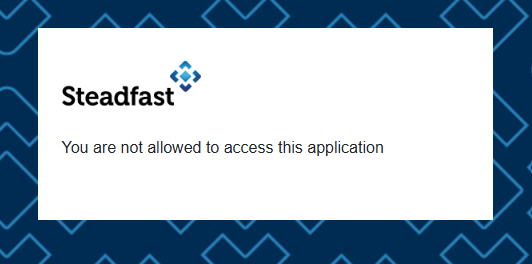 |
Sunrise Exchange or SCTP Not Working
Symptoms: You receive an error 500 (not connected to the internet) when using integrated products such as SCTP and Sunrise.
Solution: Check Internet Connectivity
Click the Details button to view step by step instructions.
| 1. Select the Windows icon, then search for and select Run. 2. In the empty field, type cmd, then select OK. 3. Type ping 202.12.184.137 and press Enter. | 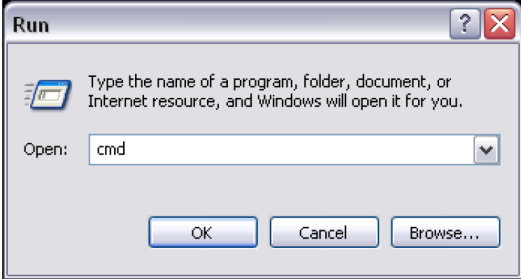 |
If you get 4 replies (similar to below), this indicates your Internet connection is up and running. In addition, it is important that the reply time is not consistently above 200ms.
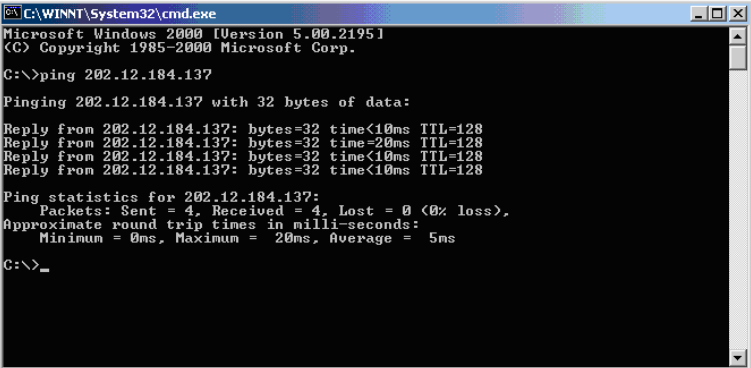
NOTE: Some networks may have disabled the ping command. If the ping command is not
 successful (i.e.: you don’t receive four successful replies), try loading a web page through a
 browser. Frequently visited pages may load from memory or cache, so load a page like
 www.smh.com.au and check it displays today’s date and time.

If connection to the Internet fails, contact your Internet Service Provider for further assistance.

 For Sunrise Products: If the Internet connection appears to be running okay, contact
 csc@ebix.com.au.
Something got you stumped?
Our team is here to help! We know change can be tricky, but we've got your back.

Contact our support team here and well get back to you shortly
Was this article helpful?
That’s Great!
Thank you for your feedback
Sorry! We couldn't be helpful
Thank you for your feedback
Feedback sent
We appreciate your effort and will try to fix the article