DMS Integration
The Steadfast Apps Broking Platform is a cloud-based system that interfaces with external applications, such as document management systems, via an open API. This allows you to work with the applications of your choice to manage your business.
This article describes the setup and configuration of Steadfast Apps to enable integration with your chosen document management system (DMS).
Activating DMS Integration
The following areas need to be updated to allow for the integration with your chosen DMS - for step by step instruction, select the Details button under each item:
1. Enable Event Publication | 1. Select Setup, Configuration, then System Configuration Options. |
| 2. Subscribe to Event Publication | NOTE: Prior to doing the below steps, you will need the EventPublicationSubscription details from your DMS Vendor. 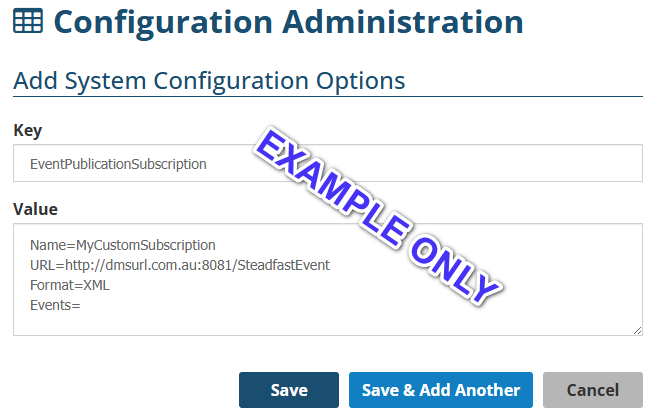 Name - Provided by your vendor Type- Push or pull, advised by your vendor. With Push, Steadfast Apps transmits changes to the DMS without a request. With Pull, the DMS requests the changes made at Steadfast Apps. URL- Provided by your vendorFormat - JSON or XML, advised by your vendor |
3. Adding Custom Menu Items
| 1. Select Setup, Configuration, then System Configuration Options. 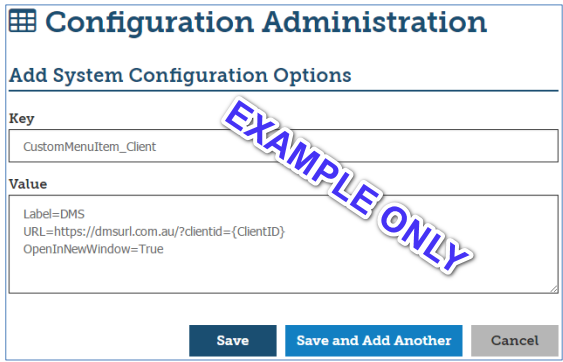 |
4. Adding Custom Buttons
| 1. Select Setup, Configuration, then System Configuration Options. |
5. Creating the DMS User Profile
| 1. Select Setup, Security, Users, then Add. |
After Integration Enabled
Creating New Folders in the DMS
As soon as the System Administrator has enbaled the integration, new DMS folders are auto-generated when users create new clients, new insurers or new authorised reprsentatives.
| What happens in Steadfast Apps? | Integration Action | What happens in the DMS? |
| New client is created and saved | Steadfast Apps auto-sends the information to the DMS | New folder is created based on the Client Name and Client ID, saved under the category "Steadfast Apps Clients" |
| New insurer is created and saved | New folder is created based on the Insurer Name and Insurer ID, saved under the category "Underwriters" | |
| New authorised representative is created and saved | New folder is created based on the Authorised Rep Name and Authorised Rep ID, saved under the category "Authorised Reps" |
NOTE: Contact the DMS vendor to obtain setup information.
Uploading Documents to the DMS
When Event Publication is enabled, Steadfast Apps auto-sends document notifications for Policy Documents and Task Documents to the DMS.
Troubleshooting
For successful integration between Steadfast Apps and the DMS, the two systems needs to in constant synchronisation.
When synchronisation is lost due to loss of connection or having a non-web based DMS, information needs to be pushed back in to the DMS. Depending on the scenario, you can push single or all Client, Insurer or AR/PB information to the DMS within your chosen date range.
To initiate the resync, select Run report - a report on how many records were sent will be generated.
| 1. Select Reports, then Event Publication Resync. 2. Use the report parameters to choose what kind of information you're sending to the DMS. 3. Choose the format you want for the report, then select Run Report. |
Steadfast Apps Windows Service (non-web based DMS)
For a non-web based DMS, a Windows application can be installed at the broker’s office to manage data flow from Steadfast Apps to the DMS.
This service will periodically contact Steadfast Apps to check on what information has changed and what documents were generated during a given period. The details of the data and document changes will be saved to a local folder for processing by the DMS vendor.
Contact us and your DMS vendor to assist with installation and configuration on this.
Something got you stumped?
Our team is here to help! We know change can be tricky, but we've got your back.

Contact our support team here and well get back to you shortly
Was this article helpful?
That’s Great!
Thank you for your feedback
Sorry! We couldn't be helpful
Thank you for your feedback
Feedback sent
We appreciate your effort and will try to fix the article