Click to go to:
Introduction
Once you've chosen Yes to the Co-insurance field on the Policy Summary page, take note of the following:
- Invoice Premiums - enter the total policy premiums as you would normally.
- Invoice Generation - when generating the Closing document, INSIGHT will generate a separate Closing document for each Insurer that is listed as a Co-insurer.
- Co-insurance - where you identify the Co-insurers and the amounts for each Co-insurer.
Co-insurance
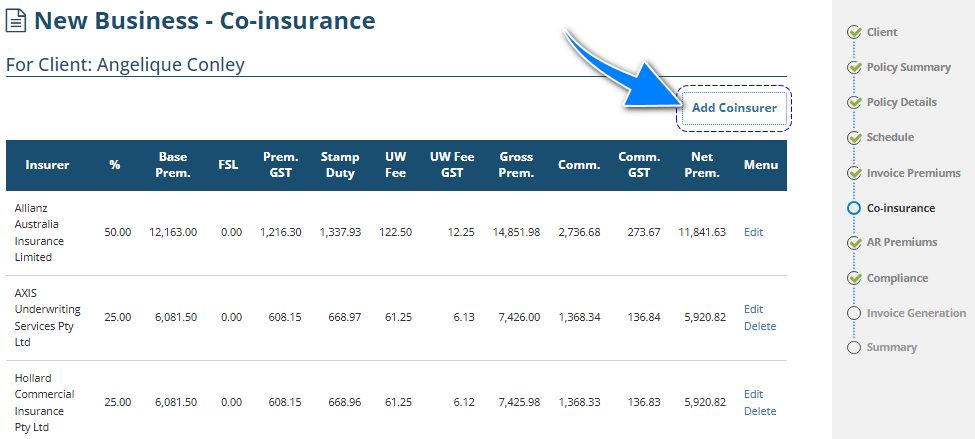
When you first arrive at this page, you'll notice that 100% of the risk is paid to the Lead Insurer. You will need to add each Co-insurer and allocate the amounts for each.
How to Add a Co-insurer
Use the Add Coinsurer button to open the pop-up window and add Co-insurers to the policy.
| While using the same pop-up window, you can also use the Add Another button to add other Co-insurers. Use the Insurer field to choose the Co-insurer you wish to add to the policy. The pop-up window is then divided into 2 sections:
| 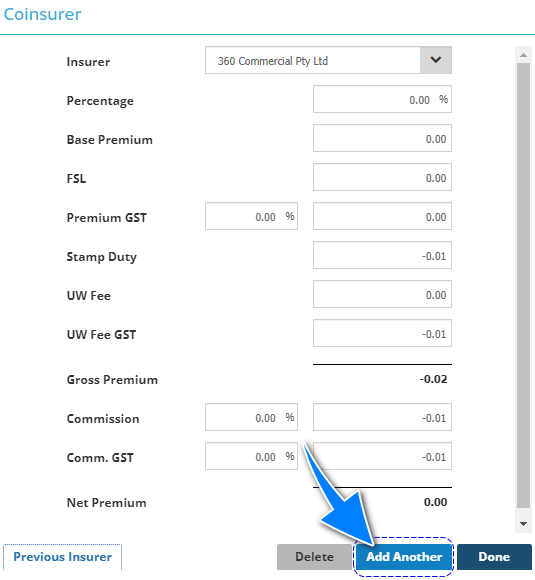 |
You can also manually modify the auto-calculated premiums; however, this will forfeit the auto-calculation and INSIGHT will change the percentage field to blank.
When finished completing the pop-up window's details, select Done to return to the wizard or Add Another to continue adding Co-insurers.
Co-insurance Table
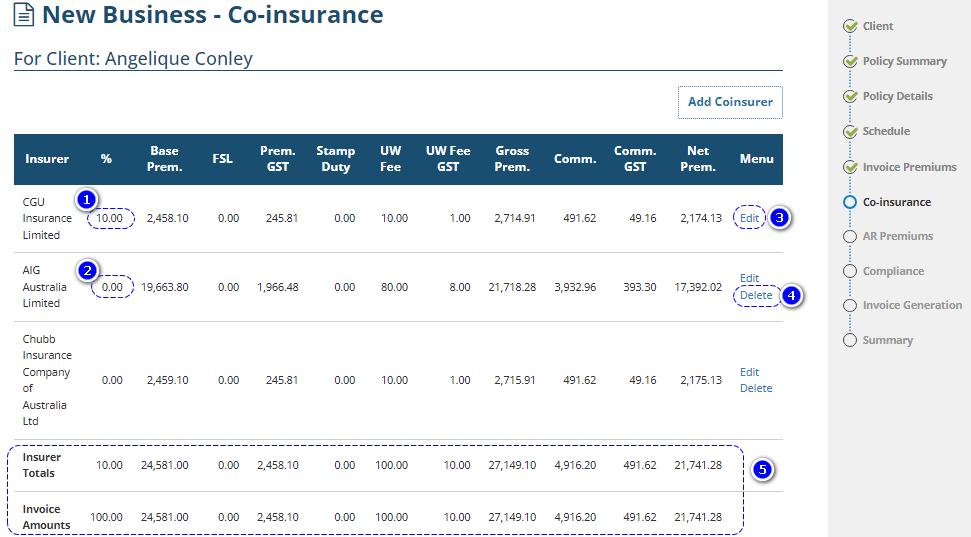
1. 10.00% (or any percentage amount higher than 0.00%) - This means that the premiums were auto-calculated by INSIGHT using the entered percentage.
2. 0.00% - This means that the premiums were manually entered for this Coinsurer.
3. Edit - Allows you to view and edit the Coinsurer and their premiums.
4. Delete - Removes the Coinsurer from the policy.
5. Insurer Totals & Invoice Amounts - Insurer Totals are based on the premiums entered on the Co-insurance page. Invoice Amounts are based on the total premiums entered on the Invoice Premiums page. Both these premium amounts must match to proceed to the next wizard page. If there is a mismatch in premiums, INSIGHT will display the message "Insurer Totals do not equal Invoice Amounts" and will colour the mismatched amounts red. You must correct the mismatch before you will be allowed to select Next.
Was this article helpful?
That’s Great!
Thank you for your feedback
Sorry! We couldn't be helpful
Thank you for your feedback
Feedback sent
We appreciate your effort and will try to fix the article