Click to go to:
Introduction
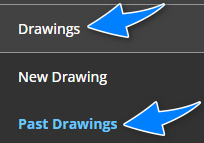
All drawings processed in INSIGHT are stored in Past Drawings. Found under the Drawings menu, use this area to:
|  |
Searching for Drawings
The main page is divided into 2 areas. The top area contains the Type of Drawing, From Date & To Date filters and search button. The bottom area contains the results based on the filters chosen in the top area. Anytime you change the filter selections, for example, change Type of Drawing from Income to GST, you must re-select the search button to update the results in the bottom area.
Review Transactions
| Locate the drawing, select View, then use the search bar to enter keywords and select the search button (magnifying glass) to update the results. | 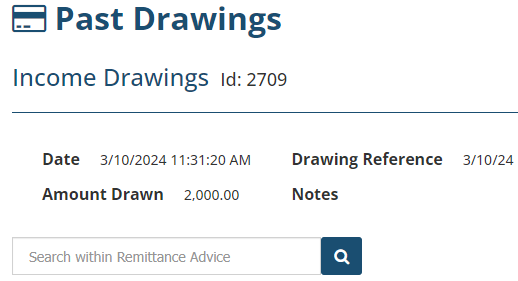 |
Download Remittances
Once you've searched for and located the remittances, select the circle against the drawings, then select Download Selected as PDF and/or Download Selected as Excel, depending on the file type you want to save the remittances as.
Alternatively, you can locate a drawing and on its right side, select View, Menu and choose Download Selected as PDF and/or Download Selected as Excel.
Edit Drawing Details
Locate the drawing, select View, Menu, then Edit Drawing Details. You can only edit the Drawing Reference and Notes fields. Make your changes, then select Save. Proceed to re-downloading the remittance to have an updated remittance on record. | 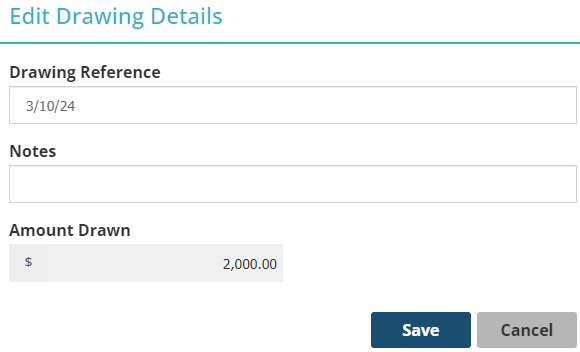 |
Was this article helpful?
That’s Great!
Thank you for your feedback
Sorry! We couldn't be helpful
Thank you for your feedback
Feedback sent
We appreciate your effort and will try to fix the article