
TOC
Summary
1. Determine the type of Processing Permission Group you're creating - What features will its members have access to?
2. Select Setup, Security, Processing Permission Groups and Add. 3. Complete all the pages and select Save. | The following sections discuss the pages involved with creating a Processing Permission Group:   |
Click to go to:
 | Name - enter a name that identifies the PPG; this is a mandatory field |
 | Description - enter further details to describe this PPG; this field is not mandatory |
 | Add User to the Client Task Queue, Add User to the Claims Task Queue, Add User to the Policy Task Queue
- choose the checkbox to auto-add the members of this PPG to the relevant task queue |
 | Group Memberships - this section lists the PPG's members; for a new PPG, this section will be blank. To add members, select +Add User, select the checkboxes beside the users you want to add, and then click Select. IMPORTANT: INSIGHT warns you when a user currently belongs to a PPG - adding them to the current PPG will remove them the other PPG, as users can only belong to ONE PPG. IMPORTANT: INSIGHT warns you when a user currently belongs to a PPG - adding them to the current PPG will remove them the other PPG, as users can only belong to ONE PPG.
|
 | Create Clients - defines access to the Add Client option (in the Add menu) and shortcut (in Home page) |
 | Update Clients - defines access to the Edit button and the Edit Client option in the Client profile menu. |
 | Delete Clients - defines access to the Delete Client option in the Client profile menu. |
 | Update Client Bank Details - greyed out unless the Update Clients permission is also enabled; defines access to the Bank page in the Client profile. |
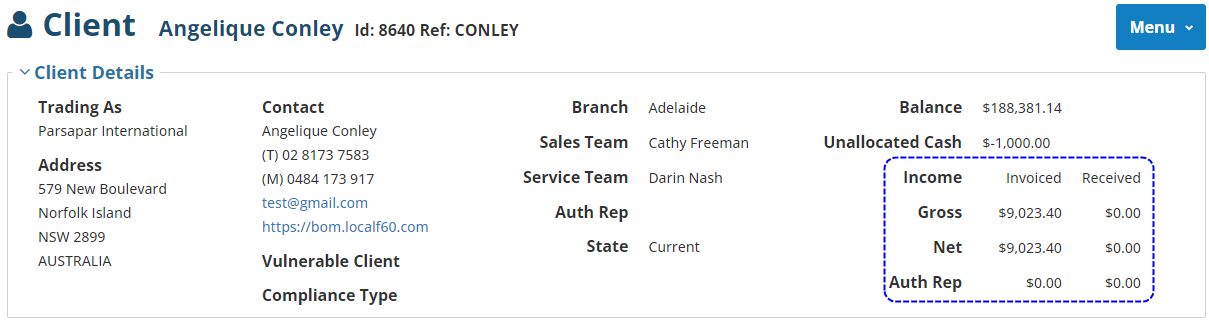
 | Show Client Income - displays or hides the Income section of the Client Details in the Client profile.
 |
 | Restrictions - applying client restrictions limits PPG users to only access the specified Sales Team, Service Team, AR/Prod Broker, Account Type, Branch or Classification.- You can select multiple items per restriction
- Options for Sales Team, Service Team, Account Type, Branch and Classification are determined by Configuration settings
- Options for AR/Prod Broker are determined by the active AR/Prod Broker profiles
|
Insurer Permissions
 | Create Insurers - defines access to the Add Insurer option (in the Add menu) |
 | Update Insurers - defines access to the Edit button and the Edit this insurer option in the Insurer profile menu. |
 | Delete Insurers - defines access to the Delete this insurer option in the Insurer profile menu. |
 | Update Insurer Bank Details - greyed out unless the Update Insurers permission is also enabled; defines access to the Bank page in the Insurer profile. |
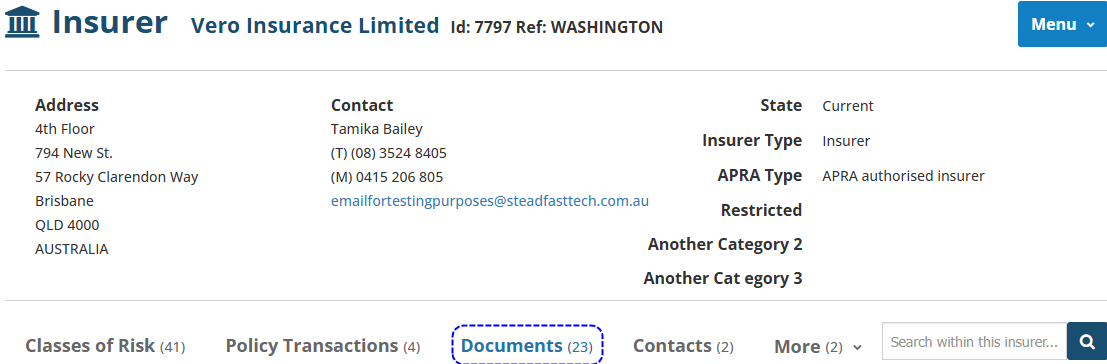
 | Restrict Access to Insurer Documents - defines access to the Documents tab of the Insurer profile:
 |
Authorised Rep Permissions
 | Create Authorised Reps - defines access to the Add Authorised Rep option (in the Add menu) |
 | Update Authorised Reps - defines access to the Edit button and the Edit this Authorised Rep option in the AR profile menu. |
 | Delete Authorised Reps - defines access to the Delete this Authorised Rep option in the AR profile menu. |
 | Update Authorised Rep Bank Details - greyed out unless the Update Authorised Reps permission is also enabled; defines access to the Bank page in the AR profile. |
 | Restrict ability to modify Authorised Rep at transaction level - this only affects the AR at a transaction level and doesn't change the AR settings at a client level. When enabled, the user cannot:- Change the commission & fee percentages when editing an existing AR
- Delete ARs that are attached to the client when processing in the Transaction wizard
- Modify the commission & fee percentages over the default value set at the AR or Insurer class of risk level when processing in the Transaction wizard.
|
 | Create Producing Brokers - defines access to the Add Producing Broker option (in the Add menu) |
 | Update Producing Brokers - defines access to the Edit button and the Edit this producing broker option in the Producing Broker profile menu. |
 | Delete Producing Brokers - defines access to the Delete this producing broker option in the Producing Broker profile menu. |
 | Update Producing Broker Bank Details - defines access to the Bank page in the Producing Broker profile. |
 | Restrict ability to modify Producing Broker at transaction level - this only affects the Producing Broker at a transaction level and doesn't change the Producing Broker settings at a client level. When enabled, the user cannot:- Change the commission & fee percentages when editing an existing Producing Broker
- Delete Producing Brokers that are attached to the client when processing in the Transaction wizard
- Modify the commission & fee percentages over the default value set at the Producing Broker or Insurer class of risk level when processing in the Transaction wizard.
|
Policy Permissions
 | Policy Processing - defines access to the New Business, New Quote & Take Up option (in the Add menu), the Take Up, Add Quote & Add New Business buttons in the client profile, the Transaction shortcut (in the Home page) and all transacting options such as Endorse, Renew, Cancel, Lapse, Copy, Reverse and Amend. |
 | Amend - defines access to the Amend option in Actions, Menu and What's Next. |
 | Income Adjustment - defines access to the Income Adjustment Endorsement Type. |
 | Move - defines access to the Move option in Actions. |
 | Premium Funding - defines access to the Premium Funding option in the Client profile menu. |
 | Restrictions - applying restrictions limits PPG users to only access the specified Premium Funder and Policy Class of Risk.- You can select multiple items per restriction
|
Claim Permissions
 | Create Claims - defines access to the Add Claim button in the Claims tab and option in the Add menu. |
 | Update Claims - defines access to the Edit button and the Edit this claim option in Menu. |
 | Delete Claims - defines access to the Delete this claim option in Menu. |
 | Reopen Claims - determines if you can edit the claim to change the Status after the claim has been closed. |
 | Restrictions - applying restrictions limits PPG users to only access the claims belonging to the specified Claims Team.- You can select multiple items per restriction
|
Receipt Permissions
 | Receipt and Allocations - defines access to the Receipts and Allocations option in the Receipts menu. When selected, displays checkboxes for Income Adjustments Write On, Income Adjustment Write Off and Unapply Income Adj (selecting these defines the user's access to these features). |
 | Past Receipts, New Bank Deposits, Past Bank Deposits, Premium Funding, DEFT File Import, Instalment Payment Import, BPAY File Import and Bank File Import
- defines access to the corresponding options under the Receipts menu. | 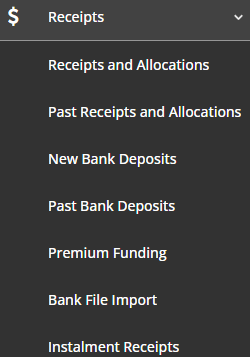 |
Note Permissions
 | Create Notes - defines access to the Add Note button in the Note tab. |
 | Update Notes - defines access to the Edit button. |
 | Delete Notes - defines access to the Delete button. |
 | Create, Update and Delete Note Attachments - determines if you can add, edit or delete note attachments. |
Payment Permissions
New Payment
 | Insurer, Authorised Rep, Producing Broker and Client (Refunds) - determines the options displayed in the Payee page of the New Payment wizard. |
Past Payments
 | Insurer, Authorised Rep, Producing Broker, Client (Refunds) and Funder (Refunds) - determines the options displayed in the Payee dropdown field of the Past Payments menu. |
Drawings Permissions
 | New Drawing and Past Drawing - defines access to the corresponding options under the Drawings menu. |
 | Cash Journals, Prescribed Investments, Close Accounting Month - defines access to the corresponding options under the Finance menu. |
 | Account Enquiry Processing - defines access to the Account Enquiry option under Menu for all entities. |
 | Bank Reconciliation - defines access to New Bank Reconciliation and Past Bank Reconciliations options under the Finance menu. |
 | Instalment Adjustments - defines access to New Instalment Adjustments and Past Instalment Adjustments options under the Finance menu. |
 | Generate Closing Document On Payment - the options are Never, Always, Cash Clients Only, Always Except For Sunrise. |
 | Generate Cash Receipt Advice On Receipt - the options are Yes or No. |
Found under the My Info menu, My Dashboards displays widgets with graphs and statistics using information from My Lists. For more information, refer to the My Dashboards article.
Permissions on this page control which widgets a user can access. When enabled, the following widgets can be customised to have a default display: Fees and Commissions, Policies Due For Renewal, Latest Policies Due for Renewal and Income By Transaction Type.
Reports selected on this page are the reports a Standard user will see when they select the Reports menu. When a Standard user uses My Customisations, they will still see the full list of reports, however, reports that are not enabled in their PPG will be greyed out and cannot be activated.
 QUICK TIPS: Reports are organised by headers. Choose the checkbox beside the header to auto-select all reports under that header.
 | Create Tasks - defines access to the Add Task and Add Document buttons in the Task tab and the Add Task option in the Add Menu. |
 | Update Tasks - defines access to the Edit button for tasks. |
 | Delete Tasks - defines access to the Delete button for tasks. |
 | Reopen Tasks - must be enabled along with the Update Tasks permission. Determines if the user is allowed to change the status after a task has been closed. |
 | Create Task Documents, UpdateTask Documents, Delete Task Documents - determines if you can add, edit or delete task documents. |
 | Locking of Task Documents - determines if a task document will be uneditable once it is created or closed. When left blank, task documents will continue to be editable. |
 | Restrictions - applying filters limits PPG users to only access the specified claim, client or policy task queues.- You can select multiple items per restriction
|
 | Create Compliance Records in Policy Wizard - this is auto-selected when the Policy Processing permission is enabled, otherwise, it is greyed out. |
 | Create Compliance Records - defines access to the Add Compliance button in the Compliance tab. |
 | Update Compliance Records - defines access to the Edit button for compliance records. |
 | Delete Compliance Records - defines access to the Delete button for compliance records. |