Click to go to:
Introduction
INSIGHT reports are grouped into different headings. The Policies heading captures the following reports:
| ASIC Returns | GST Liability |
| Bank Reconciliation | Sub-Ledger Balances |
| Drawings | Trial Balance |
| GL Account Balances | Trust Account Analysis |
| GL Journal / Pay Direct / Adjustments | Trust Account Escalation |
| GL Sub-Ledger Report | Trust Account Reconciliation |
| GL Transactions Report | |
| GL Business Activity |
ASIC Returns
Here is where you will find the S26 (Trust Account Movements) and S27 (Trust Account Balances) reports. They are both available in Summary and Detail styles, however, the S26 is generated using an As At Date and the S27 is generated using a from and to date range.
IMPORTANT: The report will highlight any discrepencies with a warning. When this occurs, please forward the report to the Support team for further investigation.
Drawings
This report can be generated in 3 different styles:
 | Summary - lists the total amount of drawings completed based on your selected date range. |

 | Remittance - this generates a copy of the historical remittance for the drawing. The Drawings Payment Batch filter will display the payment batch numbers fro you to choose from based on the selected date range. |
 | Detail - lists the individual transactions that make up the drawings under each group based on your selected date range. |

GL Account Balances
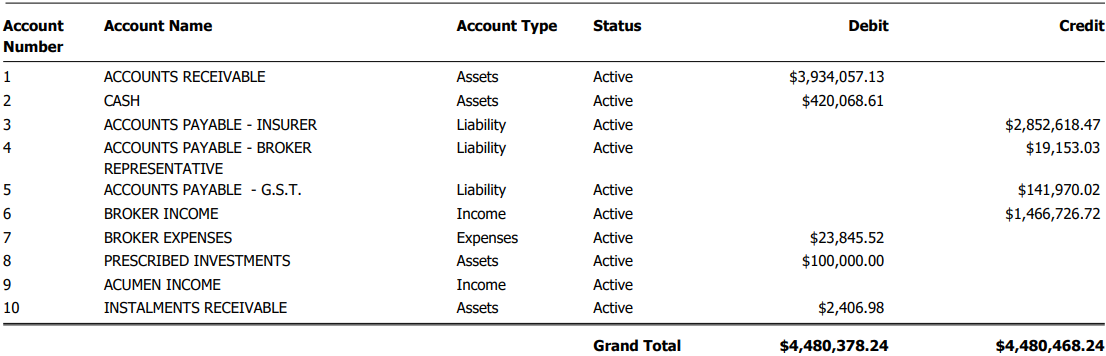
This report lists GL Accounts and their respective balances.
GL Journal / Pay Direct / Adjustments
This report can be generated in 3 different styles:
 | GL Journal - creates the report based on your selected date range and captures GL movements such as client journals, insurer journals and prescribed investment movements. |

 | Pay Direct - this report captures policies that paid direct to the insurer based on your selected date range and filter selection. |

 | Adjustment - this report captures income adjustments (ie: write on, write off) based on your selected date range and filter selection. |

GL Sub-Ledger Report
This report can be generated in 2 different styles:
 | Summary - based on your selected date range, this report lists the balances of all or a selected GL account, however, by default lists all Sub Ledger accounts |

 | Detail - based on your selected date range, this report lists the individual transactions that make up the balances of all or the selected GL account. This report style allows you to filter for a specific Sub Ledger. |

GL Transactions Report
This report can be generated in 2 different styles:
 | GL Transaction - lists all or the selected transaction type (ie: invoice, cash receipt, drawings, refund, insurer payment etc) for the selected date range. Also includes the option to list the total amount or the individual items of a receipt batch. |

 | Transaction Item - generates a report for the selected transaction item. Your date and filter selections will generate a list preview, from there, select the transaction you want to generate a report for. |

GST Business Activity
This report is grouped by insurer and is available in Summary and Detail. There are 2 different Business Activity Statement (BAS) types available:
 | Invoiced - creates a report based on the transaction's billing date. |
 | Earned - creates a report based on the date earnings were receipted on the transaction. |

GST Liability
This report lists the transactions with outstanding GST payments as of the present date. There are 2 payment types to generate a report for: Show Payments excluding Credit Card Fees and Show Credit Card Fee Payments only. After choosing the payment type, INSIGHT displays a preview list where you can select a single or multiple transactions to report on. If none are selected, INSIGHT generates the report on all transactions by default.

Sub-Ledger Balances
This report is similar to the GL Sub-Ledger report, however, you can only generate a report showing the total amount for the individual GL account's sub-legers as of the present date.

Trial Balance
This report is generated based on the chosen As At date and is available in a vertical or horizontal format. The 2 different styles are:
 | Summary - lists the total amount of debits and credits of each GL account. |
 | Detail - lists the GL accounts with their sub-ledgers debits and credits. |
Trust Account Analysis
This report is based on the chosen date range and generates the following:
- Summary of cash movements - shows the opening balance for the chosen date range along with the total moneys received and withdrawn to generate the closing balance.
- Breakdown of trust account balance made up of liability to insurers, unallocated cash & credits and earnings available to draw.
IMPORTANT: The report will highlight any discrepencies with a warning. When this occurs, please forward the report to the Support team for further investigation.
Trust Account Escalation
This report generates a detailed report with a summary at the end based on the chosen date range and filter selection to monitor the following:
 | Policies with an invalid policy number |  | Quotes |
 | Clients with premiums overdue |  | Invoices not yet generated |
 | Clients with unallocated cash |  | Financed client transactions |
Trust Account Reconciliation
This report includes all bank reconciliations completed within the dates selected and is available in Summary and Detail. You will find the following information on the report:
 | Insurance Broking Account (Bank Balance) - The INSIGHT Trust Account Balance as at the date of the last Bank Reconciliation that falls within the report parameters. |
 | Prescribed Investments - Balance of Prescribed Investments as at the date of the last Bank Reconciliation that falls within the report parameters. |
 | INSIGHT Trust account Balance - Insurance Broking Account (Bank Balance) PLUS Prescribed Investments. |
 | Future Dated INSIGHT Transactions - Transactions that have been reconciled within the report's date range but the transaction date in INSIGHT falls after the bank reconciliation date. For example, DEFT receipts show in the bank on the 15th November, however, they are receipted in INSIGHT the following day 16th November - these receipts would be included and reconciled in the 15th November bank reconciliation. |
 | Outstanding INSIGHT Payments - Items that have been refunded or paid from INSIGHT but are yet to be refunded/paid from the Trust Bank Account up to the date of the last Bank Reconciliation that falls within the report parameters. |
 | Outstanding INSIGHT Receipts - Items that have been receipted onto INSIGHT but are yet to be received into the Trust Bank Account up to the date of the last Bank Reconciliation that falls within the report parameters. |
 | Bank Statement Reconciling Items - Items on your Bank Statement that are yet to be processed in INSIGHT with a Bank Statement Date up to the date of the last Bank Reconciliation that falls within the report parameters. |
 | Adjusted INSIGHT Trust Bank Account Balance - INSIGHT Trust Account Balance PLUS Future Dated INSIGHT Receipts PLUS Outstanding INSIGHT Payments LESS Outstanding INSIGHT Receipts PLUS Bank Statement Reconciling Items. |
 | Trust Account Bank Statement Balance - The Balance in your Trust Bank Account. This is the amount that has been entered into INSIGHT when completing the last Bank Reconciliation within the Date Parameters. |
 | Prescribed Investments - The balance of Prescribed Investments as at the date of the last Bank Reconciliation that falls within the report parameters. |
 | TOTAL Trust Account Bank Balance - Trust Account Bank Statement Balance PLUS Prescribed Investments Balance. |
 | Reconciliation Difference - Total Trust Account Bank Balance LESS Adjusted INSIGHT Trust Account Balance. This will tell you if there is a discrepancy between INSIGHT and your Trust Bank Account which requires investigation. |
Was this article helpful?
That’s Great!
Thank you for your feedback
Sorry! We couldn't be helpful
Thank you for your feedback
Feedback sent
We appreciate your effort and will try to fix the article