Reversing Payments
INSIGHT allows the user to reverse any payment, including the reversal of Client Refunds. Please note the process of performing a reversal in INSIGHT will be the same for each entity (Insurer, AR, Client). As such this article will explain the process or display the material for only one of the entity types to avoid repetition.
Click here to skip to the following content:
Business Rules
 | Reversal of a payment can be performed by administrators, and users in Processing Permission Groups (PPG) with "Payment Permissions - New Payment" turned on. |
 | Reversing a payment can only be done in the same accounting month the original payment was posted to. |
 | You cannot perform a reversal if a payment bank file has been created for the payment you are wanting to reverse. |
 | A reversal can only be done once – INSIGHT will not allow a reversal of a reversal. |
Purpose of a Reversal
Process
Regardless of which entity (Insurer, AR, PB, Client) you want to reverse, the process, visual look and feel is the same for each.
| To view the following videos in a larger format, please expand the controls and select the Full Screen button. |
| 1. Select Payments, then Past Payments. 2. Use the Payee field to choose the entity type you want to reverse. 3. Use the From Date, To Date and Search bar to locate the payment, then select the Search button to refresh the list. 4. Beside the correct payment, select Actions and Reverse. 5. Select the Reason for reversal, then Post to Accounts amd Yes to the conf |
Account Enquiry
You can also track payment reversals from the entity's account enquiry. Here is an example of how to arrive to an Insurer's Account Enquiry (the process will be similar with other entitiy types).
| 1. View the entity profile, select Menu, then Account Enquiry. 2. Change the Show $0 Balance Items field to Yes, then select the Search button to refresh the list. 3. Locate the payment from the list, click the + sign to expand the payment. The REV type represents the payment reversal. |
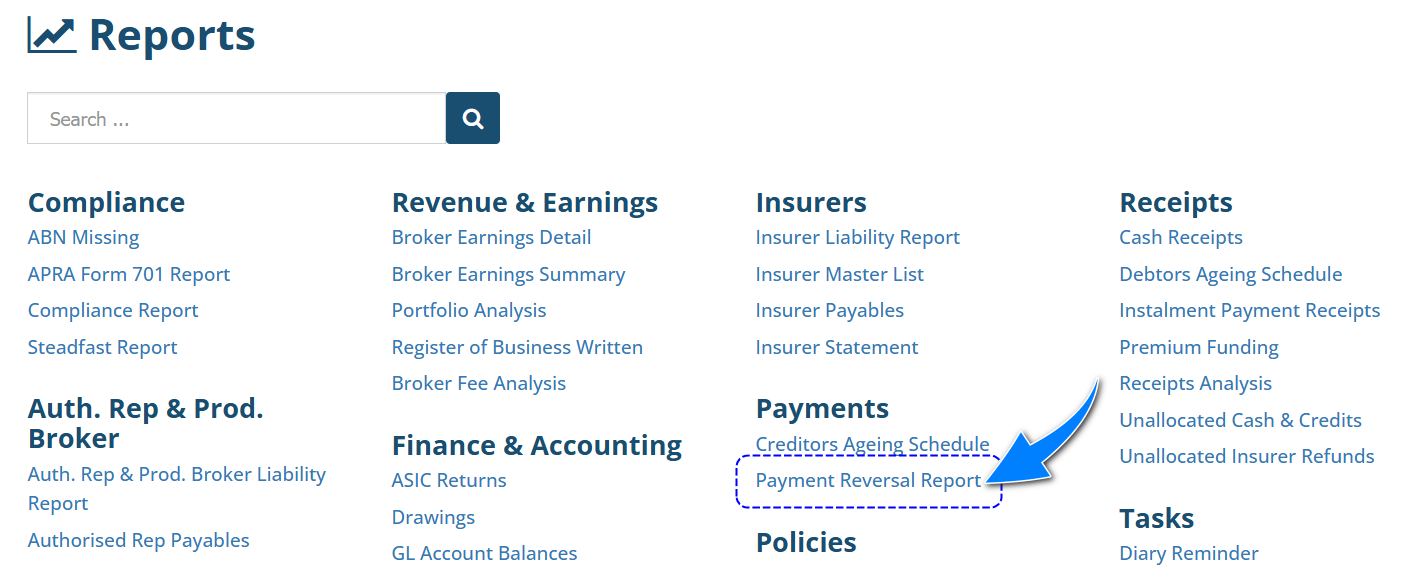
Payment Reversal Report
The Payment Reversal report is another way to track payment reversals for your selected date range. You can report on all entities or filter for a specific entity.
Something got you stumped?
Our team is here to help! We know change can be tricky, but we've got your back.

Contact our support team here and well get back to you shortly
Was this article helpful?
That’s Great!
Thank you for your feedback
Sorry! We couldn't be helpful
Thank you for your feedback
Feedback sent
We appreciate your effort and will try to fix the article