| Version 1.01 | 14 January 2020 |  |
Table of Contents |
| Introduction Multi-Selection Feature Reviewing Payments Prior to Posting | Export Bank Payment File included in Wizard |
Introduction |
The Authorised Representatives (AR) Payment Wizard in INSIGHT will allow the following:
- Payment to multiple AR’s and individual transactions on each AR if required, in the one payment wizard.
- Revision of the summary of payments being made before posting • Download remittance advices as PDF and Excel
- Ability to email remittance advices from within the wizard before the payment is posted
- Ability to export the Payment Bank File (Australia Only) containing the selected transactions from within the payment wizard
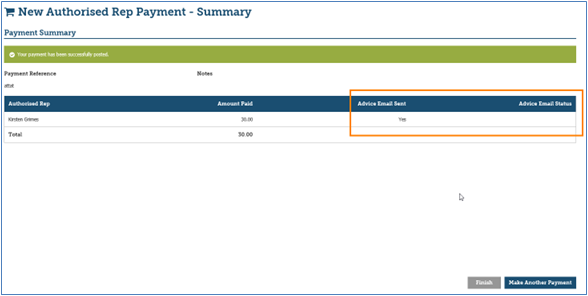
- Show a Payment Summary page that lists the payments and the status of the advice email each payee is sent.
 NOTE: This User Guide documents these features and the payment process.
The intended audience for this document are staff who have the responsibility of processing and managing payments and accounting records
Internal or external staff that are required to have knowledge on accounting functions of INSIGHT.
Readers are advised to refer to the INSIGHT Online Help for additional information that may be available.
Multi-Selection Feature |
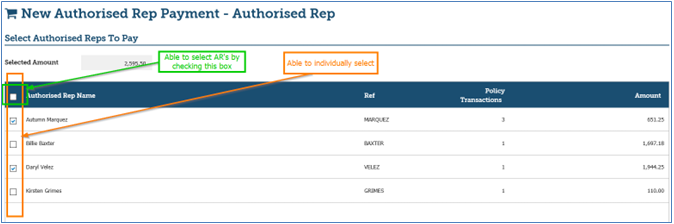
Users can tailor the payment file to a single AR or multiple as required.
By selecting the check box in the header, INSIGHT will select “all” AR’s ready for payment.
Reviewing Payments Prior to Posting |
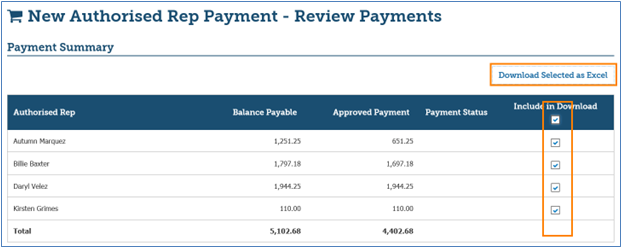
Users are able to download a Payment Summary (in Excel format) before posting the AR payment – this allows for the ability to review all payments before posting to accounts. Users can select “all” AR’s that will be included in the payment file, or select individual items to review.
The excel document will appear as:

Export Bank Payment File included in Wizard |
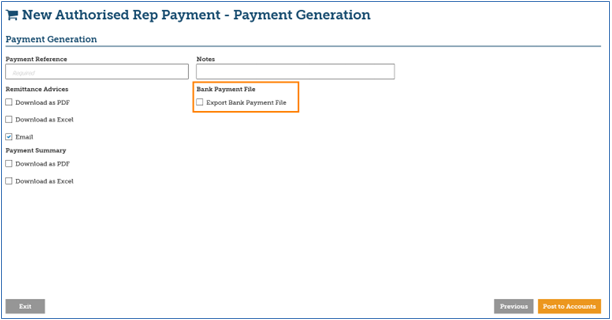
The selection of transactions to be included in the Bank Payment File (Australia Only) is included within the AR payment wizard.
Process |
1. In the left-hand menu, select Payments and New Payment.
2. Select Authorised Rep and Next.
3. Select the Authorised Rep/s to be included in the AR payment - you can select one or more AR’s from the list.
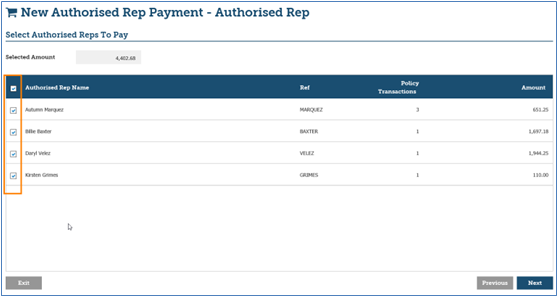
4. Once you have selected the AR’s you want to include in the payment file, select Next on the bottom right of the page.
5. This page will default to view the first AR on the list
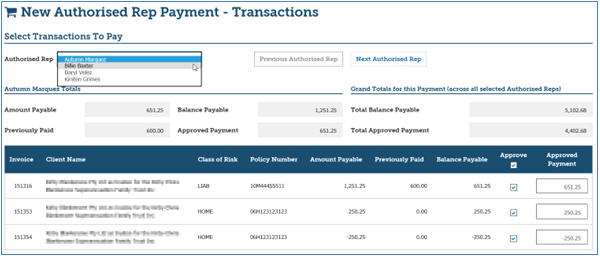
6. To advance to the next AR, you are able to choose from either the dropdown view OR the Next Authorised Rep button.
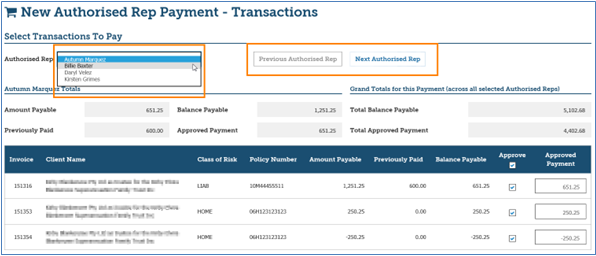
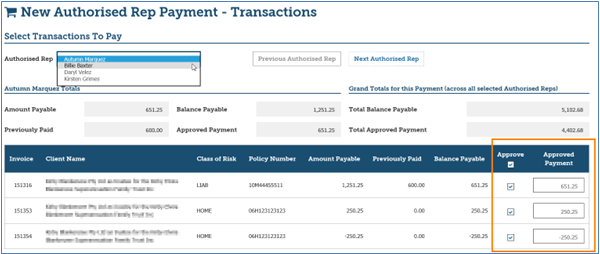
7. You are then able to approve and/or modify the payment to the AR for each transaction
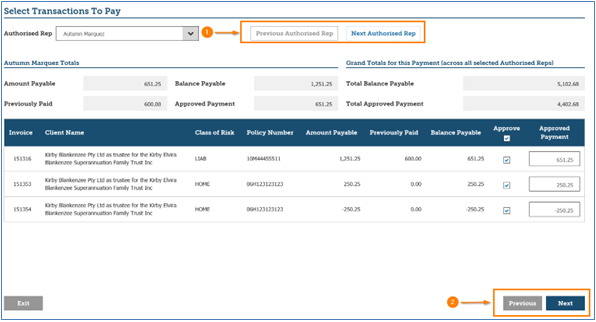
 NOTE: Advancing to Next AR vs Advancing to Next Step in Payment Process
Please note from the screenshot below:
Item 1: When wanting to advance to the next AR you use the buttons at the top of the screen. Item 2: When wanting to advance to the next part of the payment process, select the buttons at the bottom right of the screen
8. If wanting to Review the Payment Summary.
NOTE: If the list needs to be reviewed or printed out PRIOR to making the AR payment (prior to posting to accounts), select the check box for Include in Download and select Download Selected as Excel. Depending on the browser the user is using, a pop-up will appear in the bottom of the screen with prompts to open the file, save the file or to cancel the pop-up.
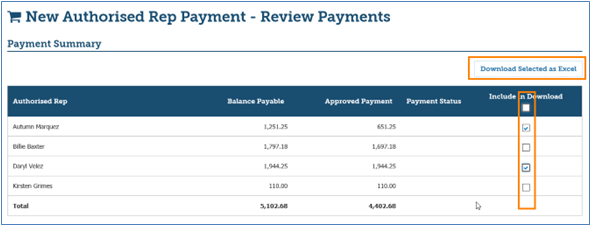

9. When happy to advance to next step of the payment process – select next on bottom right of screen.
10. Enter a Payment Reference and Notes (if applicable).
11. (If applicable) Select the desired method of download for the Remittance Advices.
 NOTE: Email is selected by default.

IF you deselect email, the remittance advice WILL NOT be emailed, even if there is an email address set for the payee.
INSIGHT will send the remittance advice to each AR separately. The user will also receive separate emails for each remittance emailed.
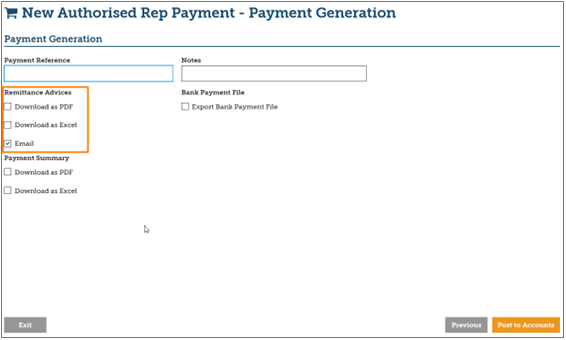
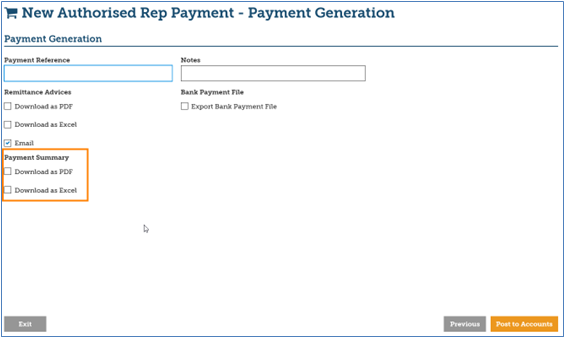
12. (If applicable) Select the desired method of download for the Payment Summary.
 NOTE: The download is initiated once the AR payment is Post to Accounts.
13. (If applicable) Select Export Bank Payment file to also download the Bank Payment File (ABA file) for these AR payments. (AUSTRALIA ONLY)
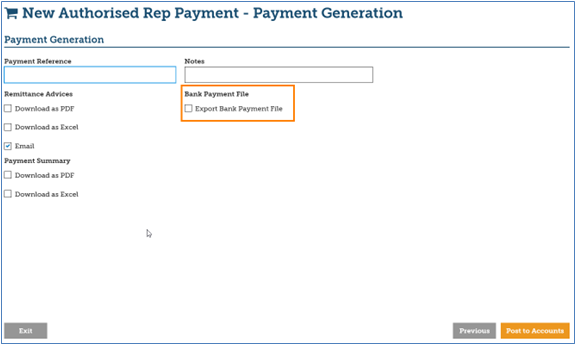
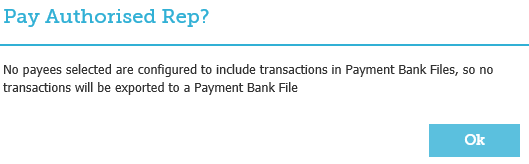
NOTE: If the selected AR is not configured for the Bank Payment File, the below message will notify the user of this.
14. Select Post to Accounts.
15. Select Yes to proceed with the AR payment.
16. Open or Save the downloaded Remittance Advices, Payment Summaries or Bank Payment File.
 NOTE: A separate remittance advice will be generated for each AR.

If the Remittance Advice was emailed to the AR, a confirmation of whether the email was sent or not can be found in last page of the Wizard.
INSIGHT will send the remittance advice to each AR separately. The user will also receive separate emails for each remittance emailed.
17. Select Finish to exit out of the Wizard or Make Another Payment to return to the start of the wizard.
What’s New?Version 1.01
Version 1.00
|
Was this article helpful?
That’s Great!
Thank you for your feedback
Sorry! We couldn't be helpful
Thank you for your feedback
Feedback sent
We appreciate your effort and will try to fix the article