Password Gone Missing? Let’s Fix That
Getting locked out happens - whether you’ve forgotten your password or tried signing in a few too many times. This article shows you what to do next for any MyApps application. It applies to every role, Admin to Standard User, so you can get back into your account with ease.
Here's How to Get It Done
Uh oh, you've received an error message when logging in! While you're on the login page, follow these easy steps to regain access to you account.
| Step 1: Click Forgot your password? | 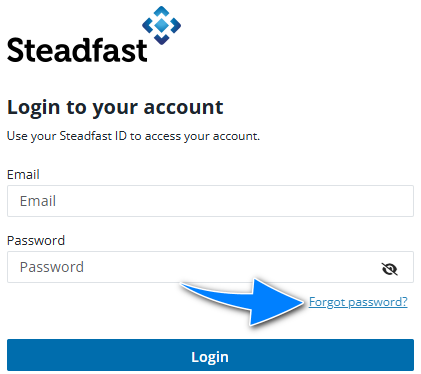 |
| Step 2: Enter your email address, then click Reset Password. You'll be sent an email with a 6 digit verification code. | 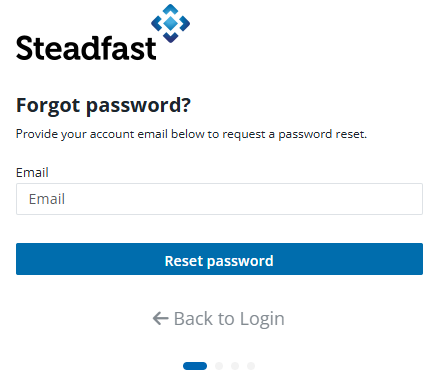 |
| Step 3: Once you receive the email, note down or copy the code, enter/paste it into the Password Reset Code field, then click Continue. In case you DON'T receive the email, click Didn't receive the mail? Click to resend link. | 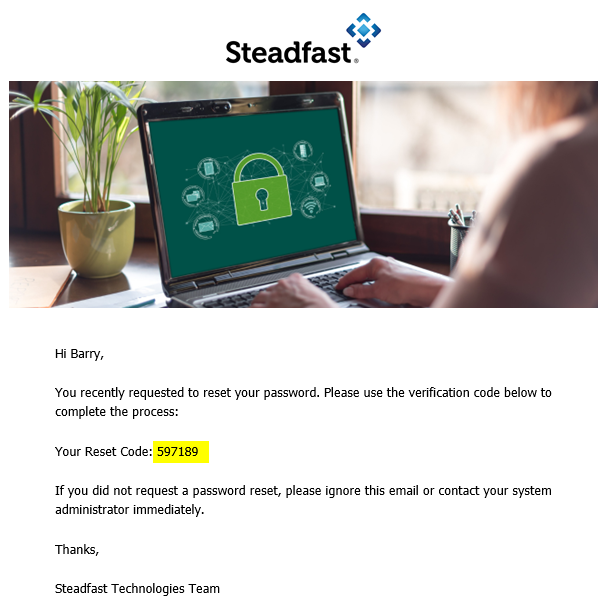 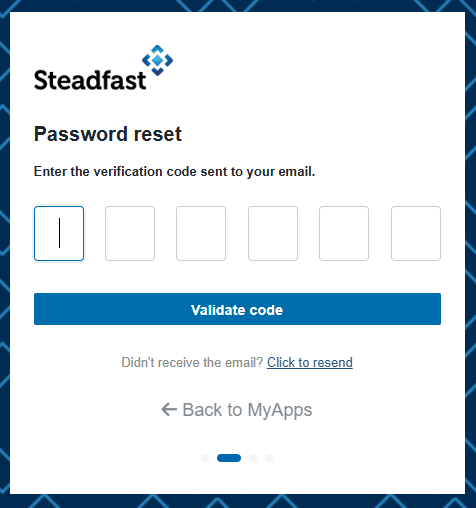 |
| Step 5: You will be prompted to enter your MFA code from the Microsoft Authenticator Application on your mobile device. Enter the code and select Verify code. | 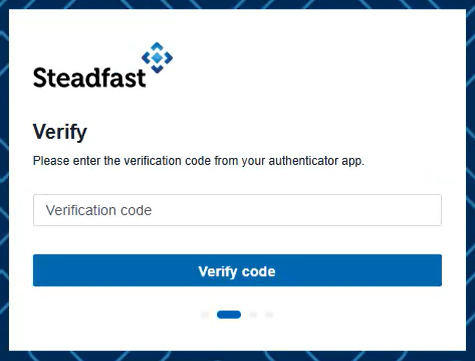 |
| Step 4: Create a new password, re-enter the same password to confirm it, then click Reset password. | 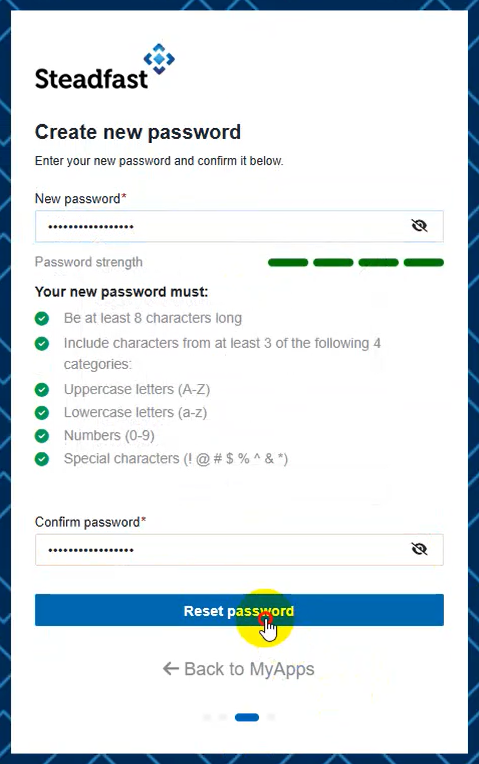 |
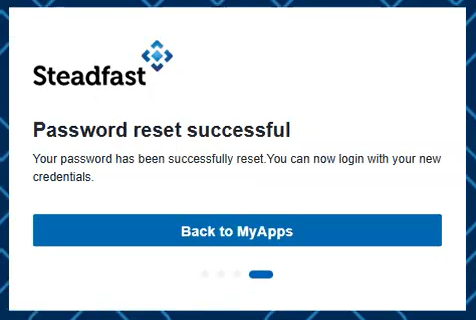
Mission accomplished, you've reset your password! Select Back to MyApps and sign in with your brand new password.
Something got you stumped?
Our team is here to help! We know change can be tricky, but we've got your back.

Contact our support team here and well get back to you shortly
Was this article helpful?
That’s Great!
Thank you for your feedback
Sorry! We couldn't be helpful
Thank you for your feedback
Feedback sent
We appreciate your effort and will try to fix the article