One Login, One Password, One Place for all your key Steadfast Applications

Activating your Steadfast ID and installing Microsoft Authenticator |

You’ll use the Microsoft Authenticator app for Multi-Factor Authentication (MFA).
To make your login experience more secure and simple, we recommend downloading the Microsoft Authenticator app.
Microsoft Authenticator is a free app that lets you sign in without a password - using your fingerprint, face recognition, or a PIN instead.
Device requirements
- iPhone: iOS 17 or later
- Android: Android 8.0 or later
We understand adding a work-related app to your personal device can feel concerning. Rest assured, the Microsoft Authenticator app is designed for security only it does not access your personal data, photos, messages, or files. You can read more about Microsoft MFA HERE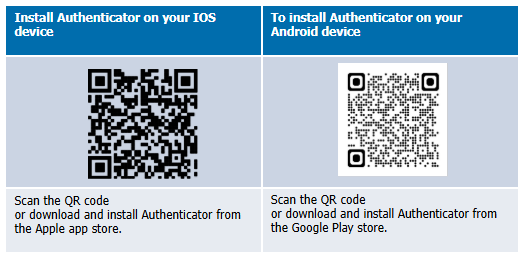
Installing Microsoft Authenticator is the first step in setting up your Steadfast ID, when you receive your Steadfast ID activation email, you will need to follow the prompts to finalise the set up within the Microsoft Authenticator App.  What if we already use Microsoft MFA?
Easy! When you receive your activation email for your Steadfast ID, On your phone, open Microsoft Authenticator and follow the below prompts:
1: Tap the + (Add account) button
2: Select the kind of account (work or other)
3: On your phone, within the applciation, tap Scan QR code and point the camera at it.
4: Confirm the code is registered
- The new entry should now appear in your list.
- It will generate a 6‑digit code that refreshes every 30 seconds.
5: Return to Steadfast ID and enter the 6‑digit code to confirm the authenticator works.
Once accepted, the setup is complete!
PRO TIP: Imagine this as upgrading your security badge system! We're ensuring that only the right people get access to the right areas. With this upgrade, everyone gets the right acces and your data stays safer than ever.
What is Steadfast ID? |

Steadfast ID is our new secure login solution that combines Single Sign-On (SSO) and Multi-Factor Authentication (MFA) to provide a safer and more streamlined way to access Steadfast applications.
This change is part of our commitment to improving security and user experience across platforms such as Steadfast Apps, SCTP, Steadfast Intelligence (Dashboards), iSurvey Risk, and iProfile Risk, ultimately keeping your data, safer!
This FAQ is designed to answer common questions about what Steadfast ID is, why we’re introducing it, and what you need to do to prepare!
What’s Changing?
How you log in and your username, Usernames are going away. Your Steadfast ID will be your email address.
For example:
- Johns in SCTP → john.smith@steadfasttech.com.au
- John.smith in Steadfast Apps → john.smith@steadfasttech.com.au
- This is as big a benefit as the single password message.
Which Apps will be affected? |
Steadfast Apps
SCTP
Insurebot
Steadfast Apps Lite
Steadfast Intelligence (Dashboards)
Steadfast Group Insurance Platform
iSurvey Risk
SAPConcur
ManageEngine Endpoint Central
MyApps
Admin Studio
When will we be migrating? |
To ensure a smooth transition, access to applications using Steadfast ID will be introduced in phases, based on the systems you currently use:
- Steadfast Intelligence (Dashboards), Erato, iSurveyRisk, Concur and Steadfast Apps users will receive access first, with Steadfast ID activation scheduled from 21 April.
- SCTP (where not intergrated with Steadfast Apps) users are scheduled to receive Steadfast ID activation from 28 April.
- Steadfast Apps and Insurebot users are scheduled to receive Steadfast ID activation from 4 May.
Migrations to Steadfast ID will take place at weekly interval
Navigating MyApps to launch Applications |

MyApps simplifies your day by reducing the need to switch between systems, remember multiple URLs, or manage separate logins. Its clean, consistent layout makes it easier to move between the tools you use most.
What's MFA and how does it work? |
Multi-Factor Authentication (MFA) is a security process that requires you to provide two or more verification factors to access an account. Instead of relying solely on a password (which can be guessed or stolen), MFA adds an extra layer of protection by combining:
- Something you know (your password)
- Something you have (a device or app)
- Something you are (biometric data like fingerprint or facial recognition)
This makes it much harder for attackers to gain access, even if they have your password.
How MFA Works:
- Enter your username and password as usual.
- Verify your identity using a second factor, such as a code sent to your phone or an approval through the Microsoft Authenticator App.
- Once verified, you gain access to your account securely.
FAQ |

- Do I have to use Steadfast ID?
Absolutely YES! The internet is getting more dangerous every day. This protects your data and your clients’ data, like adding a super-strong lock to your digital front door. Steadfast ID’s enables you to manage your profile, security, and access all instances from one secure location.
- How will I log in?
Your email is your username.
One password for all Steadfast applications.
A 6 Digit code generated in the Microsoft Authenticator will be required.
Your current bookmarks will still work; you’ll just see a new Steadfast login screen.
- What browser can I use? Only Google Chrome and Microsoft Edge are supported.
- What about my password?
ONE password for ALL Steadfast systems.
We’ll try to keep your current password. If it isn’t secure enough, we’ll help you create a new one.
Our goal: Make this change as smooth as possible.
- Why do I need Multi-Factor Authentication (MFA)?
It’s like having two locks on your door instead of one.
Your password is the first lock; the app on your phone is the second.
Hackers hate MFA - it makes breaking in MUCH harder.
MFA ensures it’s really you, using your phone and biometrics/passcode.
- Which Authentication App Can I Use?
Microsoft Authenticator is secure and doesn’t access other apps on your phone like photos or SMS.
- Will my access to systems change?
You’ll go to MyApps to change profile information or your password.
You won’t be able to change your password in Steadfast Apps or SCTP.
Everything else stays the same.
- Can my business connect its own login systems?
No, we’re moving to Steadfast ID so that in the future, some brokers or insurers can log in using their employer-provided credentials. This is a future enhancement.
- Will other Steadfast apps use Steadfast ID?
Yes! As new apps integrate with Steadfast ID, they’ll appear in MyApps.
We’ll also include links to applications that don’t require login or use a different provider until they move over.
- What happens if I change my email address?
Each email requires its own unique ID code within the applications, if you change your email a new Steadfast ID will be required and your application access will need to also be updated to link your new email address.
- What if the email assigned to Steadfast ID is a shared email?
The best practice is for each individual to have their own unique Steadfast ID and login. This ensures stronger security, clearer user accountability, and a smoother experience when accessing Steadfast Applications.
If possible, we strongly recommend transitioning to individual user logins to avoid complications with MFA and account access.
How does this impact bot access that bypasses MFA?
Insurebot has already been enhanced to work with Steadfast Apps and the migration to Steadfast ID, so you won’t need to make any changes for this transition.
For external robotics, we’ve been in contact with the vendors we are aware of that access Steadfast Apps to ensure they are prepared. However, we strongly recommend reaching out to your own robotics vendor to confirm they are ready for the migration as well.
What if I have an employee starting or leaving after I have received my "Your migration to Steadfast ID will begin next week" email?
If you have staff onboarding or offboarding after receiving the migration notice, please follow the steps below:
Onboarding a New Employee
- On your Tuesday Go-live date, an admin will need to check whether a Steadfast ID has been automatically created for the new user.
- If no Steadfast ID exists:
- Follow the standard onboarding process.
- Assign the appropriate applications as usual.
- If a Steadfast ID already exists:
- The user will have received an activation email.
- They can activate their account and begin work as required.
Offboarding an Employee
- Check if the user has a Steadfast ID, by following steps 1 to 3 here.
- If a Steadfast ID exists:
- Deactivate the Steadfast ID
- This will automatically remove access to all Steadfast applications.
- If no Steadfast ID exists:
- No further action is needed, access is already disabled.
Something got you stumped?
Our team is here to help! We know change can be tricky, but we've got your back.
Contact our support team here and well get back to you shortly
Was this article helpful?
That’s Great!
Thank you for your feedback
Sorry! We couldn't be helpful
Thank you for your feedback
Feedback sent
We appreciate your effort and will try to fix the article