Introduction
Transaction wizards are tailored to serve the purpose of each transaction type, however, they do share generic & common pages regardless of the transaction type. These common pages are:
 | Policy Summary |  | AR Premiums |
 | Policy Details |  | Compliance |
 | Schedule |  | Document or Invoice Generation |
 | Invoice Premiums |  | Summary |
Compliance
 NOTE: The Compliance page is divided into 2 sections:
Compliance Table
Lists the latest compliance records for that client & policy. When needed, selecting Edit, allows you to record an updated version once the transaction is saved or posted to accounts.

Statement of Advice (SOA)
Displays your chosen SOA template and allows you to edit the document prior to its generation when the transction is posted to accounts.
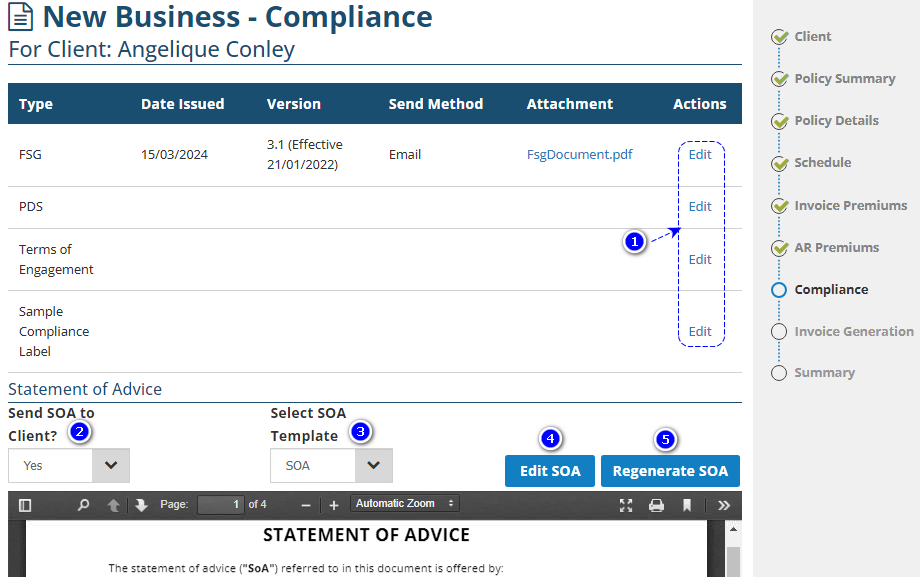
1. Edit - Each compliance type in the table will have this action option, where you can update its details or upload a new document.
2. Send SOA to Client? - Default display depends on the class of risk setting, however, you can update the dropdown selection as needed.
- Yes: displays the SOA section.
- No: hides the SOA section.
3. Select SOA Template - Presents the SOA templates available in your ledger. Select the SOA template you wish to use for the transaction.
4. Edit SOA - Allows you to edit the selected SOA template using Word.
5. Regenerate SOA - Removes all editing and reverts to the original SOA template.
Was this article helpful?
That’s Great!
Thank you for your feedback
Sorry! We couldn't be helpful
Thank you for your feedback
Feedback sent
We appreciate your effort and will try to fix the article