Introduction
Transaction wizards are tailored to serve the purpose of each transaction type, however, they do share generic & common pages regardless of the transaction type. These common pages are:
 | Policy Summary |  | AR Premiums |
 | Policy Details |  | Compliance |
 | Schedule |  | Document or Invoice Generation |
 | Invoice Premiums |  | Summary |
Summary
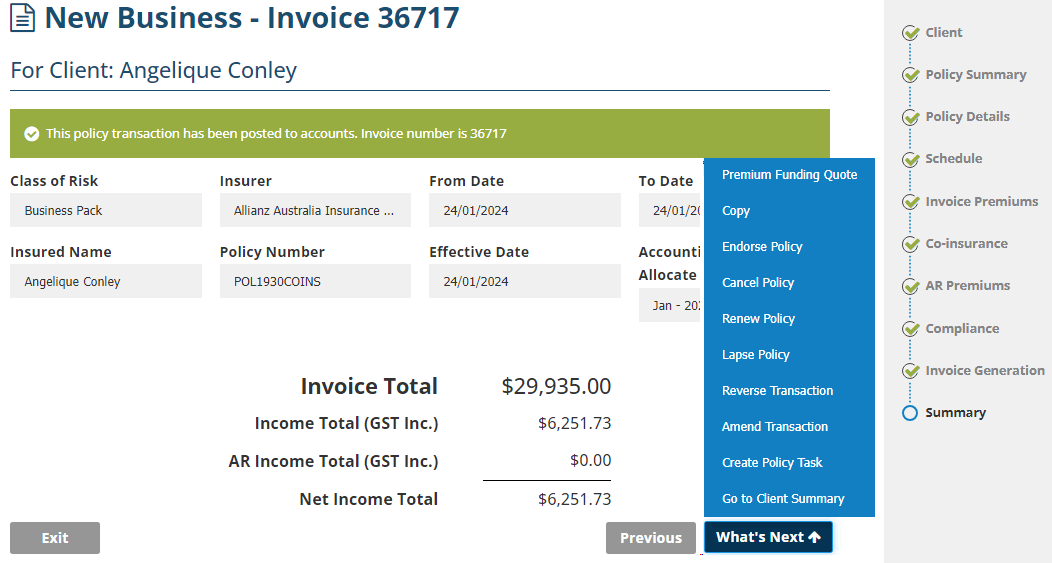
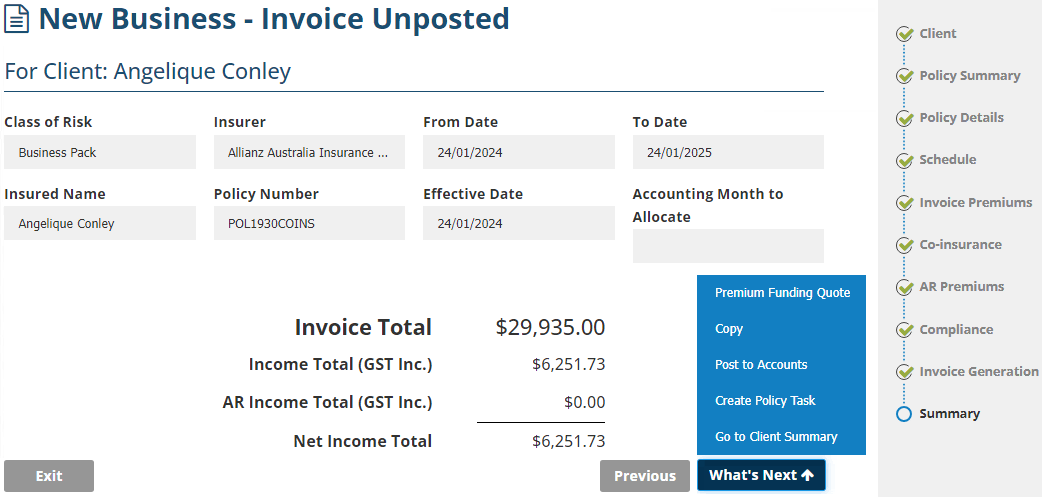
The Summary page contains a high-level snapshot of the work you've done in the wizard. You'll be directed to this page after you select Post to Accounts or Save & Go to Summary. The majority of the actions on this page are found in the What's Next button.
The actions available in the What's Next button depend on whether you've selected Post to Accounts or Save & Go to Summary:
 | Post to Accounts - because this locks the wizard so that no further changes can be made, there are MORE actions available in What's Next. |
 | Save & Go to Summary - because you can still update pages of the wizard as needed, there are LESS actions available in What's Next. |
1. Premium Funding Quote - Takes you to the New Funding Quote wizard where you can view/select invoices, choose a funder and get a funding quote or manually mark them with a 'Funded' status.
2. Copy - Takes you to the Copy wizard where you'll find the information previously entered into the wizard in a new & separate transaction wizard.
3. Endorse Policy- Takes you to the Endorsement wizard where you can record changes to the risk.
4. Cancel Policy - Takes you to the Cancellation wizard where you select an end date for the policy & generate a return premium.
5. Renew Policy - Takes you to the Renewal wizard where you can renew the policy for the next policy period.
6. Lapse Policy - Takes you to the Lapse wizard where you can select an end date for the policy, however, this does NOT generate any premiums.
7. Reverse Transaction - Only available for unpaid & Manual interface policies; this reverses the transaction and removes the balance by generating a credit. This will be further discussed in another article.
8. Amend Transaction - If your transaction meets the criteria, this action will be available, otherwise, it will not be displayed. If available, you can reverse the incorrect transaction & replace it with the correct transaction. This will be further discussed in another article.
9. Create Policy Task - Allows you to create a follow-up task against the policy transaction.
10. Go to Client Summary - Takes you back to the Client profile.
11. Post to Accounts - Allows you to finalise the wizard and post to accounts.
After selecting Post to Accounts
After selecting Save & Go to Summary
Was this article helpful?
That’s Great!
Thank you for your feedback
Sorry! We couldn't be helpful
Thank you for your feedback
Feedback sent
We appreciate your effort and will try to fix the article