Click to go to:
Introduction
If you have the permission to add a claim, there are several options depending on where you are in INSIGHT:
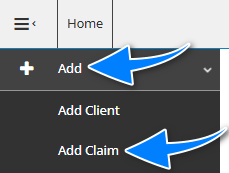
- You can use the Menu option Add, then select Add Claim.
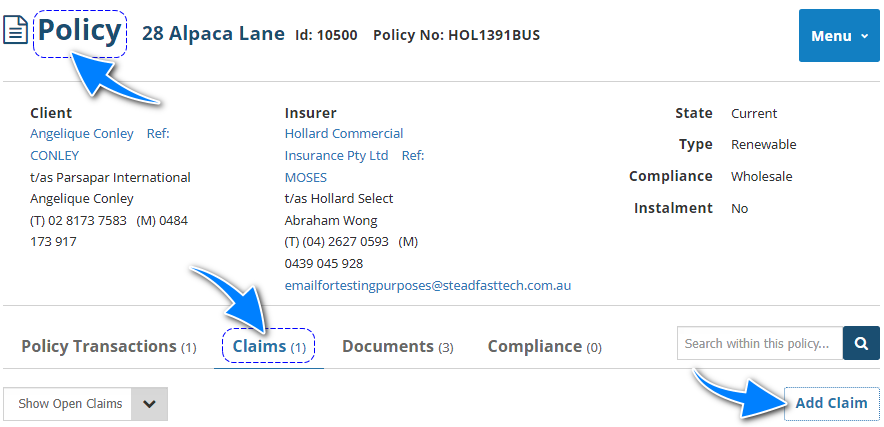
- When viewing a Policy, select the Claims tab, there you’ll find the Add Claim button.
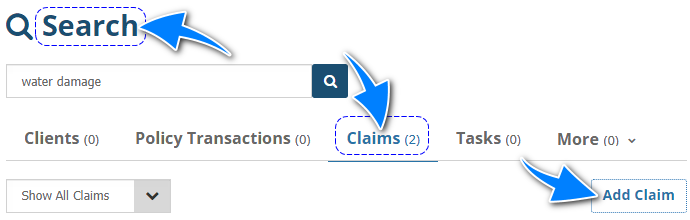
- Alternatively, you can first search for the claim you wish to add and check if they are already in the system. When the claim is not found in the search results, select Add Claim to create the claim.
QUICK TIP: We encourage you to add claims through the Policy as this auto fills the client, policy and policy transaction fields in the claim. When adding a claim through the Add menu and the Search results, you will need to manually enter these fields which may lead to adding the claim to the wrong policy or policy transaction.
Regardless of how you choose to create the claim, you'll be directed to the Add Claim wizard, where you'll complete the Client, Details and Loss pages of the wizard.
- Most of the fields on the pages are self-explanatory, however, we'll highlight fields that require further explanation.
- All fields marked as Required must be completed before proceeding to the next page.
Client
You'll be directed to this page when adding the claim through the Add menu and the Search results. Otherwise, this page is skipped when adding through the Policy as the client is preemptively selected through the policy information.
Search for and locate the client the claim belongs to, then select Next.
Details
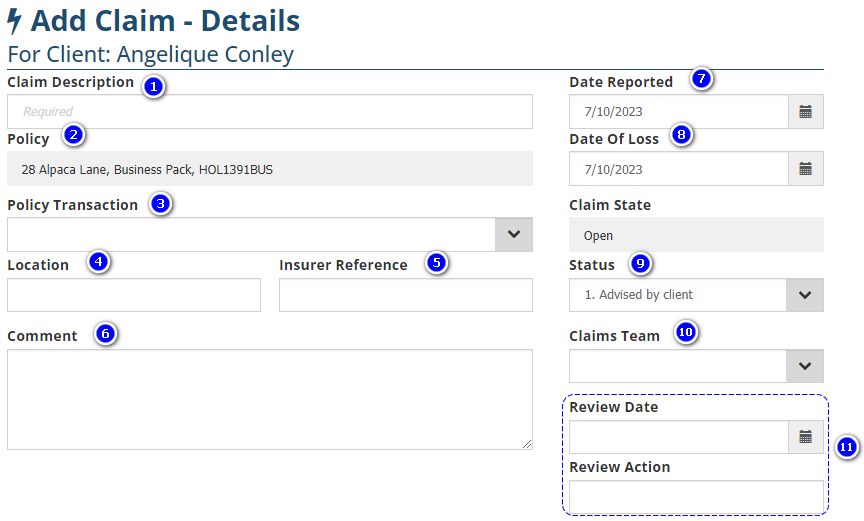
1. Claim Description - Enter anything relevant to describe the claim – you can use this to search for the claim.
2. Policy - This field may be locked or editable depending on how you added the claim:
- Add through Menu or Search: This field will only display policies belonging to the chosen client.
- Add through Policy: This field will be locked & non-editable as the policy was preemptively selected by adding through the policy itself.
3. Policy Transaction - Displays transactions belonging to the chosen policy (ie: New Business, Endorsement, etc).
4. Location - Enter the location of the risk if applicable – you can use this to search for the claim.
5. Insurer Reference - Enter an insurer reference if you have it, otheriswise, you can add this at a later stage - you can use this to search for the claim.
6. Comment - Enter all claim-related notes in this field.
7. Date Reported - Enter the date the client called in the claim.
8. Date of Loss - Enter the date the loss happened. The date entered must fall within the period of insurance of the chosen Policy Transaction. Otherwise, INSIGHT will not allow you to add the claim until the Date of Loss is corrected and will display a warning message.
9. Status - There are default options available, however, your Administrators can modify this to better suit your business practices - Kindly refer to your own business rules for when to use these fields.
10. Claims Team - Choose the relevant claim team in this field.
11. Review Date & Review Action - Information entered here will be used in the Review Date Claim report.
Loss
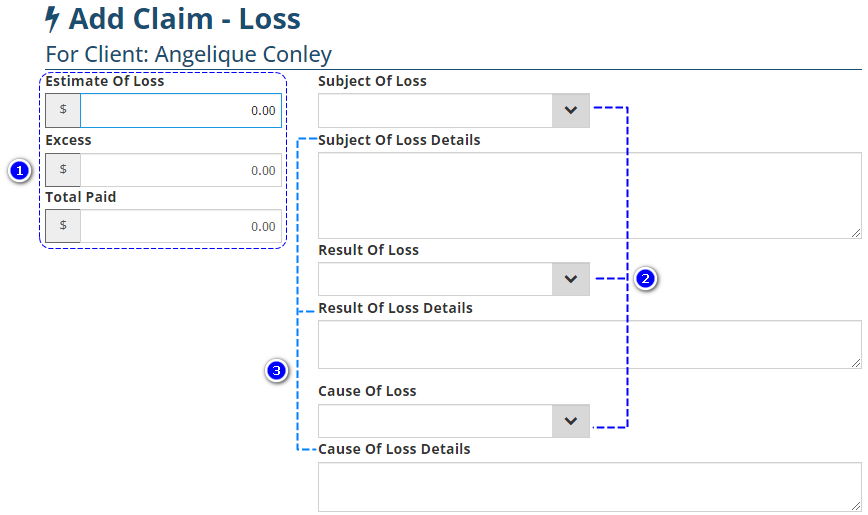
1. Estimate of Loss, Excess & Total Paid - It is not mandatory to enter information in these fields at the time of adding the claim. You can edit the claim later on and update these fields when you have the information.
2. Subject, Result & Cause of Loss Dropdown field - These fields are not mandatory. The dropdown selection is customised and managed by your Administrator - Kindly refer to your own business rules for when to use these fields.
3. Subject, Result & Cause of Loss Free Entry field - These fields are not mandatory and are for recording more information about their respective dropdown fields.
IMPORTANT: Once you've recorded the claim information you have, ensure to select Save to create the claim.
Was this article helpful?
That’s Great!
Thank you for your feedback
Sorry! We couldn't be helpful
Thank you for your feedback
Feedback sent
We appreciate your effort and will try to fix the article