Click to go to:
Introduction
Once the claim is saved, the Claim stores all the information in one location so that it's easily accessible. You can view tasks, documents, notes and contacts linked to the claim by viewing the claim itself.
Viewing a Claim
When you locate the claim and select View, you'll be directed to the claim where you'll notice it has a similar layout to an entity:
- Top section - contains the summary of the claim & a Menu option
- Tabs - organises different sets of information into different tabs
- Bottom section - displays information depending on the selected tab
Top section
This is where you'll find practical information about the claim such as the client it belongs to or the status of the claim:
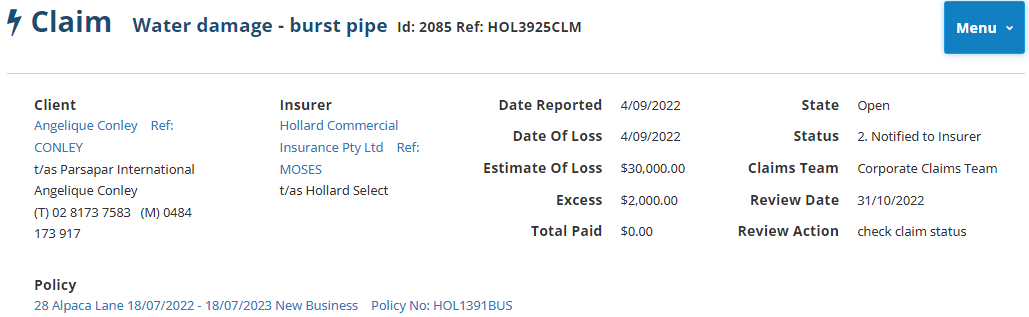
| To access all claim information, go to the Menu and select View All Details. You'll also find the options to Edit this claim and Delete this Claim in the Menu. However, once a claim has tasks/documents added to it, INSIGHT will NOT allow you to delete the claim. | 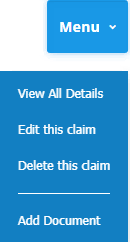 |
Tabs

Information related to the claim is organised into different tabs. Select the tab to view the information stored in it. The bottom page display will change according to the tab you're viewing. | |
Similar to viewing entities, the number in parenthesis beside the tab indicates how many items are stored in the tab. | |
You can also do a 'mini-search' within the claim using the search bar. |


Bottom section
As mentioned above, the display in this section depends on the tab selected. Now we'll look into what each tab contains:
Tasks
| Tasks added in this tab will be added against the claim currently displayed. | |
| INSIGHT will default to display Open Tasks. To see open and closed tasks, change the filter to Show All Tasks. | |
Claim Tasks can also be used to create/store documents and notes specific to the task instead - these will be different from the documents and notes saved under the claim. Please refer to your business rules regarding recording documents and notes under claim tasks. |


 QUICK TIP: The ability to add, edit, re-open and delete tasks is determined by your security permissions. Please discuss with your onsite Administrator if your permissions need to change.
Documents
Documents added in this tab will be added against the claim currently displayed.
There are 3 ways to add documents to the claim:
- Drag & Drop
- Browse from your computer folders
- Generate a document from a template & add it to INSIGHT
Documents relevant to the claim may include claim forms, assessor reports, and repairer quotes. Claim document templates are set up by your onsite Administrator. Examples of templates are a 'Notification of a Claim to the insurer' letter or a 'Claim Acknowledgement advice to the client' letter. | |
INSIGHT will show the date and time the document was added/created and the name of who created/added the document. Please refer to your business rules regarding storing claim documents. |


Notes
Notes added in this tab will be added against the claim currently displayed. | |
| Within the note are areas where you can record contact details and store attachments specific to the note instead - these will be different from the contacts and attachments saved under the claim. | |
Standard users must have the appropriate permissions to add, update or delete a note and its attachments. Please refer to your business rules regarding adding notes and storing attachments against a note. |


Contacts
Contacts added in this tab will be added against the claim currently displayed. | |
| When adding a contact, you are required to choose a Contact Type such as Insurer, Assessor or Building Repairer. Your onsite Administrator can also add more options to this field to suit the needs of your business - other options to be added can be Third Party Details, General Repairer, Solicitor, Vehicle Assessor, Witness to Loss, etc. | |
| Once a contact is added to the claim, they will all be displayed under the Contacts tab with options to View, Edit or Delete them - these options will also depend on your security permissions. |


Was this article helpful?
That’s Great!
Thank you for your feedback
Sorry! We couldn't be helpful
Thank you for your feedback
Feedback sent
We appreciate your effort and will try to fix the article