Click to go to:
How to Initiate a Quote
Initiating a quote can be done in 3 ways:
 Quick Links Quick Links | In the Home page, hover over the Transaction icon and select Quote. | 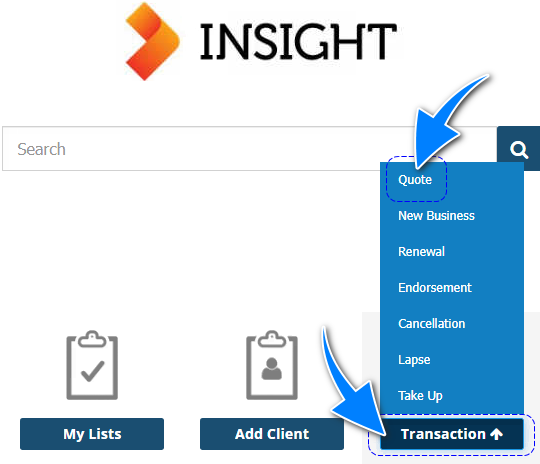 |
 Actions menu Actions menu | In the Add section of the menu, select New Quote. | 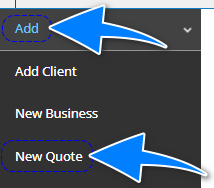 |
 Client profile Client profile | When viewing the Client profile, ensure you're in the Policy Transactions tab and select Add Quote. | 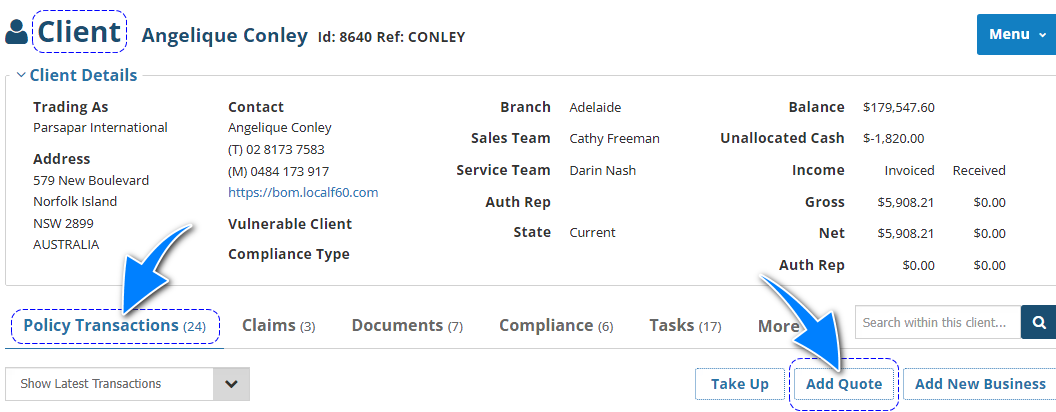 |
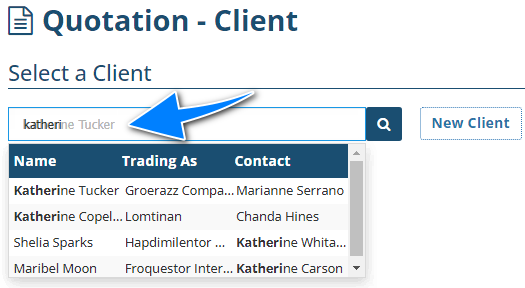
NOTE: When initiating via options 1 or 2, you will be prompted to enter a client name or to add the new client, if currently not in INSIGHT. If the client name is in the system, you can start typing the client's name and INSIGHT will return all matching results, as shown below:
Quotation Wizard
This article will discuss the Wizard pages specific to creating a Quote:
 | Related Quotes |
 | Document Generation |
For more information about the remaining pages, refer to the "Common Transaction Wizard page" article collection under Creating Transactions.
Related Quotes
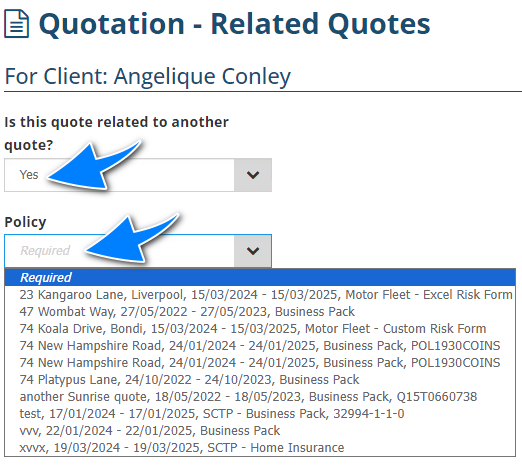
This page intends to replicate details from a previous quotation recorded in INSIGHT. Though it is included in the wizard for all interface types, this only applies to Manual transactions. If the quotation you'd like to use was created with SCTP or Sunrise, you can ignore this step and select Next.
When selecting Yes, the Policy field will become mandatory and INSIGHT will present you with a list of prior quotations. Once a selection is made, you can proceed to the next step of the Quotation wizard.
Document Generation
This page generates documents such as the quotation document and other standard letters. There is no option to post to accounts as a quotation is a non-financial transaction.
IMPORTANT: All documents, letters and templates are configured in INSIGHT by your onsite Administrator. Please refer to your Administrator to update these documents.
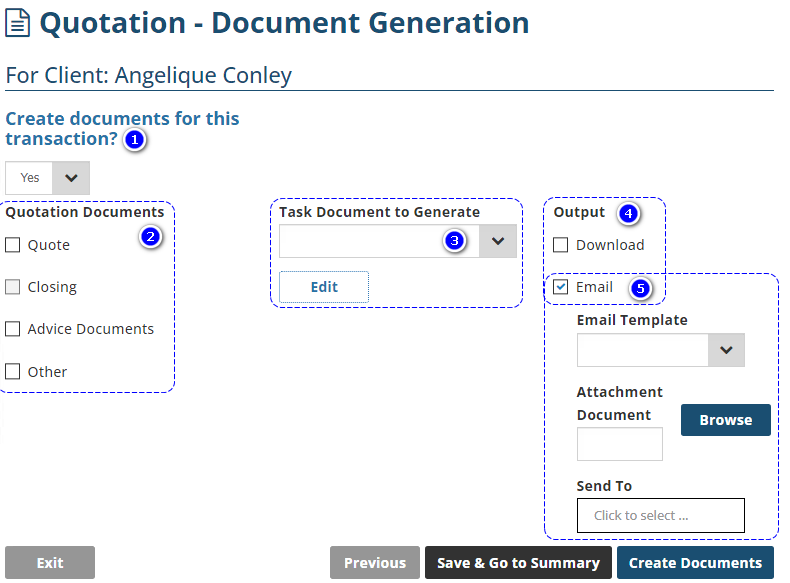
1. Create documents for this transaction? - There are 2 options for this field:
- Yes: displays the document options.
- No: hides the document options.
2. Quotation Documents - Select the checkbox beside the document you wish to generate. The Closing option is greyed out as it is not available for quotations.
3. Task Document to Generate - Displays the standard letters uploaded by your Administrator. After choosing a template, select Edit to enter further information.
4. Output - There are 2 options for this field:
- Download: creates the PDF document and downloads into your machine.
- Email: creates and attaches the PDF document to a blank email.
5. Email - selecting this displays further email options:
- Email Template: displays email templates uploaded by your Administrator. The chosen template will auto-insert into the email.
- Browse: displays your machine's folders so that you can locate, select and attach a file to the email. If attaching more than 1 file, continue attaching files after the email is generated.
- Send To: displays the email addresses saved to the client and the client's contacts. If the desired contact does not appear, manually add the email address after the email is generated.
Was this article helpful?
That’s Great!
Thank you for your feedback
Sorry! We couldn't be helpful
Thank you for your feedback
Feedback sent
We appreciate your effort and will try to fix the article