Click to go to:
| Introduction |
Introduction
INSIGHT reports are grouped into different headings. The Policies heading captures the following reports:
| Cancellation and Lapse Report | Policy Reversal Report |
| Coinsurance Bordereau | Renewal Report |
| Instalment Income Due | Renewal Retention |
| Premium Bordereau - Overseas Insurers | Sunrise Policies |
| Policy Master List | SCTP Policies |
| Policies Not Posted |
Cancellation and Lapse Report
This report lists cancellation and lapse transactions based on your date range, filter and grouping & sorting selection. When Select All Records is No, you can also filter by (cancellation) Reason.

Coinsurance Bordereau

Instalment Income Due
This report lists instalment policies with outstanding instalment income as of your selected As At Date. When Select All Records is No, you can also filter by Interface.
This report can be generated in 2 different styles:
 | Summary - creates the report based on your selected Group By option. For example, if Branch is chosen, it will display the total instalment income receipted & outstanding for each branch. |

 | Detail - lists the individual instalment policies with outstanding instalment income. In addition, it details the number of instalments outstanding, the interface and other policy information. |

Premium Bordereau - Overseas Insurers
This report lists policies created with NRIT (Non-Resident Insurer Tax).

The Parameters provide the option to extract 2 types of policies:
 | Paid - gives you the Date Option selections of Insurer Paid Date, Date Posted and Effective Date. |
 | Invoiced - gives you the Date Option selection of Date Posted and Effective Date. |
Policy Master List
This report lists policies based on your chosen parameters, date selection, filters, style and grouping & sorting.
This report can be generated in 2 different styles:
 | Summary - lists policies with general policy information, renewal date, invoice amount and broker fee. |

 | Detail - lists policies with detailed policy information and premium breakdown. An additional field to Include Commission becomes available. |
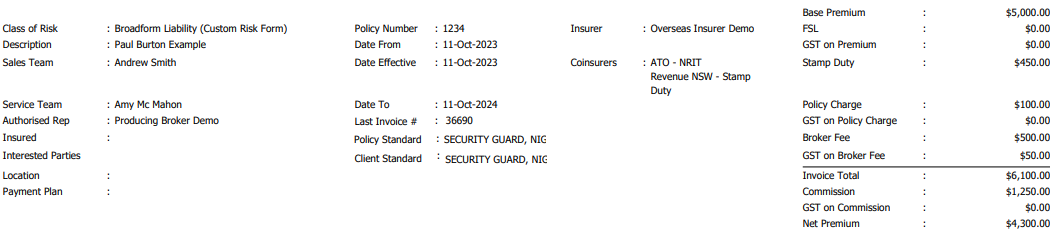
Policies Not Posted
This report lists policies not posted to accounts, based on your chosen date selection and filters.

Policy Reversal Report
This report can be generated in 2 different styles:
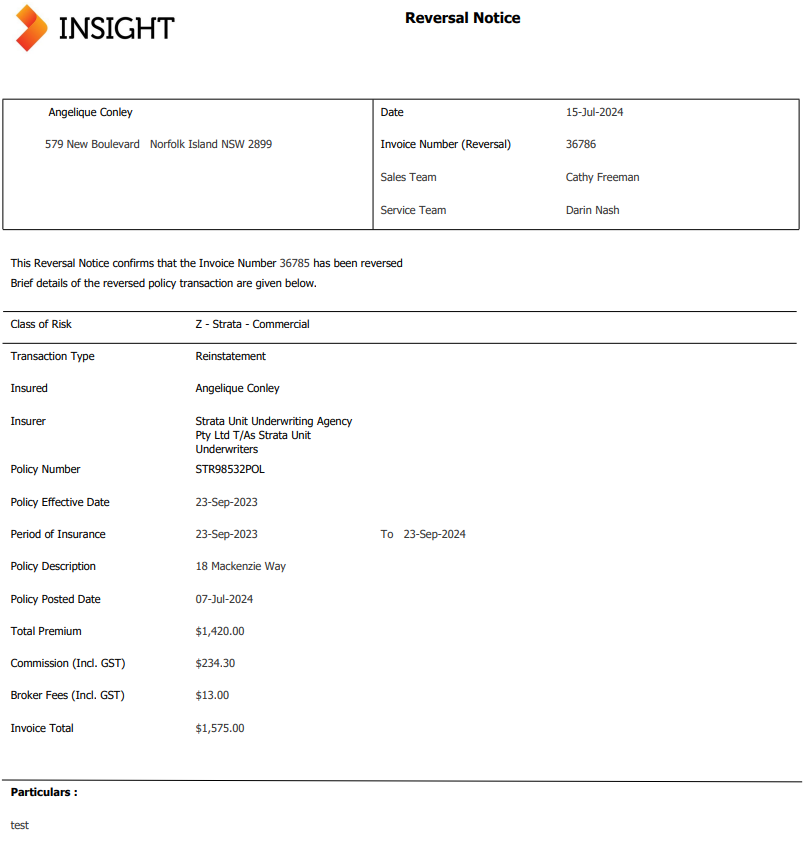
 | Reversal Report - lists transactions that have been reversed along with general policy information and premium breakdowns. |

 | Multiple Reversal Notices - this creates one PDF document containing a Reversal Notice for each policy based on your date range and filter selection. Sample below: |
Renewal Report
This report lists policies due to be renewed based on your filter selection and Date Option choice: As At or Expiry Date Period. When Select All Records is No, you can also filter by Split Invoicing and Payment Plan. It can be generated in 3 different styles:
 | Summary - lists policies with general policy information, start date, renewal date, and invoice total. |

 | Detail (without schedules) - lists policies with detailed policy information. |
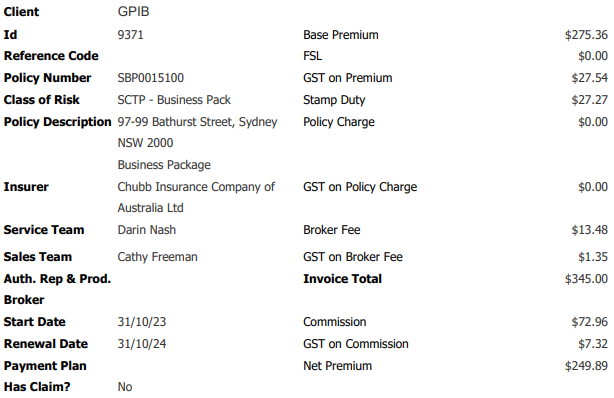
 | Detail (with schedules) - lists policies with detailed policy information with their respective policy schedules. |
Renewal Retention
This report lists policies based on your parameter, date range and grouping & sorting selections. The Styles available are based on your Mode selection:
 | Mode: Policies / Style: Summary - creates the report based on your selected Group By option. For example, if Branch is chosen, it will display each branch's total count for each report header. |

 | Mode: Values / Style: Summary - creates the report based on your selected Group By option. For example, if Branch is chosen, it will display each branch's total count for each report header. |

 | Mode: Values / Style: Details - creates the report based on your selected Group By option. For example, if Branch is chosen, it will list all the individual policies under each branch. |

Sunrise Policies
By default, the report is set to generate a report for all records based on your Group selection. For example, if Sales Team is chosen, it will display each sales team's sunrise policies. However, when Select All Records is set to No, you can customise the report using your date range and filter selection.

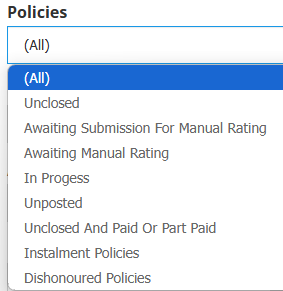
The Policies filter monitors the Sunrise statuses, including unclosed policies and when a referral has not been submitted and is awaiting rating.
SCTP Policies
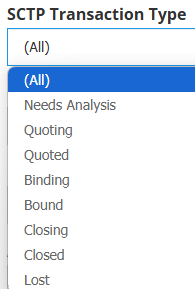
This report generates a list of SCTP policies based on your Group and data range selection. For example, if Sales Team is chosen, it will display each sales team's SCTP policies. When Select All Records is set to No, you can customise the report using your filter selection. 
The SCTP Transaction Type filter monitors the different SCTP transaction stages. You can use this to capture transactions that are quoted but not bound or bound but not closed (post to accounts).
Was this article helpful?
That’s Great!
Thank you for your feedback
Sorry! We couldn't be helpful
Thank you for your feedback
Feedback sent
We appreciate your effort and will try to fix the article