| Version 2.0 | January 2023 |  |
Table of Contents |
Introduction |
INSIGHT provides functionality for users to transact “Instalment” Policies. Instalment Policies are those that are paid by the Insured direct to the Insurer on a monthly basis.
INSIGHT will transact both EDI (electronic) instalment policies, (those transacted via SVU or Sunrise) and non-EDI instalment policies, or manual instalments.
Broker fees associated with an Instalment Policy are also captured in INSIGHT. For manual (non-EDI) instalment policies, the broker will be able to choose if a fee is to be included in the instalment plan (paid to the insurer) or not (to be collected by the broker).
Purpose
This User Guide includes the process and rules relating to the setup, invoicing and processing of instalment payment files. This guide also includes troubleshooting tips for errors.
Intended Audience
The intended audience for this document is those staff within each organisation who have responsibility to process and manage instalment policies and the relevant accounting transactions associated with instalments.
Overview |
This section explains a general overview of the purpose and functionality of instalment policies. Technical components of invoicing, receipting and troubleshooting is detailed further in this document.
What are instalment policies
Instalment policies are annual policies whereby the insured will pay the policy via monthly payments directly to the insurer from their nominated bank account or with their credit card. The instalment amount is not subject to an interest charge and is agreed by the insurer. Broker fees are able to be included in the instalment plan and forms part of the first instalment amount.
Generating an instalment policy
Generating instalment policies is easily done in INSIGHT and is limited only by the insurer’s ability to offer an instalment program for their product type.
It is a requirement to have an agreement in place with the relevant insurer(s) to offer instalment policies to ensure that accounting and receipting will be dealt with correctly by them and the broker. INSIGHT caters for two methods of generating instalment policies, namely:
| Non-EDI/ Non SVU or Non-Sunrise transacted policies |
| SVU and/or Sunrise transacted policies |
 NOTE: INSIGHT does not currently support quarterly instalments for Workers Compensation or similar policy types
Accounting functions
When generating an instalment policy, INSIGHT transfers the responsibility to collect the total payable by the client across to the insurer.
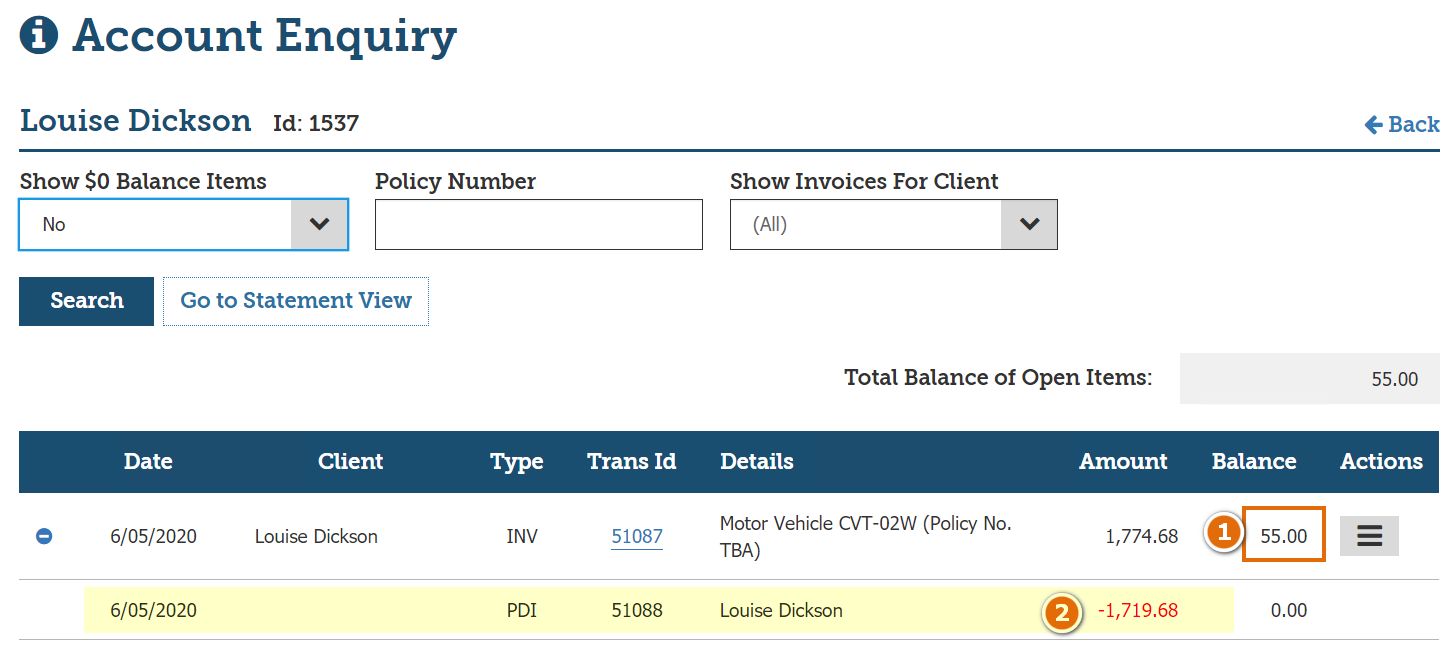
INSIGHT can receipt and allocate the income through the instalment receipting feature. INSIGHT allows you to manage fees directly from the insurer (in the first instalment) or from the insured. Once posted to accounts, an INV (invoice) and PDI (Paid Direct Instalment) transactions are generated on the Insured and the Insurer’s Account Enquiry Menu as shown below.
1. Client Balance showing only the fee as owing
2. PDI indicating Paid Direct.
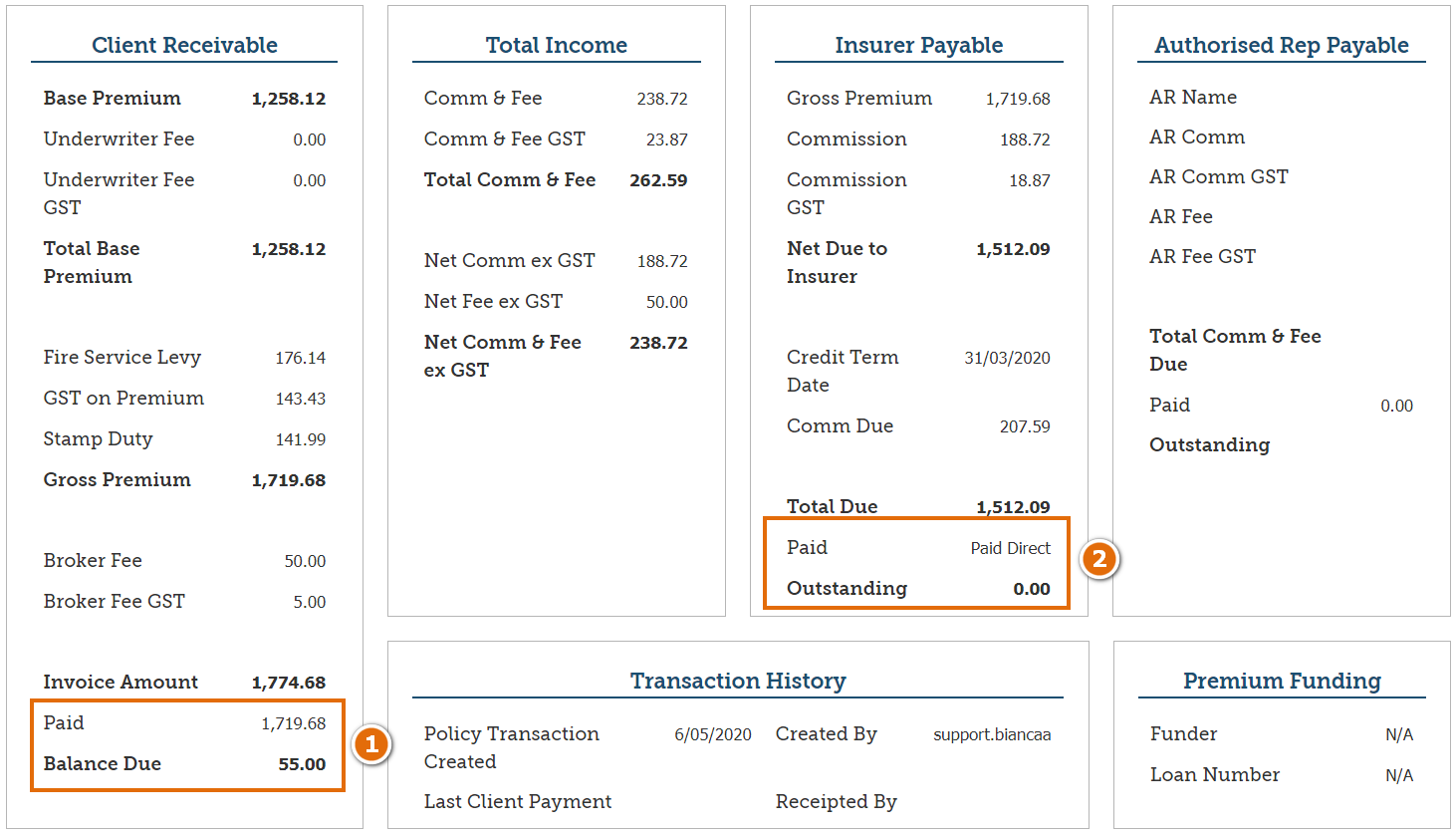
On a manual instalment policy, the premiums page of the transaction will display the fee as outstanding (if any charged), and the insurer premium noted as “Paid Direct”, to indicate the client has/will pay the insurer direct.
For an EDI instalment policy the premium page would be the same, except the fee would not be outstanding.
Highlights:
- A PDI Transaction cannot be unapplied
- Policy Reversal Transactions are not appliable
- Brokers’ commission is paid via monthly Instalment Payments process
- Income & GST can be drawn after payment is received from the Insurer and/or broker fee paid by Insured (on manual instalment plan)
Business Rules |
INSIGHT Rules
| Item | Manual | EDI |
| Instalment billing is not available for selection with Co-Insurance or Split Invoice policies. |  |  |
| Annual policies cannot transition to an instalment-billed policy type during a policy year. It must be on renewal. |  |  |
| There is only one payment plan per record. New business followed by endorsement transactions combine into the one instalment plan. |  |  |
| When a policy is renewed, a new instalment plan is started for the renewal policy record. |  |  |
| Gross AR's can be defined on policies with instalment-billed policies. |  |  |
| Instalment billing is not available for Net AR's/Producing Brokers. |  |  |
| Premium Funding is not available for instalment-billed policies. |  |  |
| Instalment billing is initiated within the insurer's product. |  |  |
| The updated instalment plan is not displayed for endorsement or cancellations until the policy is posted to accounts. |  |  |
| Broker's income cannot be adjusted on the Invoice Premium page after returning to INSIGHT as the income has already been defined in the insurer's product. |  |  |
| Auto-rounding cannot be applied to instalment-billed policies. |  |  |
| The Broker Fee is transacted within the instalment. |  |  |
| The Broker Fee must be invoiced separately to the client. |  |  |
Insurers
For instalments to work on INSIGHT each Sunrise and SVU insurer needs to agree to activate the instalment options for your brokerage in their systems. Contact your insurer to discuss your instalment billing business needs and to schedule training on their instalment products. Below is a matrix of insurers and their ability to manage instalment products and the relevant platform.
| Insurer | Product | Manual | SCTP | Sunrise |
| AIG |
|  |  | |
| Allianz |
|  |  | |
| Allianz |
|  | # able to accepted as instalment in Sunrise, but future transactions will need to be manual | |
| Blue Zebra |
|  |  |  |
| CGU |
|  |  | |
| Club Marine |
|  |  | |
| IAL |
|  |  | |
| QBE |
|  |  | |
| SGUAS |
|  |  | # able to accepted as instalment in Sunrise, but future transactions will need to be manual |
| Vero |
|  |  | # able to accepted as instalment in Sunrise, but future transactions will need to be manual |
Setup and Configuration |
Instalment Billing is enabled by the System Administrator as outlined hereunder.
Configuration Administration
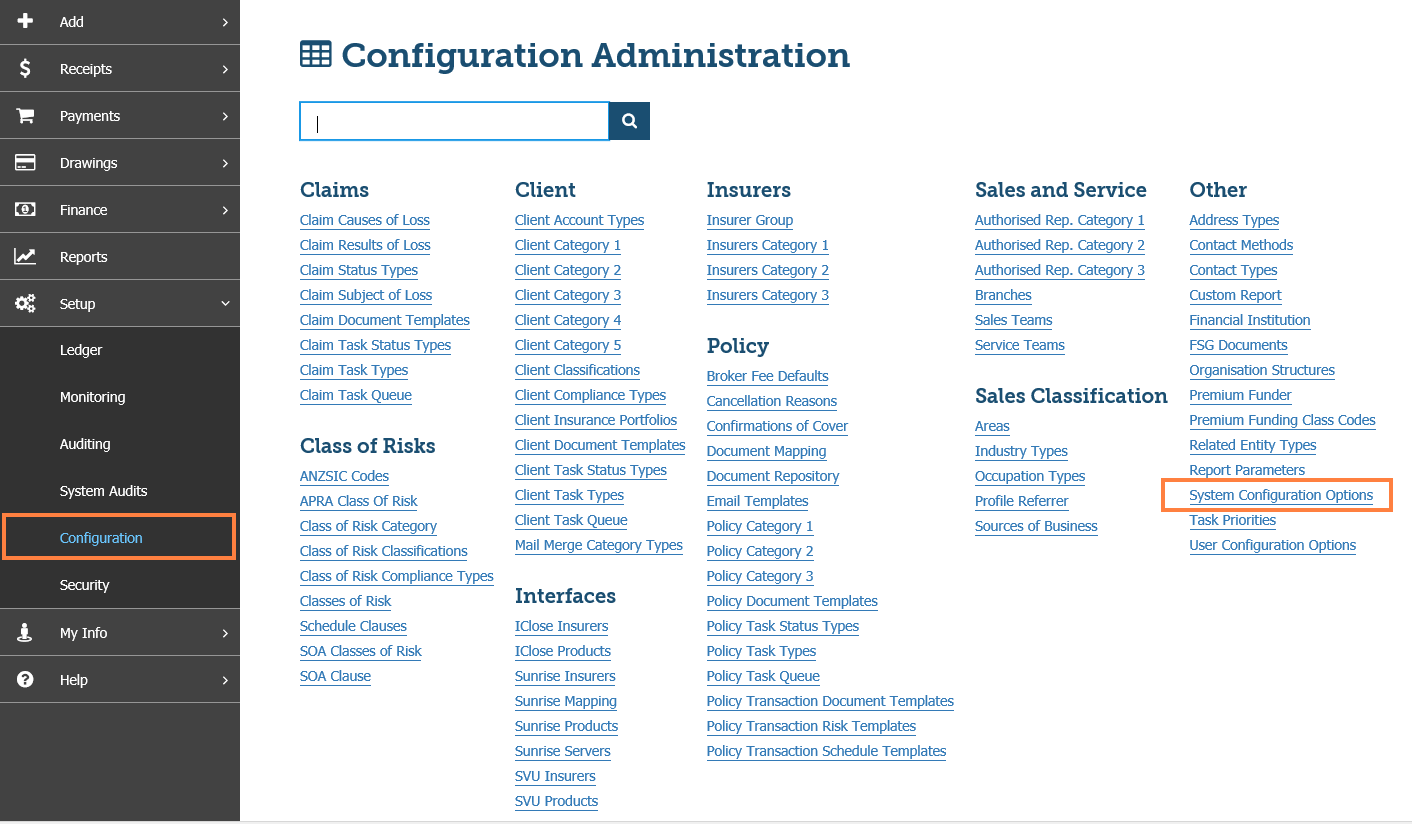
 IMPORTANT: System Configuration options are managed by INSIGHT support. Please contact support@steadfasttech.com.au to assist in this area.
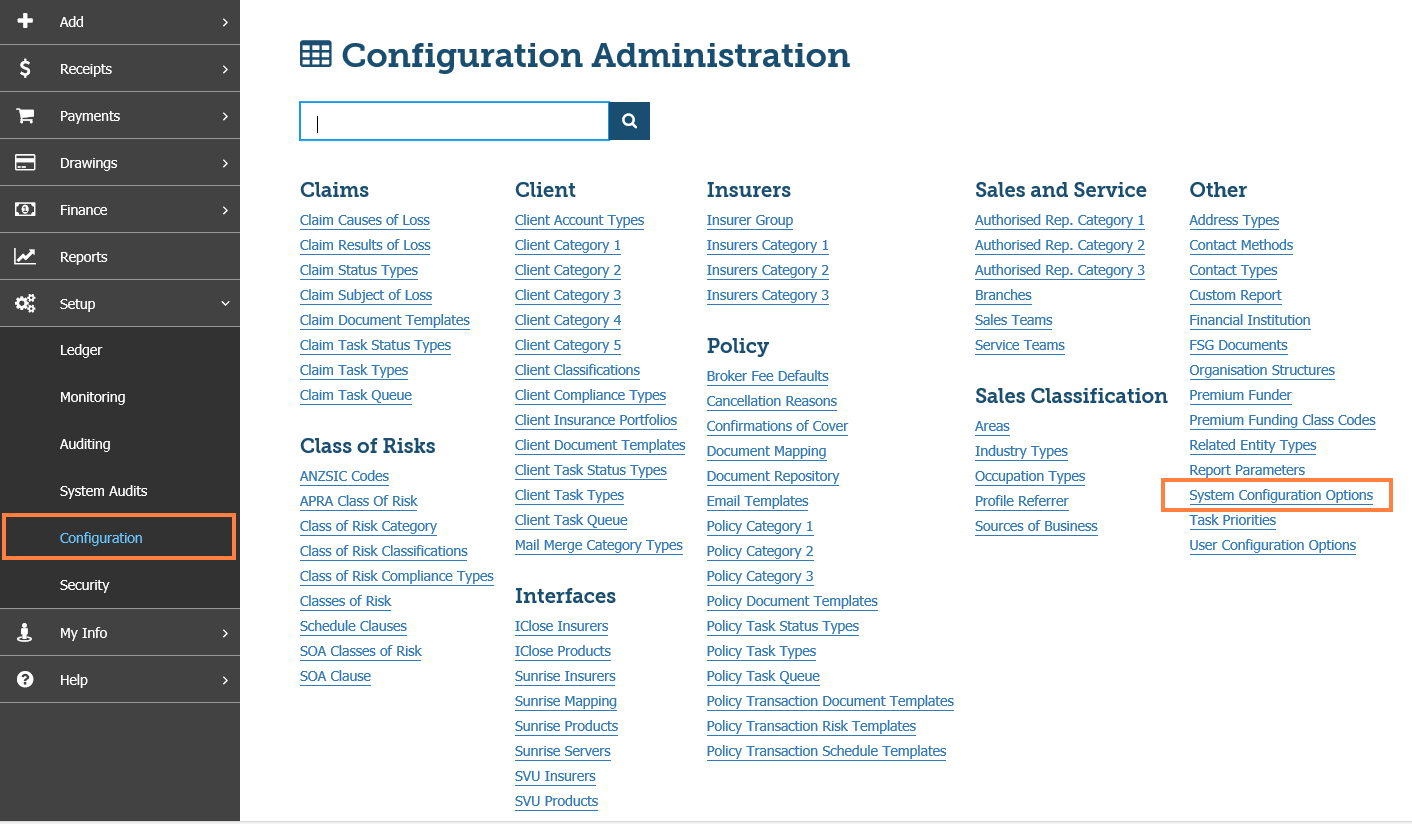
1. Select Setup> Configuration > System Configuration Options
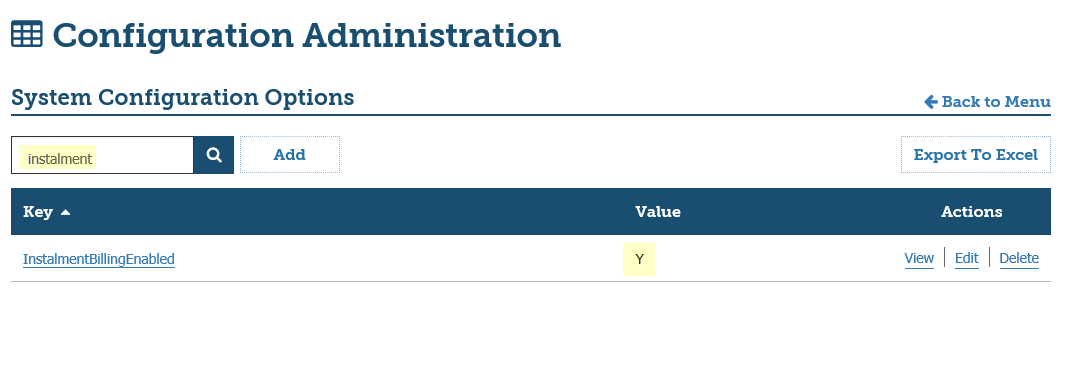
2. Search for the InstalmentBillingEnabled setting. Set the value field to Y, as shown below. (If the value is displayed as N, enter edit mode and set it to Y)
3. Save and go back to Configuration Administration Main Menu
For EDI Instalments Only
1. Select Report Parameters from the Configuration Administration Main Menu
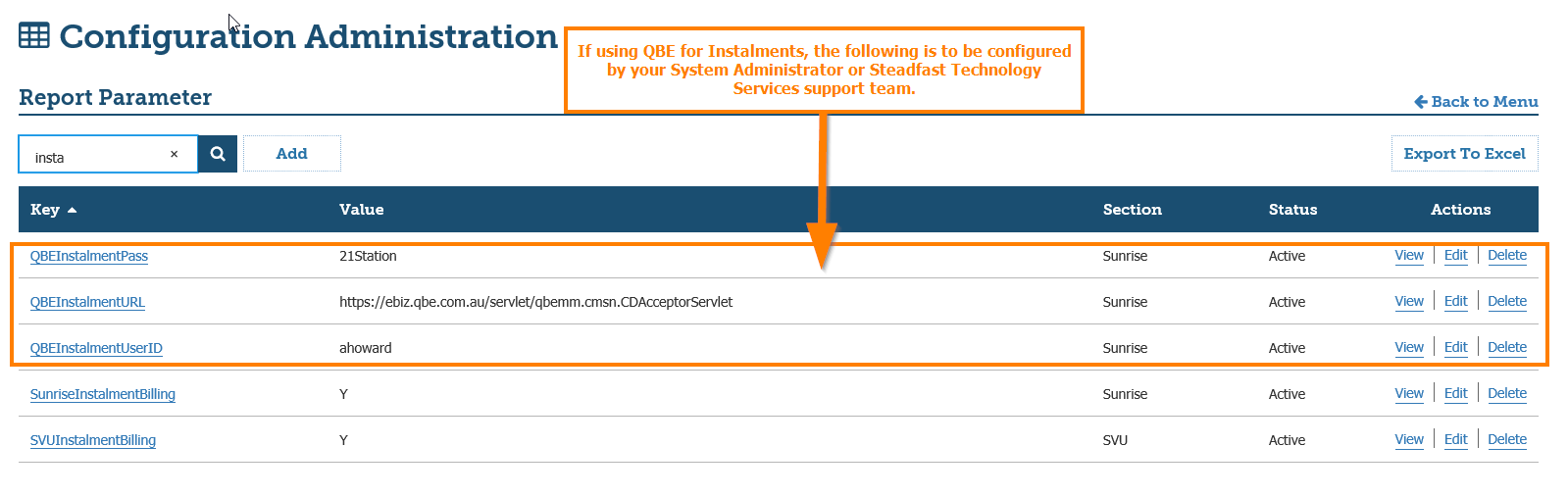
2. Select the Report Parameters options and search for the Instalment Billing settings. For both SVUInstalmentBilling and SunriseInstalmentBilling set the value field to Y, as shown below:

QBE Insurer Settings (if using QBE Sunrise)
If you are placing Instalment Policies with QBE, the following additional Report Parameters must be entered into INSIGHT. These are your administrator C.change credentials. Check with QBE that the instalment file is enabled for System Administrator. These credentials can be managed by your system administrator or Steadfast Technology Services support staff.
Insurer Configuration
Each insurer needs to be configured to be recognised as able to transact an Instalment Policy. To do this, you will need to access the Insurer Wizard as outlined below:
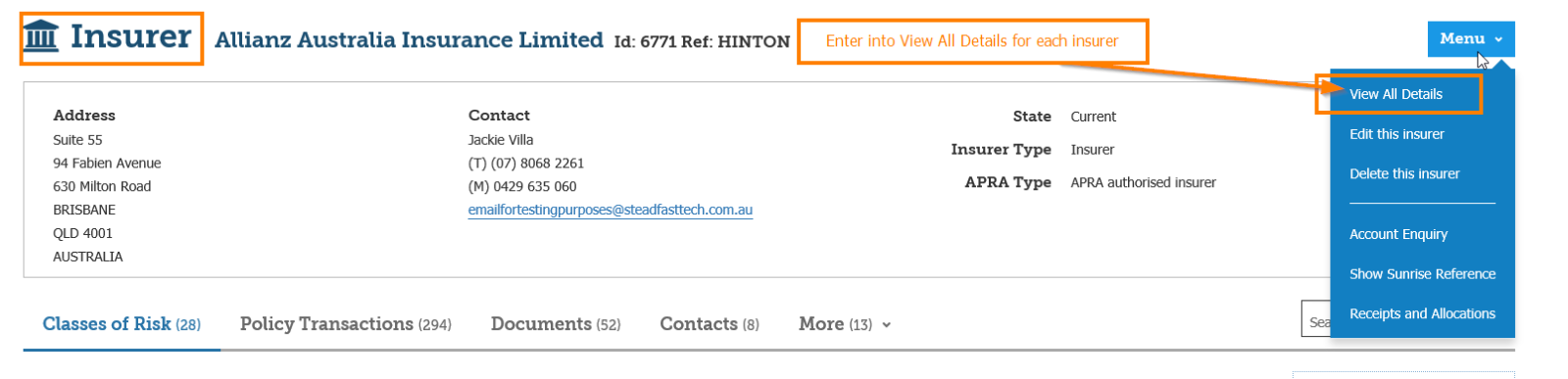
1. Search for the relevant insurer and enter the Insurer main page.
2. From the Insurer screen, hover the mouse over the MENU icon and select View all Details
3. Access the Insurer wizard and proceed to the Instalment step in the wizard.
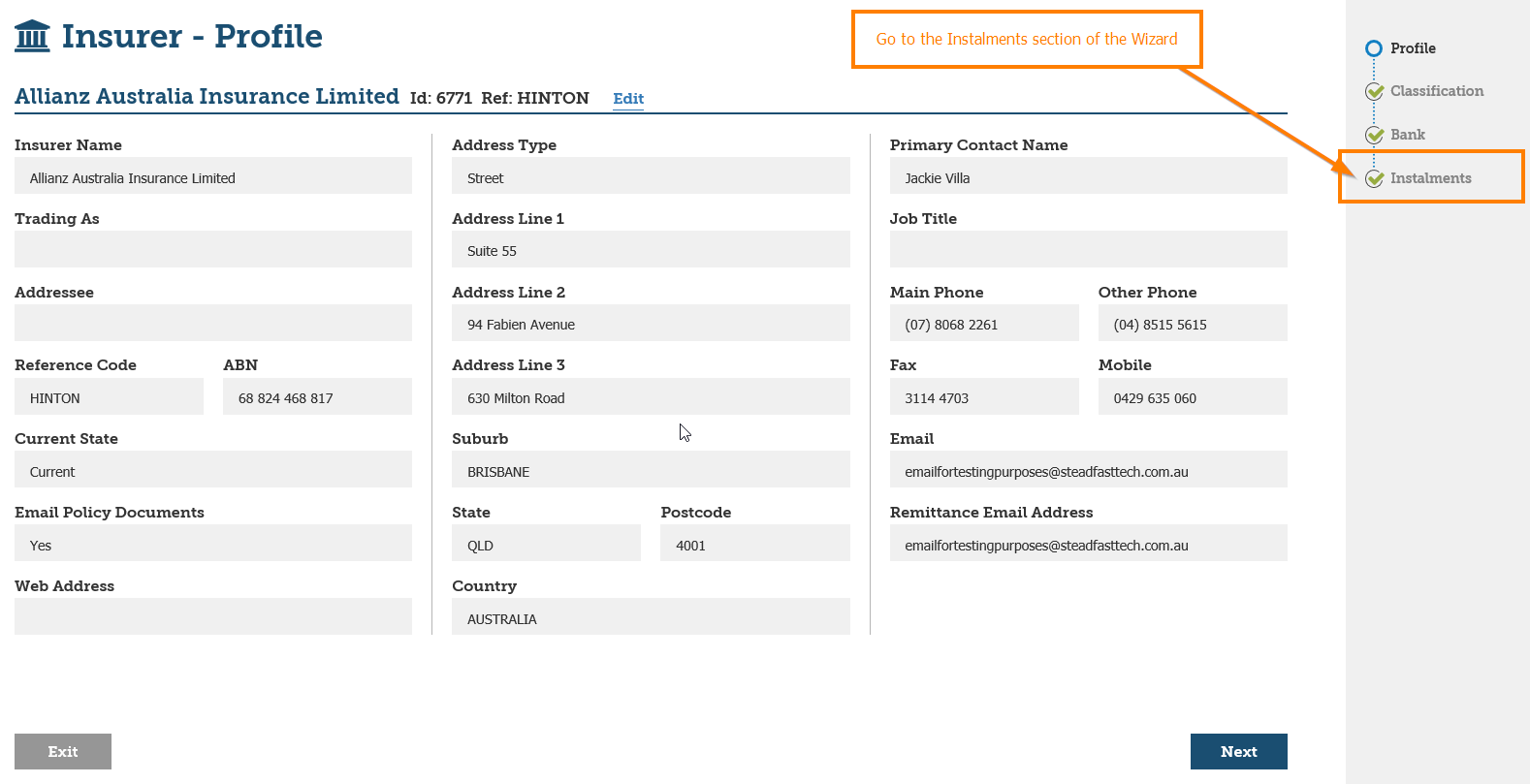
4. Activate the applicable Instalment billing options as agreed by the insurer.

5. Repeat for each insurer
Migrating Instalments from a Legacy System |
If you are a site that has migrated/will be migrating from another broking system, there are a few extra steps you will need to accommodate in Year 1 of your migration.
Manual Instalment Policies
Due to the differences in the way INSIGHT handles instalments compared to other broker systems this will drive the way instalments a converted to INSIGHT, if an instalment policy is flagged as manual in your legacy system it will be converted as manual.
However, there are cases where an instalment policy will change from EDI to manual, for example where the business can be placed with Vero Insurance as an instalment Policy in Sunrise. Vero does not support electronic file upload like CGU and QBE so this policy will need to be converted to manual in INSIGHT.
- For all instalment a $0.00 Endorsement is created on the Imported Manual Instalment transaction, this allows future receipts to be completed in INSIGHT.
- Future Instalment Receipts can be processed, and these will be visible in the Instalment Receipts view within the Instalments Plan. Note that if Receipts are processed:
- These will be included in the Instalment Reconciliation Report as ‘Amount Receipted’.
- Processed Receipts will result in a negative Outstanding amount. This is because the record of receipts processed on instalments due before conversion to INSIGHT is not migrated from your legacy system.
- Therefore, the Instalment Reconciliation Report will not reconcile for migrated instalments.
- Endorsements for the current policy period can be performed on the Imported transaction. The Instalment Plan will update to reflect the impact of the Endorsement, and Instalment Receipting can be performed.
 IMPORTANT: This has been tested using data from a WinBEAT migration. Future migration sites, both from WinBEAT or any other broker system, will need to be verified individually. This will be assessed along with all other migration requirements for a broker.
Clearing GST Prepaid Amounts (WinBEAT only)
Background
The WinBEAT Instalments module automatically treats Commission GST on instalment policies as ‘prepaid’ by paying the full GST up front. In effect Commission GST for instalment policies is financed by the Broker and is recouped over the 12 months of the instalment policy.
The INSIGHT Instalment module accounts for both Commission and Commission GST as received from the insurer, typically monthly.
INSIGHT records commission received from the insurer for each instalment period (via Instalment Receipts – Sunrise, SVU and Manual).
As commission is recorded as being paid to the broker against an instalment period in INSIGHT (via instalment Receipts – Sunrise, SVU and Manual), INSIGHT then allocates this commission as income earned to the broker and makes its available for drawings (via Drawings, Income). INSIGHT also calculates the GST payable on this earned income and makes it available for drawings to be paid to the ATO (via Drawings, GST).
When migrating instalment policies from WinBeat that have ‘prepaid’ Commission GST, we need a process to ensure that the ‘prepaid’ GST is refunded to the Broker at the time of drawings and not paid to the ATO. The procedure outlined below will allow the broker to draw income for all policies regardless of where they originated and in turn, draw GST that has been prepaid (WinBEAT originated transactions) and then draw GST owed to the ATO (INSIGHT originated transactions).
Procedure
IMPORTANT: You will need to identify and list all instalment policies originated in WinBEAT for which you have ‘prepaid’ GST to assist in the drawing process detailed below.
Your migration team will have created a clear difference in the invoice numbers to help you keep track. For example, all Imported Instalments will have invoice numbers starting at 100000, then any transaction processed live in INSIGHT will start with invoice numbers at 500000.
1. On the day you want to upload your Instalment Receipts files ensure you have first completed processing all manual, DEFT or BPAY receipts.
2. Ensure you have processed both Income and GST Drawings BEFORE uploading any Instalment Receipts files.
3. Upload and process ONE electronic or manual Instalment Receipt file from an insurer.
4. Withdraw your earned income (via Drawings Income) that are available as a result of Step 3.
5. Withdraw your earned GST (via Drawings GST) for those instalment policies that relate to prepaid GST i.e. Instalment policies generated in WinBEAT prior to migration.
 IMPORTANT: These funds should be retained by the Broker to offset the prepaid Commission GST financed by the broker prior to migration.
6. Withdraw your earned GST (via Drawings GST) on all remaining instalment policies. This should be for instalment policies generated in INSIGHT. These funds represent monies owed to the ATO on INSIGHT generated invoices.
7. Repeat steps 5-6 until all instalment receipts for the month have been uploaded and processed (both manual and EDI).
 NOTE:
• Completing Steps 5 and 6 as separate steps will allow for easier accounting and reconciliation of GST that was prepaid in WinBeat but recovered in INSIGHT, versus GST drawn in INSIGHT and due to the ATO.
• This process you will need to continue until all migrated ‘prepaid’ instalment policies have been cleared.You will need to identify and list all instalment policies originated in WinBEAT for which you have ‘prepaid’ GST to assist in the drawing process detailed below.
Whilst this may resolve the processing of the GST received from the insurer for prepaid GST and GST monies owed to the ATO, we cannot advise if this is compliant with any GST obligations for managing the trust account. For this, it is recommended you speak with your accountant or compliance partner.
Exceptions and Troubleshooting
Sunrise Instalments - Vero & Custom Home Insurance
There are two known insurers who are able to offer instalments via Sunrise, however, are not compatible with INSIGHT instalments. These insurers are Vero Insurance and Custom Home Insurers. You will be able to quote and receive renewal terms, however, at the point of binding, you will need to convert to a manual transaction. Below are the steps for how you will need to transact these particular instalment policies for these insurers in INSIGHT.
Migrated Instalment Policies from Sunrise Vero & Custom Home Insurance
Brokers who are migrating and have instalment transactions via Sunrise for these two insurers, will have those policies come across with no debt, and converted to a manual interface when the data is migrated into INSIGHT. This effectively means that the policy is no longer an EDI transacted policy and will revert to a normal manual process as any other non-EDI policy. Endorsements, cancellations or the subsequent renewal will need to be done manually with the insurer. At renewal, the insurer will be required to supply terms via renewal import electronically, or manually. Below is the method to deal with either of these options, to effectively handle these policies it is best to have two policies set up, one allows you to renew the policy on sunrise, the second is your manual instalment policy. All endorsements on these policies will be processed as non-EDI on the Manual Instalment policy
Renewal Received on Sunrise via Sunrise Import Function
1. Confirm the renewal is available on the Import List. 2. Locate the Manual Version of the imported policy to be renewed. 3. Select Renew. 4. In the dropdown for Interface, select Sunrise 5. In the dropdown for Import Renewal, select Yes. 6. Select Next to be directed to the import list. 7. Locate and select the policy from the list. 8. Select Next, complete the transaction and Post to Accounts Note: The renewal will come down as an annual policy and will result in a debt created on the client’s account. 9. Remove the debt created by this transaction – endorse the policy changing the interface to Manual with the negative version of the premium in order to reverse it out. 10. Return to the Client profile. | 11. Select Take Up. 12. Enter the dates for the prior 2018-2019 will later be renewed as 2019-2020 period. 13. In the dropdown for Included or reported as, select Renewal. 14. Keep the Interface as Manual 15. Select the Class of Risk and Insurer. 16. Complete the transaction and select Take Up policy. 17. Locate the Take Up transaction and select Renew * This will carry through with the current period. 18. Keep the Interface as Manual. 19. Select the Class of Risk and Insurer. 20. In the Instalments dropdown, select Yes. 21. Complete the transaction and Post to Accounts. |
New Policies
To create a new policy using these products the principles are the same, 2 policies will need to be created.
1. Select Add New Business 2. Keep the Interface as Sunrise. 3. Select the Class of Risk and Insurer. 4. Complete the Sunrise placement and the policy wizard in INSIGHT by posting to accounts. 5. Remove the debt created by this transaction – endorse the policy changing the interface to Manual with the negative version of the premium in order to reverse it out 6. Return to the Client profile. | 7. Select Add New Business. 8. Keep the Interface as Manual. 9. Select the Class of Risk and Insurer. 10. In the Instalments dropdown, select Yes. 11. Complete the transaction and Post to Accounts. |
* All future Endorsement will be made on this Manual policy.
 QUICK TIP:
• Make sure the debits and credits are allocated to each other on both the insured and insurer records as soon as possible to avoid confusion
• To keep track of which is Sunrise and which is manual, add Information to your brief description field ie:


• Discuss this approach with your team and agree on a process that works for all
Was this article helpful?
That’s Great!
Thank you for your feedback
Sorry! We couldn't be helpful
Thank you for your feedback
Feedback sent
We appreciate your effort and will try to fix the article