The Processing page is made up of the following sections. Select the section names below for more information:
Processing

 | Allow Override of Fee - applies to the Fee Amount field when creating a receipt using a credit card payment method. This setting determines whether the Fee Amount field is editable or not. | 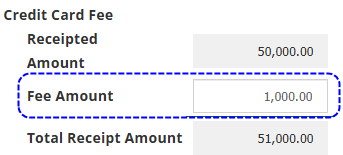 |
 | Enable CC Fee - applies to the Fee Amount field when creating a receipt using a credit card payment method. This setting determines whether this field is displayed or not. If enabled, INSIGHT used the above fee percentages to auto-calculate the Fee Amount. |
 | Allow Credit Card Details - when enabled, additional fields to capture credit card information will display when credit card is used as a payment method.
 NOTE: This setting doesn't require Enable CC Fee to be set as Yes. NOTE: This setting doesn't require Enable CC Fee to be set as Yes. | 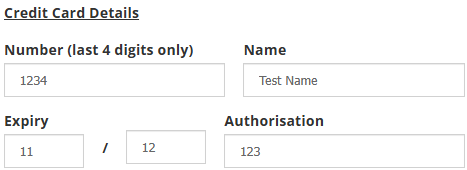 |
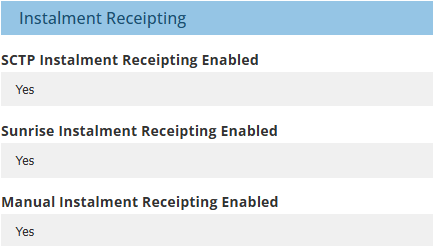
When any of these settings are enabled, the respective interface instalment option will display when you select Receipts, then Instalment Receipts.
 | SCTP Instalment Receipting Enabled - enables or disables SCTP Instalment receipting. |
 | Sunrise Instalment Receipting Enabled - enables or disables Sunrise Instalment receipting. |
 | Manual Instalment Receipting Enabled - enables or disables Manual Instalment receipting. |
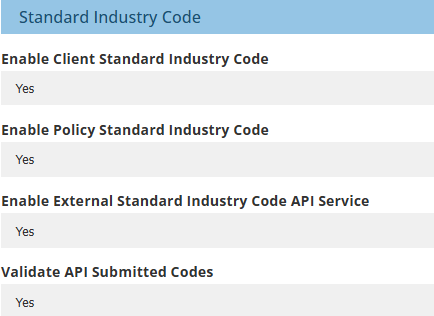
 | Enable Client Standard Industry Code - displays or hides the Standard Industry Code field on the Classification page of the Client wizard. | 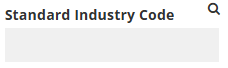 |
 | Enable Policy Standard Industry Code - displays or hides the Standard Industry Code field on the Policy Details page of the Policy wizard. |
 | Enable External Standard Industry Code API Service - determines whether or not the Standard Industry Code field in the Client and Policy wizards connects to the Bureau of Statistics. When enabled, a magnifying glass is displayed - when you enter the industry name or code, the field auto loads matches it finds with the Bureau of Satistics. From there, make you selected from the displayed matches. |
 | Validate API Submitted Codes - determines whether or not the value entered into the Standard Industry Code field is validated through the API against configured codes or the Bureau of Statistics. When enabled, the API validates the value against the matching numeric Standard Industry Code or alphabetical description. |
 | Enable Auto Rounding - when enabled, the rounded amount is added to the Broker Fee for the transaction. |
 | Prompt To Accept - determines whether the rounding is automatically applied or if you are first prompted before accepting the rounded amount. |
 | Round up to the Nearest - the selection here is used to round up the total invoice amount. The options are $0.05, $0.10, $0.50, $1.00 or $5.00. |
Income Adj Defaults For Admin Only | |
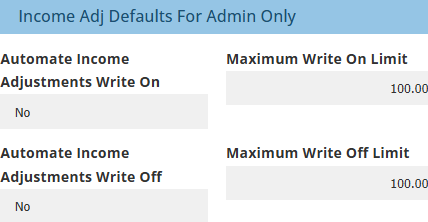
The following settings only apply to Administrators. Income adjustment permissions for Standard users are managed through the relevant Processing Permission Group.
 | Automate Income Adjustments Write On - when enabled, INSIGHT uses the Write On limit to auto-apply a write on when receipting. Otherwise, you can manually apply the write on. |
 | Maximum Write On Limit - captures numerical values and is used as the maximum amount allowed when applying a write on. |
 | Automate Income Adjustments Write Off - when enabled, INSIGHT uses the Write Off limit to auto-apply a write off when receipting. Otherwise, you can manually apply the write off. |
 | Maximum Write Off Limit - captures numerical values and is used as the maximum amount allowed when applying a write off. |
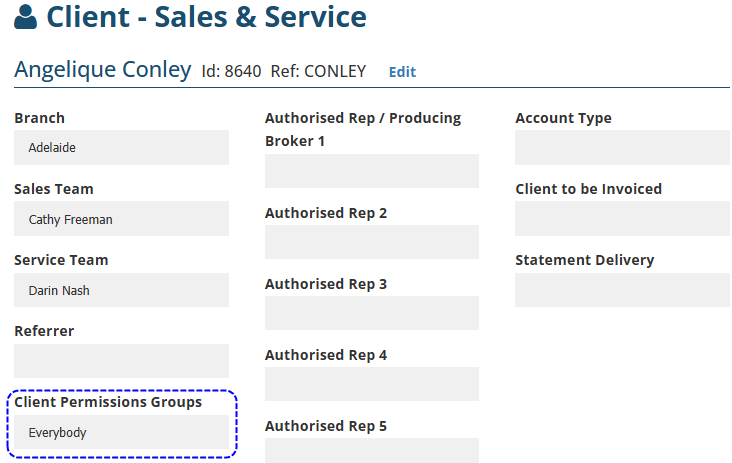
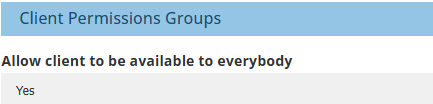
 | Allow client to be available to everybody - this applies to the Client Permissions Groups field in the Client profile, the available options are:- Yes - the selection of 'Everybody' is allowed making the client visible to all users regardless of the Client Permission Group setting on the user level.
- No - does not allow the selection of 'Everybody', therefore all clients must be allocated to a Client Permission Group at a client level and only users allocated to that Client Permission Group at a user level can view those clients.
|  |
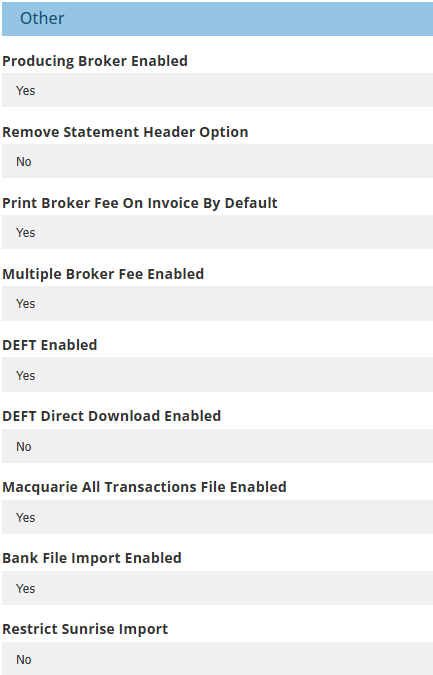
 | Producing Broker Enabled - determines whether or not Producing Brokers are used in the ledger.
NOTE: Producing Brokers retain their income and pay you the premium (previously known as Net Authorised Representative) |
 | Remove Statement Header Option - this legacy field does not impact the system. |
 | Print Broker Fee On Invoice By Default - this only applies to New Zealand ledgers and is used with the Hide Print Broker Fee Option.
NOTE: In NZ, brokers have the option to disclose or not disclose their fees to clients. If fees are not disclosed separately, they are included in the company premium. |
 | Multiple Broker Fee Enabled - determines whether or not Multiple Broker Fees are used in the ledger. When enabled, the additional setting 'Broker Fee Names' is added to Configuration and the 'Broker Fee Analysis' report is added to Reports. |
 | DEFT Enabled - this applies to the 'DEFT (.pay)' option found in the Bank File Import wizard. When enabled, this displays the 'DEFT (.pay)' option which allows you to process receipts by manually uploading a .pay file. To allow auto-processing, the setting DEFT Direct Download Enabled must also be enabled. |
 | DEFT Direct Download Enabled - this allows for the auto-processing of DEFT (.pay) and Non-Consolidated Macquarie All Transaction (.txn) files from Macquarie Bank. This feature auto-downloads the files from Macquarie and auto-processes the receipts in INSIGHT.
NOTE: When enabled, this adds the 'DEFT Direct Download' settings in Configuration where you are required to enter your Direct Download User Name, Password and Customer Number to allow the auto-download with Macquarie behind the scenes. |
 | Macquarie All Transactions File Enabled - this applies to the 'Macquarie All Transactions (.txn)' option found in the Bank File Import wizard. When enabled, this displays the 'Macquarie All Transactions (.txn)' option which allows you to process receipts by manually uploading a .txn file. To allow auto-processing, the setting DEFT Direct Download Enabled must also be enabled. |
 | DEFT Consolidated File Enabled - this setting is displayed when both DEFT Enabled and Macquarie All Transactions File Enabled are set as Yes.- This feature auto-downloads and creates a Macquarie All Transactions Consolidated file which combines all individual DEFT & Non-Consolidated Macquarie All Transaction (.pay & .txn) files into a batch file that displays as one line item in your bank statement and balances as one line item in INSIGHT's Bank Reconciliation.
- The auto-downloaded files are kept in Draft for you to review and process, allowing you to reconcile bank items the same day.
- When enabled, this adds the 'DEFT Direct Download' settings in Configuration where you are required to enter your Direct Download User Name, Password and Customer Number to allow the auto-download with Macquarie behind the scenes.
NOTE: A Macquarie All Transactions Non-Consolidated (.txn only) file does not batch DEFT items as each DEFT item displays as one line on your bank statement. However, all items within the .txn file itself are displayed as one batch receipt in INSIGHT.
|
 | Bank File Import Enabled - this applies to the 'Other' option found in the Bank File Import wizard. The 'Other' option is used to upload .CSV, .OFX and .QIF files to INSIGHT.
NOTE: When enabled, you must complete the mapping of files in the 'Bank File Import Mapping' setting in Configuration. |
 | Restrict Sunrise Import - this applies to Standard users when using the Sunrise Import Policy function in the transaction wizard. When enabled, Standard users are required to enter the correct period of insurance and policy number to access the matching policy details in the Import List. Otherwise, standard users can access the entire Import List. |
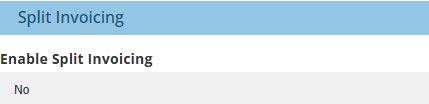
 | Enable Split Invoicing - determines whether or not the Split Invoicing field is displayed in the transaction wizard and used in the ledger. |
 Credit Card Processing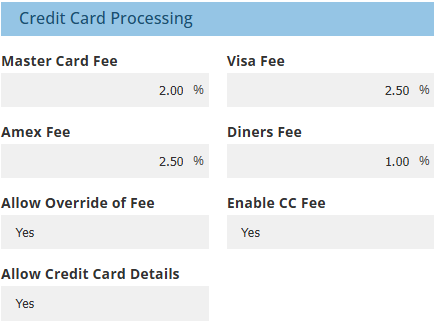
 Auto Rounding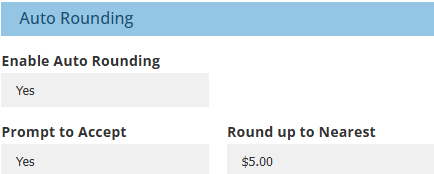
 Other
Other