| Version 1.03 | 14 January 2020 |  |
Table of Contents |
Introduction |
Effective with Release 5.01 of INSIGHT changes have been implemented to simplify the Policy Processing Wizard for Cancellation Transactions and to automate the allocation of full-term cancellation. These changes include:
- Automatic selection of the cancellation type (full-term or mid-term) based on the Policy Effective Date and Start Date
- The introduction of auto-allocation functionality for full-term cancellations to enable the automatic offset of Cancellation Credit Notes against the corresponding outstanding Invoices. This function eliminates the need for users to manually allocate Cancellation Credit Notes.
Purpose
This User Guide describes the changes to the Policy Processing Wizard for processing of cancellation transactions, and the use of the Auto-Allocation function for full-term cancellations.
Audience
This document is intended for registered users of the INSIGHT Broking Platform and Steadfast Technologies support staff.
Before You Start |
INSIGHT Configuration
You can elect to prompt for a Cancellation Reason in the Policy Processing Wizard when processing Cancellation transactions. Once configured the Cancellation Reason page is inserted into the Policy Processing Wizard and must be completed for each Cancellation transaction. The Cancellation Reason page will only appear if it is configured via Report Parameters. The step to configure the Cancellation Reason page are:
Report Parameters
1. In the INSIGHT navigation panel, go to > Setup > Configuration > Report Parameters. 2. Search for or Add the report parameter RequestCancellationReason. 3. Enter RequestCancellationReason in the Key field, Y for the Value, Workbooks for the Section, and select Active for the Status dropdown. 4. Select Save to add your changes. | 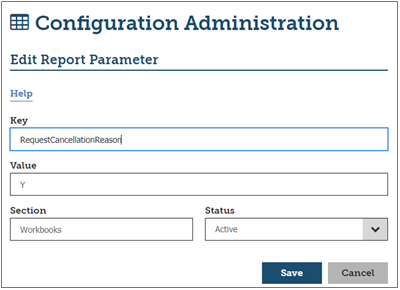 |
Cancellation Wizard |
Effective with Release 5.01 of INSIGHT you are no longer required to select a Cancellation Type (i.e Full-Term versus Mid-Term Cancellation) when processing a Cancellation transaction. INSIGHT will now automatically determine the Cancellation Type from the Policy Effective Date and Start Date. This section outlines various Cancellation processing scenarios within INSIGHT and the changes implemented to the Policy Processing Wizard for full-term cancellations.
Processing a Full-Term Cancellation
The following steps outline the procedure to process a full-term cancellation:
1. Enter an Effective Date that is the same as the From Date on the Policy Summary page.
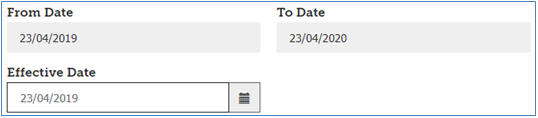
2. Progress through the wizard. Note that for manual policies all premiums and charges can be modified on the Invoice Premiums page for full-term Cancellations.
Note the following processing rules for Full-term cancellations:
- The Broker Fee defaults to the inverse of the sum of the broker fees received in this policy term. Example: You want to cancel a policy that consists of a New Business with a $100 broker fee, and three Endorsements that each attracted $50 broker fees, for a total of $250 or Broker Fees. The default Broker Fee for the full-term cancellation is automatically set at -$250.
- If the Cancellation is changed from full-term to mid-term (or vice versa) while going through the Cancellation wizard, then the default Broker Fee is automatically reset according to the rules for the applicable Cancellation type.
3. Once the full-term Cancellation is posted and the criteria for auto-allocation is met, the resulting Cancellation Credit Invoice is automatically allocated against the relevant invoice(s). An information banner displays on the Summary page of the Cancellation Wizard to advise the Invoice Number for the newly created Cancellation, and the invoice(s) that it has been automatically allocated to.
a. In the following example, the information banner advises that Cancellation Invoice 46789 and negative Endorsement 46787 have been automatically applied to Invoices 46786 and 46788.

b. In cases where the criteria for auto-allocation is met but there are no amounts to be offset, the format of the message is as follows.

Cancelling a Take-Up or Imported Policy
Auto reconciliation of full-term policies does NOT apply to Take-Up or Imported policies. When a full-term Cancellation is posted for either a Take-Up or Imported/migrated policy and the return premium is not equal to $0, the following warning banner displays on the Summary page of the Policy Processing Wizard to remind you that the return premium is not automatically allocated. The message refers to either a take-up or imported policy, depending on which applies.

When a full-term Cancellation is posted for a Take-Up or Imported manual policy only, the following warning banner displays at the top of the Invoice Premiums page of the Policy Processing Wizard to remind you to verify the premiums and charges. The message refers to either a Take-up or Imported policy, depending on which applies.

Processing a Mid-Term Cancellation

 NOTE: For mid-term Cancellations, the default Broker Fee is set on the Broker Fee Defaults Table accessed via the Setup Configuration menu. Contact you Administrator to configure Broker Fee Defaults.
Cancelling a Full-Term Policy
Auto allocation of full-term cancellations only applies when the transactions within the policy term have not been paid (either partially or fully) by the Client. When processing a full-term Cancellation for a policy that has been either partially or fully paid, the following warning banner displays on the Summary page of the Policy Processing Wizard to remind you that the return premium is not automatically allocated.

Return Premium Not Matching
For auto-allocation to complete the total return premium must match the sum of the premiums from the New Business or Renewal and any positive Endorsements. When attempting to post a full-term Cancellation for an unpaid policy where the total return premium does not match the sum of the premiums from the New Business or Renewal and any positive Endorsements, the following confirmation message displays. Example:
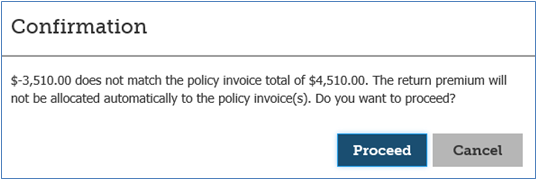
Select Proceed if you wish to finalise the Cancellation; in which case the return premium is posted but not automatically allocated and will need to be allocated manually. The following warning banner is then displayed on the Summary page of the Policy Processing Wizard.

Auto Allocation |
As noted in the previous section triggering of the auto-allocation function only applies for the following policy processing scenarios:
- When processing full-term Cancellations.
- Where the transactions within the policy term are not paid (either partially or fully) by the Client.
- Where the total return premium of the full-term cancellation matches the sum of the premiums from the New Business or Renewal and any positive Endorsements processed within the policy term. The return premium resulting from the Cancellation and any existing unallocated negative Endorsements will be offset against the New Business or Renewal and any positive Endorsements. •
- Auto-allocation of full-term cancellations does not apply to Take-Ups or Imported (i.e. migrated) policies.
Auto Cancellation of Full-Term Cancellations
Prior to INSIGHT Release 5.01 brokers only had the option to manually allocate cancellation credits against the outstanding invoices that were being cancelled. This manual process requires brokers to complete 3 actions:
- From the client’s Account Enquiry select the ‘Convert to Cash’ Action Menu option for each Cancellation Invoice (these are shown as C/N transaction types on the Account Enquiry). This step converts each cancellation credit note into ‘Cash’ (denoted by the Return Premium or R/P transaction type) to enable the ‘cash’ to be allocated against the cancelled invoice in order to reduce its outstanding balance to zero.
- Via Receipts and Allocations allocate the ‘cash’ from the Credit Note to the outstanding cancelled invoice.
- To clear the cancelled invoice and the cancellation credit note use the Insurer Payment process to select the offsetting transactions in order to clear them from the list of outstanding payments for the insurer.
The automated allocation of full-term cancellations will now fully automate the above 3 transactions at the time of posting the full-term cancellation.
 NOTE: As noted in Section 3 you must still use the above process when cancelling TakeUp or Imported transactions, and when cancelling paid full-term policies.
Processing Mid-Term Cancellations
Brokers will still be required to complete the 3-step allocation process as outlined in Section 4.1 above when processing mid-term cancellations.
What’s New?Version 1.03
Version 1.02
Version 1.01
|
Was this article helpful?
That’s Great!
Thank you for your feedback
Sorry! We couldn't be helpful
Thank you for your feedback
Feedback sent
We appreciate your effort and will try to fix the article