Click to go to:
Process SCTP Instalment Receipts
Introduction
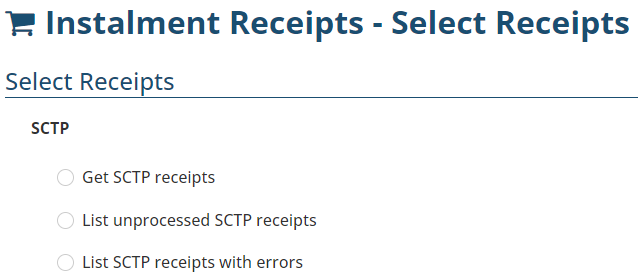
Income earned from SCTP instalment policies is processed in the Instalment Receipts wizard. Generally done once a month, the insurer emails your business an .XML file containing the instalment receipts. It is up to you to save the file and upload it to INSIGHT for processing. The wizard offers several options to process SCTP instalment receipts:
 | Get SCTP receipts | Used to upload the file from the insurer. |
 | List unprocessed SCTP receipts | Used to reprocess SCTP receipts that have not been processed yet. |
 | List SCTP receipts with errors | Used to troubleshoot SCTP receipts that have errors. |
Processing SCTP Instalment Receipts
1. Select Receipts, then Instalment Receipts.
2. Under SCTP, select Get SCTP receipts, then Next.
3. Locate the file in your computer, then select Open.
4. Once imported, select the checkbox beside the receipts - only receipts with no errors are processed; you can download receipts from this page as an Excel file for fut reference.
5. Select Process payments, then Yes to the confirmation message - receipts with errors or receipts that are not processed are moved to the relevant areas.
6. Review the Payment Summary page - you can also download this page as a PDF for future reference.
7. Select Exit or Make Another Instalment Payment.
IMPORTANT: Once receipts are imported, they cannot be re-imported. If for any reason, you back out of processing receipts, they can be located and processed as above by going to List unprocessed SCTP receipts.
Troubleshooting
 | Instalment receipts with errors are not processed and should be reported to the INSIGHT Support team for troubleshooting. Once investigated, you may be asked to retry processing them. You can access receipts with errors by choosing List SCTP receipts with errors. Select the checkbox beside the relevant receipts, choose one of the below options (the Support team will advise which to choose), and then select Done to finalise the movement or removal of receipts. Options:
2. Mark Receipts Complete
|

Was this article helpful?
That’s Great!
Thank you for your feedback
Sorry! We couldn't be helpful
Thank you for your feedback
Feedback sent
We appreciate your effort and will try to fix the article