Click to go to:
Introduction
A Processing Permission Group limits what a Standard user can access in INSIGHT and is not necessary for Administrators - a Standard user can only be allocated to one PPG.
Processing Permission Groups are generally customised to each group's role, for example:
- A Claims PPG will have staff responsible for processing claims as members
- A Full Policy Processor PPG will have staff responsible for quoting, renewals, endorsements, etc as members.
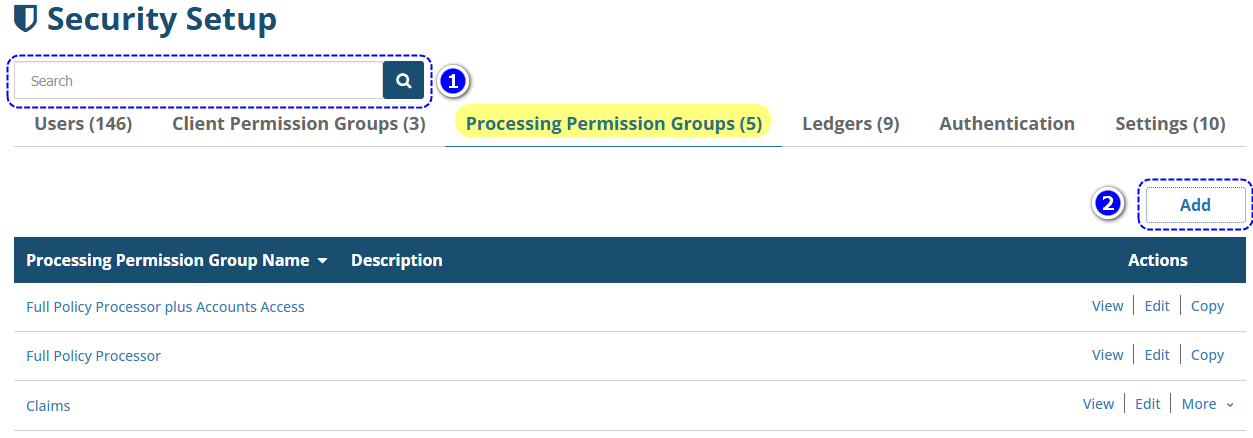
Found under the Setup menu, Security contains the list of all PPGs and is where you can add, edit, copy or delete CPGs. You can use the following to manage PPGs:
 | Search bar - use this to refine the list of PPGs to your search keywords. Ensure that you clear the search bar and re-select the magnifying glass, to see the full list again. |
 | Add - used to create a new PPG. |
Add, Edit, Copy & Delete
Add
Refer to the Adding a Processing Permission Group article for further information.
Edit
Use Edit to do the following:
- Add or remove users to an existing CPG
- Update the CPG name, description or PPG permissions
1. Select Setup, Security, Processing Permission Groups, locate the PPG you want to update and select Edit beside it.
2. Make your changes and select Save.
Copy
Use Copy to use the permissions of an existing PPG and copy it to a new PPG.
1. Select Setup, Security, Processing Permission Groups, locate the PPG you want to use and select Copy beside it.
2. Name the new PPG, add members, review/update the permissions and select Save.
Delete
Once a PPG has members assigned to it, the option to Delete will disappear. Otherwise, if a PPG has been created but has no members, the option to Delete will be available.
1. Select Setup, Security, Processing Permission Groups, locate the PPG you want to remove and select Delete beside it.
Was this article helpful?
That’s Great!
Thank you for your feedback
Sorry! We couldn't be helpful
Thank you for your feedback
Feedback sent
We appreciate your effort and will try to fix the article