Troubleshooting - Schedule Formatting
This is 3 of 3 articles from the Schedule Formatting article series.
Click here to skip to the following content:
| Fonts | Pressing Enter on the keyboard Position of the Schedule bookmark |
Fonts
- It is important to use the same font and style throughout your documents. If you haven’t used the correct formatting, changes to the font will also result in formatting changes.
- For example, changing fonts in a schedule from your previous broking system may result in pushing out the text alignment.
Click the Details button for further information.
Types of Fonts
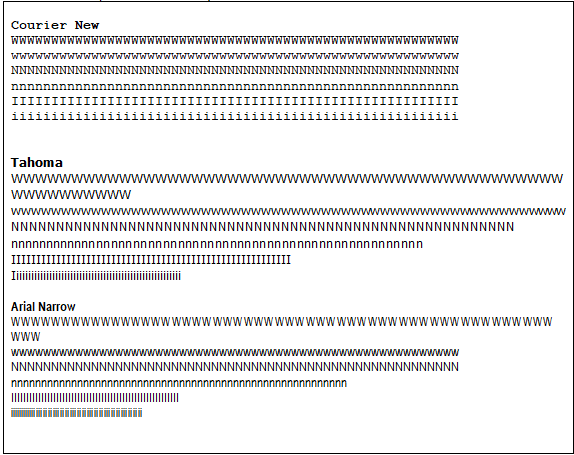
- Mono-spaced fonts - have a fixed width assigned to each character. Characters are lined up on a grid therefore making it simple to line up, as the space is exactly the same width as each character above it. For example, Courier New.
- Variable-spaced fonts - have a variable width which depends on the width of the character. For example, a W is wider than an I and a capital W is wider than a lower-case w.
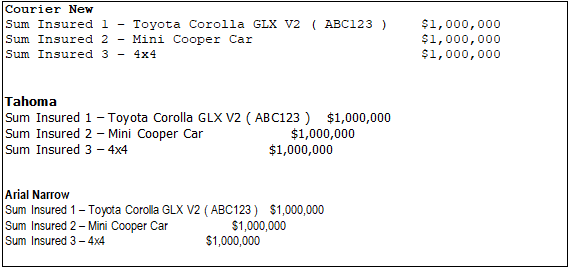
Characters do not line up on a grid - formatting to line up items needs to be done correctly by using tables and tabs. Otherwise, there will be text alignment issues when switching between fonts/sizes. For example, Tahoma.
Samples of Font Differences
All samples use the same text and font size - what looks aligned in the Courier New font, changes when the font is changed to a variable-spaced font.
Spaces
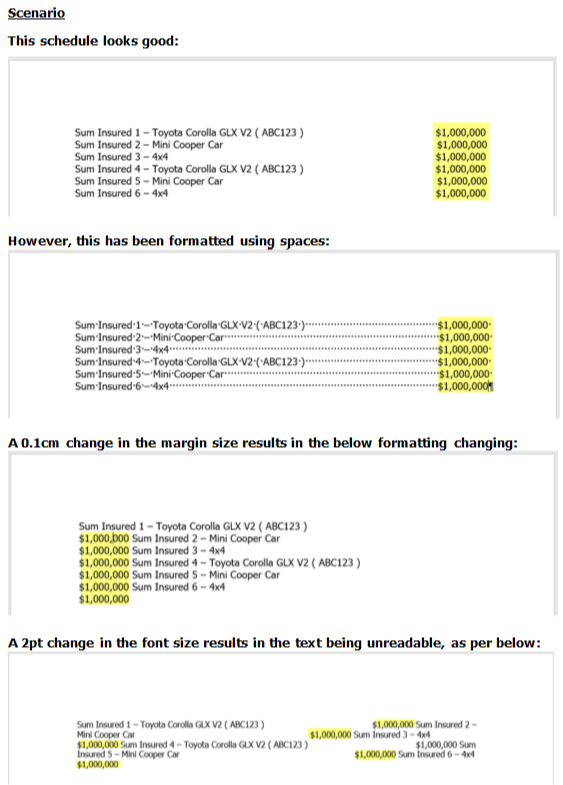
- It is important NOT to use ‘Backspace’ or ‘Spacebar’ on your keyboard to line up text.
- Instead, lining up text will work best when using Tab-Stops or Tables as previously described.
Click the Details button for further information.
Margins
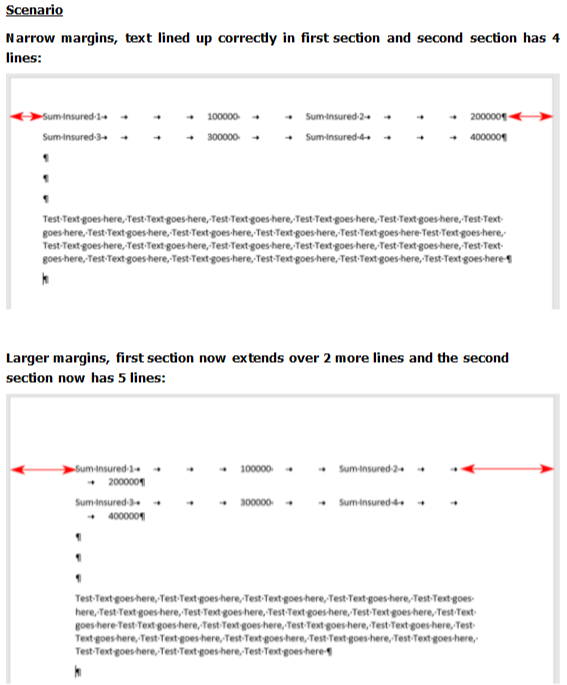
- When the margins in the Schedule document are different from the margins in the Invoice Template, the text may wrap at different points.
- This may be an issue if users press ‘Tab’ on the keyboard to align text across lines or if the schedule is created with text close to the right margin and would wrap with smaller margins.
- The solution is to ensure the user's default Word setting for margins is the same as the Invoice templates.
Click the Details button for further information.
Tabs
Tab Stops
- Difference in Default Tab Stops between the schedule and the invoice template can cause alignment issues.
- For example, if the Schedule Tab Stop default is 1.27cm (the default Word value), but the Invoice template Tab Stop default is 2cm, when the schedule text gets inerted into the Invoice, each tab length grows to 2cm, pushing text to the next line, if there are enough tabs.
- The solution is to ensure the tab stop value in the invoice templates and in each user’s default word settings is the default 1.27cm.
- Another suggestion is that users add tab stops to their schedules, so instead of having to Tab multiple times, only one is required to tab to the next ‘column’ of data.
Incorrect use of Tab to create new lines
- Another common issue is when users press Tab on their keyboard multiple times to create new lines and align text, instead of pressing Enter on the keyboard to create a new line or tables to align text.
Page Breaks
Pressing Enter on the keyboard
- Another common issue is when users press Enter on their keyboard multiple times to create a new page, instead of using page breaks.
Position of the Schedule bookmark
- INSIGHT inserts the Schedule at the position of the ‘Schedule’ Bookmark, in the invoice template.
- You may have the ‘Comments on Invoice’ Bookmark positioned above the ‘Schedule’ Bookmark, therefore the schedule could be positioned a couple of lines down from the top of the page - this could result in the schedule dropping off the end of the page and onto a new page instead starting at the top of the page.
Margins & Headers/Footers
- When the schedule is inserted into the Invoice Template, the Margins, Headers & Footers from the INSIGHT Invoice Template are used.
- If the INSIGHT Invoice Template has a large header or top margin, this will push everything down on the page when the schedule is inserted, which may result in the schedule dropping onto a 2nd page.
Something got you stumped?
Our team is here to help! We know change can be tricky, but we've got your back.

Contact our support team here and well get back to you shortly
Was this article helpful?
That’s Great!
Thank you for your feedback
Sorry! We couldn't be helpful
Thank you for your feedback
Feedback sent
We appreciate your effort and will try to fix the article