IMPORTANT: It is assumed you have attended an SCTP training course and are familiar with the SCTP interface.
Process
 | Locate the transaction in INSIGHT and select Endorse. |
 | Enter an Endorsement Reason and select Next. |
 | Enter an Effective Date and select Next - this will open a new tab and auto-log you into SCTP. |
 | Make your changes in SCTP - track the changes to the policy by viewing the Quote Response and selecting Changes in the Message Trail.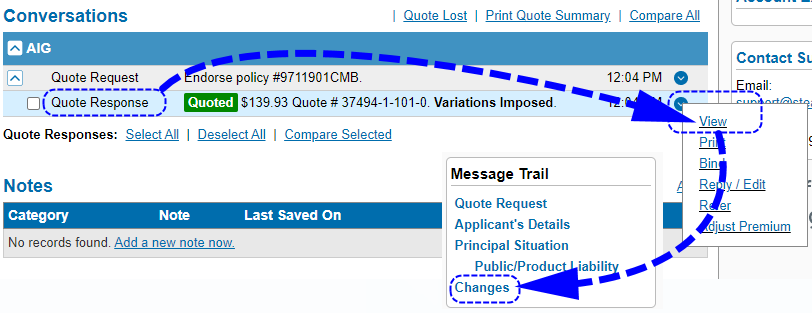 |
 | Once you are happy to proceed with the Endorsement quote, locate your desired Quote Response and beside it, select Bind. |
 | Once the Bound response is received, select Done in the top right corner of the page to return to INSIGHT, then select Next. |
 |  On the Schedule page, you'll notice that the schedule has auto-downloaded from SCTP, there is no need to copy & paste the insurer schedule into INSIGHT. You have the option to format the schedule using Edit Schedule, however, every time you go in and out of SCTP, the auto-download of the schedule will occur and overwrite what is currently displayed. On the Schedule page, you'll notice that the schedule has auto-downloaded from SCTP, there is no need to copy & paste the insurer schedule into INSIGHT. You have the option to format the schedule using Edit Schedule, however, every time you go in and out of SCTP, the auto-download of the schedule will occur and overwrite what is currently displayed. On the Invoice Premiums page, you'll note that most fields are uneditable - this is because the premium details are auto-downloaded from SCTP. However, you can update your Broker Fee. Depending on your setup, to update the Broker Fee, select Fee Allocation or Override. On the Invoice Premiums page, you'll note that most fields are uneditable - this is because the premium details are auto-downloaded from SCTP. However, you can update your Broker Fee. Depending on your setup, to update the Broker Fee, select Fee Allocation or Override. |
 | Complete the rest of the wizard as normal. |
RELATED ARTICLES:
Create an Endorsement
Common Transaction Wizard Page - Schedule
Was this article helpful?
That’s Great!
Thank you for your feedback
Sorry! We couldn't be helpful
Thank you for your feedback
Feedback sent
We appreciate your effort and will try to fix the article