Introduction
Transaction wizards are tailored to serve the purpose of each transaction type, however, they do share generic & common pages regardless of the transaction type. These common pages are:
 | Policy Summary |  | AR Premiums |
 | Policy Details |  | Compliance |
 | Schedule |  | Document or Invoice Generation |
 | Invoice Premiums |  | Summary |
Schedule
This page behaves differently for manual policies and electronic policies (SCTP & Sunrise).
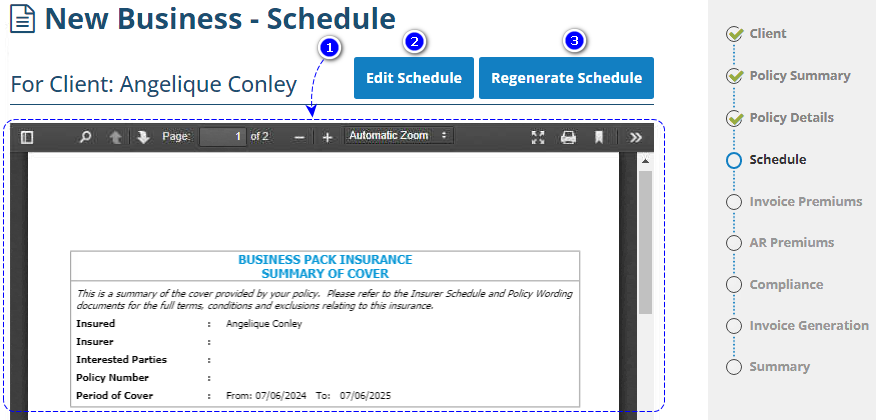
1. Document Viewer - ONLY used for viewing the schedule associated with the transaction and is NOT used for editing or formatting.
2. Edit Schedule - Used to launch Microsoft Word where you can edit or format the schedule document as needed.
3. Regenerate Schedule - Used to reset the schedule to its original format. This removes all editing and formatting and reverts it to the original version from its source (ie: Excel Risk form, Custom Risk form, SCTP, Sunrise). This is useful when you've updated risk information in the source and wish to auto-update the information in the schedule. However, any manually added formatting and editing will need to be re-applied.
 IMPORTANT: In the case where there is no source and you've made the document yourself from scratch, using this button will revert the schedule to a blank document.
SCTP & Sunrise
When using SCTP & Sunrise, the pre-formatted schedule will auto-download from the respective platform when you return to INSIGHT. If you need to edit information captured in the schedule, you must do this in the platform, then return to INSIGHT to initiate an updated auto-download of the schedule. Basic formatting of the schedule can be done in INSIGHT, however, changes to information MUST be done in the respective platform (SCTP or Sunrise) to ensure that the same information is communicated to the insurer.
Manual
As the name implies, manual schedules are created manually. The schedule is generally provided by the insurer, then 'copied & pasted' into this page in INSIGHT. From there, it is formatted according to your business rules & practises.
To assist with producing consistent documentation and reducing formatting time, INSIGHT provides the following options for manual schedules:
 | Custom Risk Forms - Uses a 'Custom Risk form' before the Schedule page where you can enter risk information. When you go to the Schedule page, the risk information auto-inserts into a pre-formatted schedule. Basic formatting can be done on the Schedule page, however, changes to the risk information must be done on the Custom Risk Form page. From there, return to the Schedule page & use the Regenerate Template button to update the schedule. |
 | Excel Risk Forms - Uses an 'Excel Risk form' before the Schedule page where you can enter risk information. When you go to the Schedule page, the risk information auto-inserts into a pre-formatted schedule. Basic formatting can be done on the Schedule page, however, changes to the risk information must be done on the Excel Risk Form page. From there, return to the Schedule page & use the Regenerate Template button to update the schedule. |
 | Class of Risk Document Templates and Class of Risk & Insurer Combination Document Templates - Administrators can set up a class of risk OR a combination of a class of risk & insurer to auto-insert a pre-formatted template on the Schedule page where you can manually enter the risk information into the template. |
 | Add-ins via Microsoft Word - INSIGHT formats schedules through Microsoft Word. Administrators can also load commonly used clauses or templates into Add-ins where you can insert them on an 'as-needed' basis. |
Was this article helpful?
That’s Great!
Thank you for your feedback
Sorry! We couldn't be helpful
Thank you for your feedback
Feedback sent
We appreciate your effort and will try to fix the article