FSG Documents
INSIGHT allows an Administrator to manage versions of the Financial Services Guide (FSG) for a ledger and its branches. This is done using the FSG Documents module under Configuration Administration. These article describe the functionality provided by the FSG Documents module within INSIGHT, and the impact on the Compliance page in the Client's profile and Policy wizard.
Compliance
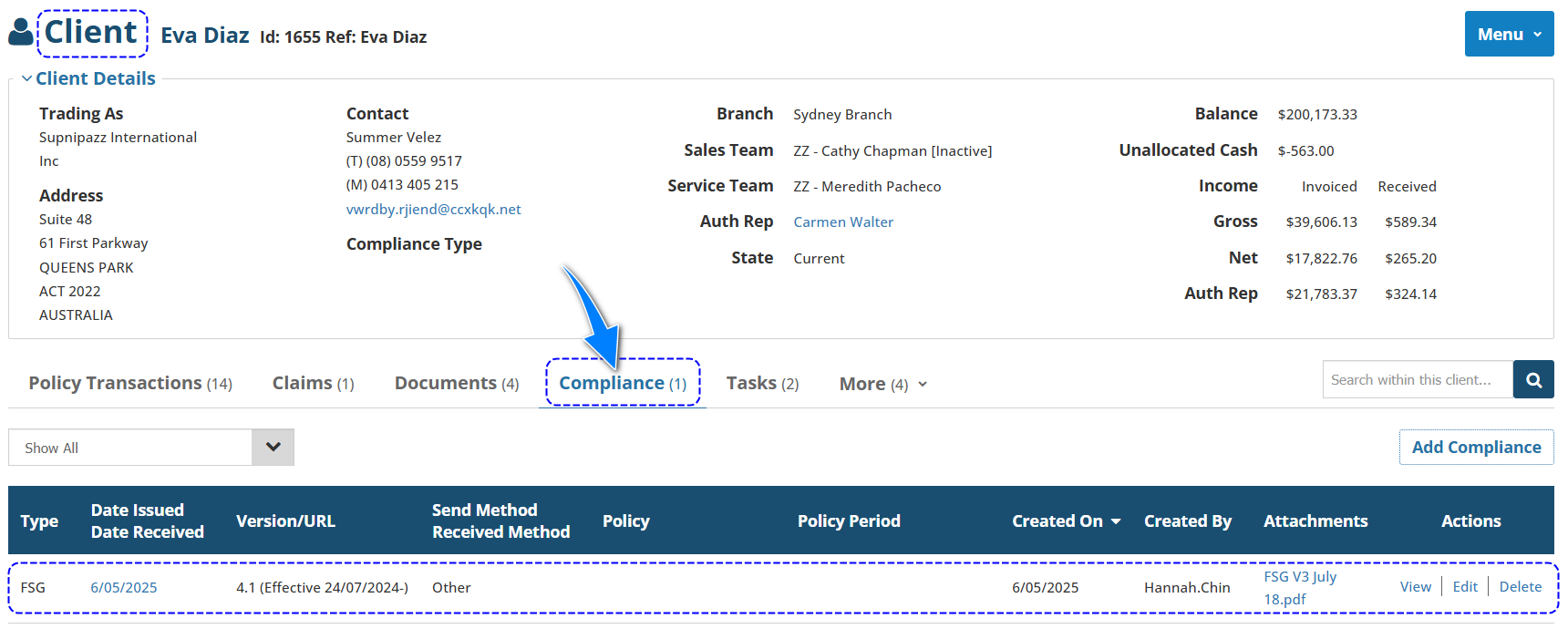
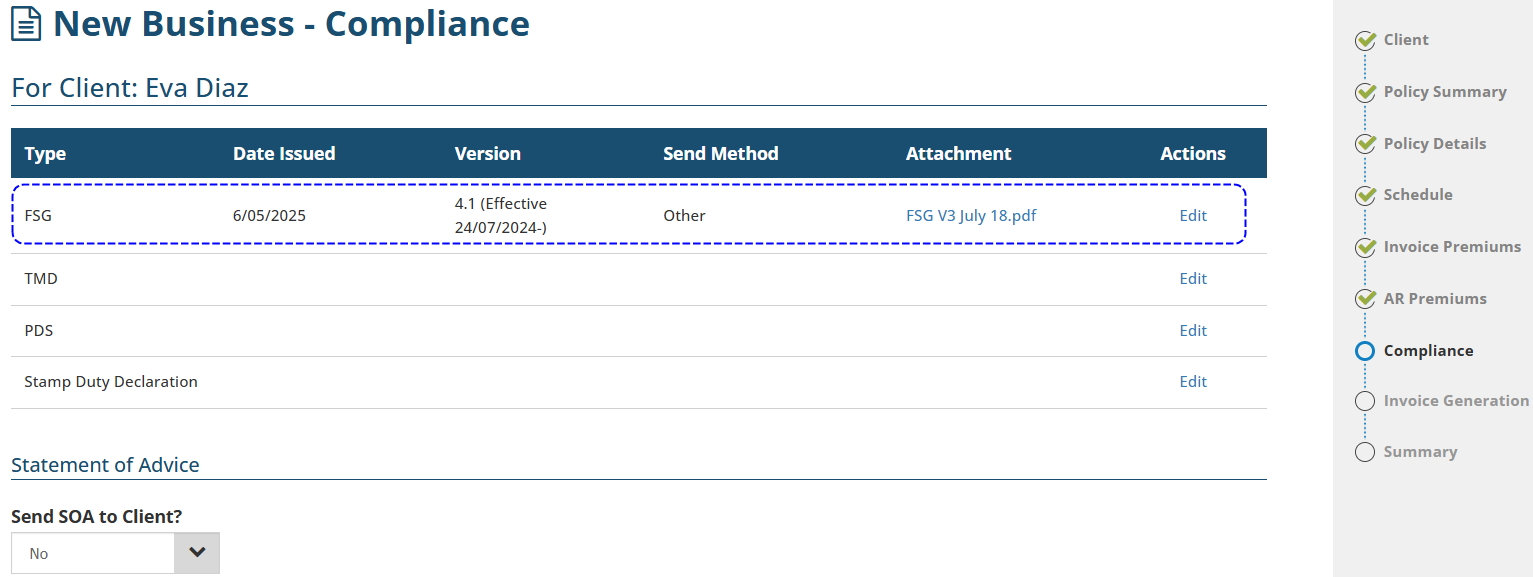
You can add, edit and track the FSG version, using the Compliance tab in the Client profile or the Compliance page in the Policy wizard.
Both Compliance areas pick up the current FSG document version based on the effective date range, and whether there is a current version specific for the Branch or, if no FSG document is attached to the Branch, it picks up the current version applicable to all Branches under the Ledger.
FSG Client Task
An FSG Client Task can be used as a reminder to send out the latest FSG to the Client. However, this does not create a Compliance record to show that an FSG has been sent to the client. Whether or not the FSG Client task is opened or closed has no effect on the Compliance areas in the Client profile or Policy wizard. Use of the FSG Client Task must be paired with creating an FSG Compliance record, otherwise INSIGHT will continue to prompt you to do so.

Compliance Report
The Compliance report is used to track when all compliance records were sent to a client. To track the FSG document specifically, you must select the Report Type as Client Compliance.
Auditing
Changes to the FSG Compliance Record and Configuration can be tracked using the Auditing tool. Use the Category field to choose:
- Compliance - track when a Compliance Record is created, edited or deleted;
- Configuration - track changes in the FSG Documents setting.
QUICK TIP: When using Compliance as the Category, the Type fields defaults to (All), however you can change the Type to FSG, to filter the audit logs specifically for FSG related logs.
Related Article
Something got you stumped?
Our team is here to help! We know change can be tricky, but we've got your back.

Contact our support team here and well get back to you shortly
Was this article helpful?
That’s Great!
Thank you for your feedback
Sorry! We couldn't be helpful
Thank you for your feedback
Feedback sent
We appreciate your effort and will try to fix the article