Configuration Administration
Click the Details button to view step by step instructions.
1. Log into INSIGHT as an Administrator.
| Name | Enter the name of the FSG document - this is mandatory. |
| Description | Enter a description of the FSG document. |
| Version | Indicates the version of the FSG document - this is mandatory. |
| Branch | Options are "All" and the individual branches in the ledger; Indicates whether an FSG document is applied to all branches (when "All" is selected) or just to a specific branch (when an individual branch is selected). |
| From Date | Indicates when an FSG document is effective from - this is mandatory. |
| To Date | Applies an "end date" to an FSG document. When this field is blank, the FSG document is effective indefinitely. |
| Upload Document | Saves the FSG document in INSIGHT. |
QUICK TIP: Changing the version number of an FSG applies to past policies using that FSG and will display the updated version number.
From Date & To Date
The values of the From Date and To Date determine the Status of the FSG document.
- If the FSG’s From Date and To Date indicates that it's effective as of today’s date, then it shows a Status of “Current”. If the FSG will be effective as of a future From Date, then its Status is “Future”. If the FSG’s To Date occurs before today’s date, then the Status is “Past”.
- Only one FSG document can be set as current in the same period to be applicable for all the Branches under the Ledger. The same applies to FSG documents belonging to a specific Branch – only one FSG can be set as current in the same period for that You will receive an error message if you try to enter a From Date and To Date combination that overlaps another FSG document, and the changes on the page cannot be saved.
- If you enter a From Date for an FSG document that overlaps another FSG document which has an empty To Date field, then the To Date of this other document will be changed automatically to a value that is one day prior to the new From Date of the FSG document being updated.
Actions
- An FSG document that has Status “Future” has View, Edit and Delete actions available.
- An FSG document that has Status “Current” does not present the Delete action link – only the View and Edit actions are available.
- An FSG document that has Status “Past” does not present the Edit or Delete action links – only the View action is available.
Branches Configuration
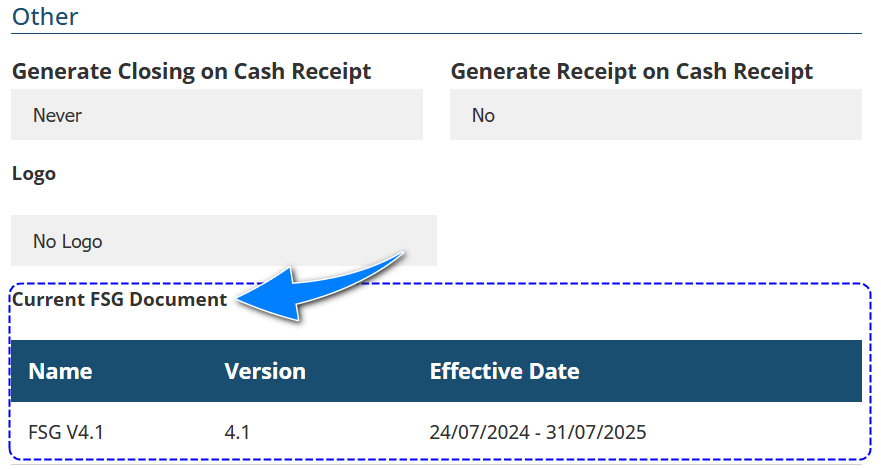
When using branches to separate your data, a branch can either be assigned its own FSG document or the FSG document that's assigned to all branches. To check the FSG used by a branch, go to Configuration Administration and choose the Branches setting. Once inside the setting, select the branch you wish to check, scroll to the bottom of the screen and you'll see the Current FSG Document section:
Something got you stumped?
Our team is here to help! We know change can be tricky, but we've got your back.

Contact our support team here and well get back to you shortly
Was this article helpful?
That’s Great!
Thank you for your feedback
Sorry! We couldn't be helpful
Thank you for your feedback
Feedback sent
We appreciate your effort and will try to fix the article