Click to go to:
Introduction
My Customisations is where you can set up the:
|
|
|
|
You'll find My Customisations by going to the top right corner, selecting your name, going to the dropdown and then selecting My Customisations.
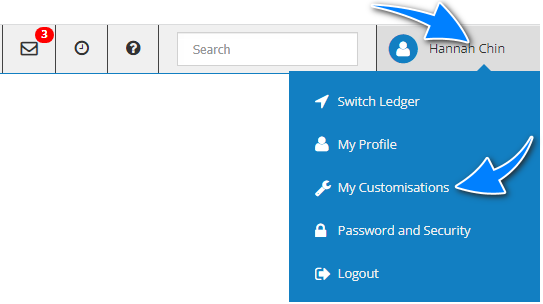
This article will discuss the 10 pages that make up My Customisations.
1. General
This is where you can update the number of rows you wish to see before proceeding to the next page. To do this, select Edit, update the Rows Per Page and save your changes.
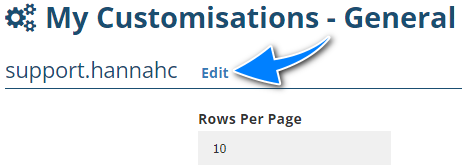 Your entry in Rows Per Page applies to various areas in INSIGHT such as when displaying search results, transaction lists, My Lists, etc.
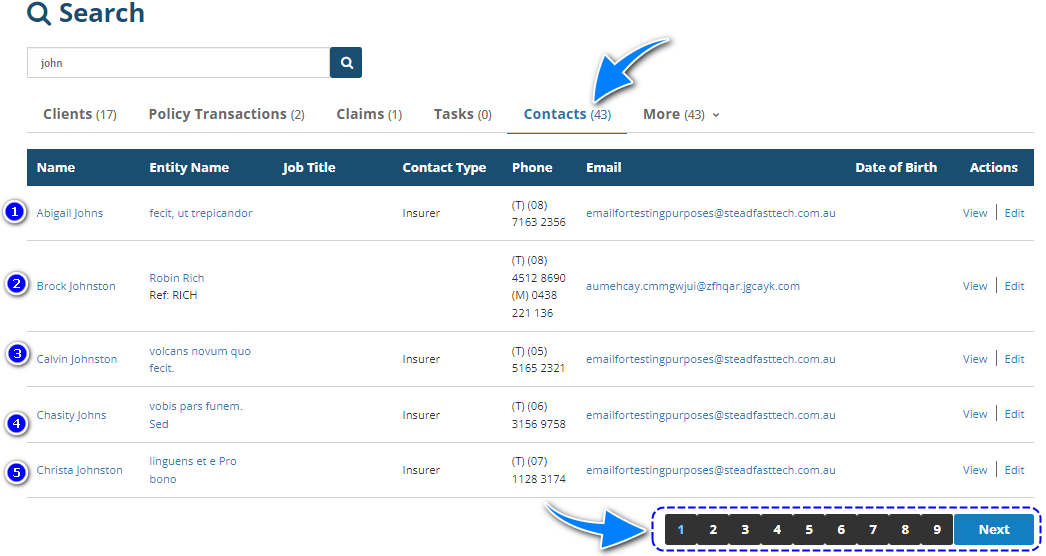
For example, you changed the Rows Per Page to 5. When searching for a Contact with the name 'john', you'll see there are 43 results in total but it is displayed 5 rows at a time. To see the remaining results, you must select the following pages.
2. My Lists
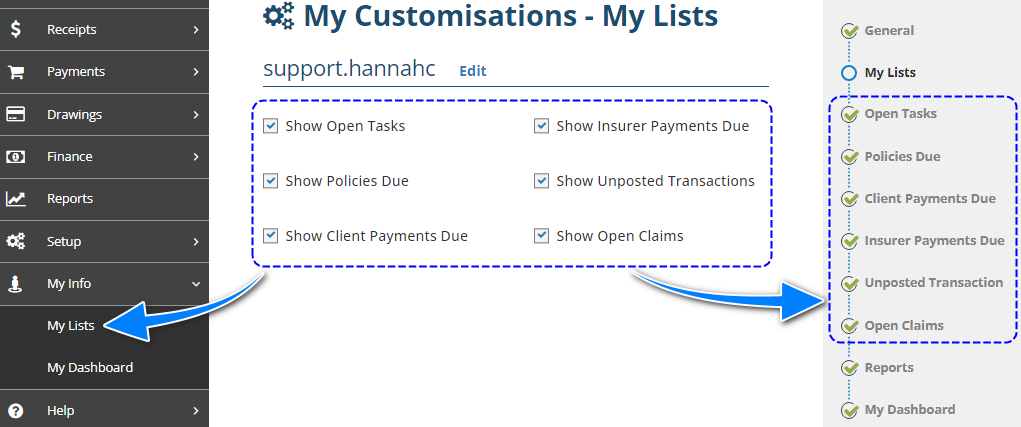
Select the checkboxes of the lists you wish to see in My Lists. If unchecked, they will not be displayed and will also disappear from My Customisations as there's no need to set it up.
3. Open Tasks
The Open Tasks page allows you to customise what type of tasks and whose tasks you see in the list. When you select Edit, you can customise the list using the filters discussed below:
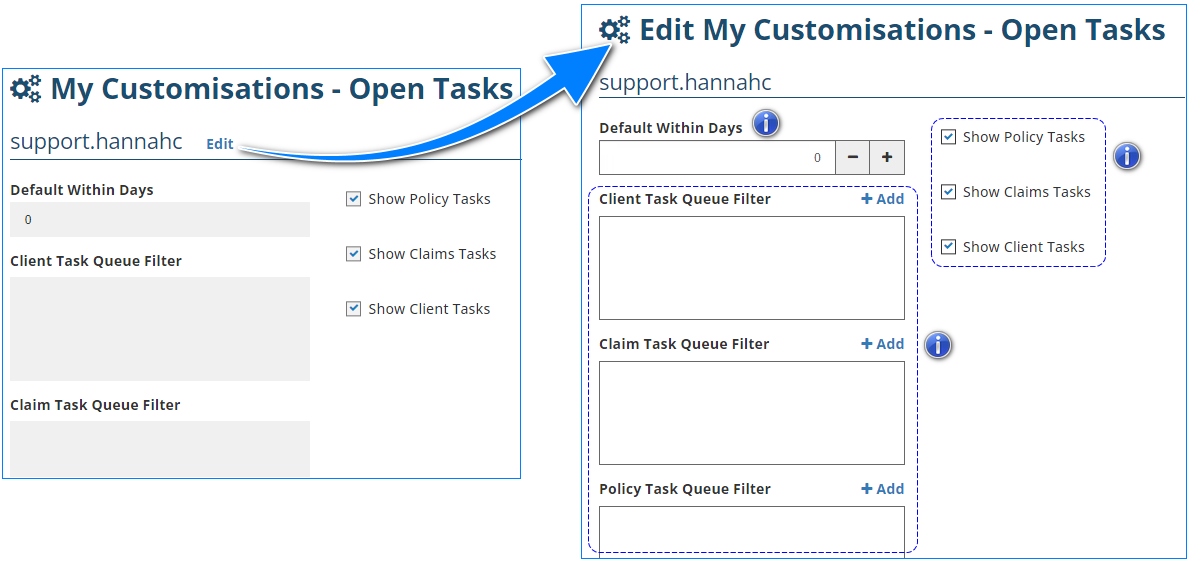
 Default Within Days: Determines the “up to date” of the tasks to be displayed. For example, having 0 days will display tasks as of the present date and having 14 days will display tasks up to 14 days of the present date.
  Client, Claim and Policy Task Queue Filter: Determines which user’s tasks are to be displayed. By default, the list will display ALL user tasks. To narrow the list down to your own or to a specific set of user’s tasks, select Add to the respective Queue Filter, choose the names to be added and click Select.
 Show Policy, Claims and Client Tasks: Determines which type of tasks are displayed – there are 3 types of tasks in INSIGHT: Client, Policy and Claim tasks.
NOTE: If none of these types are selected, there will be no tasks displayed in the list.
4. Policies Due
The Policies Due page allows you to customise the policies due for renewal that you see on your list, according to Sales Team, Service Team, Authorised Rep or Branch. When you select Edit, you can customise the list using the filters discussed below: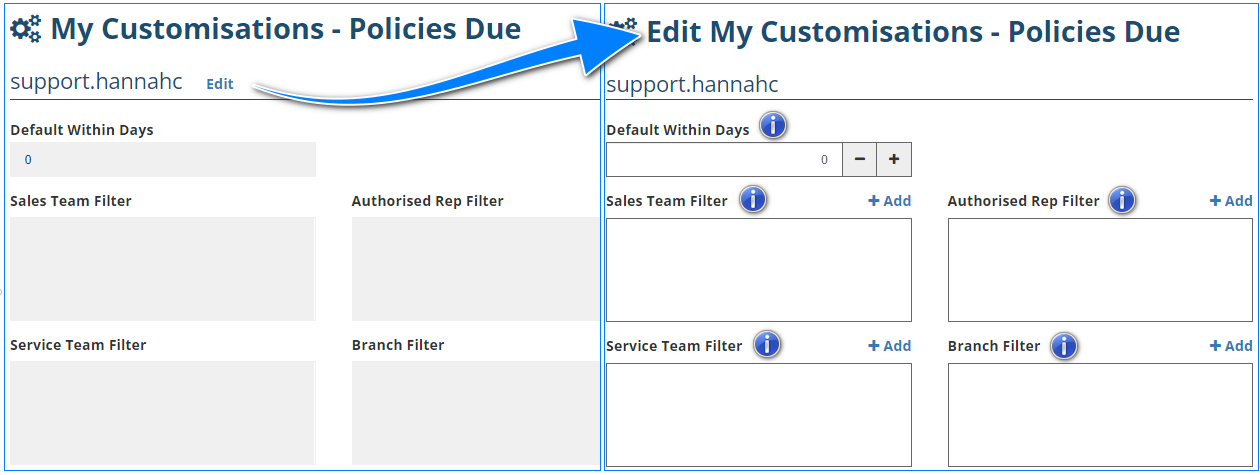
 Default Within Days: Determines the “up to date” of the policies to be displayed. For example, having 14 days will display policies that have their expiry date 14 days from the present date.
  Sale Team Filter: Use this filter to choose and select a specific Sales Team’s or multiple Sales Teams’ policies for renewal.
 Service Team Filter: Use this filter to choose and select a specific Service Team’s or multiple Service Teams’ policies for renewal.
  Authorised Rep Filter: Use this filter to choose and select a specific Authorised Rep’s or multiple Authorised Reps’ policies for renewal.
 Branch Filter: Use this filter to choose and select a specific Branch’s or multiple Branch’s policies for renewal.
5. Client Payments Due
The Client Payments Due page refers to the list of transactions due for client payment – by default, the list will display ALL transactions due for client payment as of the present date. When you select Edit, you can customise the list using the filters discussed below: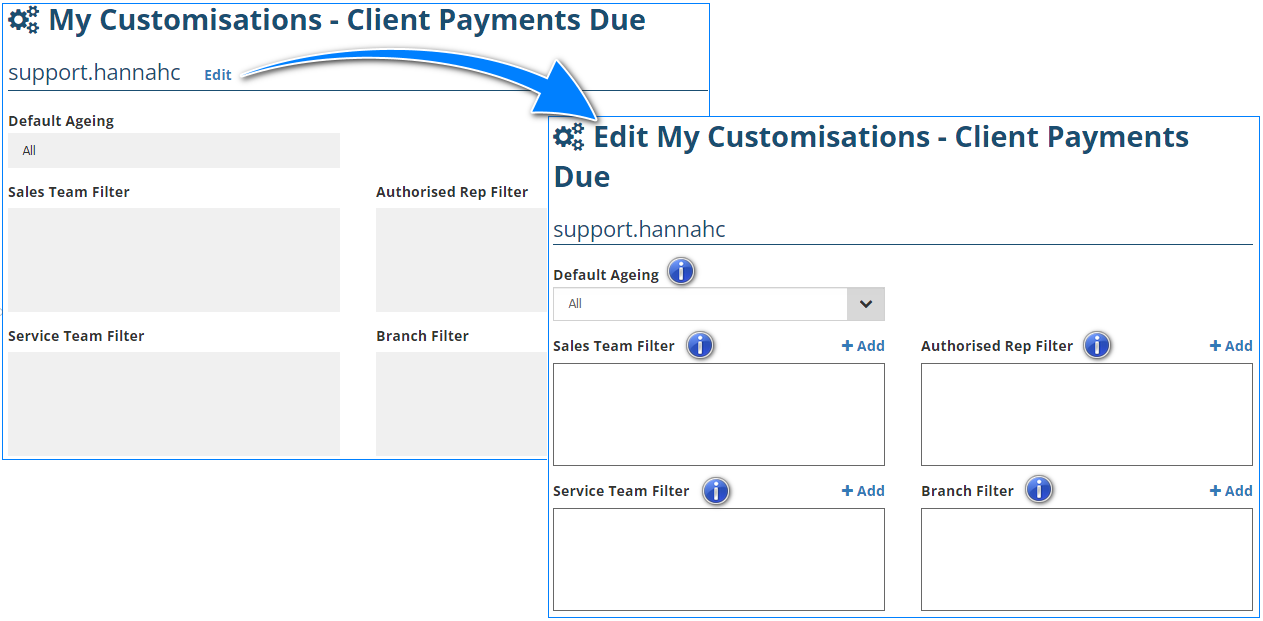
 Default Ageing: Determines the “due date” of the payments. For example, selecting 7-14 days will display transactions that are due to be paid by the client, 7 to 14 days from the present date.
  Sale Team Filter: Use this filter to choose and select a specific Sales Team’s or multiple Sales Teams’ transactions due for client payment.
  Service Team Filter: Use this filter to choose and select a specific Service Team’s or multiple Service Teams’ transactions due for client payment.
  Authorised Rep Filter: Use this filter to choose and select a specific Authorised Rep’s or multiple Authorised Reps’ transactions due for client payment.
  Branch Filter: Use this filter to choose and select a specific Branch’s or multiple Branches’ transactions due for client payment.
6. Insurer Payments Due
The Insurer Payments Due page refers to the list of transactions due for payment to the insurer – by default, the list will display ALL transactions due for payment to the insurer as of the present date. When you select Edit, you can customise the list using the filters discussed below:
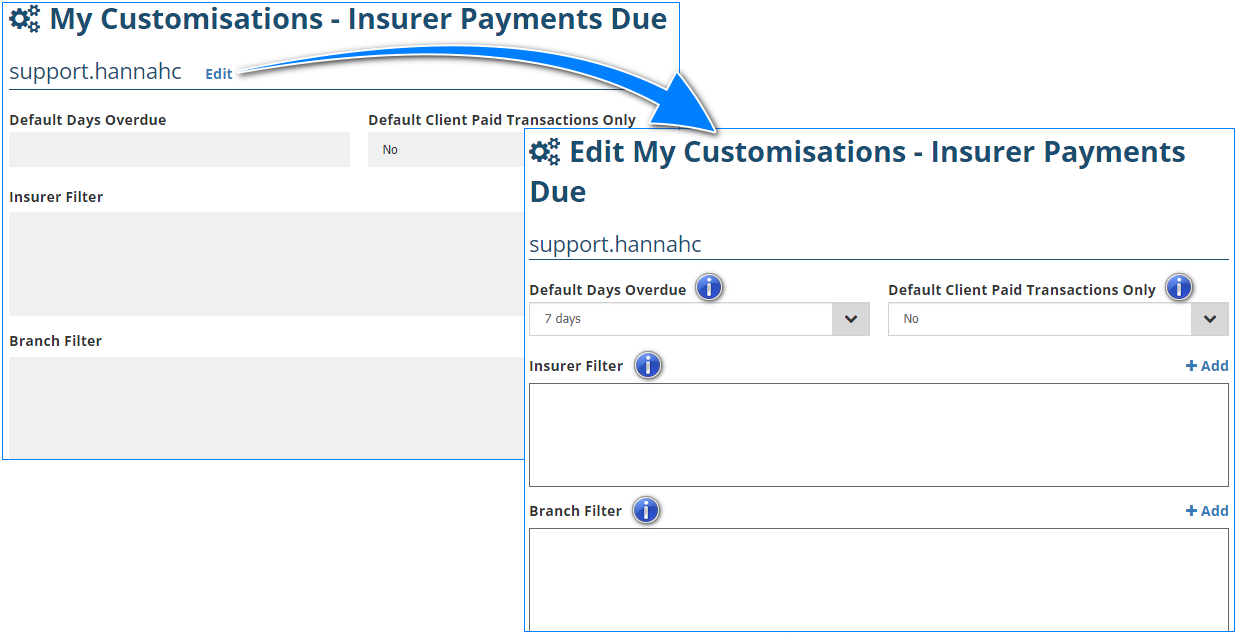
 Default Days Overdue: Determines the “due date” of transactions to be displayed. For example, selecting 7 days will display transactions that are due to be paid to the Insurer, 7 days from the present date.
 Default Client Paid Transactions Only: Determines whether the list will display transactions that have been paid by the client or not.
 Insurer Filter: Use this filter to choose and select a specific Insurer’s or multiple Insurer’s transactions due for insurer payment.
 Branch Filter: Use this filter to choose and select a specific Branch’s or multiple Branches’ transactions due for insurer payment.
7. Unposted Transaction
The Unposted Transaction page refers to the list of transactions that have not been posted to accounts yet (ie: Quotations) – by default, the list will display ALL unposted transactions as of the present date. When you select Edit, you can customise the list using the filters discussed below:
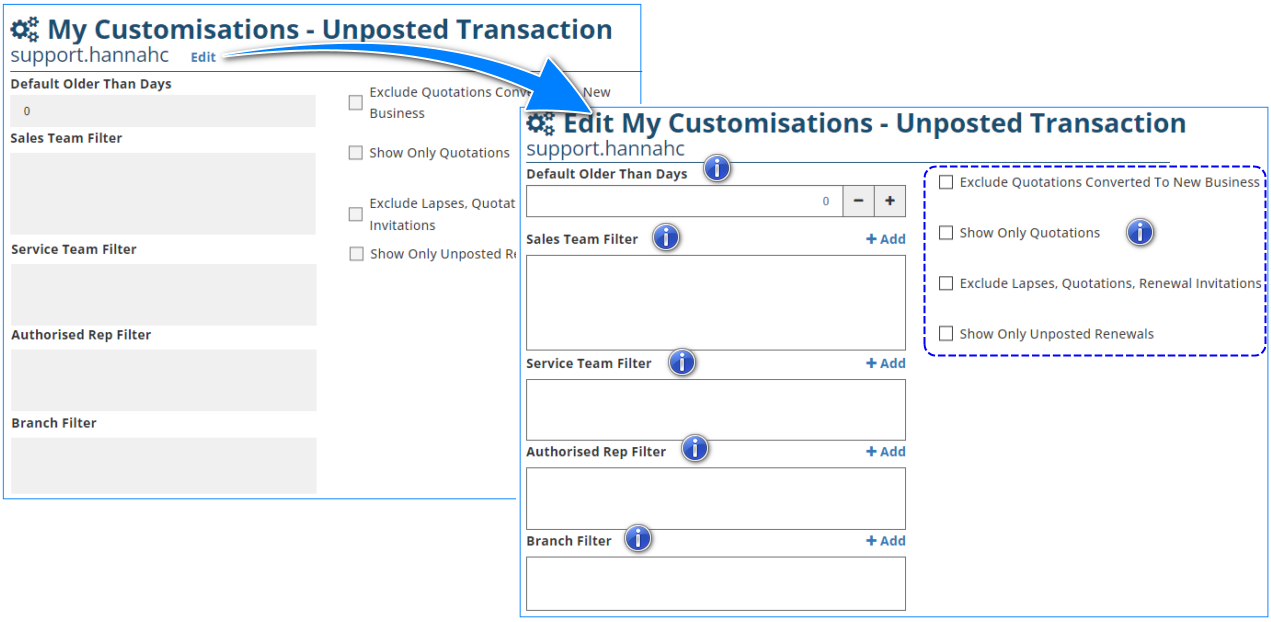

Checkboxes: Select these checkboxes to customise the list accordingly.
 Default Older Than Days: Determines the “up to date” of unposted transactions to be displayed. For example, having 0 days will display unposted transactions as of the present date and having 14 days will display unposted transactions up to 14 days of the present date.
  Sale Team Filter: Use this filter to choose and select a specific Sales Team’s or multiple Sales Teams’ unposted transactions.
  Service Team Filterr: Use this filter to choose and select a specific Service Team’s or multiple Service Teams’ unposted transactions.
  Authorised Rep Filter: Use this filter to choose and select a specific Authorised Rep’s or multiple Authorised Reps’ unposted transactions.
  Branch Filter: Use this filter to choose and select a specific Branch’s or multiple Branches’ unposted transactions.
8. Open Claims
The Open Claims page refers to the list of open claims – by default, the list will display ALL open claims as of the present date. When you select Edit, you can customise the list using the filters discussed below: 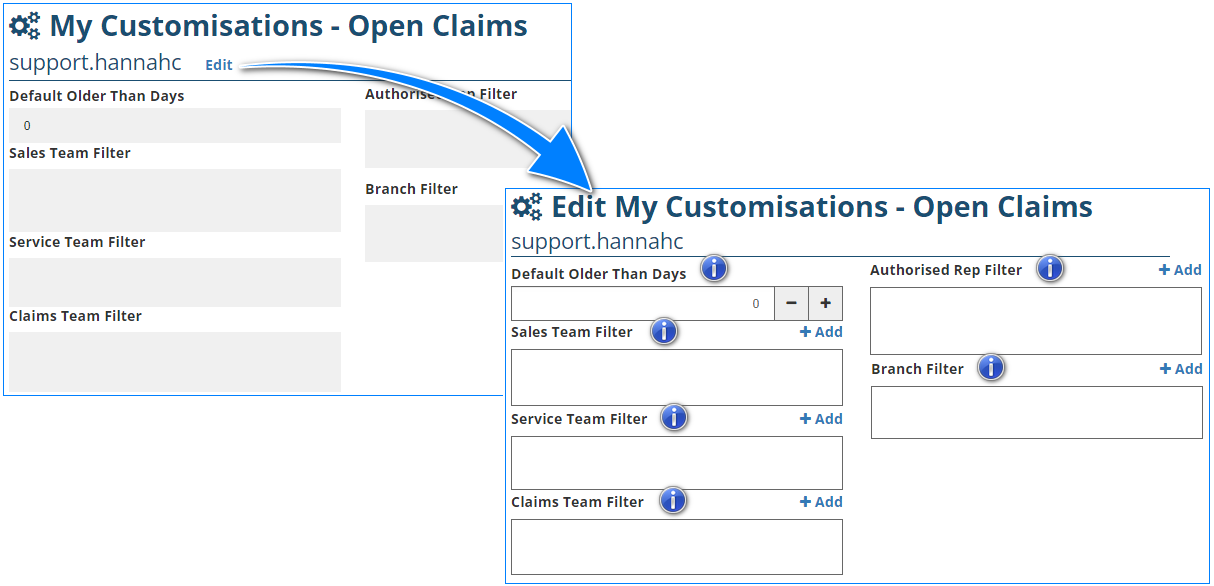
 Default Older Than Days: Determines the “up to date” of open claims to be displayed. For example, having 0 days will display open claims as of the present date and having 14 days will display open claims up to 14 days of the present date.
 Sale Team Filter: Use this filter to choose and select a specific Sales Team’s or multiple Sales Teams’ open claims.
 Service Team Filter: Use this filter to choose and select a specific Service Team’s or multiple Service Teams’ open claims.
  Claims Team Filter: Use this filter to choose and select a specific Claims Team’s or multiple Claims Teams’ open claims.
  Authorised Rep Filter: Use this filter to choose and select a specific Authorised Rep’s or multiple Authorised Reps’ open claims.
 Branch Filter: Use this filter to choose and select a specific Branch’s or multiple Branches’ open claims.
9. Reports
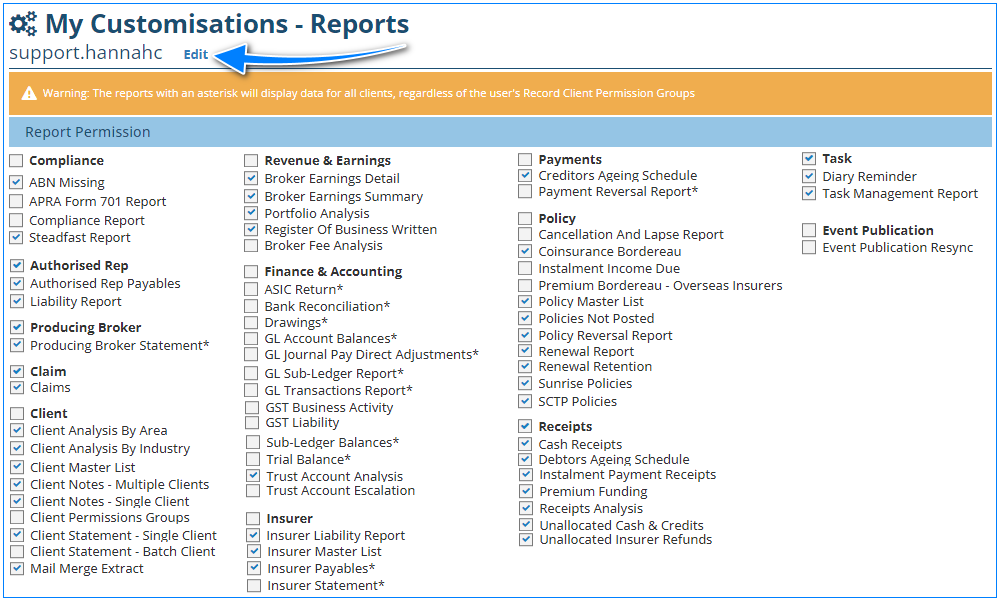
The Reports page refers to the list of ALL available reports in the Reports section - what you select on the Reports page determines the reports displayed in the Reports section & the reports you can generate.
IMPORTANT: Though ALL reports are displayed, you may not have access to all reports. If you can't select the report & need the report for your role, speak to your Administrator to update your permissions.
10. My Dashboard
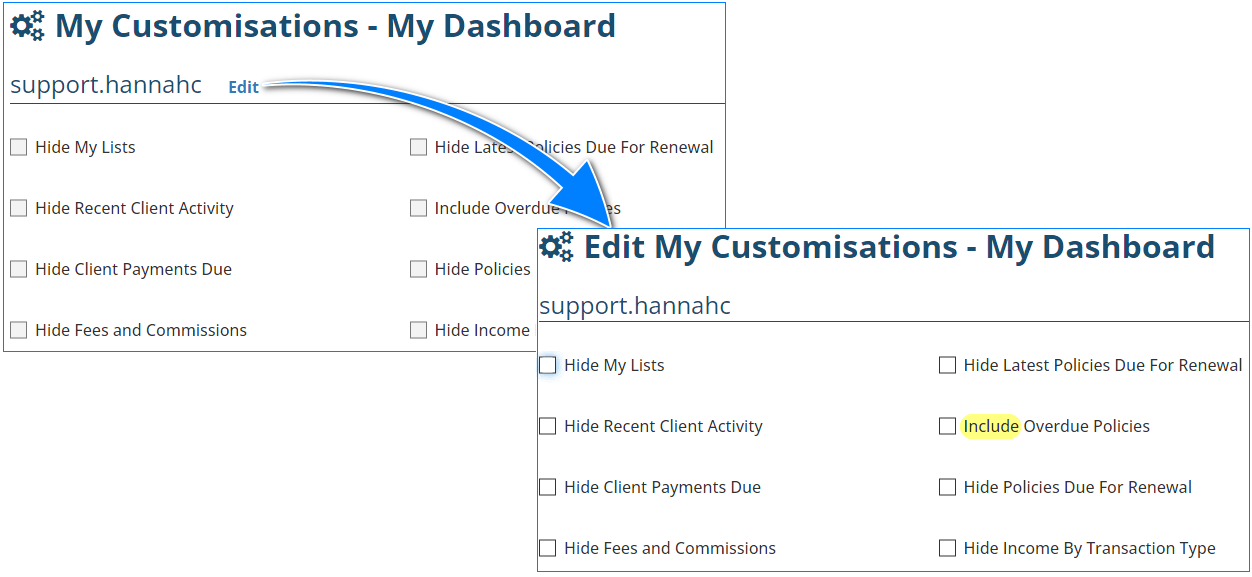
The My Dashboard page allows you to select which widgets you wish to hide in My Dashboard.
When you select Edit, you can select which widgets you wish to hide and do not want to use in My Dashboard as well as if you want to include overdue policies for renewal.
Was this article helpful?
That’s Great!
Thank you for your feedback
Sorry! We couldn't be helpful
Thank you for your feedback
Feedback sent
We appreciate your effort and will try to fix the article