Click to go to:
How can you search efficiently?
Authorising Rep / Producing Broker
Introduction
When you log in to INSIGHT, you're first directed to the Home page, which consists of the:
- INSIGHT logo in the centre with a Search bar
- Quick Links for My Lists, Add Client and Transaction.
This article discusses INSIGHT's Search feature and how to locate your desired results.
Search bar
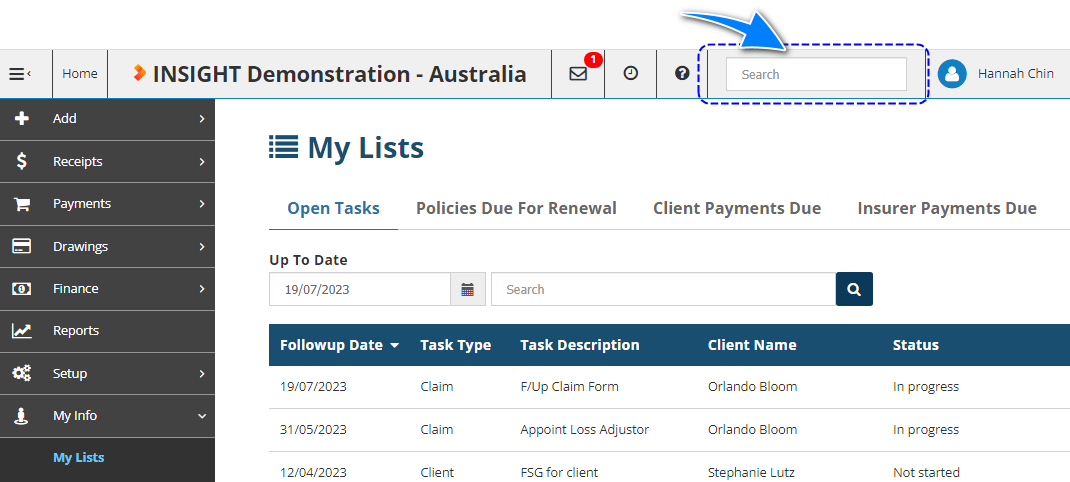
To initiate a search in INSIGHT, enter your search keywords into the Search bar on the home page.
 QUICK TIP: Notice that when you move away from the Home page, another search bar becomes available in the top right-hand corner - you can also initiate a new search from here.
What can you search for?
You can enter text or numbers as keywords into the Search bar to locate your desired information. INSIGHT will then search the entire system and group the results according to Client, Policy Transaction, etc.
The 14 common search items in INSIGHT are:
| Text | Numerical |
| Entity Name - Client / Insurer / Authorised Representative | Telephone Number |
| Trading Name | Client Reference Number |
| Contact Name | Policy Number |
| Client Email Address | Claim Number |
| Address Details | Invoice Number |
| Policy Description | Invoice Amount - paid or unpaid |
| Claim Description | Outstanding Amount Balance |
 IMPORTANT:
- When searching for anything with a monetary value (ie: Invoice Amount or Outstanding Amount Balance), there is no need to enter a currency symbol. Simply enter the numbers and use a decimal point when needed.
- When searching for the Policy Description, ensure that you select the Policy Transaction tab to view your desired results.
How can you search efficiently?
The Search function is designed to locate results based on the sequence of how you've entered the search items, ie: from the beginning to the end of what you've entered.
- This means if you enter the characters smi, INSIGHT will return matches such as smith, smithers, smiley.
- If you enter smi, INSIGHT will NOT provide a result for arrowsmith or any item that does not begin with the entered sequence.
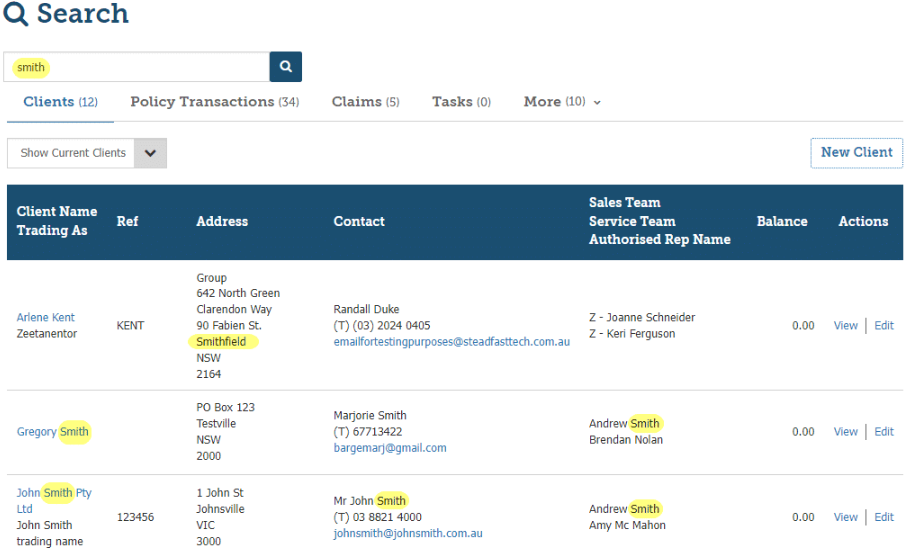
- If you are looking for the client Ken Smithers, you could enter ken smi. However, if you only enter smith as your search criteria, INSIGHT will return results for clients with Smith, but it could return a street address with the suburb Smithfield, or a Contact/Sales Team with Smith, as shown in the example below:
Search Results tabs
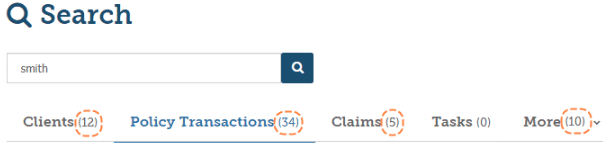
To organise the search results, they are grouped with different tabs such as Client, Policy Transactions, Claims, Tasks, Contacts, Insurers and Authorised Reps.
- INSIGHT defaults to displaying results belonging to current clients.
- In the event of no matches with a current client, INSIGHT will default to displaying results that match with the other tabs.
- With regards to the number in parenthesis beside the tab names, these indicate the number of search results related to your entered search criteria:
More tab
When you see a number in parenthesis beside the More tab, this indicates that there are more tabs that match your search criteria. Select the down arrow to view these additional tabs. For example, in the image, there are a total of 10 results in the More tab that are made up of 9 results in Contacts and 1 result in Insurers. | 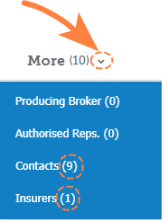 |
Filters
| In the event, your search criteria belong to an inactive client or transaction, use the dropdown menu to change to the relevant filter, ie: Show All Clients or Show All Transactions. By default, INSIGHT will display current clients and the latest transactions. | 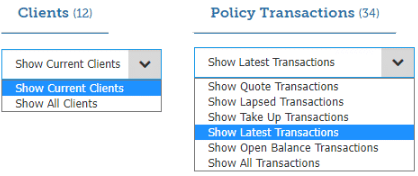 |
Exact Search
Another way to search is by using the Exact Search feature. This can be useful if you have a large database or have multiple clients with similar names/results.
Exact Search will reduce the time it takes to generate search results as INSIGHT will only search and present results with an exact criteria match.
Adding quotation marks at the beginning & end of your entered search items will activate the Exact Search. For example, "smithson".
 QUICK TIP: Watch the video tutorial "How to Search" for detailed covereage of how to use the Exact Search feature.
.
Found your result, what now?
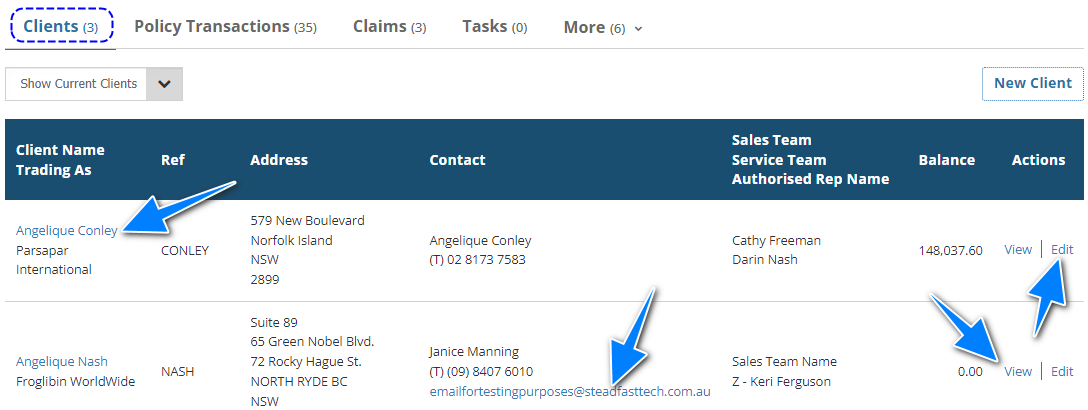
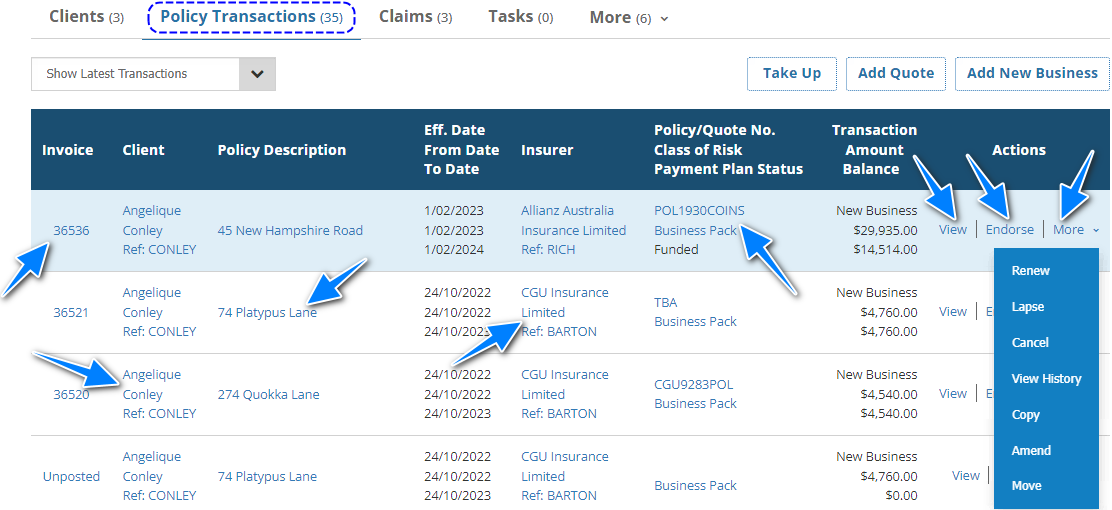
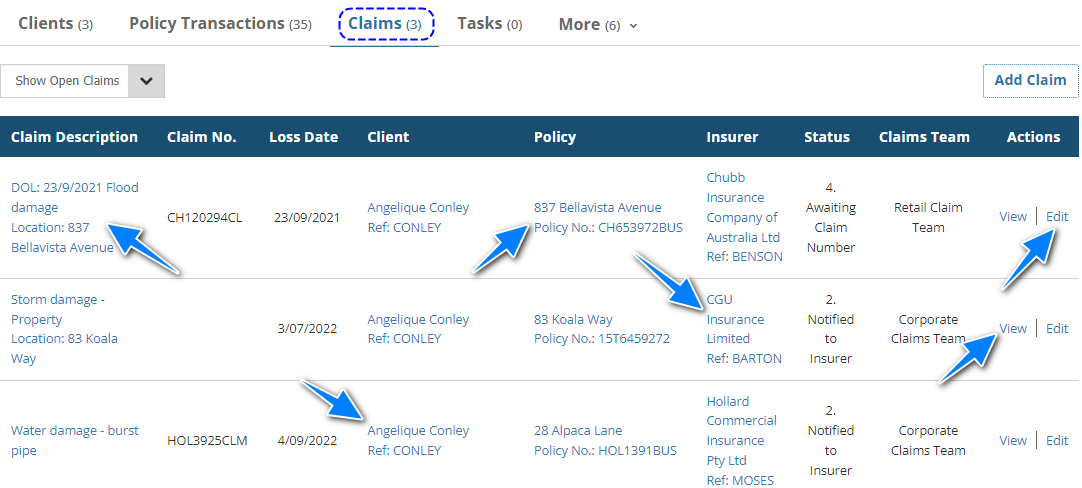
When results are returned, explore your desired result by selecting the hyperlink (text in blue colour) or by selecting from the options available under the Actions menu.
Clients
| Item | Description |
| Client Name | Takes you to the client's profile. |
| Email Address | Opens a blank email with the email address auto-inserted to the sendee field. |
| View | Takes you to the client's profile. |
| Edit | Takes you into the "edit" mode of the client's profile. |
Policy Transactions
| Item | Description |
| Invoice | Takes you to the policy transaction view. |
| Client | Takes you to the client's profile. |
| Policy Description | Takes you to the policy view. |
| Insurer | Takes you to the insurer's profile. |
| Policy Number / Class of Risk | Takes you to the policy view. |
| View | Takes you to the policy transaction view. |
| Endorse | Starts the Endorsement wizard for this policy. |
| More | Reveals more actions such as Renew, Lapse, Cancel, View History, Copy, Amend and Move. |
Claims
| Item | Description |
| Claim Description | Takes you to the claim's profile. |
| Client | Takes you to the client's profile. |
| Policy Description / Policy Number | Takes you to the policy view. |
| Insurer | Takes you to the insurer's profile. |
| View | Takes you to the claim's profile. |
| Edit | Takes you into the "edit" mode of the claim's profile. |
Tasks
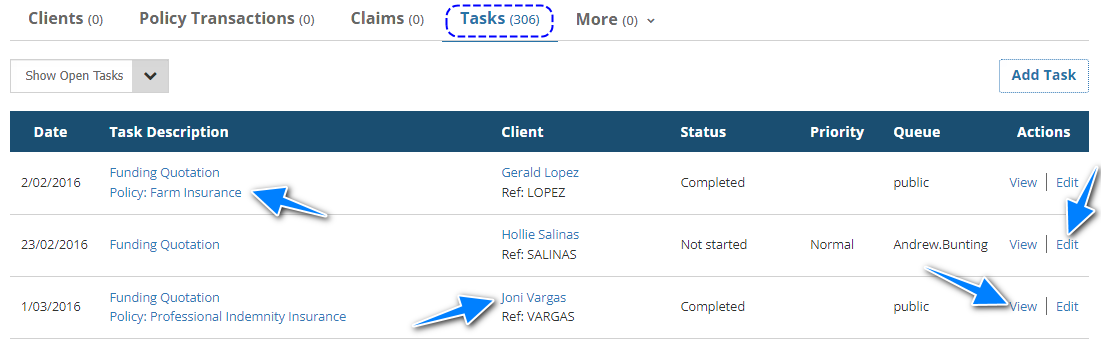
| Item | Description |
| Task Description | Takes you to the task's profile. |
| Client | Takes you to the client's profile. |
| View | Takes you to the task's profile. |
| Edit | Takes you into the "edit" mode of the task's profile. |
Authorising Rep / Producing Broker
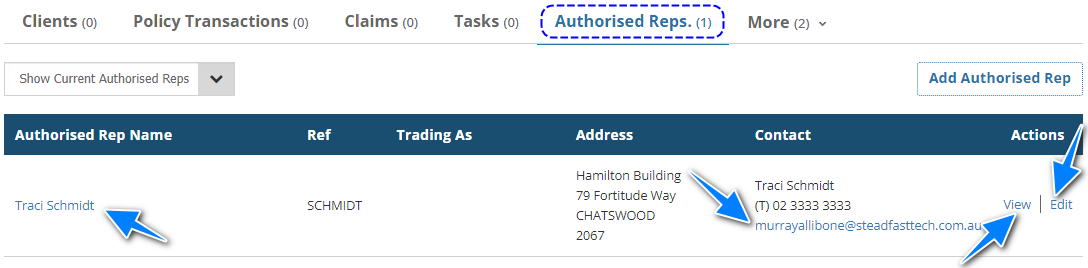
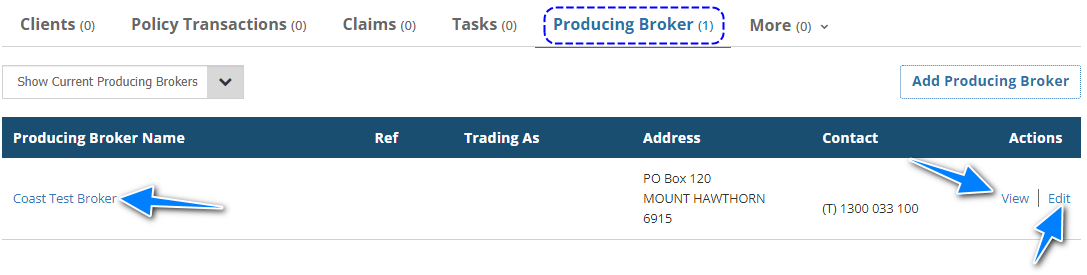
| Item | Description |
| Name | Takes you to the authorised rep's or producing broker's profile. |
| Email Address | Opens a blank email with the email address auto-inserted to the sendee field. |
| View | Takes you to the authorised rep's or producing broker's profile. |
| Edit | Takes you into the "edit" mode of the authorised rep's or producing broker's profile. |
Contacts
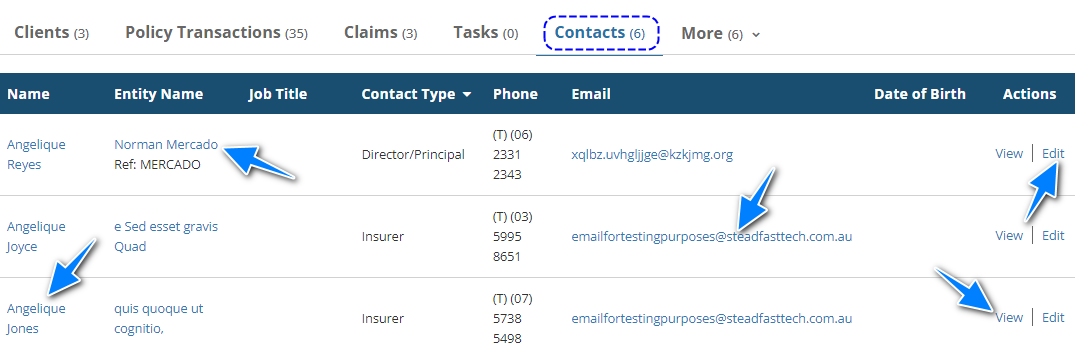
| Item | Description |
| Name | Takes you to the contact's profile. |
| Entity Name | Takes you to the client's profile that the contact belongs to. |
| Opens a blank email with the email address auto-inserted to the sendee field. | |
| View | Takes you to the contact's profile. |
| Edit | Takes you into the "edit" mode of the contact's profile. |
Was this article helpful?
That’s Great!
Thank you for your feedback
Sorry! We couldn't be helpful
Thank you for your feedback
Feedback sent
We appreciate your effort and will try to fix the article