Click to go to:
Introduction
By default, when you first log in to INSIGHT, you will land on the Home page. This article goes over what you'll find on the Home page and how you can use it to improve your INSIGHT experience.
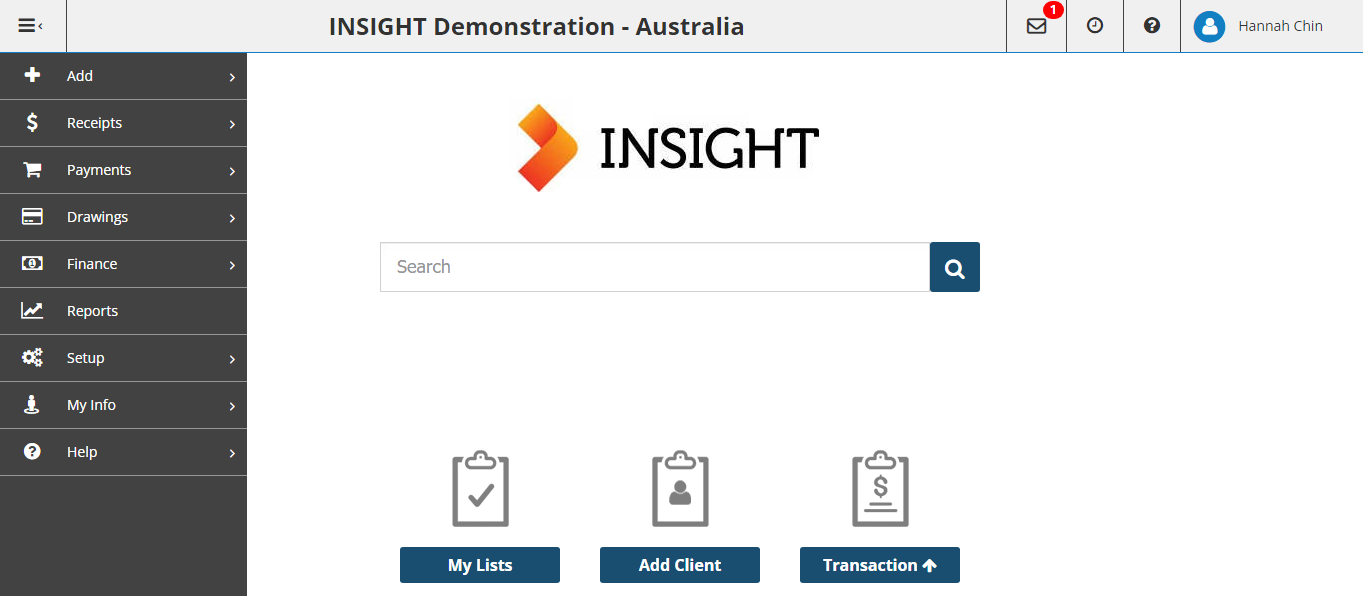
Title Bar
Going from left to right, let's discuss the symbols & information found in the Title bar.
Menu icon

Hides or displays the menu panel. Administrators will see all menu options, however, Standard users will only see the menu options they have permission to access. If permissions need to be updated, communicate & request this from your onsite Administrator.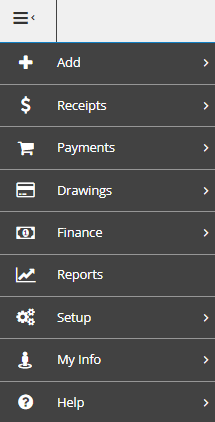
 NOTE: The direction of where the arrow is pointing indicates whether you select it to hide or display the menu panel.
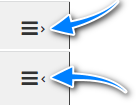 Pointing right - select to display the menu panel
Pointing left - select to hide the menu panel
Pointing right - select to display the menu panel
Pointing left - select to hide the menu panel
Title
Displays the name of the ledger you're currently in. This is a helpful reference when dealing with multiple ledgers to ensure you are processing in the correct ledger.

Messages & Alerts
 The envelope is the symbol for Messages & Alerts. The red circle with a number indicates when there is a new message/alert and how many are unread. When you select the envelope, you'll be directed to the new message/alert for your review:
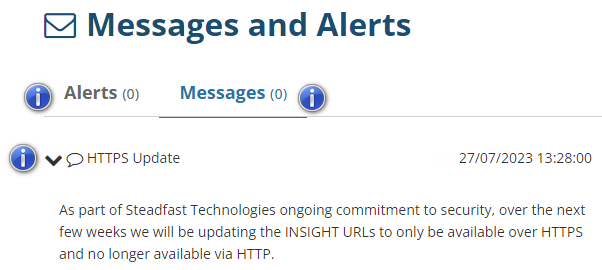
 Alerts: Select this tab to view alerts.
Messages: Select this tab to view messages.
Down arrow: Select this to expand and read the full message/alert.
Recent History
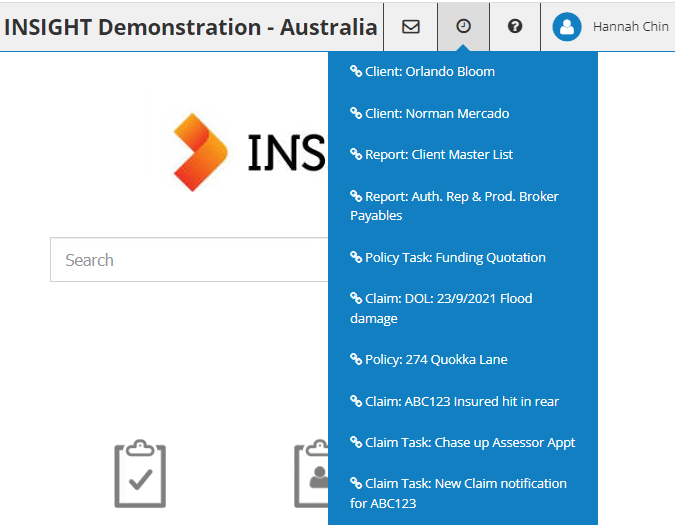
 The clock is a symbol for Recent History. Hovering over this icon will display the history of the last ten (10) entities, transactions, claims, tasks or reports you have selected or generated.
Online Help
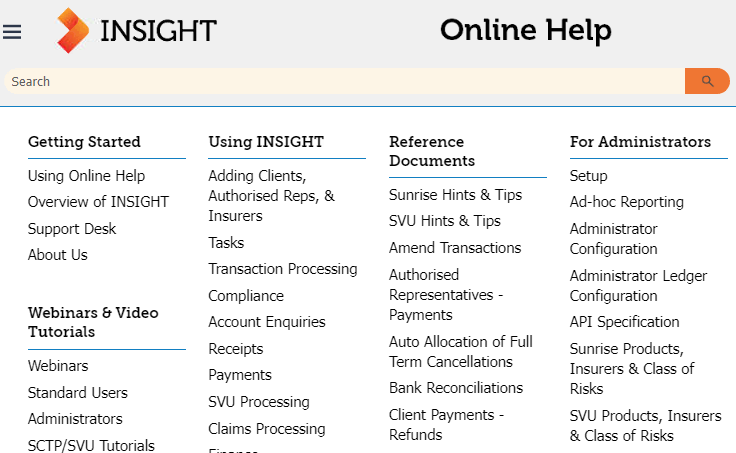
 The question mark is the symbol for Online Help. Selecting this will launch the Online Help platform in a new tab.
Profile
 The person icon is the symbol for your Profile. The name displayed beside it belongs to the user account logging in. Selecting this will display the options for Switch Ledger, My Profile, My Customisations, Password and Security and Logout.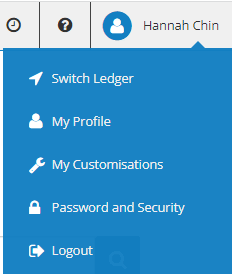
Additional Items


The Home button only appears when you navigate away from the Home page. Select this to return to the Home page.
 The mini search bar only appears when you navigate away from the Home page. It functions the same way as the main search bar on the Home page - you don't need to return to the Home page to use the main search bar.
Search Bar

Use this to search for entities (ie: clients, insurers etc.), policies, invoices, claims and other searchable fields. Refer to the Searching in INSIGHT article for further information.
Shortcuts
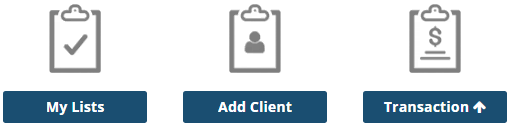
These are non-customisable and only found on the Home page to provide you with shortcuts to My Lists, adding a client or creating a transaction.
Was this article helpful?
That’s Great!
Thank you for your feedback
Sorry! We couldn't be helpful
Thank you for your feedback
Feedback sent
We appreciate your effort and will try to fix the article