Click to go to:
What Compliance Records can you record in INSIGHT?
Where to find the Compliance tab?
Introduction
A Compliance Record is how INSIGHT registers when & how a Compliance Document has been sent to the client.
Compliance Records:
 | Are created from the Client & Policy Compliance tabs and the Transaction wizard. | |
 | Include the document type, version, method of distribution, and a copy of the document. | |
 | Once created and depending on the document, can be viewed in the Compliance tab of the Client, Policy & Policy Transaction. | |
 | Are managed by permissions to create, edit or delete Compliance Records through the Processing Permission Groups (PPG). |
What Compliance Records can you record in INSIGHT?
You can record the following Compliance Records in INSIGHT:
 | Financial Service Guide (FSG) | |
 | Product Disclosure Statement (PDS) | |
 | Target Market Determination (TMD) | |
 | 2 x optional Custom Client Compliance documents | |
 | or 2 x optional Custom Policy Transaction Compliance documents |
 QUICK TIP: The Client Compliance tab is a centralised location where you can access ALL Compliance Documents.
Where to find the Compliance tab?
A Client, Policy & Policy Transaction will have its own Compliance tab where you can view, create*, edit or delete their respective Compliance Records.
*create - you can ONLY create a Compliance Record from the Client & Policy Compliance tabs and the Transaction wizard.
- The Compliance tab will show the Compliance Records enabled in your Ledger settings. If they are not enabled in the Ledger, they will not be displayed.
- Compliance Documents displayed in the Compliance tab will depend on where the tab is (Client, Policy or Policy Transaction) & the Compliance Types enabled in Ledger settings.
- For example, FSG & Custom Client Compliance Records will only show on the Client Compliance tab as they are not linked to a policy or policy transaction. While PDS, TMD & Custom Policy Transaction Compliance Records will show on the Client, Policy & Policy Transaction Compliance tabs.
Compliance tab
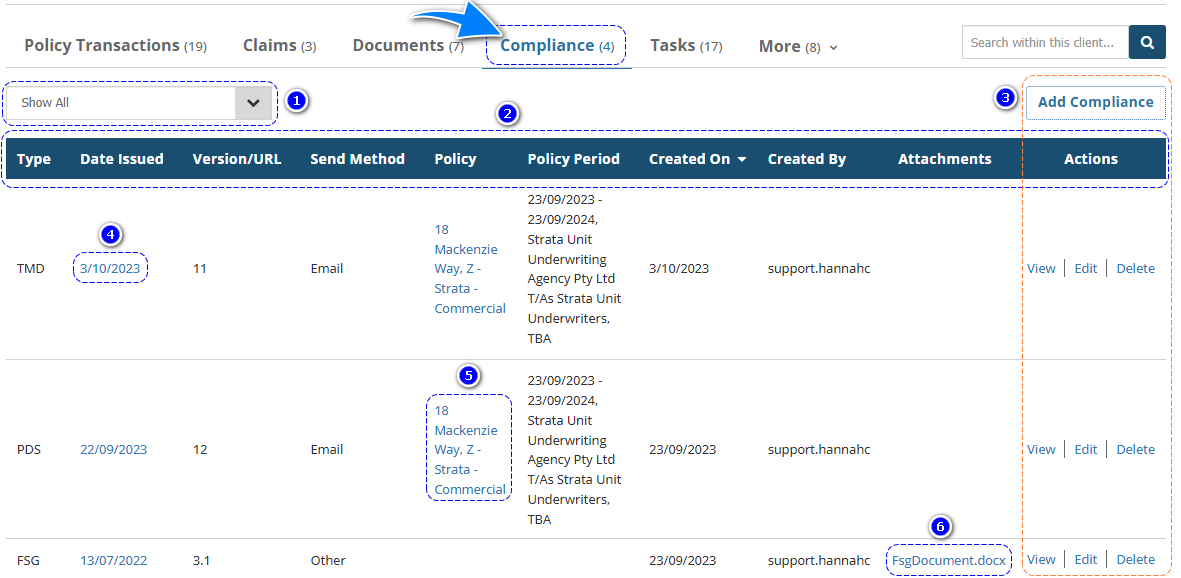
1. Filter - Filters the compliance records displayed in the table, for example, if you wish to only see the FSG, select "Show FSG Only".
2. Blue Header - Contains the table's different headers and can be used to sort the information in ascending or descending order.
3. Add Compliance, View, Edit & Delete - The ability to add, edit and delete Compliance Records is determined by your user permissions. Standard users will need the relevant permissions enabled in their Processing Permission Group. However, Administrators will have access to these by default.
4. Date Issued hyperlink - (the same as selecting View) Displays the Compliance Record details.
5. Policy hyperlink - Takes you to the respective policy.
6. Attachments hyperlink - Downloads the document to your computer.
Compliance tab Reminders
Client Compliance Tab
 | The Client Compliance tab is a centralised location that will display ALL Compliance Record types. |
Policy Compliance Tab
 | Will only display the TMD, PDS & Custom Policy Transaction Compliance Records. | |
 | Displays ALL Compliance Records attached to the policy history. For example, if a PDS was sent out with a New Business and an updated version was sent with the Renewal, then both Compliance Records will be displayed in the tab. |
Policy Transaction Compliance Tab
 | Will only display the TMD, PDS & Custom Policy Transaction Compliance Records. | |
 | Displays Compliance Records attached to ONLY the policy transaction. This will not include Compliance records created with other transactions in the policy history. |
Was this article helpful?
That’s Great!
Thank you for your feedback
Sorry! We couldn't be helpful
Thank you for your feedback
Feedback sent
We appreciate your effort and will try to fix the article