Click to go to:
Adding through a Compliance tab
Adding through the Transaction wizard
Guidelines for the Compliance page
Introduction
You can add a Compliance Record through the 1) Client Compliance tab, 2) Policy Compliance tab or 3) Transaction wizard. The information required will differ depending on the Compliance Document/Type.
Refer to the below table for a summary of the required information for each Compliance Record type:
| Compliance Record Type | Policy | Policy Period | Policy Transaction | Date Issued | Version | Send Method | Upload Document |
| FSG |  |  |  |  | Auto pulled from Configuration |  | Auto attached from Configuration |
| PDS |  |  |  |  |  |  |  |
| TMD |  |  |  |  |  |  |  |
Client Compliance Document |  |  |  |  |  |  |  |
Policy Compliance Document |  |  |  |  |  |  |  |
 QUICK TIP:
 When adding a Compliance Record through the Transaction wizard, information such as Policy, Policy Period and Policy Transaction are NOT required as you've preemptively selected them by adding it through the transaction itself.
 When adding through the Policy Compliance tab, the Policy infromation is NOT required as you've preemtively selected it by adding it through the policy itself.
Adding through a Compliance tab
 | View the Client or Policy | |
 | Select the Compliance tab | |
 | Select Add Compliance | |
 | Complete the required information in the Add Compliance wizard | |
 | Select Save |
Add Compliance wizard
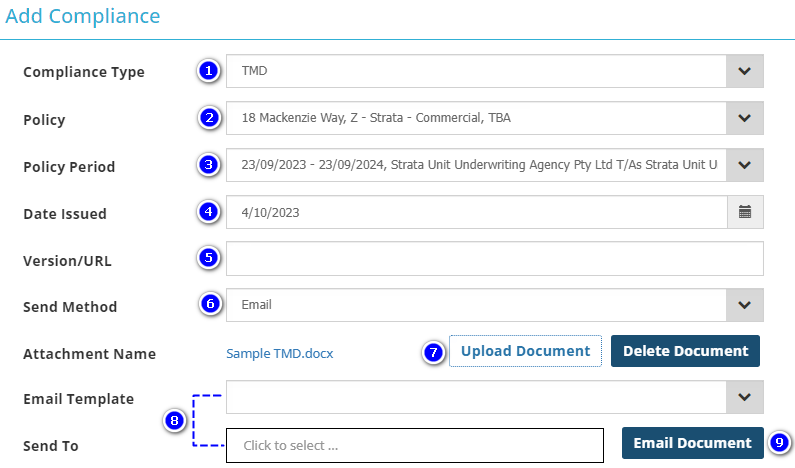
1. Compliance Type - Options available depend on which Compliance Documents are enabled in the Ledger.
2. Policy - When adding through the client, displays the policy description, class of risk and policy number of policies within the client. When adding through the policy, the field is auto-filled and non-editable.
3. Policy Period - When adding through the client & policy, displays the period of insurance, insurer and policy number of policies within the chosen policy.
4. Date Issued - Defaults to the present date, but can be updated as needed.
5. Version/URL - Manually enter the version number or URL here as it's a free-entry field (doesn't apply to the FSG).
6. Send Method - Refers to the method the Compliance Document was sent to the client. When Email is chosen, you will have the opportunity to generate the email through INSIGHT & send it to the client.
7. Upload Document - You can only upload PDF documents.
8. Email Template & Send To - These fields will display when Email is chosen as the Send Method & a PDF document is attached.
- Email Template: Display templates saved in Configuration.
- Send To: Display the client's and contact's email addresses.
9. Email Document - Generates the email and inserts the chosen Email Template and Addressee.
Adding through the Transaction wizard
When enabled and if you have the permissions, a Compliance page is added to the Transaction wizard where you can upload the PDS, TMD & Custom Compliance Document or update the FSG Details.
 | Initiate the Transaction wizard |
 | Go to the Compliance page |
 | Choose the Compliance Record you wish to add and select Edit |
 | Complete the required information |
 | Upload the document (not applicable for FSG) |
 | Select Save and repeat steps 3 - 6 for all Compliance Records you wish to create |
 | Complete the wizard and go to the Invoice Generation page (for New Business, Endorsement, Renewal) or Document Generation page (for Quotation) |
 | To generate the Compliance Documents, select the checkbox beside Advice Documents, the checkbox beside the Compliance Documen/s, the output method and Post to Accounts OR Exit/Save OR Save & Go to Summary/Exit |
 IMPORTANT: Do NOT select Post to Accounts unless you are ready to finalise the transaction. Once posted to accounts, changes to the transaction will NOT be allowed unless done via Endorsement or Amend. If not ready to Post to Accounts, select Save & Go to Summary OR select Exit, then Save to create the Compliance Records.
 QUICK TIP: INSIGHT will NOT duplicate a Compliance Record - If a record added through the Transaction wizard matches an existing Compliance Record on the Client, INSIGHT will NOT create a duplicate record. Guidelines for the Compliance page
| If Mandatory fields are enabled, they will be displayed once you select Edit. If you do not complete these mandatory fields you will be unable to post to accounts. | |
| The PDS, TMD & Custom Compliance Records automatically carry over from previous transactions. However, you can select Edit to update this information. | |
| When there is no FSG Compliance record, INSIGHT will leave the FSG Line in the Compliance Table blank and display a warning message prompting to create a new FSG Compliance Record. | |
| When a new FSG Version is available and there is no matching Compliance Record, a warning message will be displayed prompting you to create a new FSG Compliance Record. |


Was this article helpful?
That’s Great!
Thank you for your feedback
Sorry! We couldn't be helpful
Thank you for your feedback
Feedback sent
We appreciate your effort and will try to fix the article