Compliance Made Clear: Visibility & Control in Every Application
This article shows you how to easily manage compliance documents for each application. Steadfast Apps keeps things simple: key items appear automatically, but you can easily tailor them to fit specific scenarios.
While your Administrator sets the default items in the Compliance section, you’ll learn what actions you can take - from updating statuses to adding records - and how to fit it all seamlessly into your daily workflow.
 | Click on the heading to jump straight to the content you need! |
What you'll find in Compliance...
| When creating an application, head to the Quote Details page and check out the Compliance section. The table gives you a quick view of key info - document type, version, required or not, date and method sent, status, and available actions. You’ll also find the Add Compliance Record button right there for easy updates. | 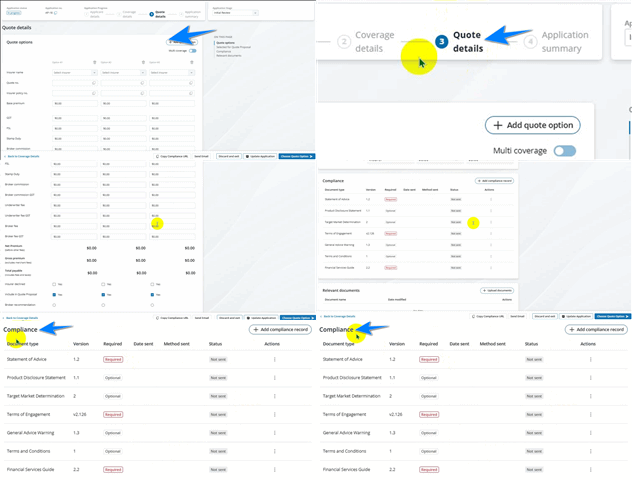 |
Add or Delete Compliance
Add a record when you want to include important compliance info. Delete a record when it’s no longer needed. Find out when you can do each, the limits to keep in mind, and the extra things you can set up when adding a record.
Click the Details button to find out more!
| Smart Compliance, Built for Flexibility If your Administrator has preloaded all compliance document types, the Add Compliance Record button will be greyed out. But if any are missing, the button becomes active - letting you add only what’s not already listed. When adding a record, you’ll choose the document, mark it as required or optional, log the method and date sent, and set the status. |  |
| Remove What You Don’t Need If a compliance document isn’t relevant, just click Actions (the 3 dots) next to it and select Delete. Need it back later? No problem - use Add Compliance Record to re-add it anytime. | 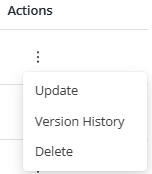 |
Mark Items as Required or Optional
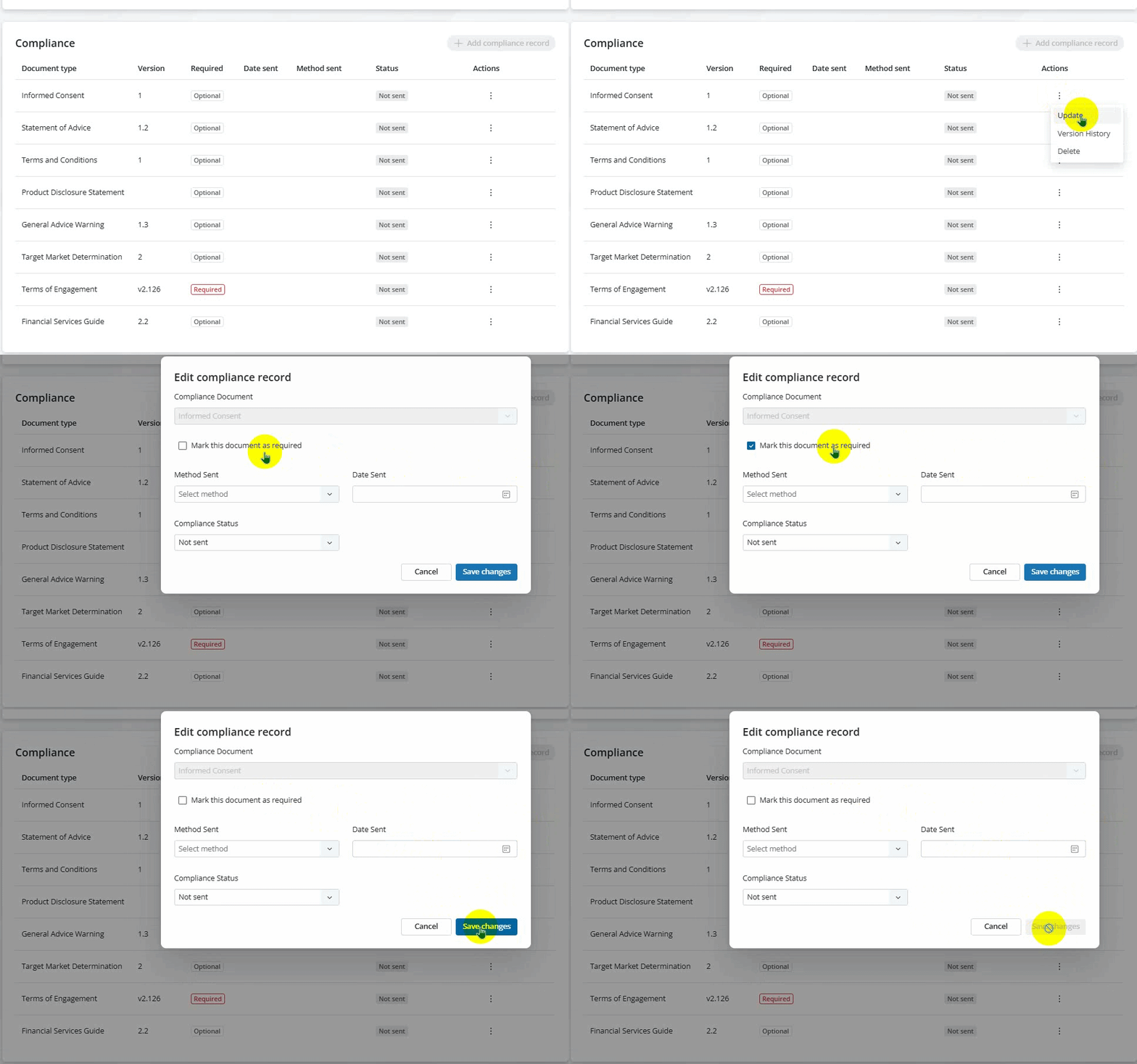
Marking a compliance document as Required simply flags its importance and marks it as required for the client to complete - it won’t block you or force an update the record. You’re still in control of when and how it’s handled.
Click the Details button to view step by step instructions.
1. Go to the Quote Details of the application
2. Scroll down to the Compliance section
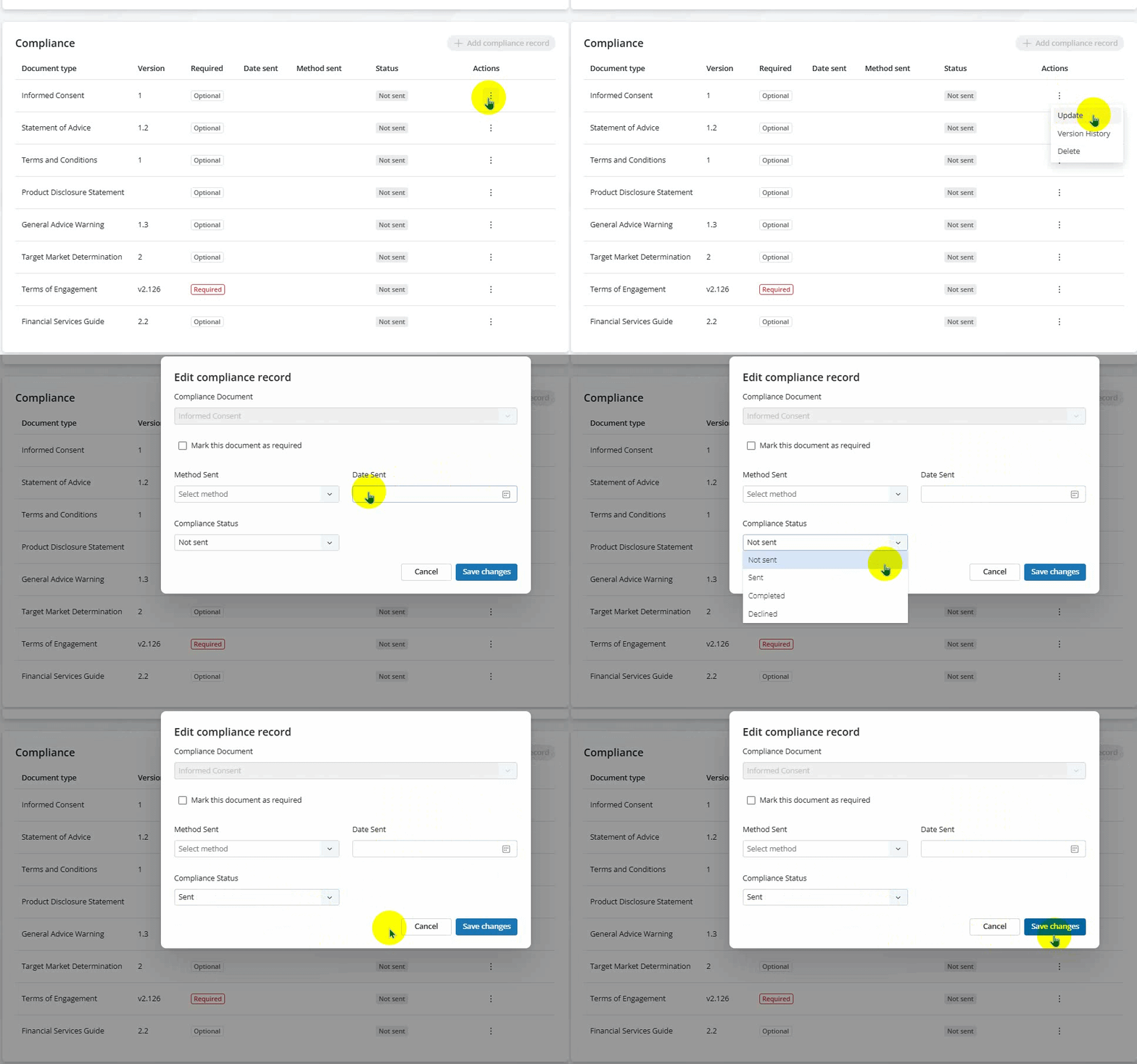
3. Find your document, click Actions > Update
4. Select or unselect the checkbox for Mark this document as required.
5. Hit Save Changes - and that's it!
Record how & when documents were sent
Stay compliant by recording how and when each document was sent — it’s quick, clear, and keeps your records audit-ready.
Click the Details button to view step by step instructions.
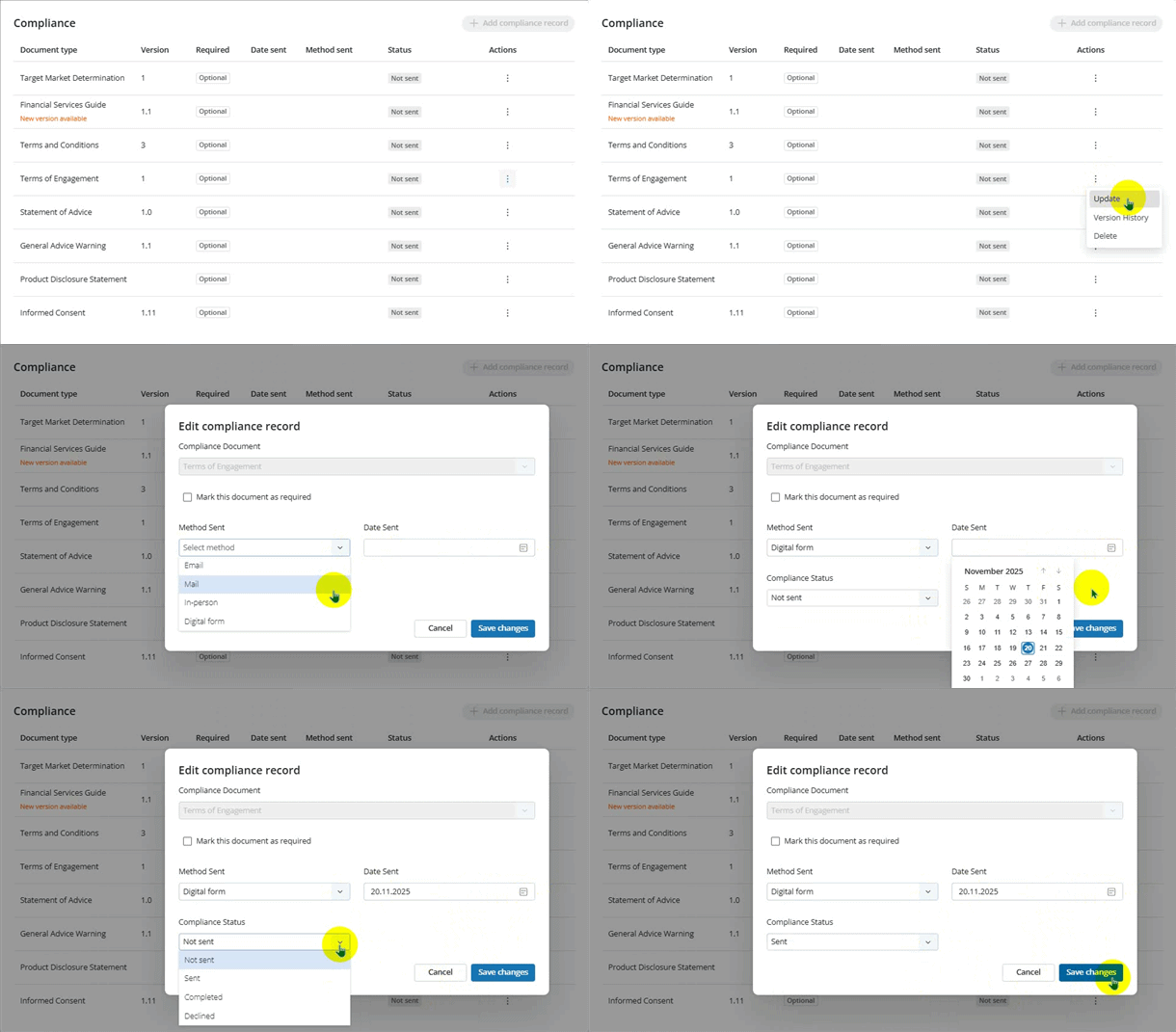
1. Go to the Quote Details of the application
2. Scroll down to the Compliance section
3. Find your document, click Actions > Update
4. Select Email, Mail, In Person, or Digital Form in the Method Sent field.
5. Enter the Date Sent or pick it using the handy calendar icon.
6. Change the Compliance Status to Sent.
7. Hit Save Changes - and you're all set!
Update Compliance Status
Use the Compliance Status field to follow each document’s journey — from Not Sent to Sent, Completed, or Declined.
FYI: By default, status starts as Not Sent and client response via Compliance URL auto‑updates the status to Completed.
Click the Details button to view step by step instructions.
1. Go to the Quote Details of the application
2. Scroll down to the Compliance section
3. Find your document, click Actions > Update
4. Change the status in the Compliance field
5. Hit Save Changes - and you're done!
View Version History
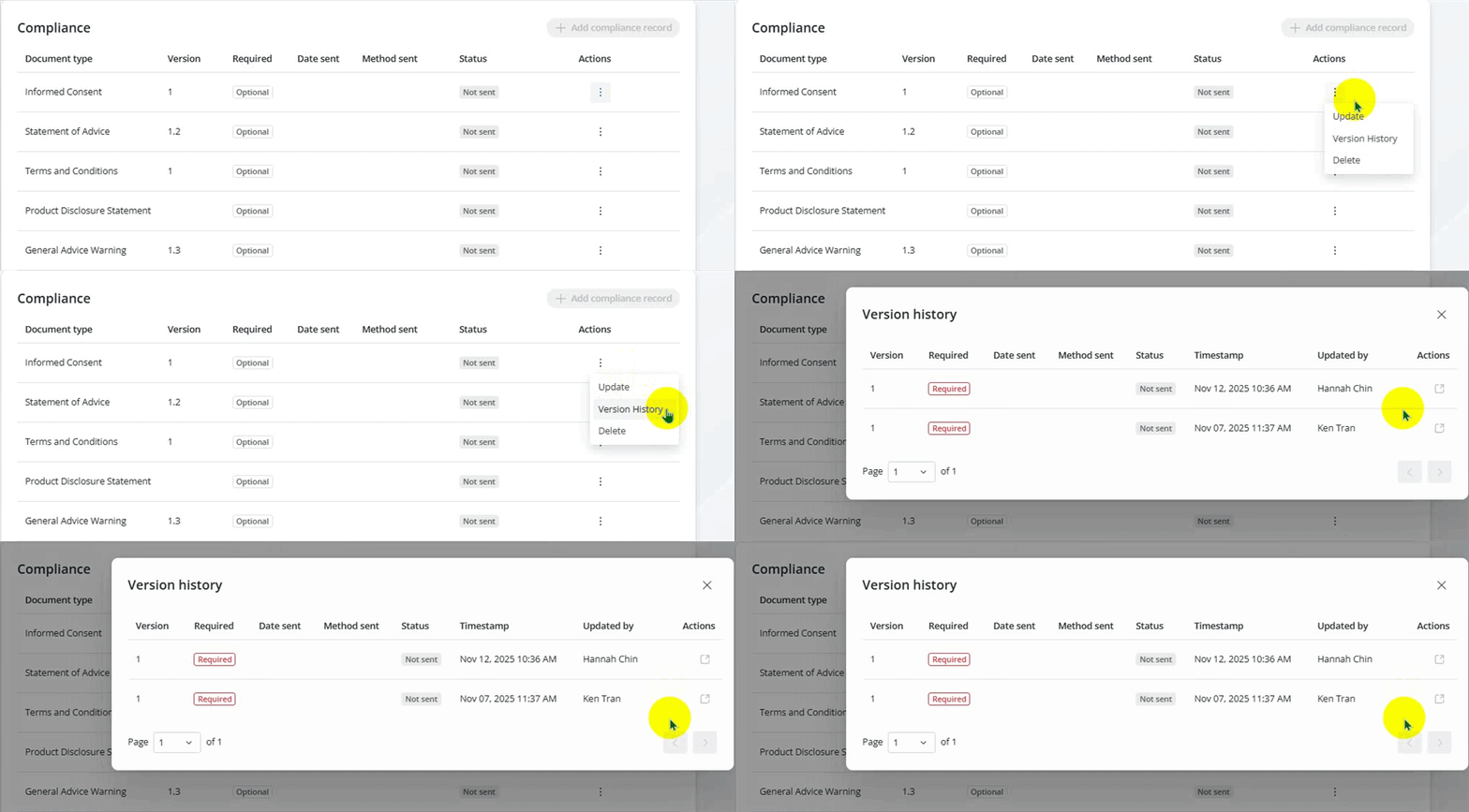
Use Version History to see which versions were sent to the client, who made updates, and when. If a previous version was logged with a date and method sent, you’ll find it clearly listed in the table.
And if the document was saved in Steadfast Apps, you can even download that version directly — making tracking simple and transparent.
Click the Details button to view step by step instructions.
1. Go to the Quote Details of the application
2. Scroll down to the Compliance section
3. Find your document, click Actions > Version History.
Keeping PDS Documents Up to Date
PDS documents depend on the product and may change more often than other compliance records, so you’ll need to upload the latest version before sending the compliance URL.
Click the Details button to view step by step instructions.
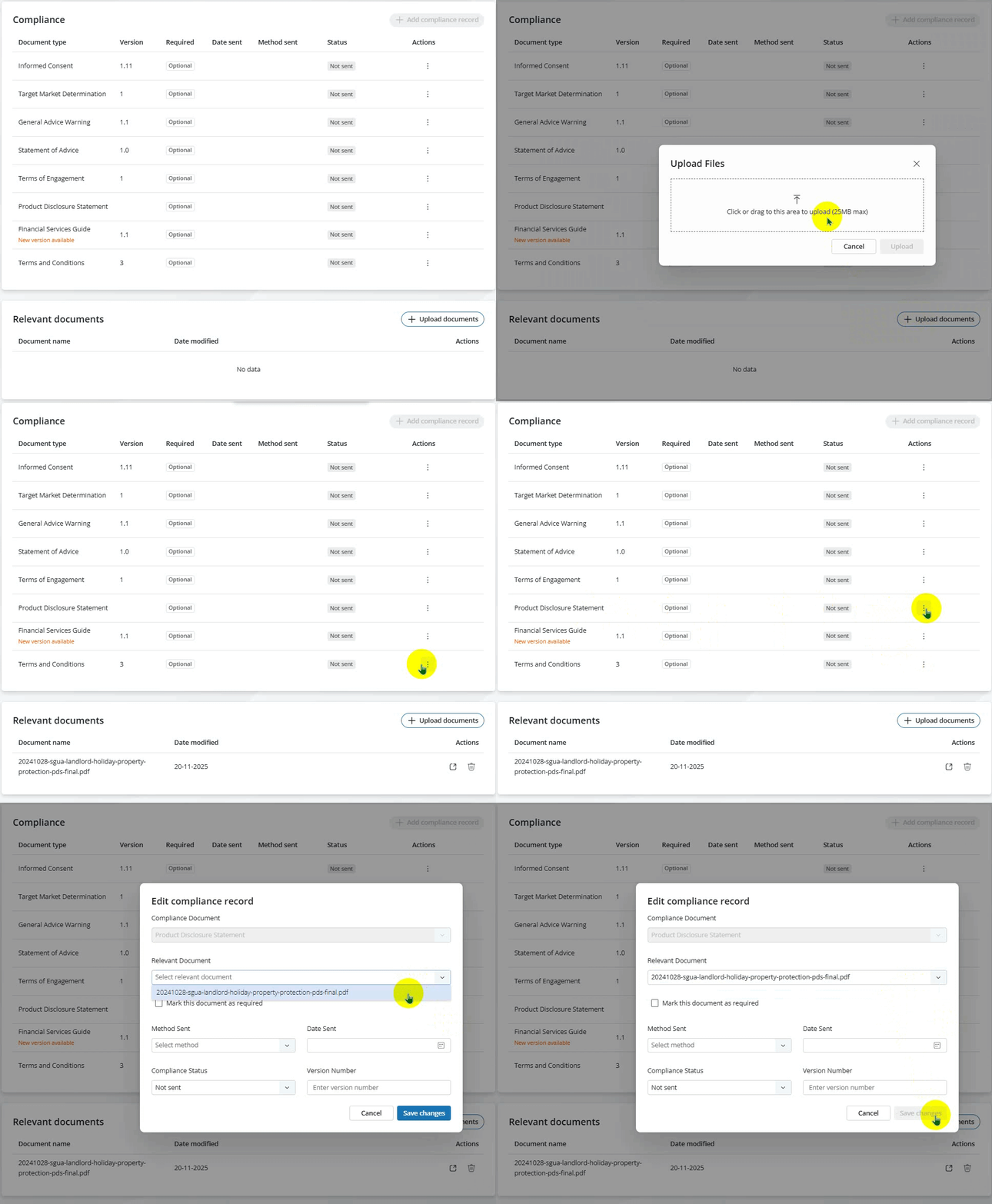
1. In the application itself, go to Relevant Documents (just under Compliance).
2. Click Upload Documents, then drag and drop the file or locate it manually.
3. Return to the Compliance section, find the PDS, click Actions > Update.
4. In the Relevant Documents dropdown, select the uploaded PDS file and click Save Changes.
Now the document is linked to the compliance URL, and your client can simply click Read Document to view the PDS.
Something got you stumped?
Our team is here to help! We know change can be tricky, but we've got your back.

Contact our support team here and well get back to you shortly
Was this article helpful?
That’s Great!
Thank you for your feedback
Sorry! We couldn't be helpful
Thank you for your feedback
Feedback sent
We appreciate your effort and will try to fix the article