Click to go to:
Introduction
 | Manually creating individual premium funding receipts through the Receipts and Allocations wizard. |
 | Uploading batch files of premium funding receipts through the Premium Funding wizard. |
| Premium funding batch files are generally emailed by the Premium Funder or your ledger can be set up to auto-download the receipts directly from the Premium Funder. Refer to your Administrator to confirm your business practices concerning the Premium Funding wizard. Found under the Receipts menu, use this area to auto-create and allocate premium funding receipts. | The pages to be completed are: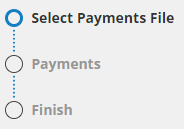 |
Select Payments File
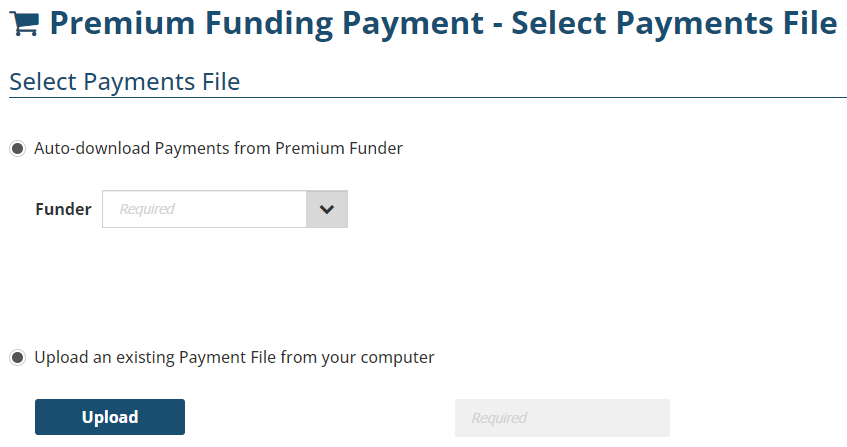
This page offers 2 ways to create premium funding receipts:
 | Auto-download Payments from Premium Funder - your ledger must be configured accordingly to complete this process. If configured for this feature, use the dropdown field to select the Funder from which you want to download receipts, then select Next. |
 | Upload an existing Payment File from your computer - when you've received & saved the payment file from the funder, use this option to upload the file to INSIGHT. The accepted file types are .fund file or a .pay file. Select the Upload button to locate the file in your machine, then select Open, wait for the file to upload (generally less than a second, however, this depends on the file size), then select Next. |
NOTE: During the upload, INSIGHT checks the payment file has the correct information. A message will alert you when an error is identified. For assistance with investigating and rectifying errors, export the report as an Excel file and email it to support@steadfasttech.com.au
Payments
Once the premium funding receipts are received, they are displayed on this page with a status comparing what was receipted to what was invoiced INSIGHT. Below is a sample list of receipts:
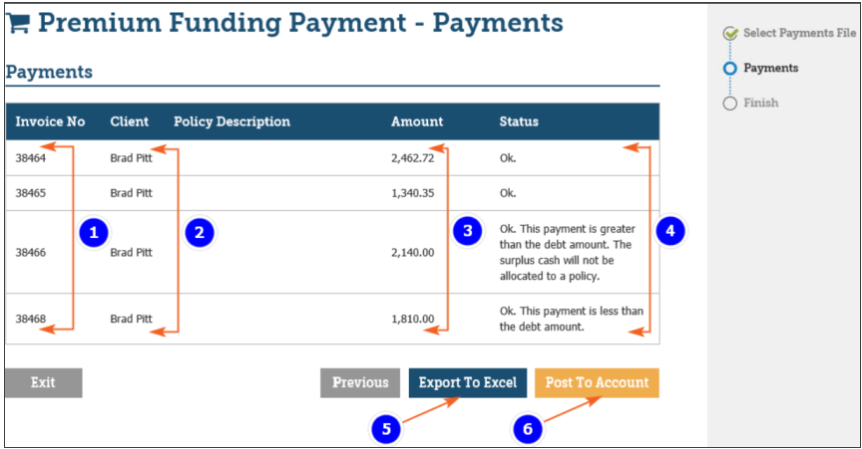
1. Invoice Number - displays the invoice numbers the receipts are being allocated to.
2. Client - displays the client the invoice numbers belong to.
3. Amount - displays the amount being receipted.
4. Status - displays whether what was receipted matches what was invoiced. Identifies when there is an overpayment or underpayment.
5. Export to Excel - creates an Excel copy of the payments listed on this page.
6. Post to Account - finalised the creation and allocation of receipts.
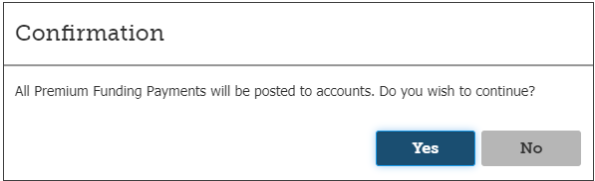
A confirmation message will display before taking you to the final page:
Finish
This page confirms the premium funding receipts have been created and allocated to the respective invoices. Select Finish to exit the wizard.
Was this article helpful?
That’s Great!
Thank you for your feedback
Sorry! We couldn't be helpful
Thank you for your feedback
Feedback sent
We appreciate your effort and will try to fix the article