Click to go to:
IMPORTANT: Only an existing user with an Administrator role can add another user.
Summary
1. Select Setup, then Security. 2. Under the Users tab, select Add. 3. Complete all wizard pages and select Save to create the user. NOTE: Most fields are self-explanatory, however, this article will highlight those requiring further explanation. | Add User Wizard pages for completion: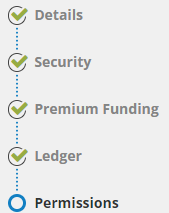 |
Details
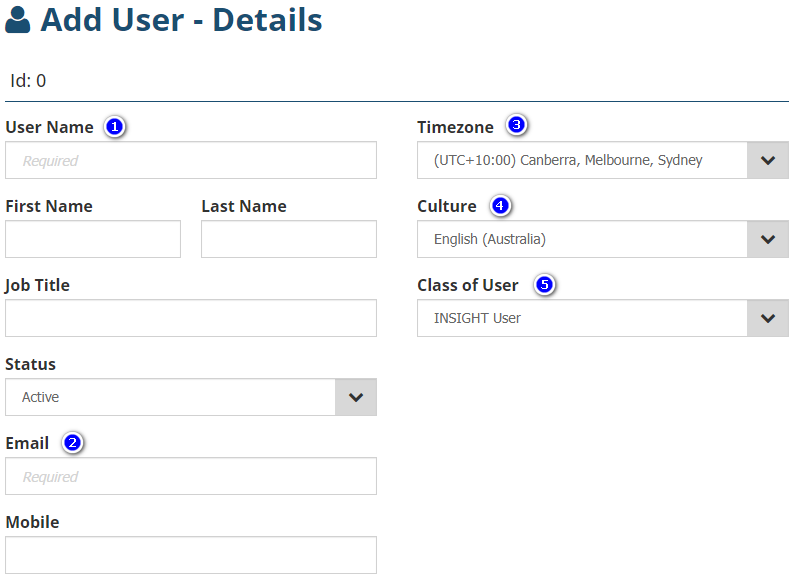
1. User Name - refer to your business practices with regards to the naming convention used for username creation.
2. Email - refers to the work email address and where the user receives password setup/reset and authentication prompts.
3. Timezone - choose the appropriate timezone for the user's location.
4. Culture - refers to the language spoken.
5. Class of User - select INSIGHT User.
Security
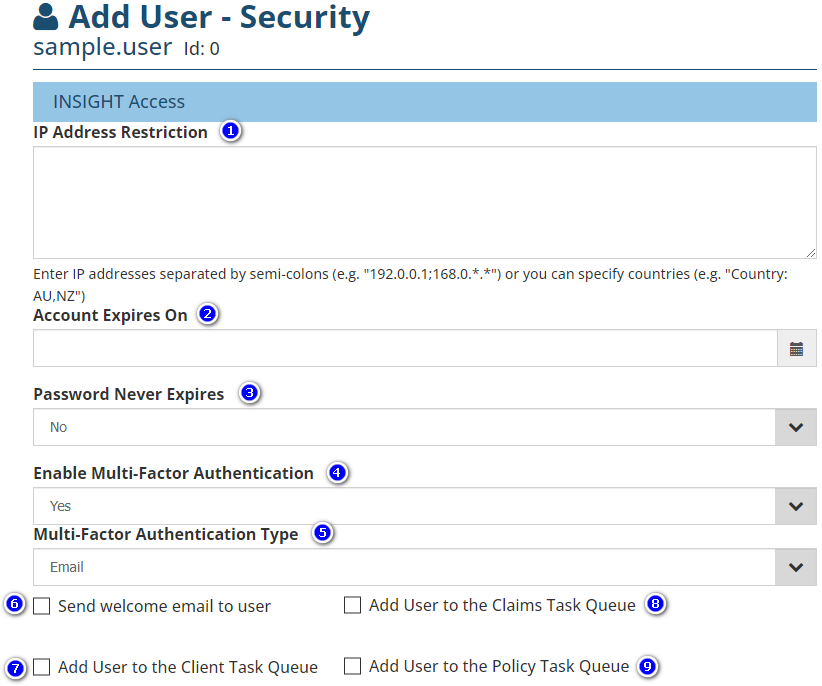
1. IP Address Restriction - generally used for remote INSIGHT users; the user can only access INSIGHT by using the IP Addresses or Countries entered here.
2. Account Expires On - generally used for temporary INSIGHT users; leave as blank for regular INSIGHT users.
3. Password Never Expires - as part of maintaining secure access, set this field to No.
4. Enable Multi-Factor Authentication- when applicable to your business, set this field to Yes. After logging in with the username and password, this emails a unique code to the user as an extra security layer before accessing INSIGHT.
5. Multi-Factor Authentication Type - the only option is Email.
6. Send welcome email to user - you must select the checkbox to send a welcome email with the password setup prompts to the user.
The following settings only apply if your business is using INSIGHT's Task feature:
7. Add User to the Client Task Queue - includes the new user in the queue selection when assigning client tasks.
8. Add User to the Claims Task Queue - includes the new user in the queue selection when assigning claims tasks.
9. Add User to the Policy Task Queue - includes the new user in the queue selection when assigning policy tasks.
Premium Funding
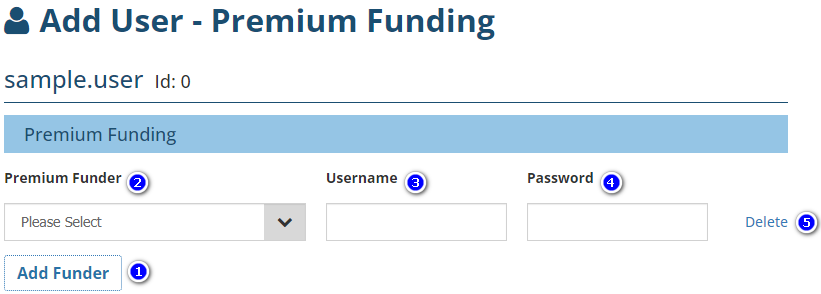
This page only applies if your business is using Premium Funding. The following details allow INSIGHT to integrate with the funder's platform to send and update funding requests:
1. Add Funder - select this to display fields 2 - 5.
2. Premium Funder - choose the relevant funder from the list.
3. Username - enter the user's existing username for the chosen premium funder.
4. Password - enter the user's existing for the chosen premium funder.
5. Delete - removes the funding credential from the wizard.
Ledger
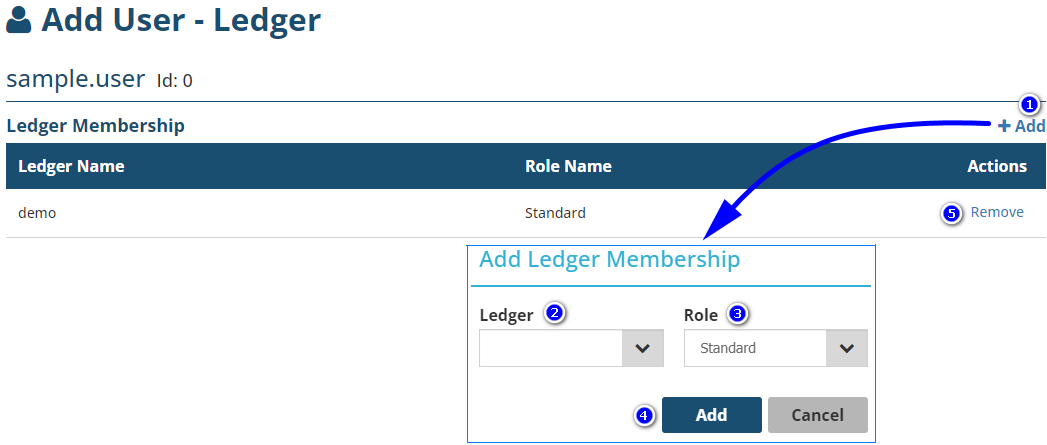
By default, INSIGHT adds the user to the ledger you're currently using with a Standard role. If this doesn't apply to your situation, select Remove.
1. Add - if your business manages multiple ledgers, select this to add the user to the relevant ledgers. Alternately, use this to update a user's role.
2. Ledger - displays the ledgers managed by your business.
3. Role - contains the options for Standard, Administrator (gives access to Setup features) and System Administrator (reserved for Steadfast Technologies staff).
4. Add - adds the user's ledger and role to the wizard.
5. Remove - removes the user's ledger and role to the wizard.
Permissions
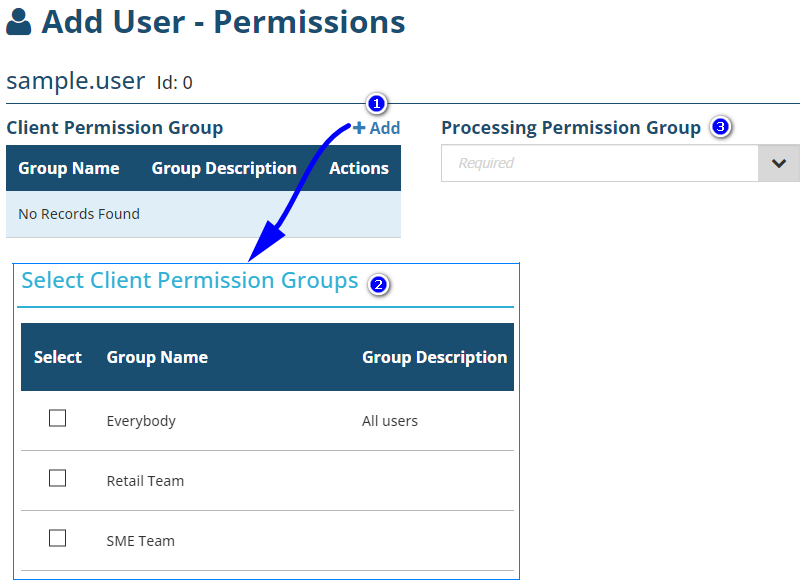
- Settings on this page only apply to users with a Standard role.
- When applicable, clients are placed in Client Permission Groups to limit user access to specific clients. For example, this can be used when different branches are using the same ledger and you don't want users to be using clients that don't belong to their branch.
- A Processing Permission Group (PPG) limits the INSIGHT features a user has access to.
1. Add - opens the available Client Permission Groups (CPGs) for you to choose from.
2. Select Client Permission Groups - choose the checkbox beside the CPGs the user will have access to; a user can have access to multiple CPGs.
3. Processing Permission Groups - select the user's PPG; a user can only have one PPG.
Was this article helpful?
That’s Great!
Thank you for your feedback
Sorry! We couldn't be helpful
Thank you for your feedback
Feedback sent
We appreciate your effort and will try to fix the article