Click to go to:
Introduction
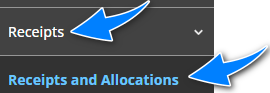
The Receipts & Allocations wizard is used to manually receipt monies from a Client, Producing Broker or Insurer, then allocate the monies to an invoice or multiple invoices. Scenarios include adding cash receipts, credit card receipts, insurer receipts, insurer returns and co-client receipts. The wizard is found by selecting Receipts, then Receipts and Allocations.
| The pages to be completed are: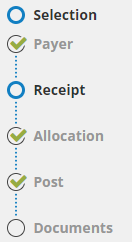 |
Selection
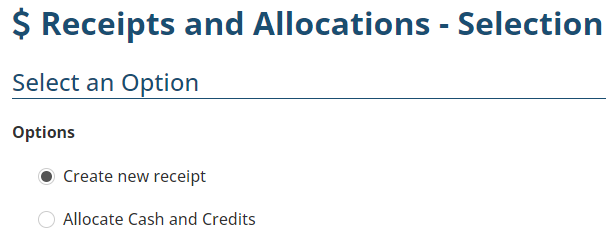
The 2 options presented determine which area in the wizard you'll be directed to:
|  |
Payer
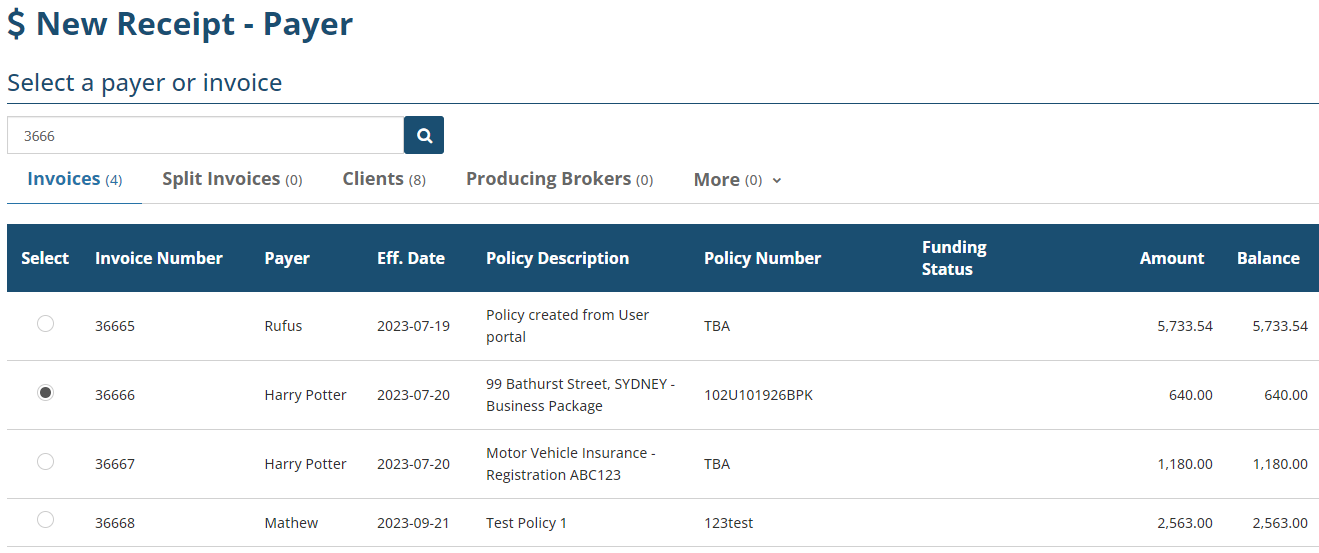
 | Use the search bar to look for an existing invoice, split invoice, client, producing broker or insurer. |
 | The search results are organised into different tabs and sorted from oldest to newest or alphabetically. Within the tabs, you can use the column headings to sort the results. |
 | Once you've chosen the invoice or payer you wish to receipt against, INSIGHT will automatically set the receipted amount to the balance of the invoice, split invoice, client, producing broker or insurer. |
 | The Producing Broker tab is only displayed if it's configured in the ledger settings. |
 | The Insurers tab is used to process return premiums (also known as insurer returns) received from the insurer. Return premiums generally occur when the credit is not taken up in the insurer payments run. |
Receipt
Use this page to record the amount and how the money was received, the options are:
| 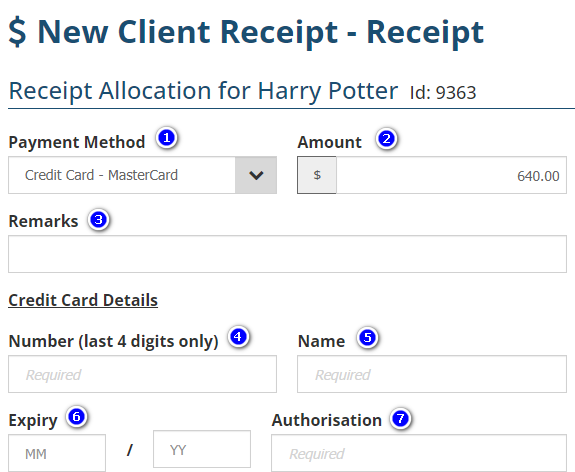 |
1. Payment Method - Choose the method of how the money was received. When a credit card or cheque method is chosen, additional fields will be displayed to capture credit card or cheque details for the bank deposit report.
2. Amount - The amount defaults to the balance of the previously selected invoice or payer, however, you can edit this amount to match exactly what was received.
3. Remarks - Has a character limit of 255 and may be used for auditing purposes.
4. Number (last 4 digits only) - has a character limit of 4 characters and is displayed on the Bank Deposit Detail report.
5. Name - captures the credit card name and is displayed on the Bank Deposit report.
6. Expiry - captures the month and year of the card's expiration.
7. Authorisation - captures the CVC number and is not saved in the system.
Allocation
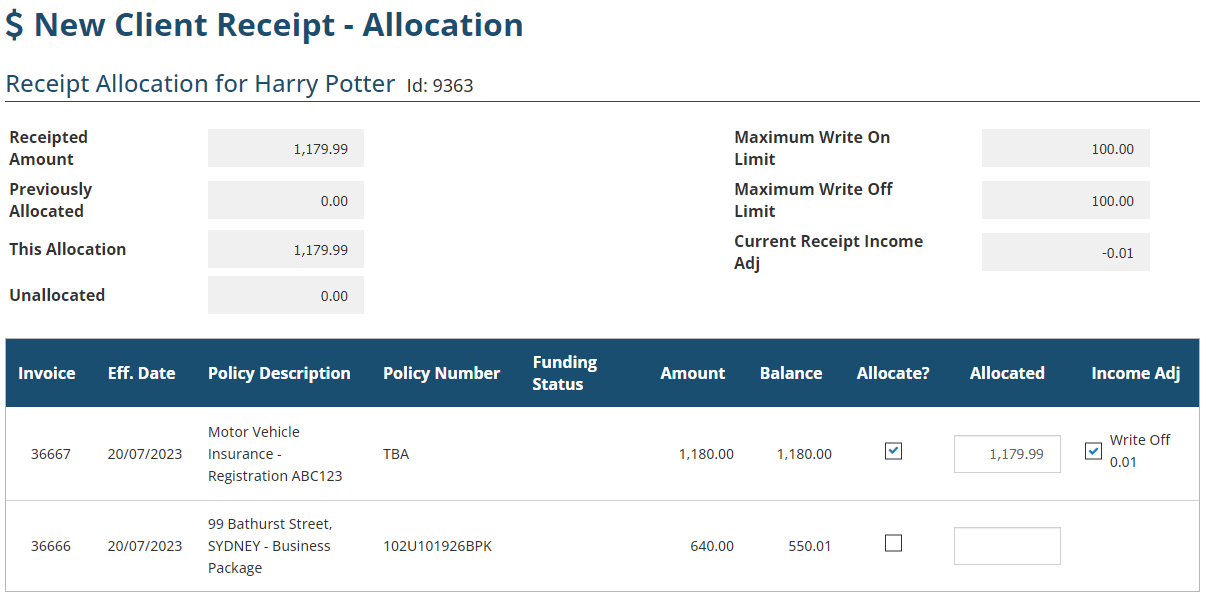
This page lists outstanding invoices for the client, insurer or producing broker. You are required to select the invoice or invoices the receipt is allocated to. To do this, locate and select the Allocate? checkbox beside the invoice you wish to allocate the receipt to. INSIGHT auto-fills the Allocated field with the receipt amount, however, you can edit the amount to match what the client paid for the invoice or the amount returned by the insurer.
To help streamline the process, INSIGHT auto-selects the Allocate? checkbox based on the previously chosen invoice or payer. For instance, when a client is chosen, all outstanding client invoices will have the Allocate? checkbox auto-selected. Likewise, if an invoice was chosen, that invoice will have the Allocate? checkbox auto-selected.
Please review the auto-selection carefully and de-select Allocate? checkboxes as needed.
Income Adjustment
When applicable, INSIGHT displays the option to apply an income adjustment. You must select the Write On or Write Off checkbox to apply the income adjustment. The ledger is set up with a maximum amount you can write on or write off, this is displayed at the top right section of the page.
Post
| This page presents a summary of what was receipted, previously allocated, allocated and left unallocated. When a credit card payment method is chosen, this page also displays a section for the Credit Card Fee. The fee percentage is based on the ledger settings and if allowed by the settings, can be modified Please review these amounts carefully, then select Post to Accounts to finalise the wizard. | 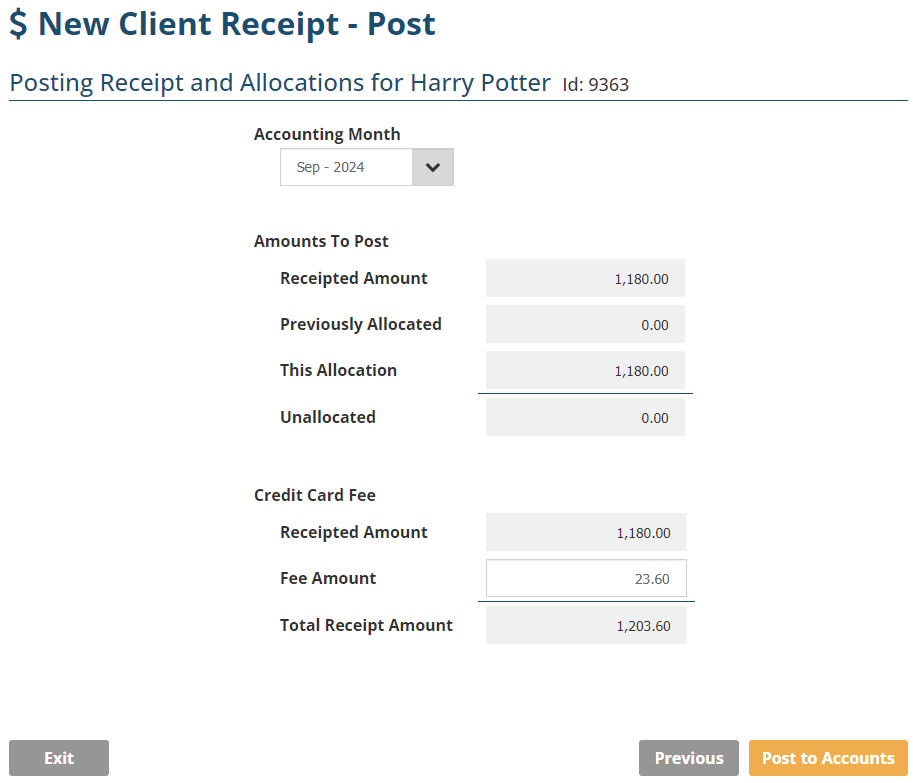 |
| You will receive a final confirmation message. Once Yes is chosen, all relevant records will be updated. | 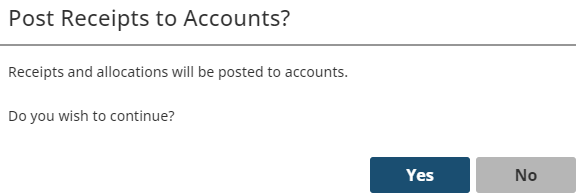 |
Documents
This page confirms the end of the wizard and provides the opportunity to download the receipt as a PDF. Once out of the wizard, you can re-download the receipt through Past Receipts and Allocations. | 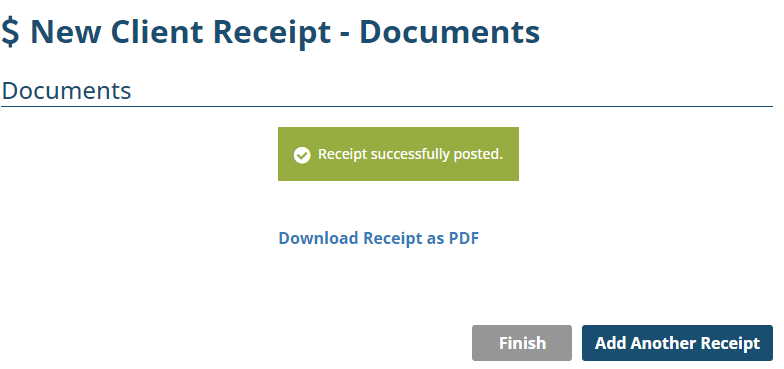 |
Was this article helpful?
That’s Great!
Thank you for your feedback
Sorry! We couldn't be helpful
Thank you for your feedback
Feedback sent
We appreciate your effort and will try to fix the article