| Receipts are manually created through the Receipts and Allocations wizard or electronically uploaded through the Premium Funding, Bank File Import or Instalment Receipts wizards. All receipts created in INSIGHT, whether manually receipted or electronically uploaded, can be found in this area. Found under the Receipts menu, use this area to view and re-download receipts. | 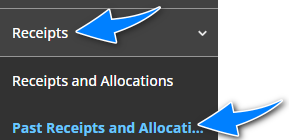 |
The page is divided into the top filter area and the bottom receipts display area. The filters have default values, however, you can modify these to locate the receipt you wish to review. The receipts displayed can be sorted using the headers in the blue bar.
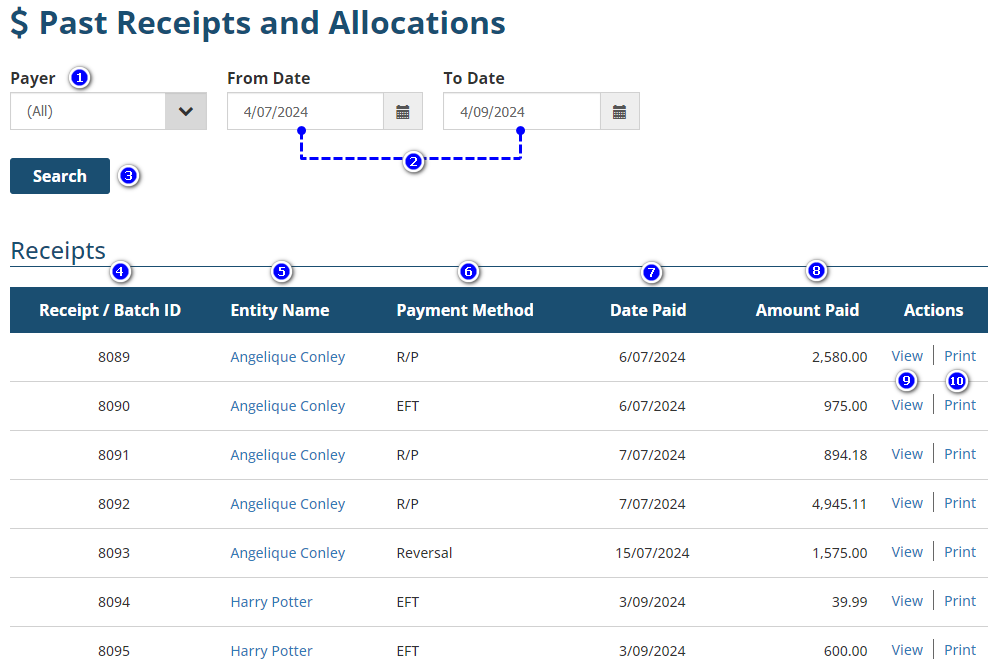
1. Payer - Defaults to display all payers, however, when choosing a specific payer, an additional filter gives you the option to further narrow down the receipts displayed You can choose from the following:
- Client
- Authorised Rep
- Insurer Refund
- Receipt Batch
2. From Date & To Date - change these filters to suit the date range of receipts you wish to review.
3. Search - Once the filters are chosen, select Search to update the receipts display.
4. Receipt/Batch ID - each receipt has a unique ID displayed in this column.
5. Entity Name - displays the client, producing broker or insurer name belonging to the receipt.
6. Payment Method - displays the payment method used to complete the receipt or batch file receipt. The methods displayed are EFT, DEFT, BPAY, IRT - Instalment Receipts, CC Fee, Mastercard, Visa, Diners Club, American Express, Money Order, Premium Funding Cheque or Premium Funding EFT.
7. Date Paid - displays the date the receipt was processed in INSIGHT.
8. Amount Paid - displays the amount processed.
9. View - depending on the receipt type, displays the Receipt Details page or the Receipt Batch Details page.
10. Print - a PDF is produced for individual receipts and an Excel report is produced for batch receipts. To produce an individual PDF for one of the receipts in a batch receipt, first, select View on the batch receipt to go to the Receipt Batch Details page, locate the receipt, and then select the Print action beside that receipt.
Was this article helpful?
That’s Great!
Thank you for your feedback
Sorry! We couldn't be helpful
Thank you for your feedback
Feedback sent
We appreciate your effort and will try to fix the article