Click to go to:
Introduction
| The New Bank Deposits wizard is generally used to create deposit slips for banking cash and cheques or record-keeping purposes for other receipt types. All receipts created in INSIGHT are available in this wizard. The wizard is found by selecting Receipts, then New Bank Deposits. 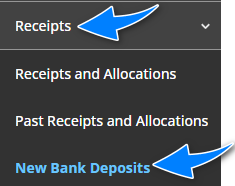 | The pages to be completed are: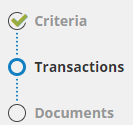 |
Criteria
| This page allows you to choose what and how information is presented in the bank deposit slip. |
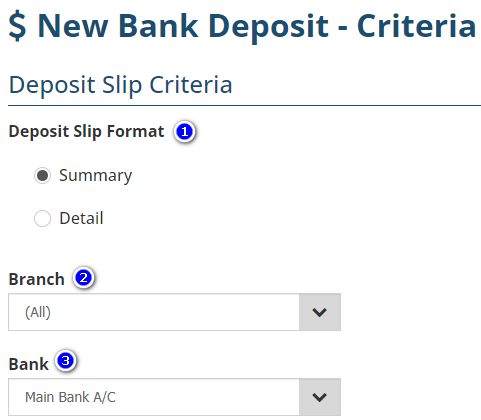
1. Deposit Slip Format - the options are:
| 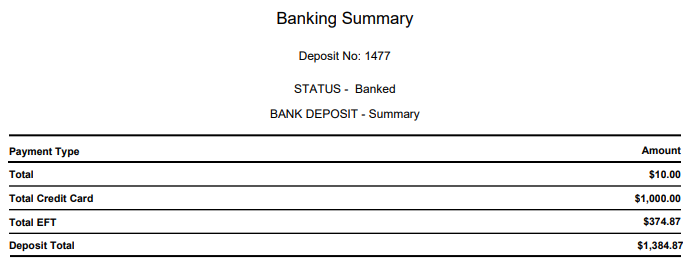 |
| 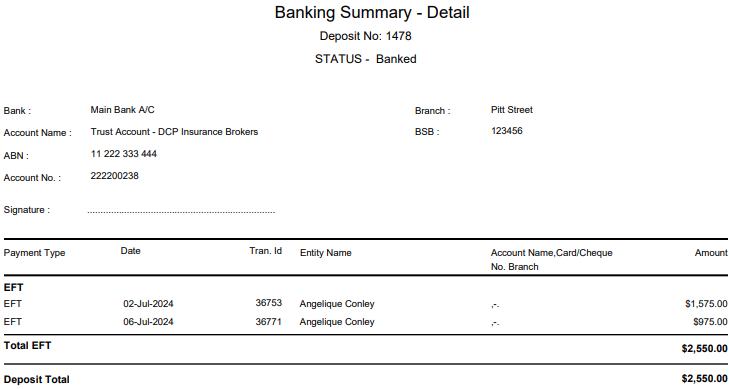 |
2. Branch - this dropdown selection will display the option for (All) and the branches configured by your administrator. Use this to filter the receipts of a specific branch.
3. Bank - this field contains the bank information configured by your administrator.
Transactions
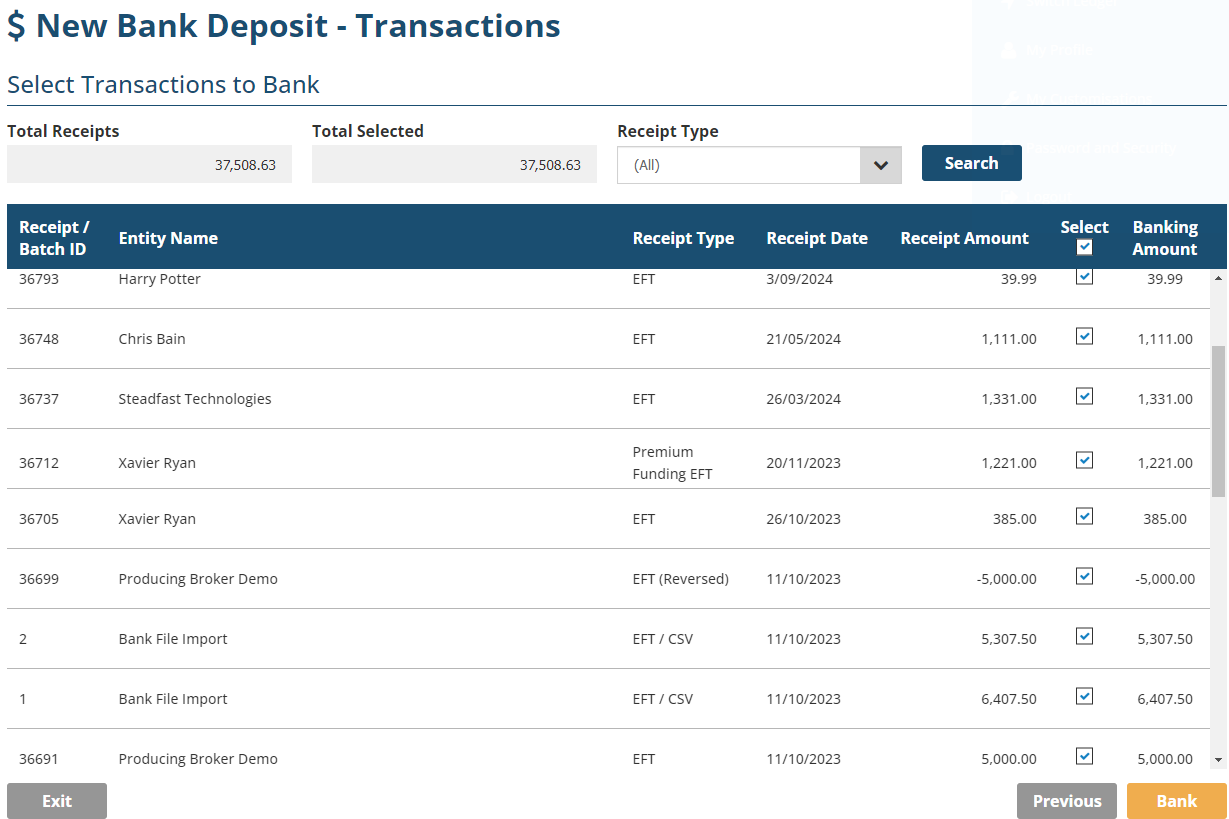
 | The transactions displayed are based on your previous selections. This page shows you the total amount of receipts and the total amount of receipts selected to be part of the bank deposit slip. |
 | By default, INSIGHT auto-selects the Select checkbox of all receipts displayed. The Select checkbox determines if the receipts are to be included in the bank deposit slip. |
 | Use the Receipt Type filter, then select Search to update the list with specific receipts based on receipt type. For example, you can create a separate bank deposit slip for EFT and Premium Funding EFT. |
 | Once all desired receipts are chosen, select Bank. |
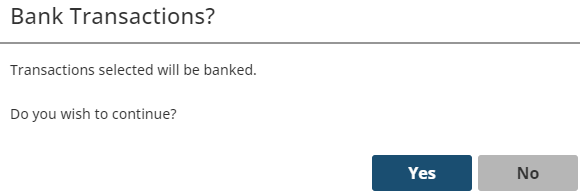
A confirmation message will display before taking you to the final page:
Documents
| This page confirms the end of the wizard and provides the opportunity to download the bank deposit slip as a PDF or Excel. Once out of the wizard, you can re-download the document through Past Bank Deposits. | 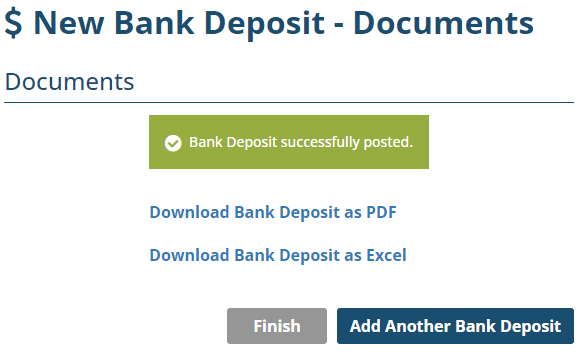 |
Was this article helpful?
That’s Great!
Thank you for your feedback
Sorry! We couldn't be helpful
Thank you for your feedback
Feedback sent
We appreciate your effort and will try to fix the article