Click to go to:
Show unallocated cash for all clients
Show unallocated cash and credits for a single client
Show unallocated cash for all clients
Show unallocated cash and credits for a single client
Introduction
| The Cash Journal wizard is used to transfer unallocated cash and credits between clients or between insurers. The wizard is found by selecting Finance, then Cash Journals.  | The pages to be completed are: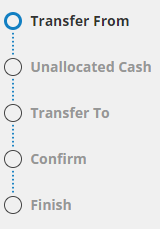 |
Transfer From
Your selection in Transfer Type will point your selections for Unallocated Cash Selection to apply for either clients or insurers. This article discusses the process for a Client Transfer - this could be useful when a client pays one bulk amount for multiple policies across different client profiles in INSIGHT.
Show unallocated cash for all clients
When this option is selected, the next page will show all clients with unallocated cash.
Show unallocated cash and credits for a single client
When this option is selected, a search bar will appear, prompting you to search for and select the client you want to transfer cash/credit from.
 | For Transfer Type, select Client Transfer, then make your selection for Unallocated Cash Selection, and select Next. |
Unallocated Cash
There are 2 outcomes for this page, depending on your selections for Unallocated Cash Selection:
Show unallocated cash for all clients
Displays all clients that have unallocated cash.
 | Select the Transfer checkbox against each client you want to transfer cash from. You can also use the Transfer Amount field to edit the amount, in case you don't wish to transfer the full amount. Once done, select Next. |
Show unallocated cash and credits for a single client
Displays all unallocated cash for a single client.
 | Select the Transfer checkbox against each unallocated cash you want to transfer. You can also use the Transfer Amount field to edit the amount, in case you don't wish to transfer the full amount. Once done, select Next. |
Transfer To
This page is the same regardless of your selections for Unallocated Cash Selection - it will display a search bar, prompting you to search for and select the client you want to transfer cash/credit to.
 | Search for and locate the client you want to transfer cash/credit to, then select Next. |
Confirm
 | Review the Transfer From, Transfer To and Transfer Amount details, select Post to Accounts and Yes to the confirmation message. |
Finish
 | Select Make Another Transfer to return to the start of the wizard or Exit to navigate away from the wizard. |
Was this article helpful?
That’s Great!
Thank you for your feedback
Sorry! We couldn't be helpful
Thank you for your feedback
Feedback sent
We appreciate your effort and will try to fix the article