Click to go to:
New Bank Reconciliation Process
Notes for Your First Reconciliation
Introduction
The New Bank Reconciliation wizard is used for all transactions processed in INSIGHT. When you've just started using INSIGHT, there are extra steps to consider when completing your first bank reconciliation because the Last Reconciliation - As At Date and Balance fields are empty and editable. Whereas, once you've completed a bank reconciliation, these fields will locked and auto-filled based on the previous reconciliation. For more information, please refer to the Your First Bank Reconciliation article.
New Bank Reconciliation Process
 | Select Finance, then New Bank Reconciliation |
 | Enter the New Reconciliation - As At Date as the date of the reconciliation or the end date for the period you are reconciling and the New Reconciliation - Balance as your trust account bank statement balance as of that date. |
 | Under the Date Selection header, use the From Date and To Date to retrieve the INSIGHT transactions to be reconciled with your trust account's bank statement period. You'll note that the Total to be Reconciled field is the total amount of the transactions displayed on the list.  QUICK TIP: The From Date is generally set to be on or just before the previous reconciliation date. The To Date is generally set to several days after the new reconciliation. QUICK TIP: The From Date is generally set to be on or just before the previous reconciliation date. The To Date is generally set to several days after the new reconciliation. |
 | Select Search to update the list of transactions displayed - always select Search anytime changes are made to the date selection to ensure you have the correct list of transactions. QUICK TIP: You can adjust the From Date & To Date at any time to display fewer or more transactions. Before doing so, please SAVE your work, adjust the dates, and then select Search to update the list. |
 | Begin to match transactions between your trust account bank statement and INSIGHT. Refer to your statement, locate the matching transaction in the wizard, and then select the checkbox beside each transaction you find - the wizard lists transactions from latest to oldest, however, you can further sort the list by clicking the headings found in the blue header. |
 | Select Save to keep the matches you've found - saving your work periodically is good practice when it takes time to investigate missing transactions. This also allows you to exit and return to the wizard at a later stage to continue the reconciliation. |
 | When there are transactions in your trust account bank statement that you can't find in INSIGHT or vice versa, you can track them using Reconciling Items - to do this, select Update, Add, complete the required information and Save. This allows you to reconcile despite missing transactions and without having to perform a manual deduction to the bank balance amount. 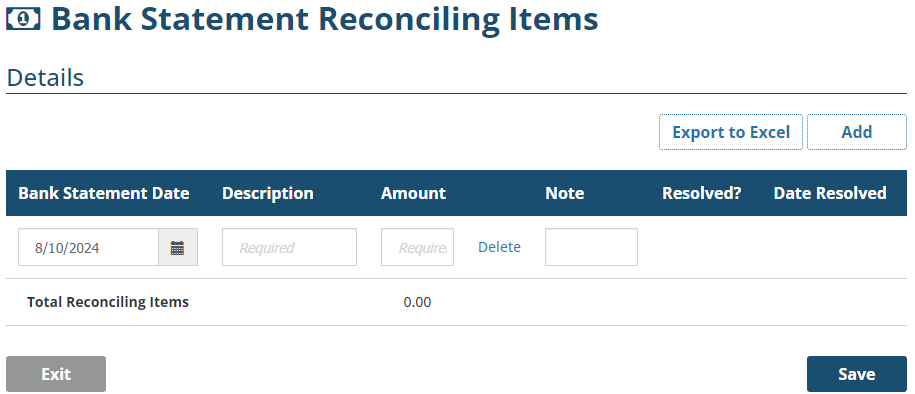 |
 | As you find matches and select checkboxes, the Selected Transactions Total field updates to track how much you have currently reconciled. This works together with the Total to be Reconciled field to calculate the Reconciliation Difference field to track how much outstanding you have left over to reconcile. The aim is to achieve a Reconciliation Difference of $0 - only then will the Reconcile button be activated and allow you to reconcile the period. Once you select Reconcile, select Yes to the confirmation message to finalise the reconciliation.  |
Notes for Your First Reconciliation
As mentioned earlier, for your first INSIGHT Bank Reconciliation, the Last Reconciliation - As At Date and Balance fields are empty and editable. When completing these fields, you have 2 options:
 | Handle your trust account like a new account starting at $0.00 - this involves entering the Last Reconciliation - As At Date as blank and the Last Reconciliation - Balance as $0.00 |
 | Start your INSIGHT reconciliation from the date of your last external bank reconciliation - this involves entering the Last Reconciliation - As At Date and Last Reconciliation - Balance based on your latest external bank reconciliation. |
Was this article helpful?
That’s Great!
Thank you for your feedback
Sorry! We couldn't be helpful
Thank you for your feedback
Feedback sent
We appreciate your effort and will try to fix the article