| Version 1.01 | 14 January 2020 |  |
Table of Contents |
| Introduction Business Rules ProcessClient Account Balance | Insurer Account Balance Exceptions and TroubleshootingWhat’s New? |
Introduction |
This feature is available when an income adjustment is required when either the commission or fee in the original transaction was processed incorrectly.
The primary intention is to allow the broker to process a transaction for the commission (and/or GST values on the commission) to avoid the need to cancel and reinstate a policy.
INSIGHT uses the Income Adjustment Endorsement Type in the following ways:
| Transaction Type | How |
| Manual Transactions | Both commission and fee adjustment permitted |
| EDI (SCTP/Sunrise) Transactions Sunrise is Australia only | Fee adjustment only |
In addition to the commission or fee adjustment, INSIGHT will allow a GST adjustment on income only transaction to be performed using this function.
The intended audience for this document is those staff within each organisation who have responsibility to process or manage payments and accounting records; and internal or external staff that are required to have knowledge on processing and accounting functions of INSIGHT. Readers are advised to refer to the INSIGHT Online Help for additional information that may be available.
Business Rules |
The following rules apply when processing an Income Adjustment.
1. Income Adjustments can be performed by Administrators and users that have been configured for permission to process an Income Adjustment.
2. Commission and/or Fee income can be adjusted on manual transactions
3. Fee only income adjustments can be performed on all both Manual and EDI (SVU/Sunrise) transactions if needed– refer to the ** Special Note in section EDI Policies (SCTP/Sunrise)
4. The Net Premium cannot be greater than the invoice total.
5. If an Authorised Rep is attached to the policy, the user will be taken to the Authorised Rep income page to check and update any income adjustment for the AR.
6. The Income Adjustment transaction will not update the commission rate set against the original transaction.
7. Income Adjustments cannot be performed on the following:
a. Instalment Policies b. NRIT Policies | c. Co-Insurer Policies d. Paid Direct policies |
8. If performing a GST only adjustment, this can only be adjusted to income (commission or fee)
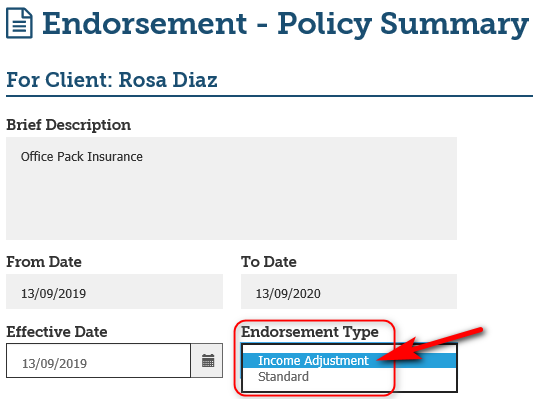
9. INSIGHT recognises an Income Adjustment as a type of Endorsement as per screen shot below.
Process |
This section will now explain how to process an Income Adjustment Transaction for a manual and EDI transaction.
 NOTE: Users are also able to process a GST ONLY (on income) adjustment through this feature
Manual Policies
1. Locate the transaction that requires the commission adjustment.
**SPECIAL NOTE:
- If the invoice is UNPAID, you may wish to perform an AMEND transaction and not an Income Adjustment Endorsement.
- If the invoice is PAID, the Income Adjustment transaction will be required.
2. Select Endorse.
3. Enter an Endorsement Reason and select Next.
4. Review/Update the Effective Date.
5. Select the Endorsement type as Income Adjustment.
 NOTE: When Income Adjustment is selected, INSIGHT will restrict Policy Number and CoInsurance fields .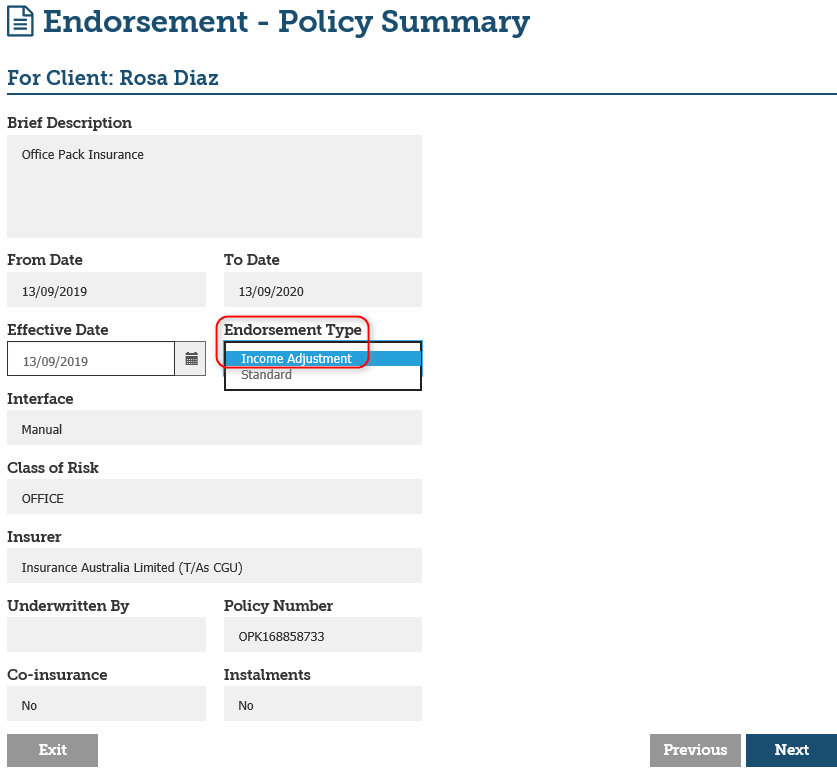
6. Select Next and navigate to the Invoice Premiums page.
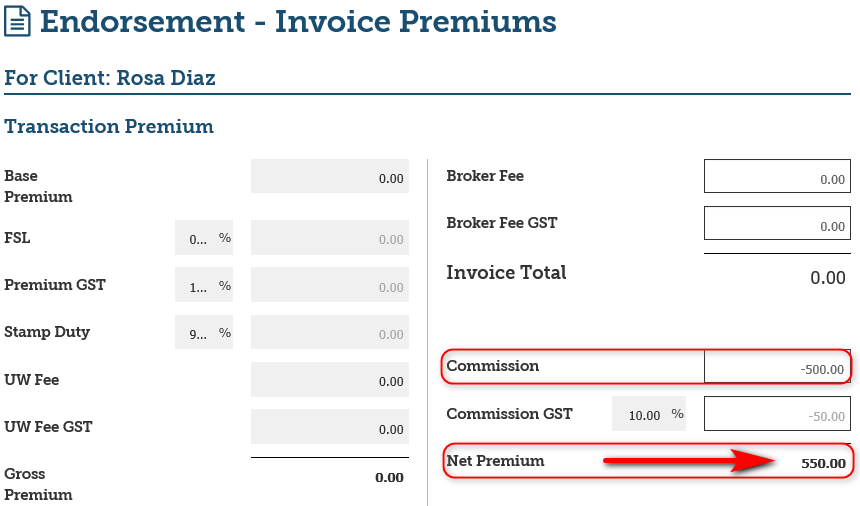
7. Update the Commission fields with the appropriate amounts.
 NOTE: Only the Broker Fee and the Commission fields are editable. All other premium fields are locked.
i) If you are owed commission
Enter a POSITIVE amount in the Commission field - Notice how the Net Premium is a NEGATIVE amount.
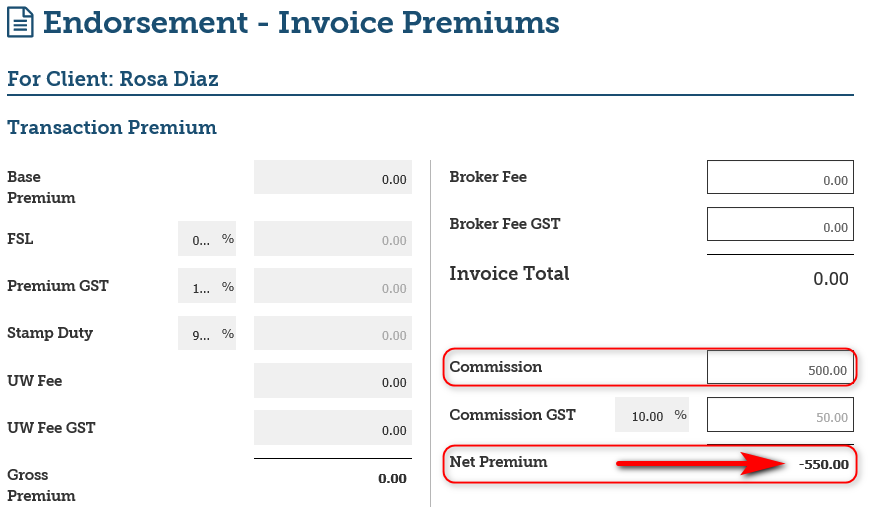
Completing an Income Adjustment for this scenario will create an invoice to provide a record of the adjustment and to enable INSIGHT to allocate payment once funds are received from the Insurer.
ii) If you need to pay the insurer
Enter a NEGATIVE amount as the Commission - Notice how the Net Premium is a POSITIVE amount .
8. Select Next and complete the Wizard as per normal.
9. Select the documents that need to be generated and Post to Accounts.
10. In the Confirmation message, select Proceed.
11. Select Exit to navigate away from the Wizard or select an action from What’s Next to continue processing.
EDI Policies (SCTP/Sunrise)
The process to perform an Income Adjustment Transaction for an EDI policy is the same as for manual policies as explained in the previous section, except the link to the insurer system will not activate.
EDI users would be aware that all premium fields, including Government charges are pulled through from the insurer system and are unable to be modified in INSIGHT. Therefore, it is not necessary to launch into the insurer platform as there is nothing on their record that requires amendment.
Should a legitimate commission adjustment be required, we suggest referring to the insurer for their direction on how to perform the transaction.
**SPECIAL NOTE: If the invoice is UNPAID, you may wish to perform an AMEND transaction and not an Income Adjustment Endorsement. If the invoice is PAID, the Income Adjustment transaction will be required.
1. Follow Steps 1 to 4 as for Manual Income Adjustments process in Section 3.1
2. When selecting Endorsement Type Income Adjustment INSIGHT will amend the Interface to SCTP (manual) / Sunrise (manual).
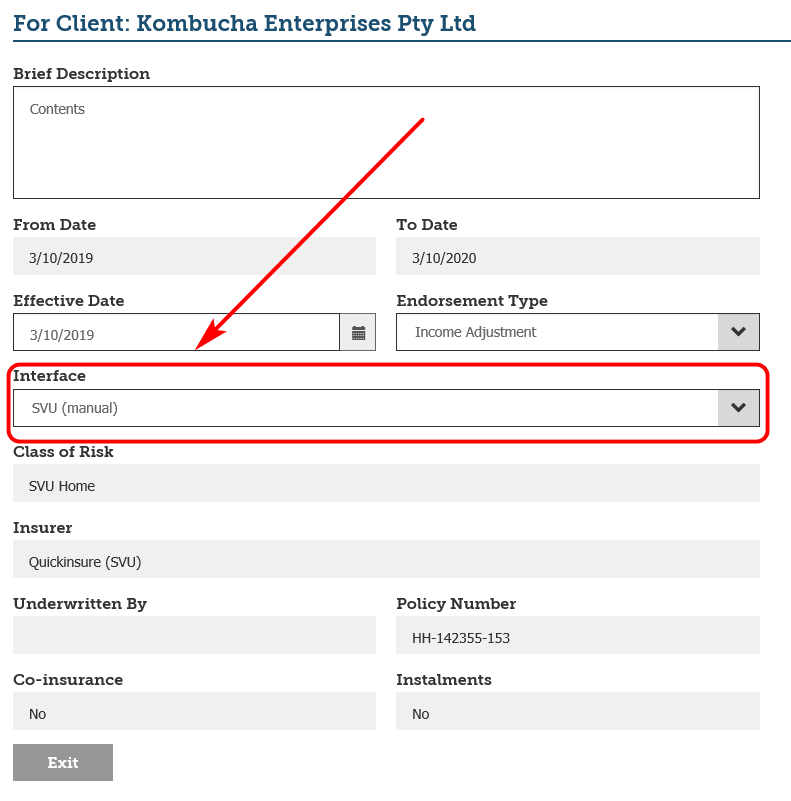
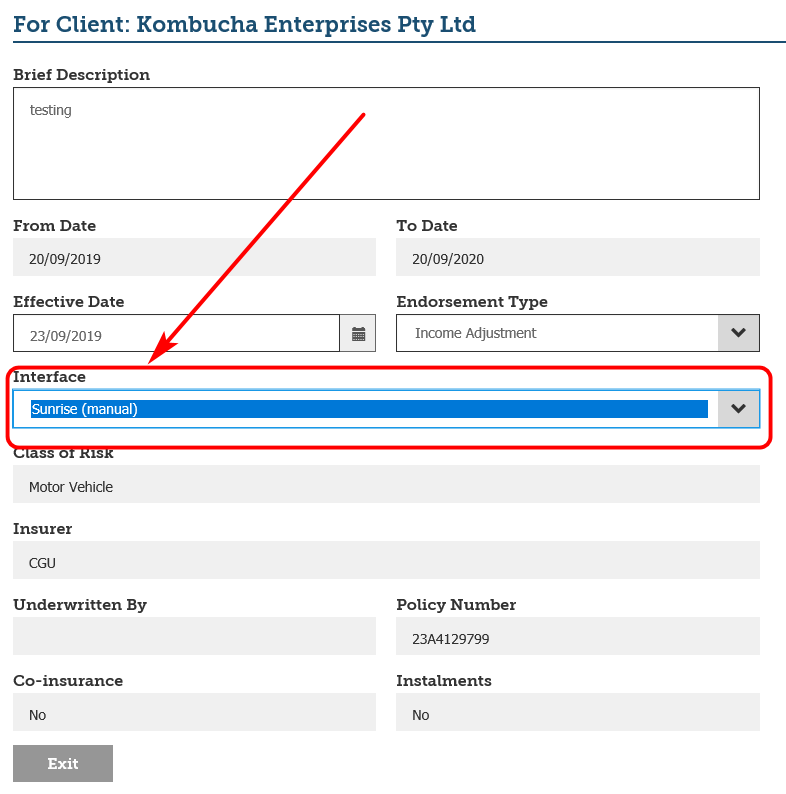
 NOTE: The de-linking to SVU/Sunrise only occurs for the Endorsement Type of Income Adjustment. All other transactions and subsequent transactions following an Income Adjustment will re-link back to SVU/Sunrise as normal.
3. Select Next and navigate to the Invoice Premiums page.
4. Update the broker fee and/or GST on broker fee with the appropriate amounts.
5. Complete steps 8 to 11 for Manual Policies.
Client Account Balance |
When viewing the balance from the client page, you will note that only a fee adjustment will appear with an amount owing/payable by the client/to the client.
Commission Only
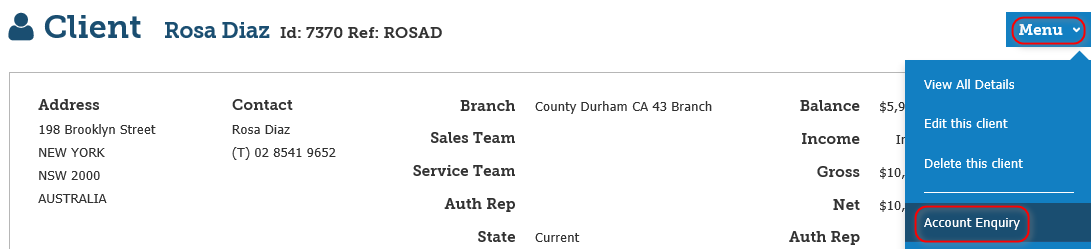
The Income Adjustment Endorsement does not have a balance and will not appear in the Client’s Account Enquiry:

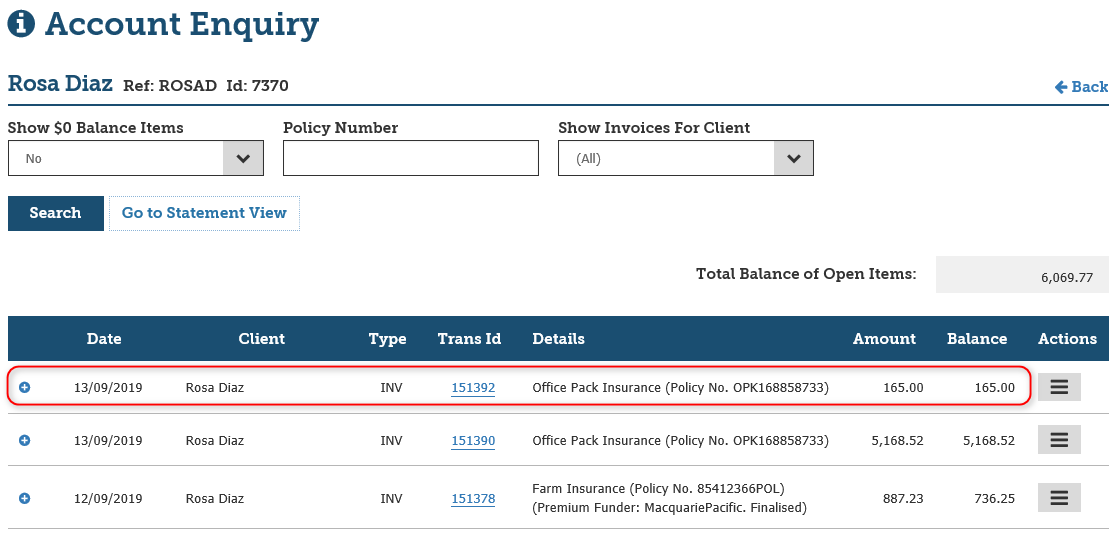
Broker Fee Included
The Income Adjustment Endorsement will have the Broker Fee as an outstanding balance and will appear in the Account Enquiry:

Insurer Account Balance |
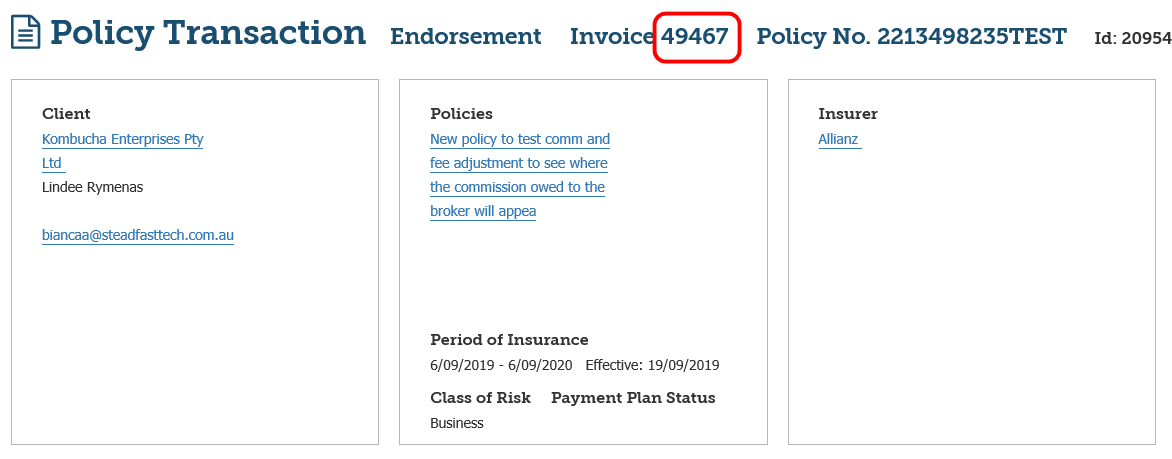
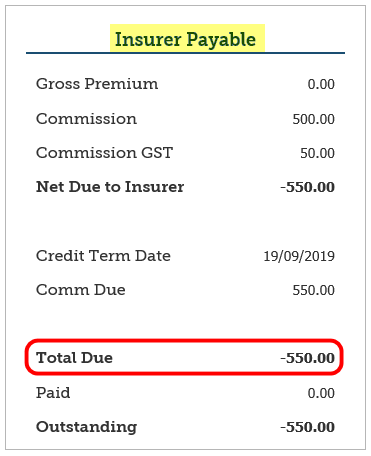
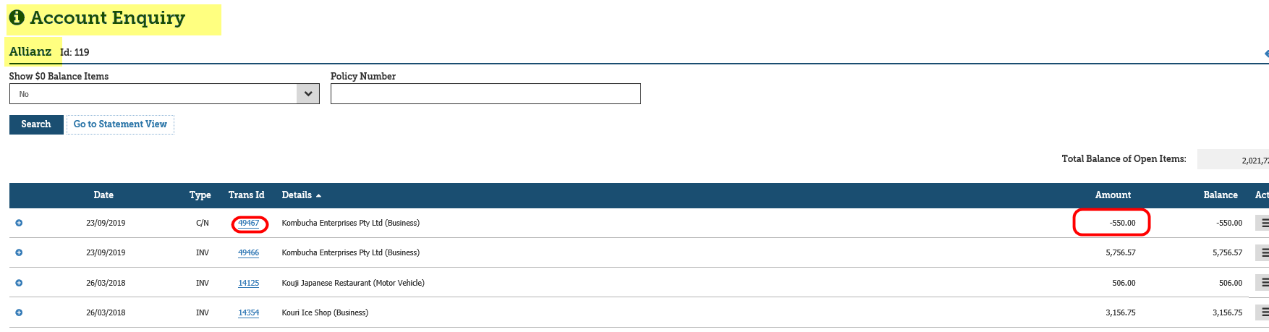
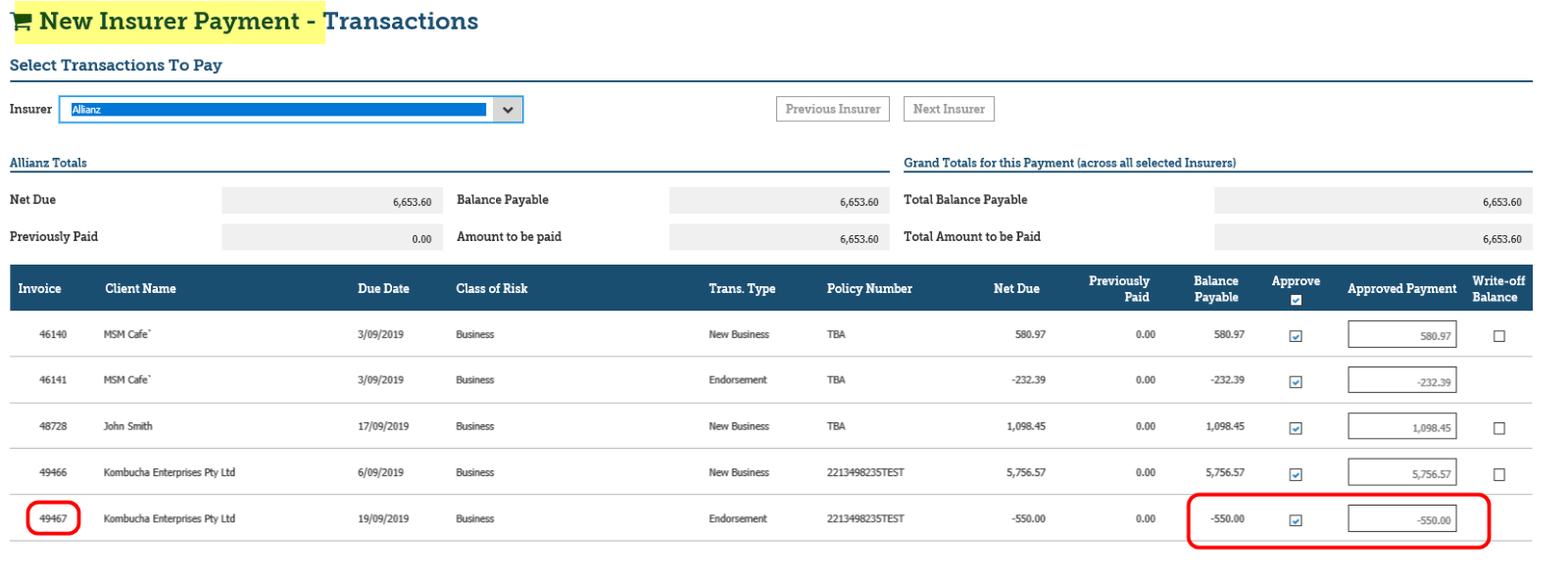
When there is a commission owing to the broker and/or due to the insurer, it will be reflected in the Insurer Account.
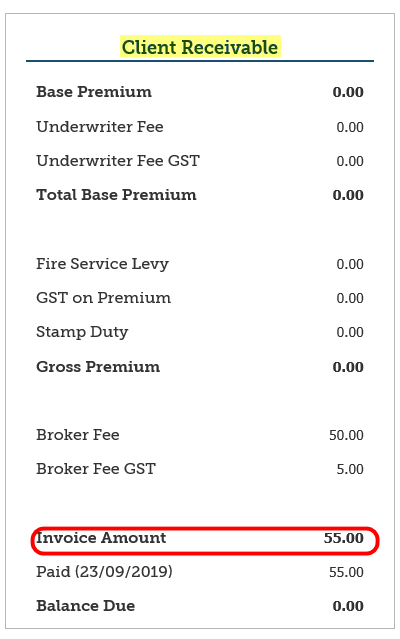
Transaction ID: 49467 has been processed to illustrate:
Client owes broker: $55.00
Insurer owes broker: $550.00
Receipting |
The Client Account
Money Owed by the Client to the Broker
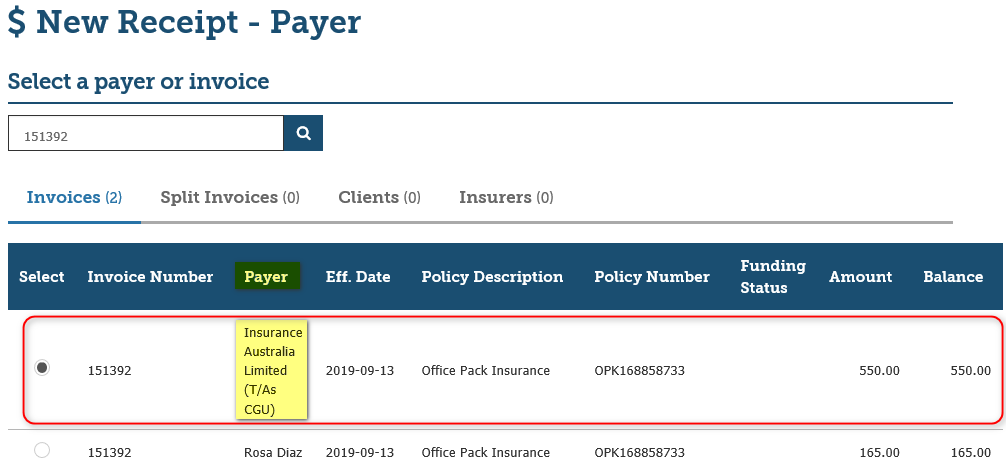
If there is a broker fee owing to the broker, the client will be required to pay in the normal fashion. To receipt select Receipts, Receipts and Allocations, Create a new receipt and Next.
Please follow the usual receipting process.
Money Owed by the Broker to the Client
Client payments (refunds) are transacted by accessing the Payments Menu. Please follow the usual process to transact the refund.
The Insurer Account
All liabilities regarding money owing to/from the Insurer will sit against the Insurer Account. To clear these, please follow the normal Insurer Payment Process.
Exceptions and Troubleshooting |
Unapplying the Receipt for a Broker Fee Only Invoice
This section covers the process for how to unapply a receipt that was incorrectly applied to the Broker Fee Only Invoice.
At the end of the process, the Fee will once again be outstanding/due to be paid.
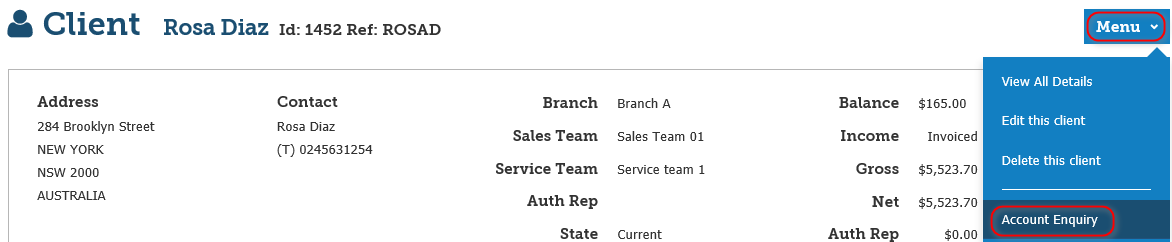
1. View the client the invoice belongs to, select Menu and Account Enquiry.
2. In the Show $0 Balance Items dropdown, select Yes.
3. In the Id field, enter the Invoice number and select Search.
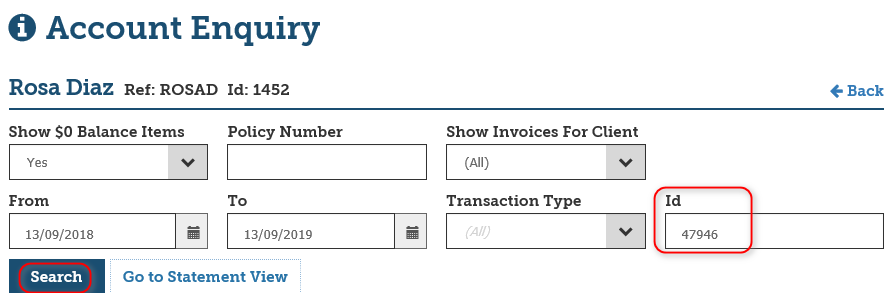
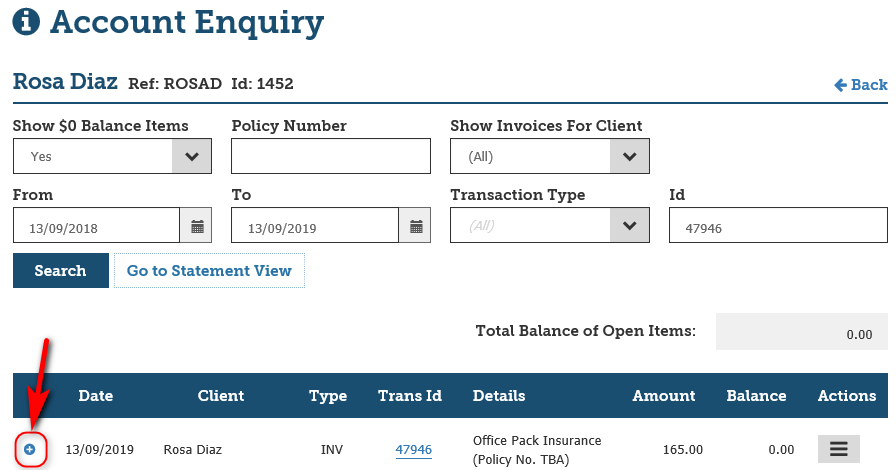
4. The search results will display the Invoice number – select the plus sign to display more information regarding the Invoice number.
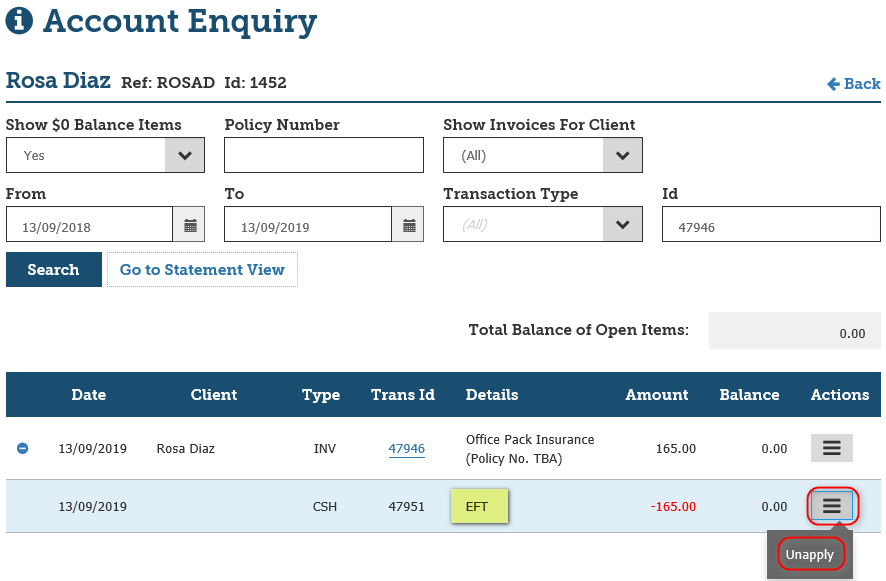
5. This will display the receipt that was applied to the Invoice to pay it – On the line of the receipt, hover over the Actions icon and select Unapply.
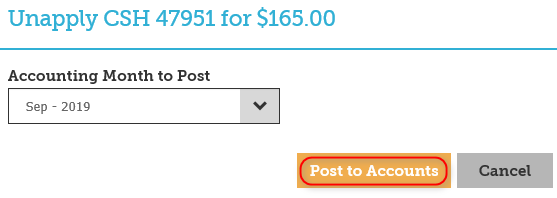
6. Select Post to Accounts.
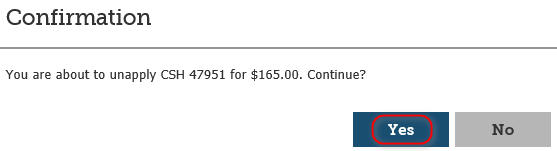
7. In the Confirmation message, select Yes.
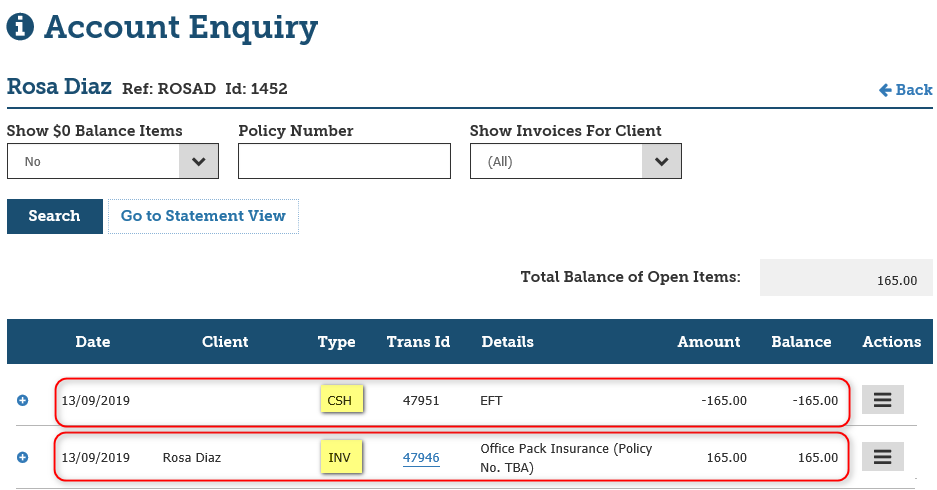
This separate the receipt from the invoice – creating an entry in Account Enquiry for the receipt and the invoice.
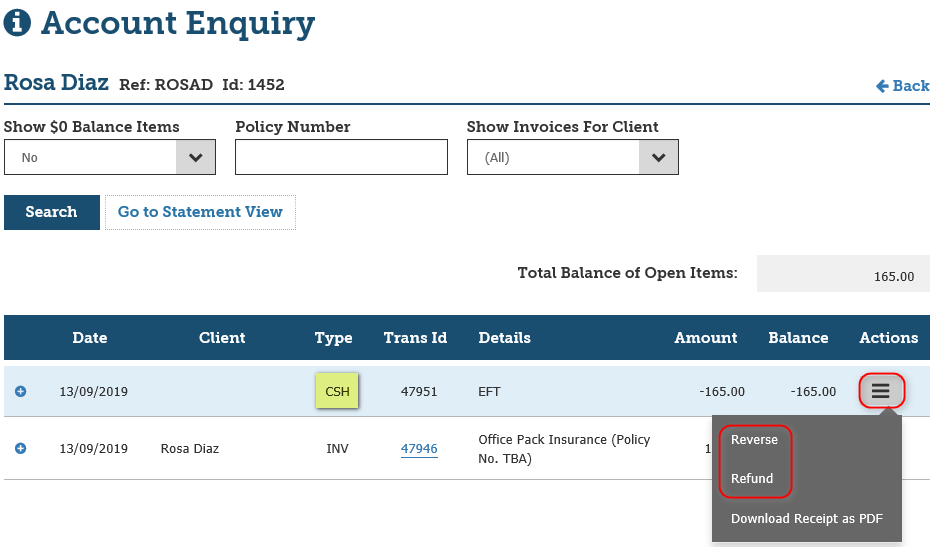
This completes the process for unapplying the receipt from a broker fee only invoice. From here the receipt can either be Refunded to the client or Reversed from the system.
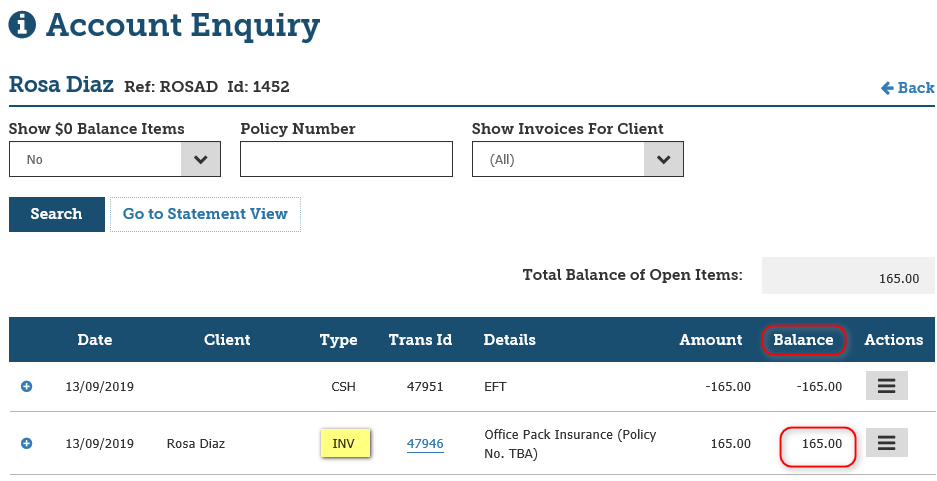
The broker fee only invoice will again be marked as outstanding:

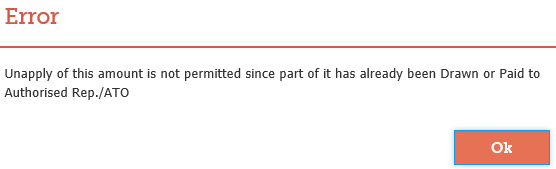
Users will not be able to un-apply the receipt from a broker fee only invoice if:
- Income has been drawn for that receipt in INSIGHT.
- An Insurer or Authorised Representative payment has been processed in INSIGHT.
Users will receive the below message:
What’s New?Version 1.01
Version 1.00
|
Was this article helpful?
That’s Great!
Thank you for your feedback
Sorry! We couldn't be helpful
Thank you for your feedback
Feedback sent
We appreciate your effort and will try to fix the article