| Version 1.1 | 12 February 2020 |  |
Table of Contents |
| Introduction Amend Processing Rules | Viewing an Amend Transaction Auditing on Amend transactions What’s New? |
Introduction |
The Amend function enables you to make changes or correct a processing mistake on posted transactions within INSIGHT, without the need to create an additional Endorsement transaction. The Amend function enables the original transaction to be changed and an Invoice to be reissued.
Before You Start |
INSIGHT Setup & Configuration
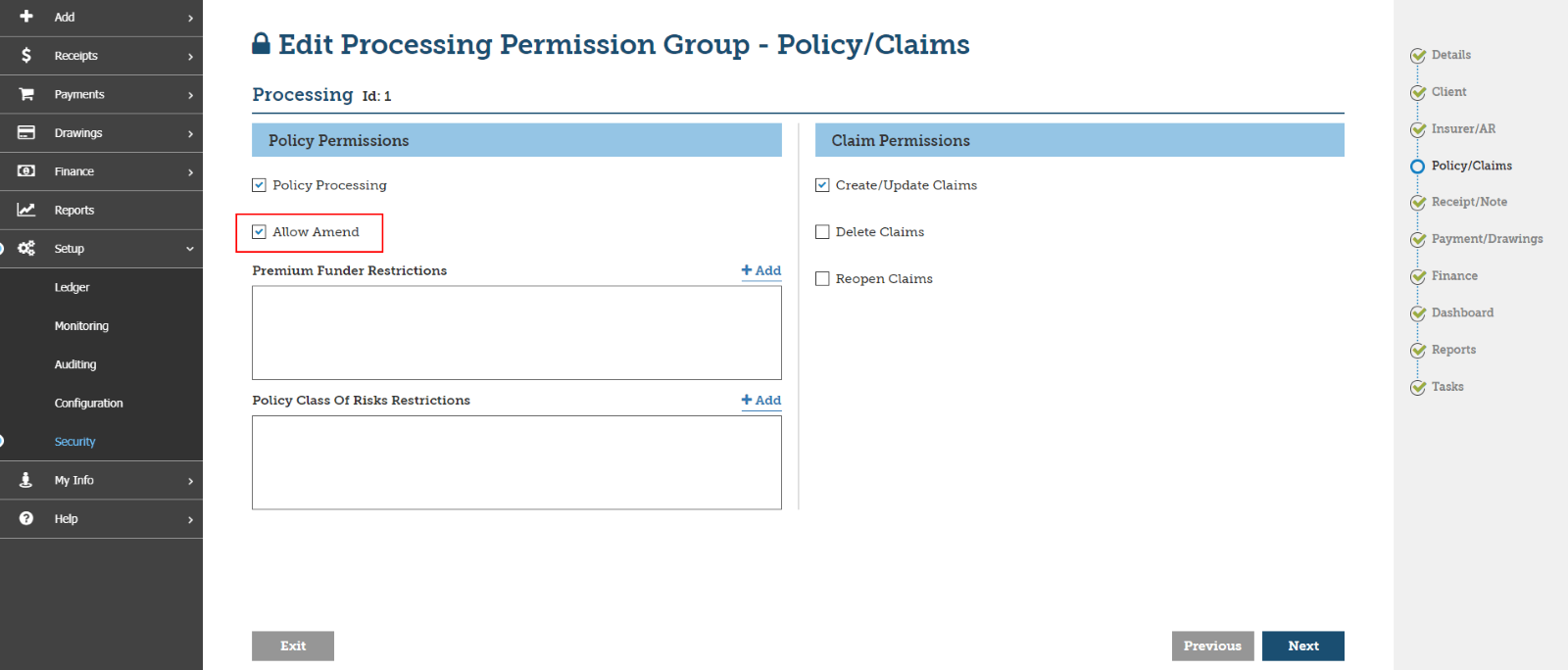
The Amend transaction function can be enabled by the Broker Administrator selecting the Allow Amend option within the Processing Permission Group.
Processing Permission Group
1. In the INSIGHT navigation panel, go to > Setup > Security > Processing Permission Groups.
2. Search and select the Processing Permission Group that you want to add the Amend functionality to.
3. Go to the Policy/Claims step in the wizard and select Edit.
4. Check Policy Processing (if not already selected) and check Allow Amend, as shown below:
The Processing Permission Group Report can be run to show which groups have been setup with Amend capability.
Processing Permission Group Report
1. In the INSIGHT navigation panel, go to Reports.
2. Search and select the Processing Permission Groups report under the Administration section.
3. Select Run Report.
4. The report will be produced in CSV format. Any Permission Groups setup with Amend will be identified in the PPGs and Users and permissions sheets with a Yes in the Policy Permissions – Allow Amend column.
Amend Processing Rules |
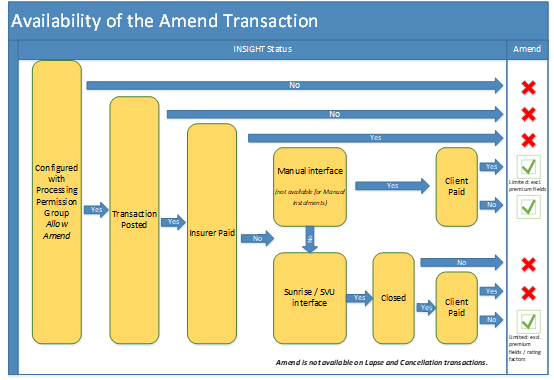
Note the following points for use of the Amend function:
• The Processing Permission Group must be set up with Allow Amend function.
• Amend is only available on Posted transactions.
• Amend is not available if payment has been made to the Insurer.
• Amend is not available on Cancelled or Lapsed transactions.
• Amend is not available if income has been drawn.
• For a Manual interface transaction:
- Amend is available but if the Client has made a payment then the Premium, charges and Income fields cannot be amended. If the policy is flagged with funding status ‘Approved’, this is being treated as though the invoice has been paid.
- Amend is not available for Manual Instalment transactions.
• For a Sunrise / SCTP interface transaction:
- Amend is available if the transaction is closed and if the Client has not made a payment.
- Amend is not available if the transaction is closed and if the Client has made a payment.
- Amend is not available if the Sunrise transaction is manually closed.
- Amend is not available if the Sunrise transaction is unclosed (not applicable for SVU).
- Amend is not available for Sunrise/SCTP Instalment Transactions.
The below shows the scenarios when Amend is available:
Policy Processing |
Perform an Amend Transaction
The Amend transaction function can be initiated from the following menu’s:
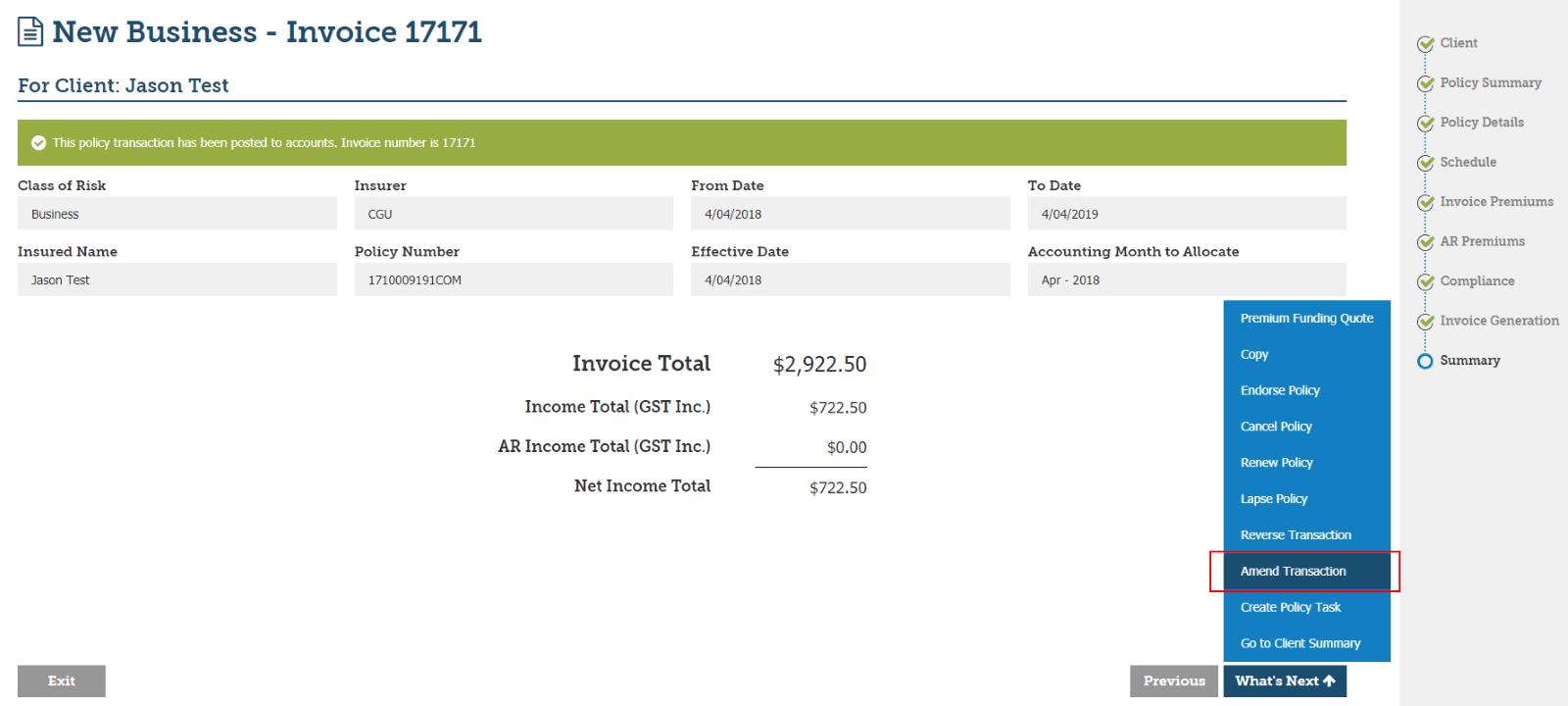
1. The What’s Next menu on the Summary page within the Policy Wizard, or
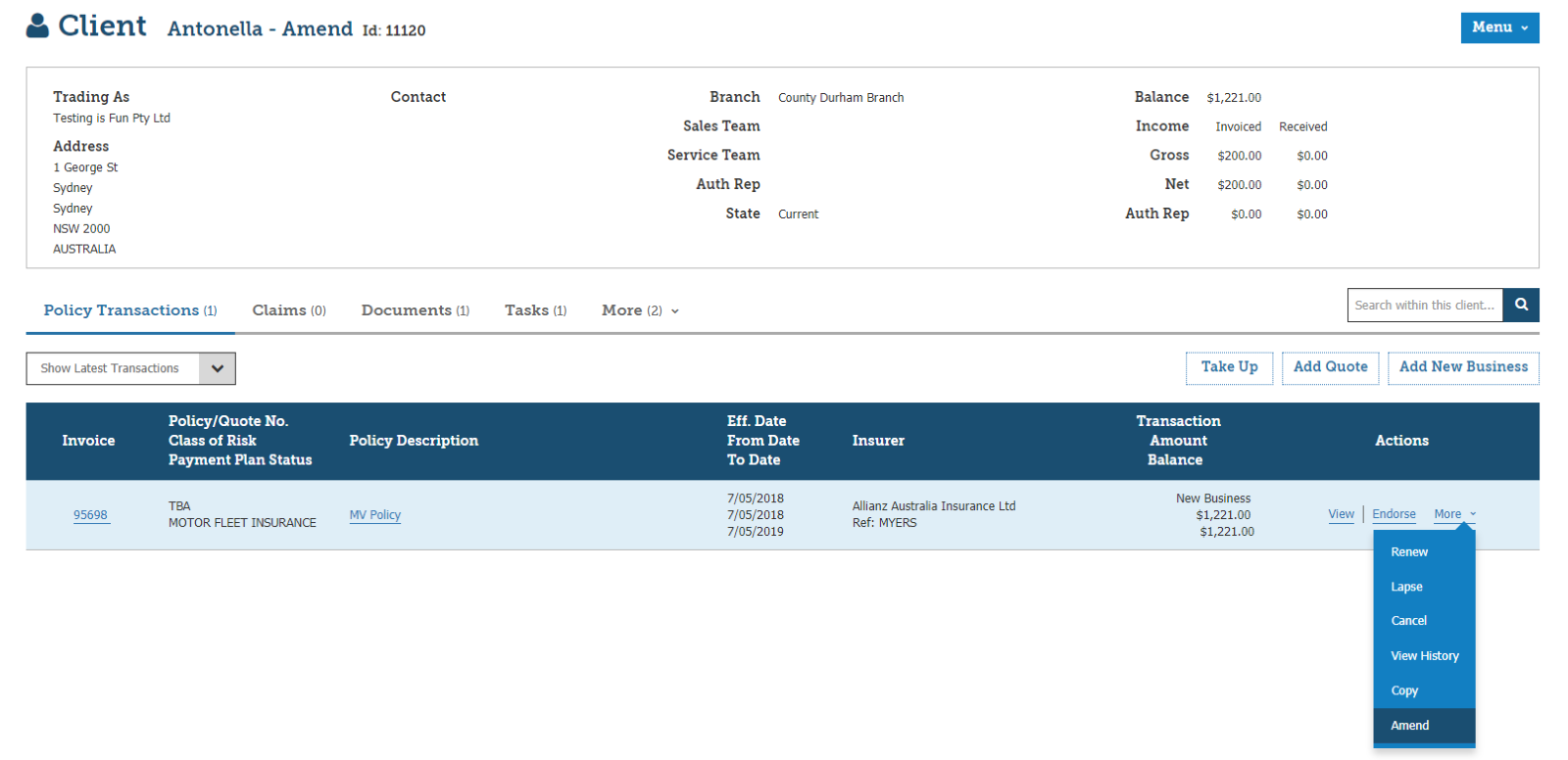
2. The Actions menu within the Policy Transactions view when viewing a Policy, or
3. The Menu when viewing a Policy Transaction.
1. Select Amend Transaction from the What’s Next menu on the Summary page within the Policy Wizard.
Alternatively, select Amend Transaction from the Actions menu in the Policy Transactions view when viewing a Policy.
Or, select Amend Transaction from the Menu when viewing a Policy Transaction.
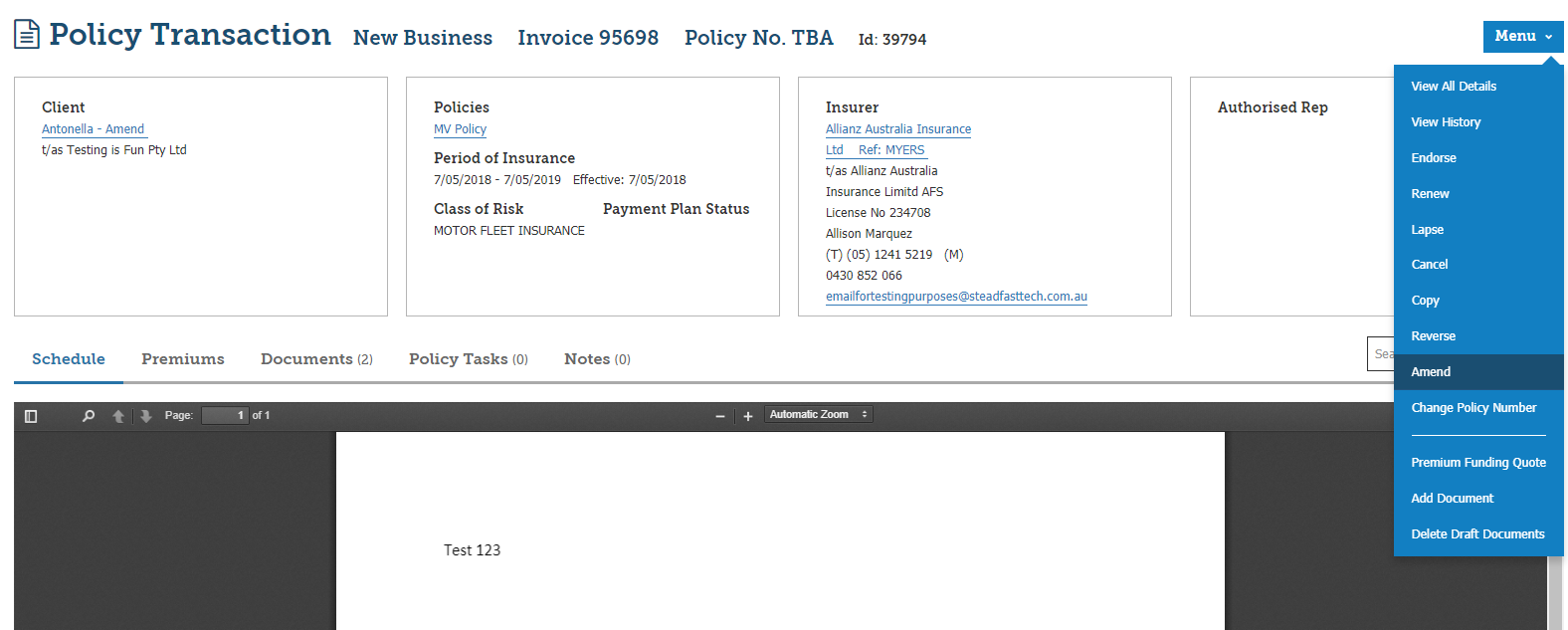
2. INSIGHT will launch the Amend transaction and will default to the Amend Reason page. Enter the Amend reason on the Amend Reason page.
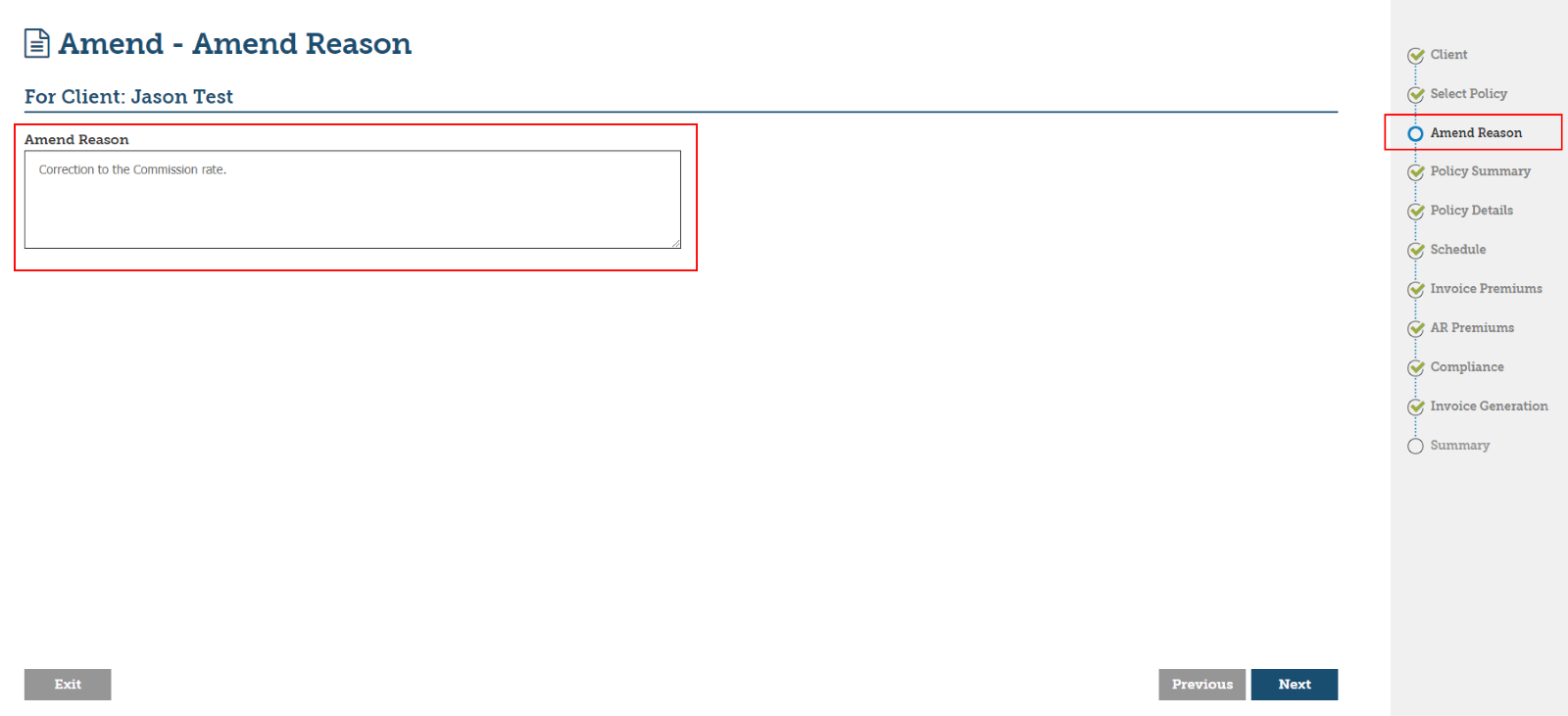
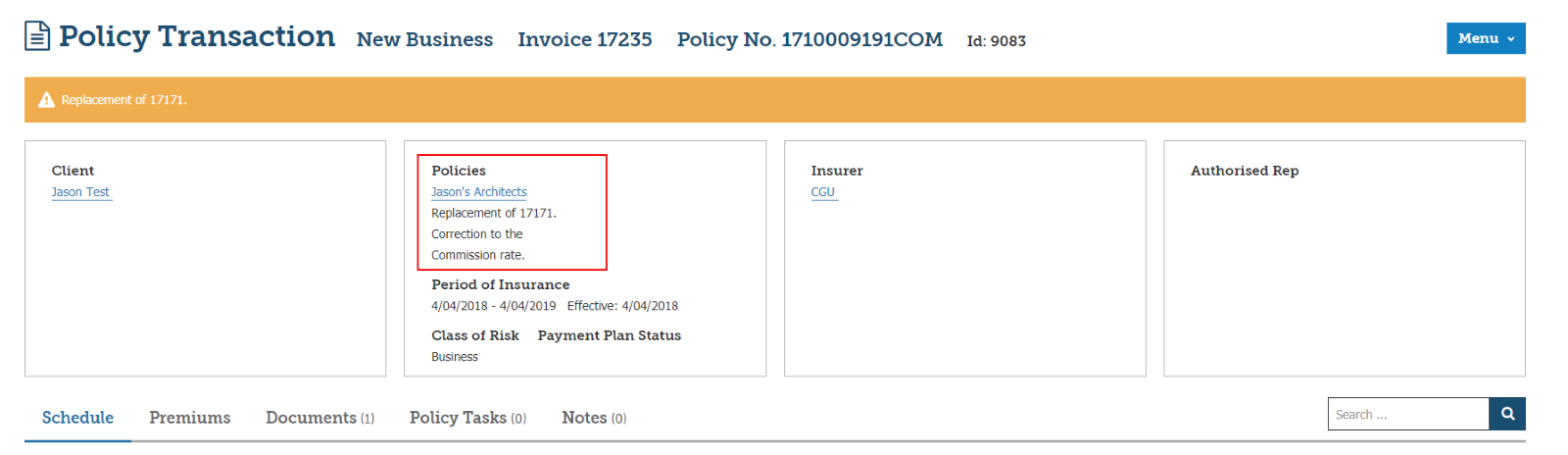
a. Once the Amend transaction is posted, the Amend Reason will display in the Policies box in the Policy Transaction view.
3. Progress through the wizard and update the fields that require amendment.
a. Refer to the table below for the fields that can be changed during an Amend transaction.
b. Background Funding: if Background Funding is required, the Include Background Funding option should be selected on the Invoice Generation page.
4. Select Post to Accounts on the Invoice Generation page.
a. Note that the Amend transaction will not be saved if Exit is selected before Posting to Accounts.
5. A new Invoice can be generated and distributed to the Client.
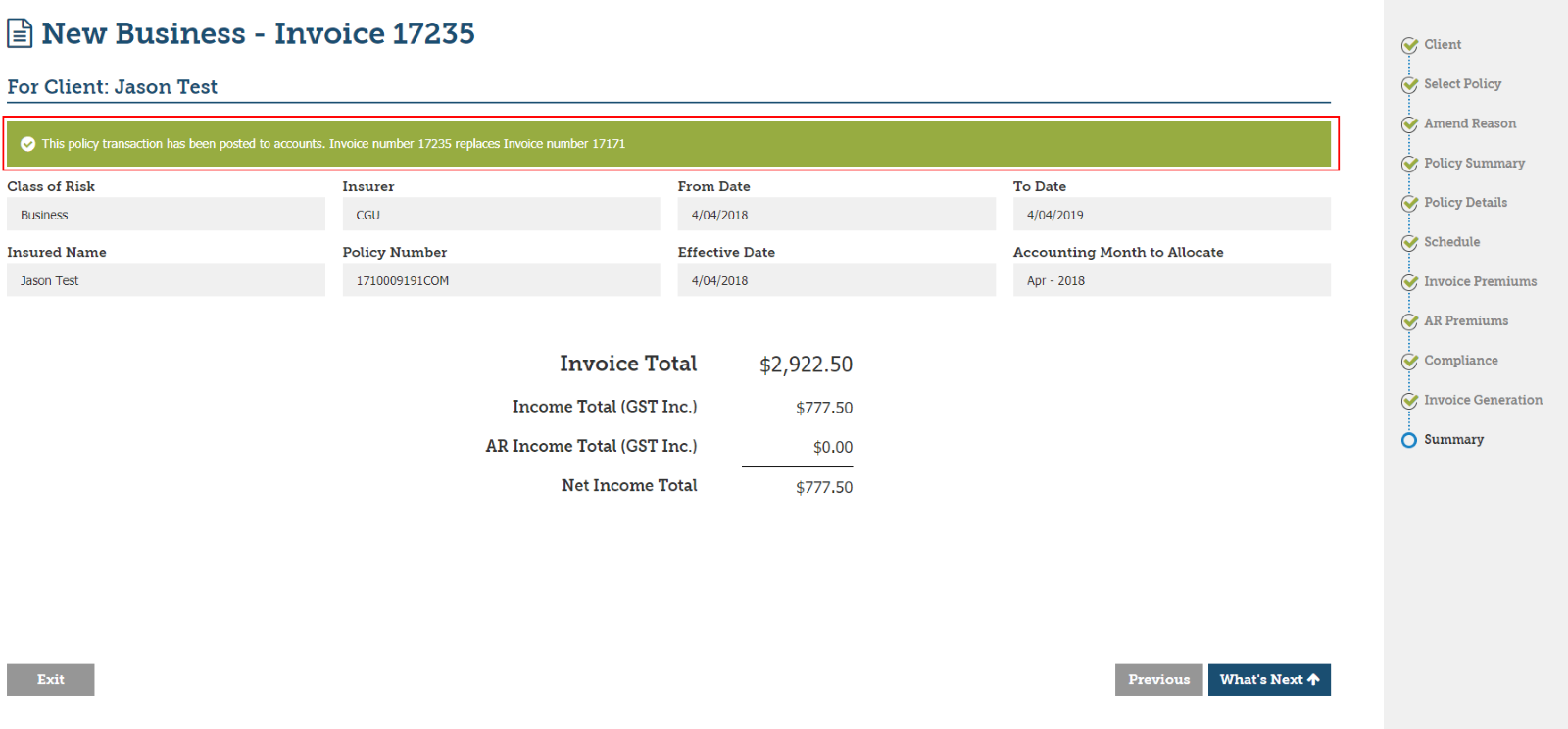
6. INSIGHT will reverse the transaction being amended and create a new Invoice to reflect the changes made during the amendment. The new Invoice number will be displayed on the Summary page.
7. Where required a new closing should be sent to the Underwriter
Fields that can be changed during an Amend transaction
| Interface | ||
INSIGHT page | INSIGHT Field | Manual | Sunrise / SVU |
Policy Summary page | Brief Description | ✔ | ✔ |
Policy Summary page | Policy Number | ✔ | ✖ |
Policy Summary page | From Date | ✔ Only editable for New Business. | ✖ |
Policy Summary page | To Date | ✔ Only editable for New Business & Renewals. | ✖ |
Policy Summary page | Effective Date | ✔ | ✖ |
Policy Summary page | Endorsement Type | ✔ | ✔ |
Policy Details page | Insured Name | ✔ | ✔ |
Policy Details page | Covernote No | ✔ | ✔ |
Policy Details page | Location | ✔ | ✔ |
Policy Details page | Comments on New Business | ✔ | ✔ |
Policy Details page | Comments on Endorsement | ✔ | ✔ |
Policy Details page | Comments on Closing | ✔ | ✔ |
Policy Details page | Interested Parties | ✔ | ✔ |
Excel Risk Details page | Launch Excel button | ✔ | ✖ |
Custom Risk Details page | All Custom Risk Details fields (if applicable, but will be dependent on the form). | ✔ | ✔ |
Schedule page | Edit Schedule | ✔ | ✔ |
Invoice Premiums page | all fields | ✔ Only when unpaid | ✖ |
Co-insurance page | all fields | ✔ Only when unpaid | ✖ |
Split Invoicing page | all fields | ✔ Only when unpaid | ✖ |
AR Premiums page | all fields | ✔ Only when unpaid | ✖ |
Compliance page | FSG - Date Issued | ✔ | ✔ |
Compliance page | FSG - FSG Version | ✔ | ✔ |
Compliance page | PDS - Sent | ✔ | ✔ |
Compliance page | PDS - PDS Version | ✔ | ✔ |
Compliance page | Print Broker Fee | ✔ | ✔ |
Viewing an Amend Transaction |
There are multiple views within INSIGHT where an Amend transaction is identified.
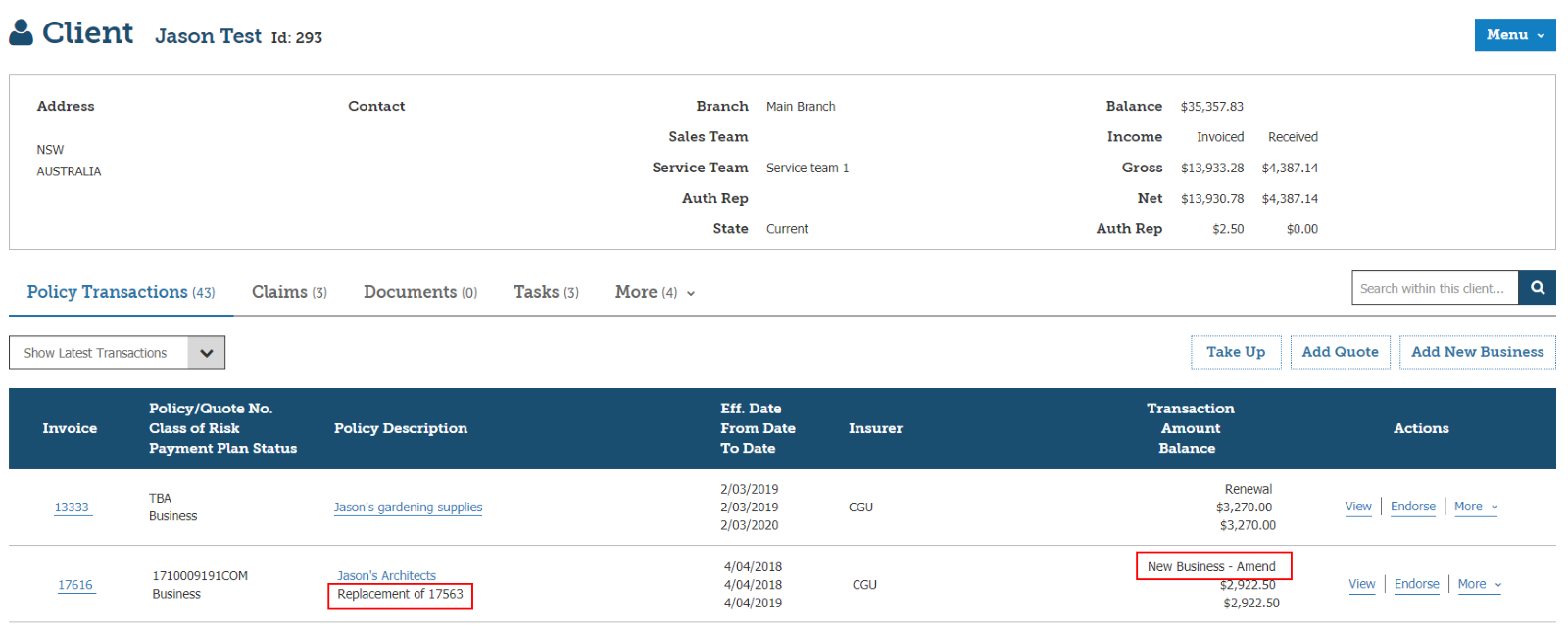
1. In the Policy Transactions view, when viewing the Client:
a. The Amend transaction is identified by appending Amend to the transaction type (e.g. New Business – Amend).
b. Select Show Latest Transaction to see the transaction that has been amended.
c. Select Show All Transactions to see the transactions that comprise the Amend transaction.
d. The details of which Invoice has been Replaced by, Reversed and is a Replacement of is referenced in the Policy Description column.
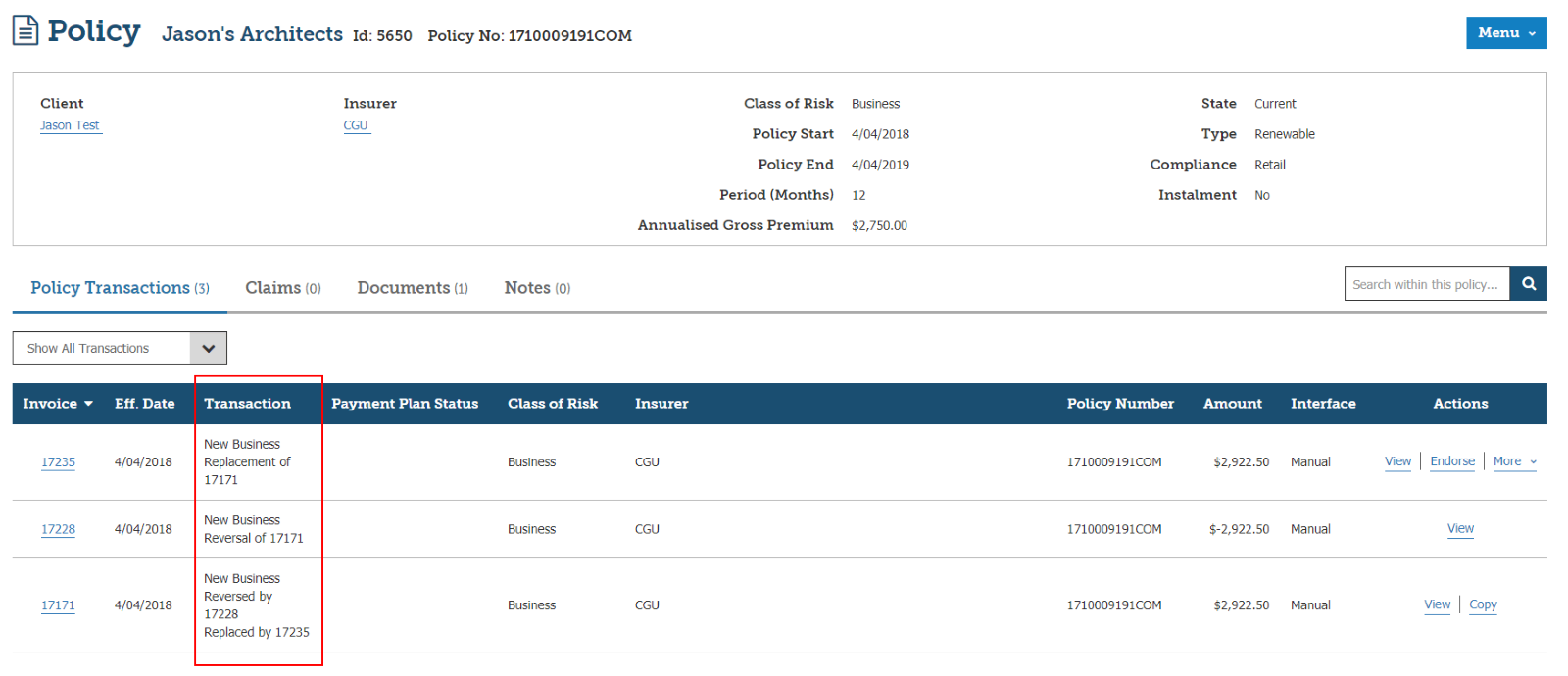
2. In the Policy Transactions view, when viewing the Policy:
a. Select Show Latest Transaction to see the transaction that has been amended.
b. Select Show All Transactions to see the transactions that comprise the Amend transaction.
c. The details of which Invoice has been Replaced by, Reversed and is a Replacement of is referenced in the Transaction column.
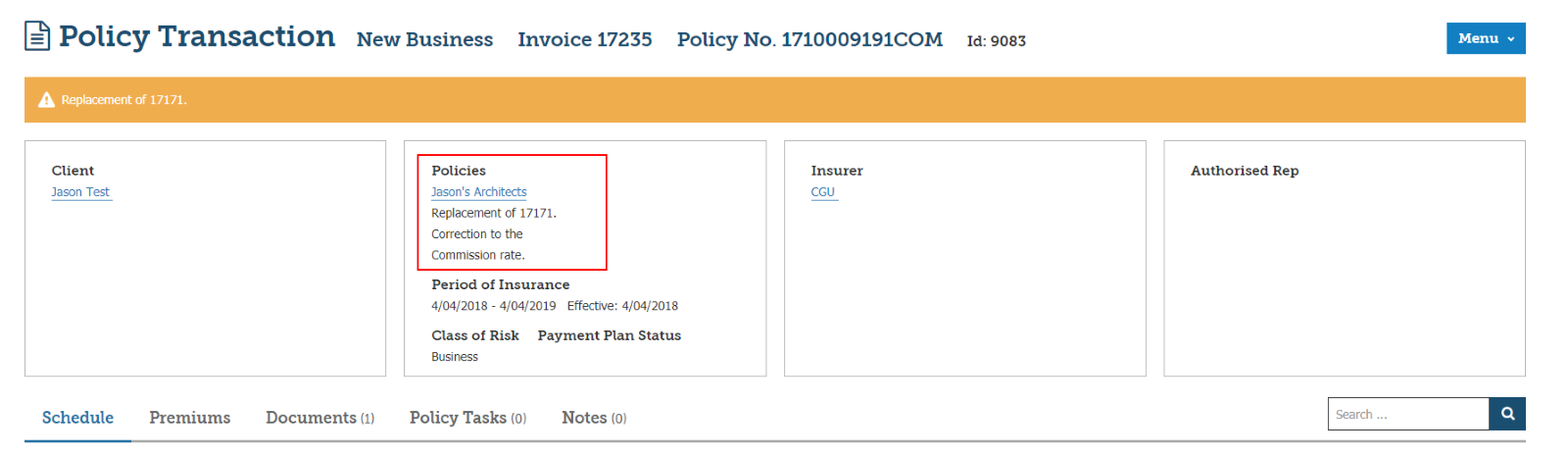
3. In the Policy Transaction header section, when viewing the Policy Transaction:
a. The Invoice will be identified as a Replacement of, Reversal of or Replaced by in the Information banner, including the associated Invoice number.
b. The Replacement of, Reversal of or Replaced by action will also be referenced in the Policies section in the header.
c. The Amend Reason that was entered in the Policy Wizard during the Amend transaction will display in the Policies section in the header.
Receipting an Amend transaction invoice |
Create New Receipt
1. Initiate the Receipting process the same as you would for any other Invoice or Client. To process Manual Instalment Receipt Select Receipts → Receipts and Allocation → Create new receipt
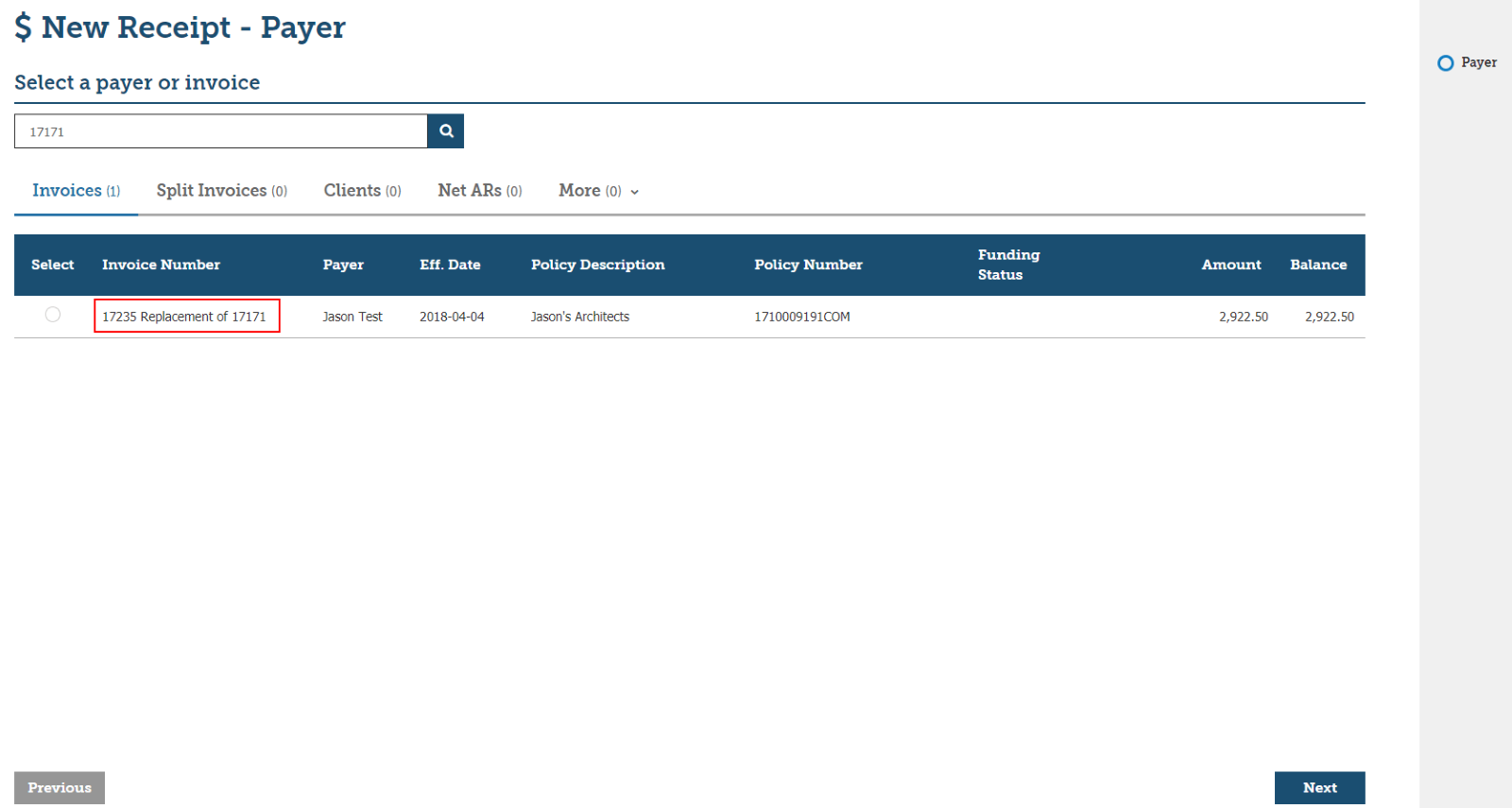
2. Search using the original or Replacement Invoice number. INSIGHT will display the replacement Invoice Number and the Receipt must be performed against this new Invoice number.
3. Complete the Receipts process the same as you would for any other transaction.
DEFT / BPAY
The DEFT and BPAY details will be updated when the Invoice is generated following an Amend transaction. The Client can make payment using either of the original or updated DEFT / BPAY reference numbers. INSIGHT will ensure that the payment is receipted against the Amended Invoice.
Auditing on Amend transactions |
Broker Administrators can view details of Amended Transactions within the Auditing section in INSIGHT.
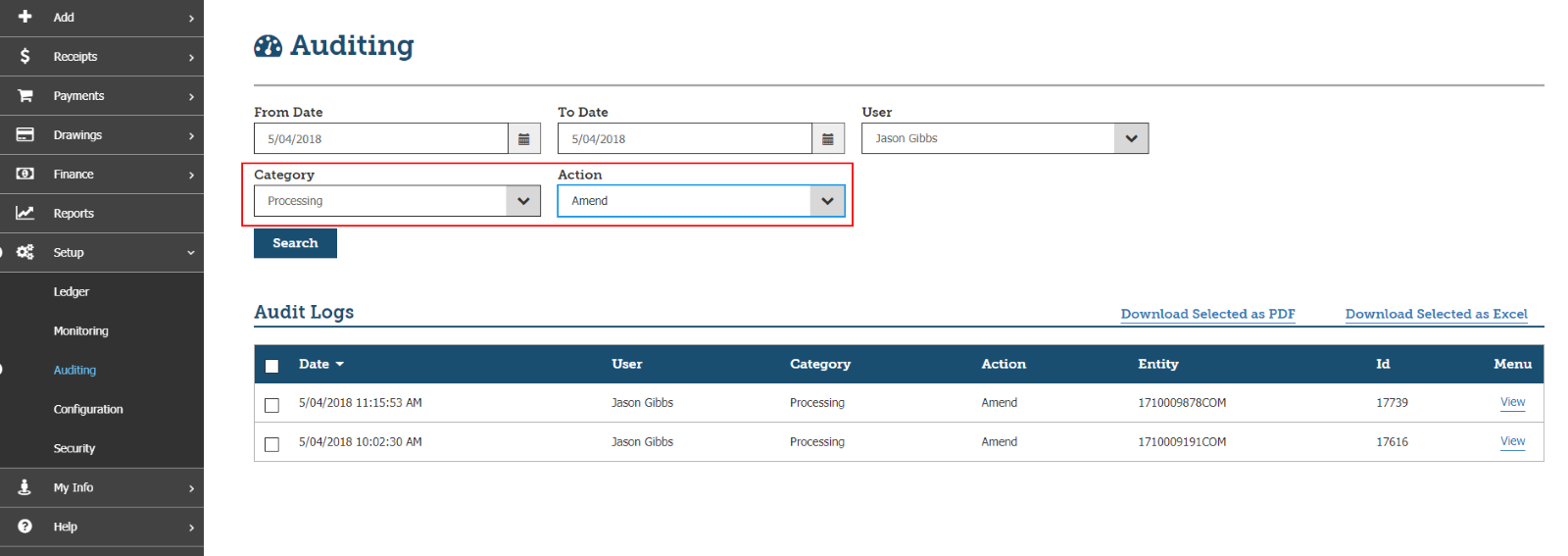
1. In the INSIGHT navigation panel, go to > Setup > Auditing.
2. Enter the From Date and To Date of the transaction. Select Processing from the Category list. Amend will default in the Action list.
3. Click Search to display the Audit Logs. Tip: Select the User to reduce the number of Audit Logs displayed.
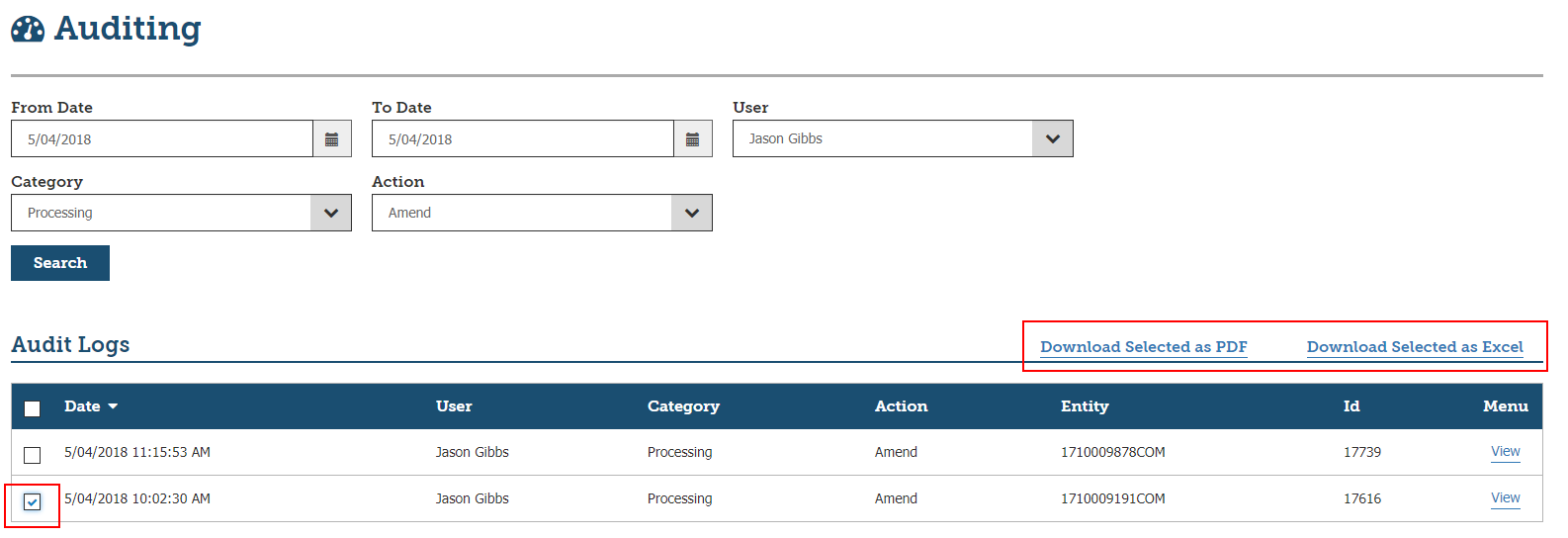
4. The Audit Logs can be downloaded in PDF or Excel formats by selecting the required Audit Log checkbox and clicking Download Selected as PDF or Download Selected as Excel.
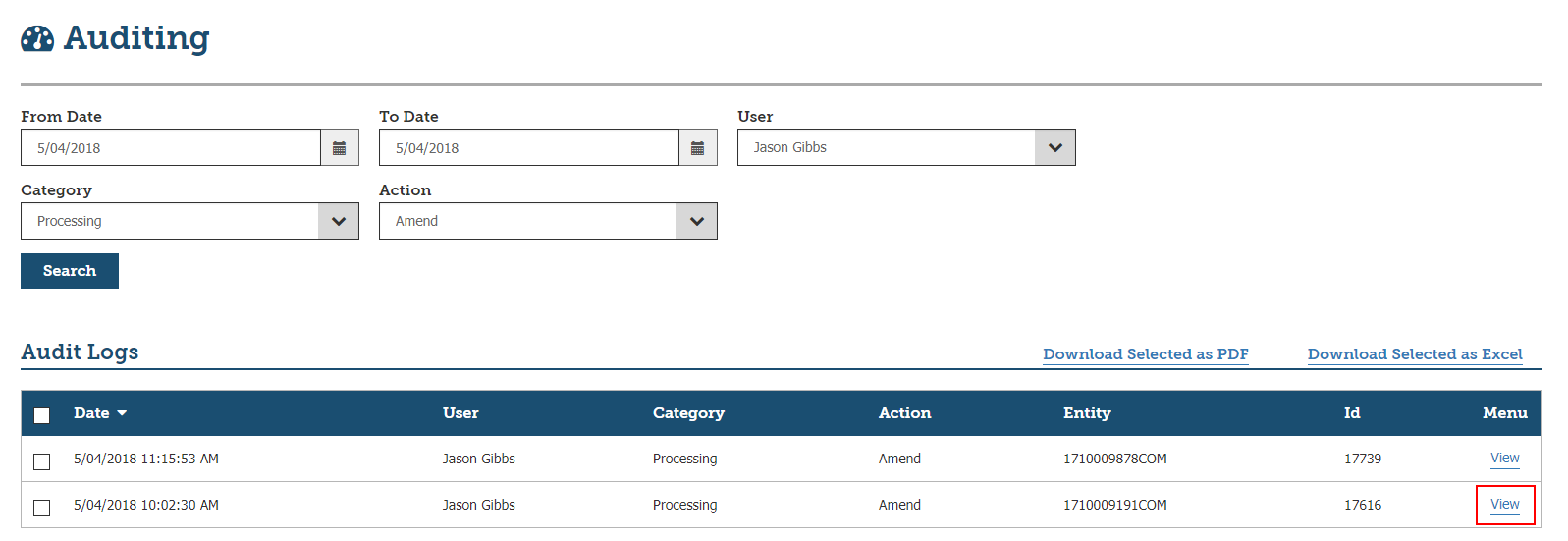
5. To see specific details of what has been changed during the Amend transaction, click View in the menu for the transaction that has been amended.
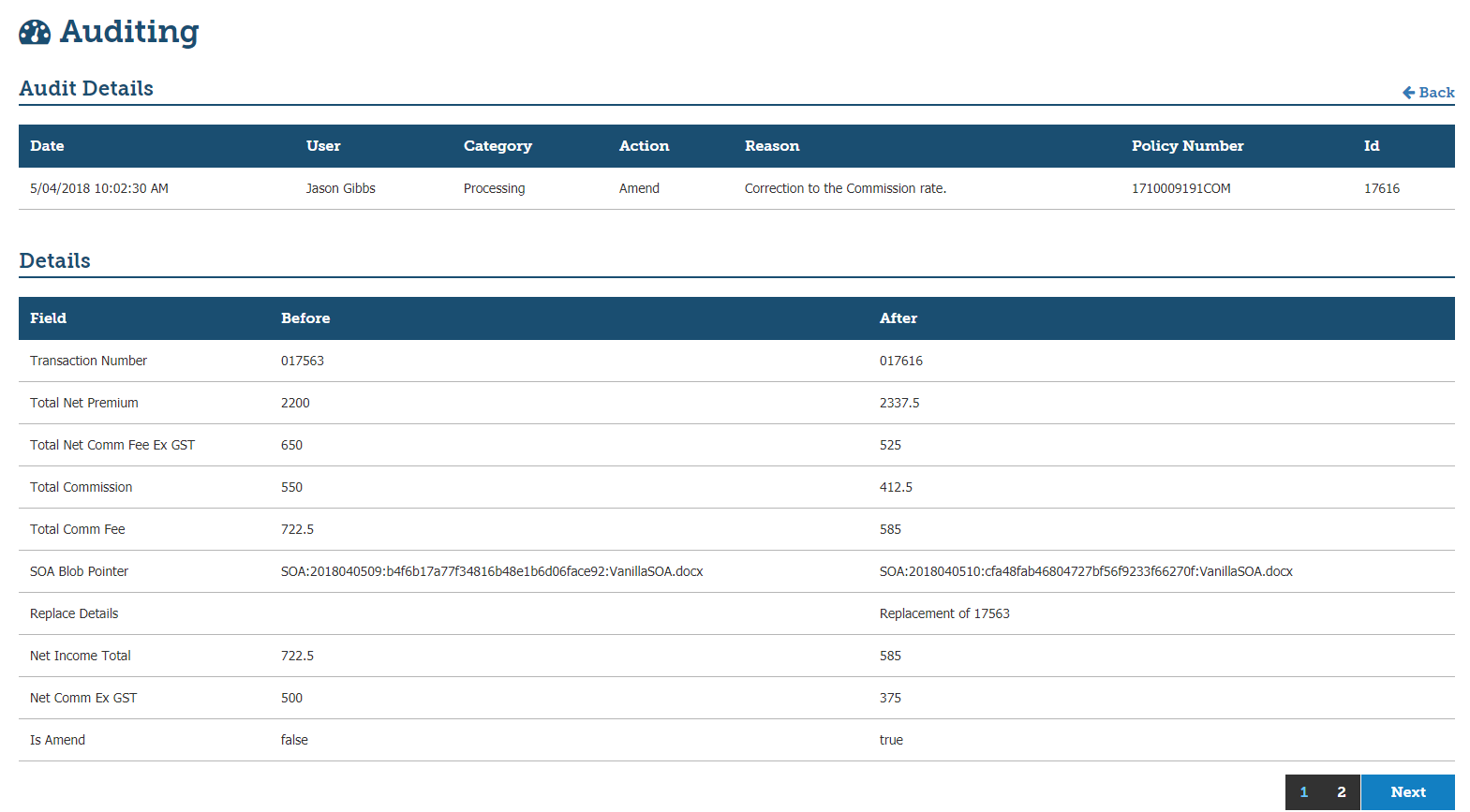
6. The Audit Details page displays the transaction that has been amended, including the Reason that was entered in the Policy Wizard.
7. The Audit Details page also displays each individual field that was changed. Specifically, the Before and After values are displayed for fields that were changed during the Amend transaction.
What’s New?Version 1.1
Version 1.02
Version 1.01.00
Version 1.00.00
|
Was this article helpful?
That’s Great!
Thank you for your feedback
Sorry! We couldn't be helpful
Thank you for your feedback
Feedback sent
We appreciate your effort and will try to fix the article