Click to go to:
Introduction
The Bank File Import feature allows you to bulk import receipts using DEFT (.pay), BPAY (.brf/.dat), .txn .csv, ofx and .qif files. Your ledger will be set up with the file options your business uses to import receipts. The wizard is found by selecting Receipts, then Bank File Import. | The pages to be completed are: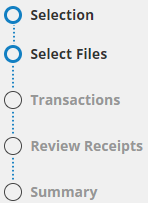 |
Selection
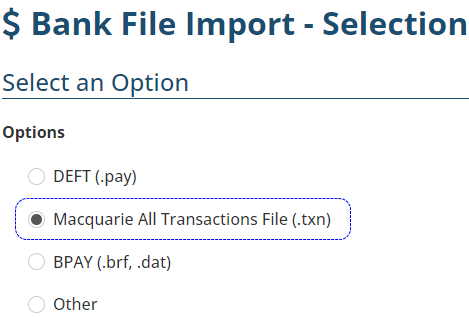
This page displays the file options your ledger uses to import receipts. You can upload one file option at a time. For example, you can upload and process all your DEFT files and then proceed to process the BPAY files afterwards.
 | Select the Macquarie All Transactions File (.txn), then Next. |
 NOTE: Only file options set up in your ledger will be displayed. Speak to your Administrator if this needs to be updated.
QUICK TIP: The Macquarie All Transactions file option allows you to upload both the DEFT file (.pay) and the Macquarie Statement (.txn).
Select Files
The wizard will adapt to the file option you've chosen, for example, if you chose DEFT (.pay), it will display Select DEFT File or if you chose BPAY (.brf, .dat), it will display Select BPAY file. Regardless of the file option, this page is divided into 2 parts:
 | Select (Insert File Option Name) File - You can either drag & drop files into this area or use the browse option to locate and open the files from your folders. You can select multiple files of the chosen file type to upload at once. |
 | Last 5 (Insert File Option Name) Files Imported - To prevent duplicate imports, this area displays the last 5 imported files and the option to View Import History to see all previously imported files. |
 | Use drag & drop or browse to import your file/s. They'll be displayed with their respective balance dates, then select Next. INSIGHT will analyse the receipts, and then the wizard will take you to the next page. |
Transactions
This page displays the uploaded file's transactions where you can action the notes from INSIGHT's file analysis. INSIGHT will auto-select transactions where it finds a match to an invoice. When a match is not found, you have the option to Search or Split:
 | Search - use this to search for a match to an invoice; it's used the same way as INSIGHT's search function, for example, you can search for the receipt amount, the client name, invoice number, etc. |
 | Split - use this to split the amount; generally used for premium funder payments or clients paying for policies across multiple client profiles. Once split, use Search to match the amount to an invoice. |
When uploading multiple files, use the Balance Date dropdown or the Previous/Next buttons to switch through the different files.
 | Review & action all notes till all transactions are matched. When ready for processing, select the checkbox on the left side of the transaction to update the Total Receipt to be Processed field. |
 IMPORTANT: When you can't complete processing a file, select Save and return to the wizard at a later stage. INSIGHT will auto-save the matches you've completed and move the files to the Last 5 Macquarie All Transactions Files Imported (2nd part of the Select Files page). From there, select Retrieve and finalise the processing. The wizard won't allow you to upload/import more files until the current files are processed or deleted.
Notes Definitions
| Notes | Definition / Action Required |
| The entity specified by this record does not exist. This record will not be processed. | This client ID was not found in the system. Check legacy systems to verify if the payment was for a legacy invoice/statement. Check legacy systems to verify if the payment was for a legacy invoice/statement. |
| This receipt will be automatically allocated against outstanding invoice(s) and the remaining amount will be left unallocated. This payment is greater than the debt amount. The surplus cash will not be allocated to a policy. | The client has overpaid. Unallocated cash must be refunded, adjusted or allocated to another invoice. Unallocated cash must be refunded, adjusted or allocated to another invoice. |
| This receipt will be automatically allocated in total against outstanding invoice(s) but invoice XXXX will be partially paid. The payment is less than the debt amount. | The client has underpaid. Decide how to address the remaining debt. Decide how to address the remaining debt. |
| Warning: this record is associated with a policy that there is no debt for. The transaction amount will not be allocated to a policy. | There is no outstanding balance on the invoice the client has paid. Investigate the client record in INSIGHT and legacy systems. Investigate the client record in INSIGHT and legacy systems. |
| The DEFT reference number in this record does not match any DEFT reference number in the system. This record will not be processed. | The DEFT reference number used by the client does not exist in the system. Investigate the client record in INSIGHT and legacy systems. |
Review Receipts
This page displays a summary of all files uploaded and gives the option to download an Excel copy of the notes received in the previous Transaction page. Once ready, select Post to Accounts, then Yes to the confirmation message.
Summary
This page displays a final summary of what was processed and a shortcut to proceed with the Bank reconciliation of these transactions. Select Finish to exit the wizard.
Was this article helpful?
That’s Great!
Thank you for your feedback
Sorry! We couldn't be helpful
Thank you for your feedback
Feedback sent
We appreciate your effort and will try to fix the article