Click to go to:
Introduction
If you have the permission to add a client, there are several options depending on where you are in INSIGHT: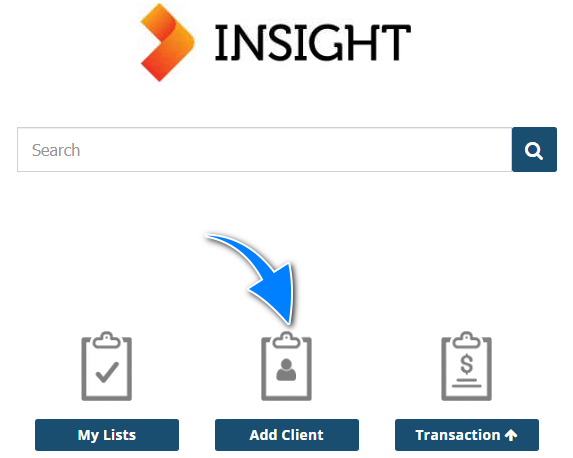
- If on the Home page, you can use the Add Client shortcut.
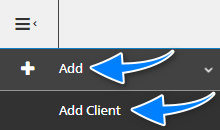
- If out of the Home page, you can use the Menu option Add, then select Add Client.
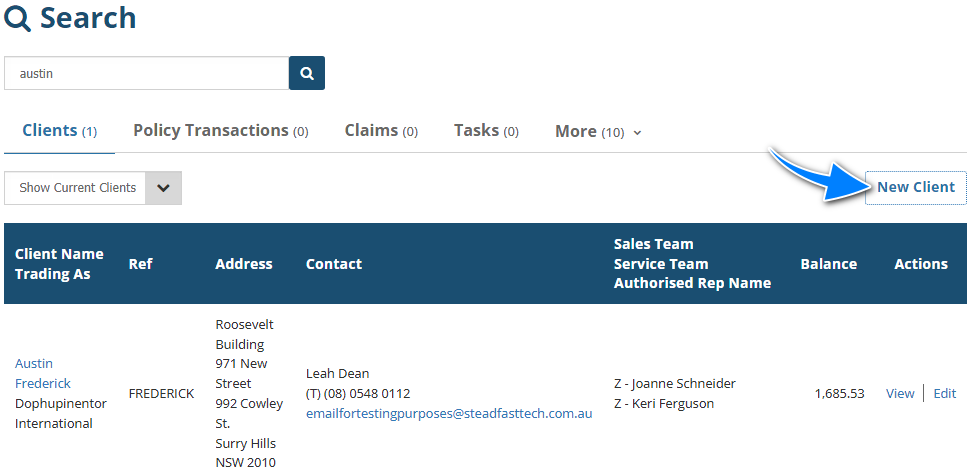
Alternatively, you can first search for the client you wish to add and check if they are already in the system. When the client is not found in the search results, select New Client to create the entity.
Regardless of how you choose to create the client, you'll be directed to the Add Client wizard, where you'll complete the Profile, Sales & Service, Classification and Bank pages of the wizard.
- Most of the fields on the pages are self-explanatory, however, we'll highlight fields that require further explanation.
- All fields marked as Required must be completed before proceeding to the next page.
Profile
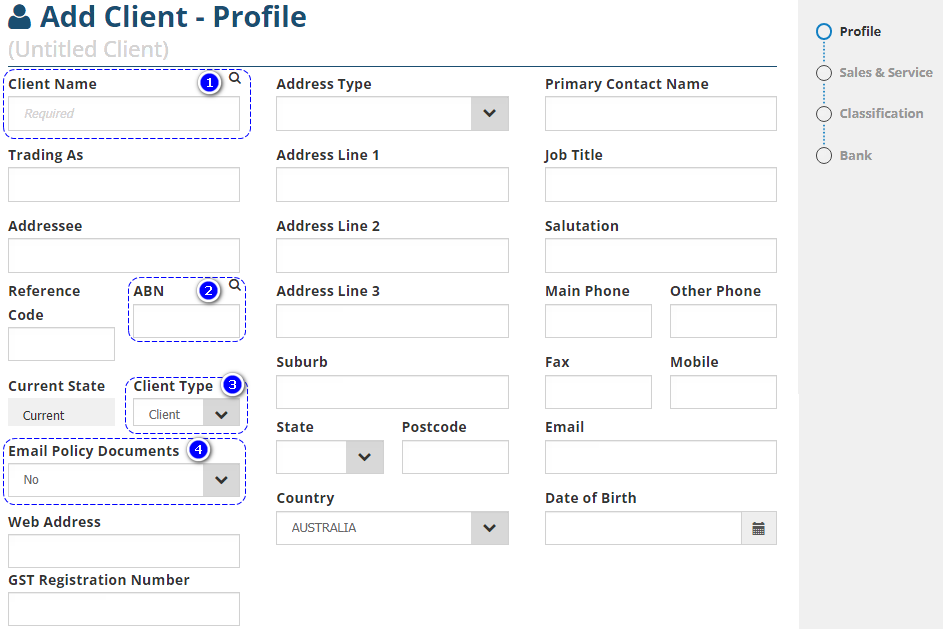
1. Magnifying glass for Client Name - AFTER entering the client or business name, selecting the Magnifying glass will search for that name in the ABN Lookup database. Matches will load with the respective ABN which you can either select/load the ABN into INSIGHT or copy/paste the ABN into INSIGHT.
NOTE: When you select/load the ABN, the Client Name, Addressee and ABN will auto-fill with data from the ABN Lookup databas and overwrite what you've previously entered. If you don't wish for this to occur, manually copy/paste the ABN instead.
2. Magnifying glass for ABN - AFTER entering the ABN, selecting the Magnifying glass will search for that ABN in the ABN Lookup database. If a match is found, you'll be asked if you wish to use the matching Client Name and Addressee for the entity.
3. Client Type - There are 2 options for this field:
- Client: All transaction types can be completed on this Client Type. For example, Quotations, New Business, Endorsement, Renewals, etc.
- Prospect: ONLY Quotations can be completed for this Client Type as it is used for tracking clients that have not converted to New Business.
QUICK TIP: Once a Prospect converts to New Business, INSIGHT will automatically change the Client Type to Client.
4. Email Policy Documents - There are 2 options for this field:
- Yes: Will default to selecting Email as an Output method when sending the Invoice.
- No: Will NOT default to selecting any Output methods when sending the Invoice.
Sales & Service
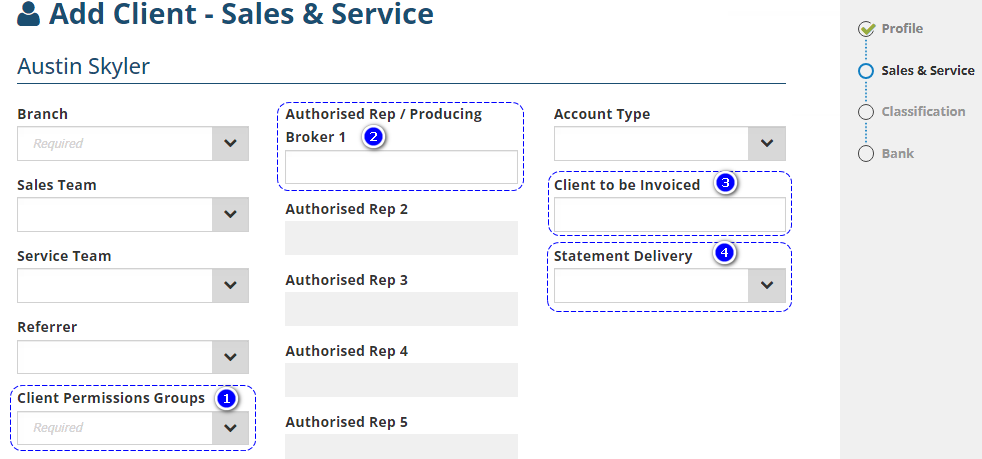
1. Client Permission Groups - Determines which users have access to this client. If all users should have access to the client, then select Everybody. Otherwise, your Administrators will have set other options – kindly refer to your own business practices if Client Permission Groups are in use.
2. Authorised Rep / Producing Broker 1 - 5 - As the Authorised Rep’s / Producing Broker's name is entered into this field, INSIGHT will load the matches it finds. From there, you can select the Authorised Rep / Producing Broker you wish to link to the client. You can link a maximum of five Authorised Reps and only one Producing Broker.
IMPORTANT: When linking a Producing Broker to a client, you must do so while creating the client or as soon as the client is created BEFORE any transactions are made (ie: quotes, new business, etc). INSIGHT will NOT allow you to add, edit or delete a client's Producing Broker once transactions have been made. If you have missed adding the Producing Broker or added the incorrect Producing Broker, you will need to create a new client with the correct Producing Broker and recreate the transactions.
3. Client to be invoiced - Used if another client is paying for all invoices created under the current client. As the other client’s name is entered into this field, INSIGHT will load the matches it finds. From there, you can select the Client you wish to link to the current client.
4. Statement Delivery - Works in hand with the Client Statement - Batch Client report and configures its default delivery options. There are 2 options for this field:
- Email: Sets the default delivery option for the Client Statement as email.
- Download: Sets the default delivery option for the Client Statement as download.
Classification
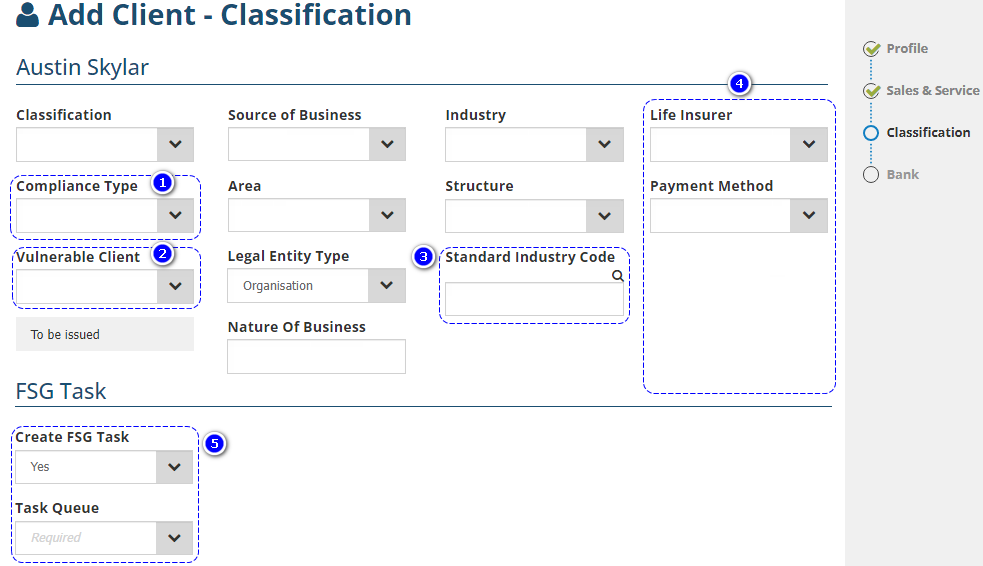
1. Compliance Type - Your choice here determines which Compliance documents are sent to or Compliance-related text is included for the client. There are 2 options for this field:
- Retail
- Wholesale
2. Vulnerable Client - Flags the client as "vulnerable" to ensure necessary steps are taken to help the client understand the advice being given so that they are not disadvantaged by their vulnerabilities. There are 2 options for this field:
- Yes:
- No:
3. Standard Industry CodeStatistics - Connects to the Australian Bureau of Statistics for the retrieval of ANZSIC Codes. As you enter the industry name, INSIGHT will load the matches it finds for your selection or you can use the magnifying glass to use the code lookup.
4. Client Categories 1 - 5 - Administrators can create up to 5 additional Client Categories to further classify clients - Kindly refer to your own business practices for when to use these fields.
5. Create FSG Task & Task Queue - When the Ledger setting FSG enabled is set to Yes, the field Create FSG Task will be auto-set as Yes, then you can choose the Task Queue for who will complete the task to send the FSG to the client
Bank
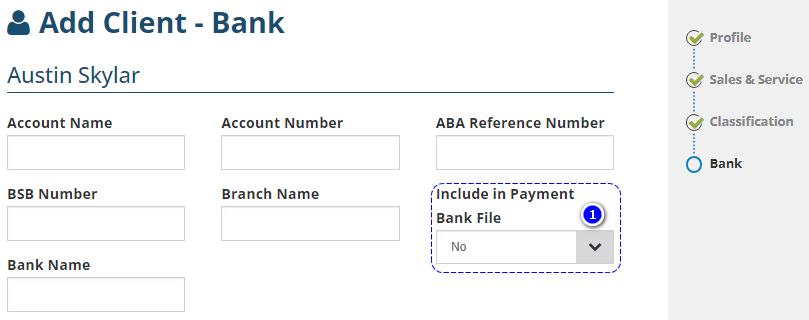
1. Include in Payment Bank File - Include payments (refunds) to this client in the Payment Bank (ABA) file. There are 2 options for this field:
- Yes
- No
How to Edit
Once a client is added to INSIGHT, you can make changes or updates to the profile as needed.
If you aren't currently viewing the Client, search for and locate the client, then select Edit.
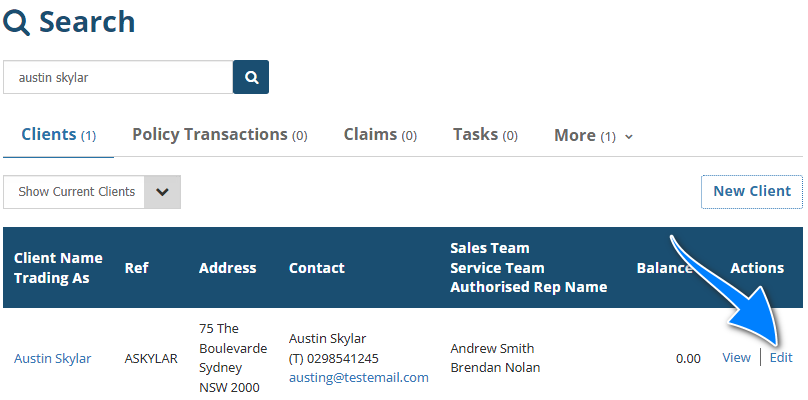
If you are currently viewing the Client, select Menu, then Edit this client.
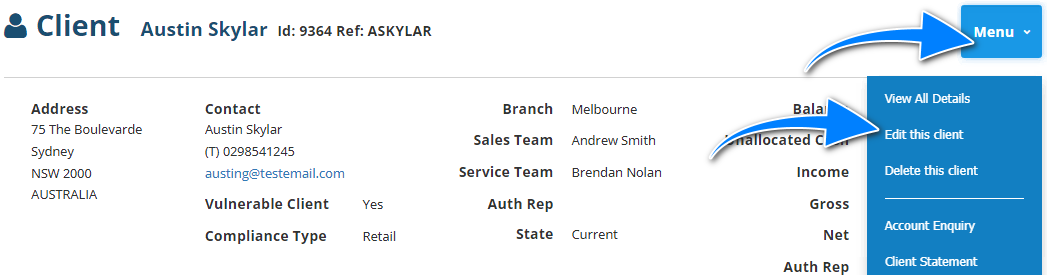
When you're in the 'edit' mode of the profile, make your changes and either select Exit, then Save or navigate to the end of the wizard and select Save.
In the event you don't wish to save your changes, select Exit, then Don't Save.
Was this article helpful?
That’s Great!
Thank you for your feedback
Sorry! We couldn't be helpful
Thank you for your feedback
Feedback sent
We appreciate your effort and will try to fix the article