Click to go to:
Introduction
An Entity is how INSIGHT identifies information relevant to your brokerage's placements. Each Entity will have its unique profile, along with various tabs of information attached to it.
Types of Entities
| Name | Definition | How to Create? |
| Prospect | Used to provide initial quotes to the insured. Once the quote is converted, the Client Type is auto-updated to Client. | Select Add Client, then choose Client Type as Prospect |
| Client | Represents the insured or entity to which the insurance is invoiced. | Select Add Client |
| Co-Client | Used with Split Invoice policies to identify entities that have agreed to be invoiced for their portion of the risk. | In the wizard, go to Policy Summary, then choose Split Invoice as Yes, go to Co-Clients, then select Add Co-Client |
| Insurer | Receives premium duties and fees, once the client has paid the invoice. | Select Add Insurer |
Insurer - Wholesale Broker | A broker that wholesales specialty products. A Wholesale Broker is remitted Net premiums and underwriter fees. | Select Add Insurer, go to Classification, then choose Insurer Type as Wholesale Broker |
Overseas Insurer | This entity receives the premium and contains additional configuration for overseas placements. | Select Add Insurer, go to Classification, then choose Overseas Insurer as Yes |
| Miscellaneous Creditor | Used when processing Overseas Placements in INSIGHT. This entity is remitted the taxes and charges other than the premium. | Select Add Insurer, go to Classification, then choose Insurer Type as Miscellaneous Creditor |
| Underwriter | Securing Entities (Insurers) for selection in conjunction with an Underwriting Agency. | Select Add Insurer, go to Classification, then choose Insurer Type as Underwriter |
| Underwriter Agency | An Underwriting Agency is remitted Net premiums and underwriter fees. Underwriting Agencies are required to disclose their securing Underwriter. | Select Add Insurer, go to Classification, then choose Insurer Type as Underwriter Agency |
Authorised Representative | An Authorised Rep, Spotter, Referrer, or sub-agent who earns a percentage of commission and/or fees. | Add Authorised Representative |
| Producing Broker | An entity you wholesale business to, this entity is billed Net. | Add Producing Broker |
Components of an Entity
Regardless of the type of entity, each Entity will have its unique profile, along with various tabs of information attached to it. This section discusses similarities found in all entities to assist with understanding where to find what you're looking for. The Components of an Entity are the:
- Top section - contains a summary of the profile
- Tabs - organises different sets of information into different tabs
- Bottom section - displays information depending on the selected tab
Top section
The top section of an Entity contains a summary of the profile - To view the complete profile, select Menu and View All Details. Each profile collects information specific to that entity - for more information, refer to the articles about the following wizards for Adding a Client, Insurer, Authorised Rep and Producing Broker.
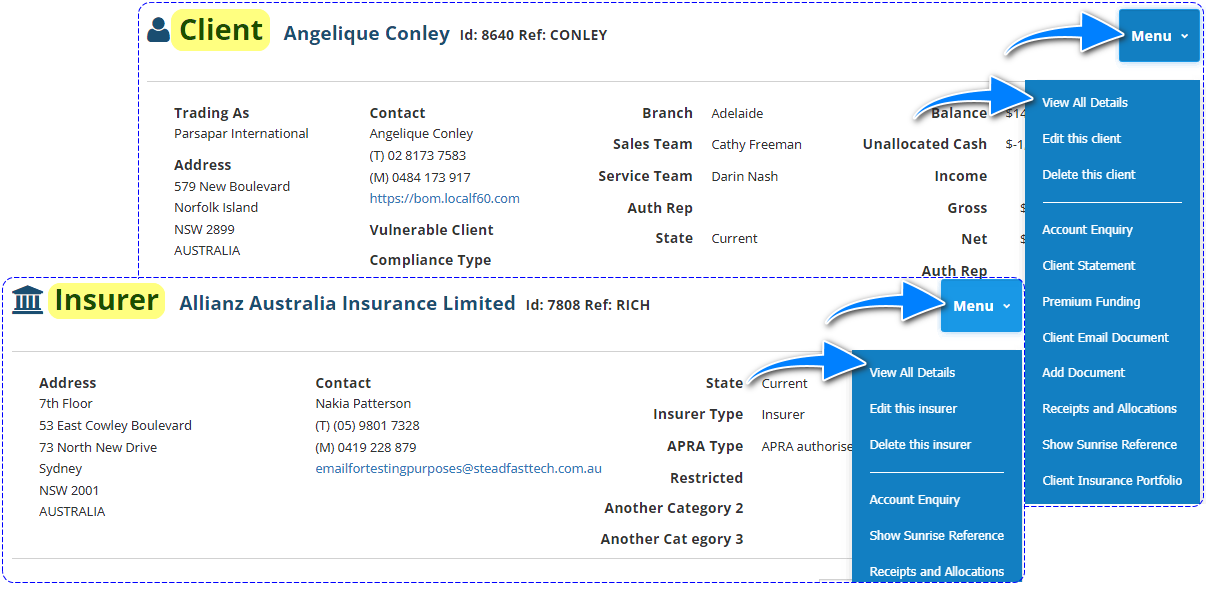
NOTE: The Menu in each entity contains different options depending on the type of entity. Relevant options will have their own articles discussing them in further detail.
Tabs
Each entity has its own set of tabs. You can select through the different tabs to view each set of information. For example, if you wish to see the claims linked to a client, go to the client entity and select the Claims tab.
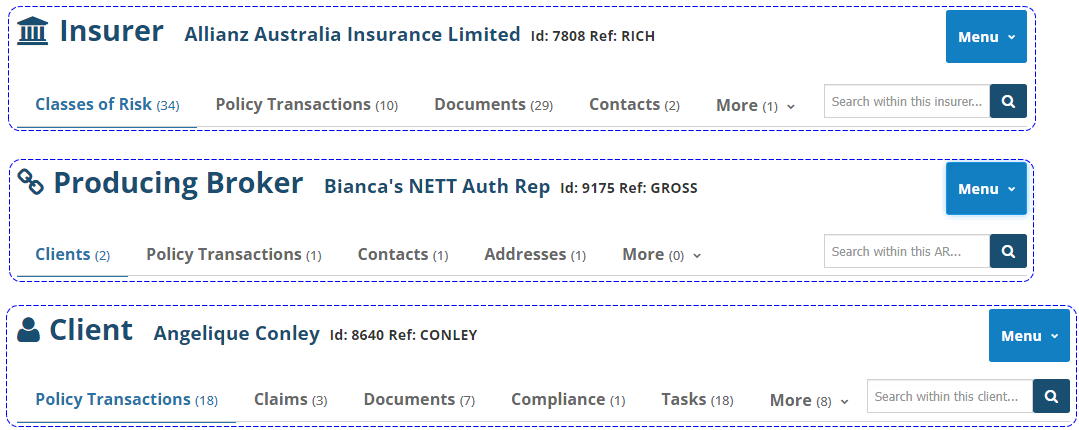
Bottom section
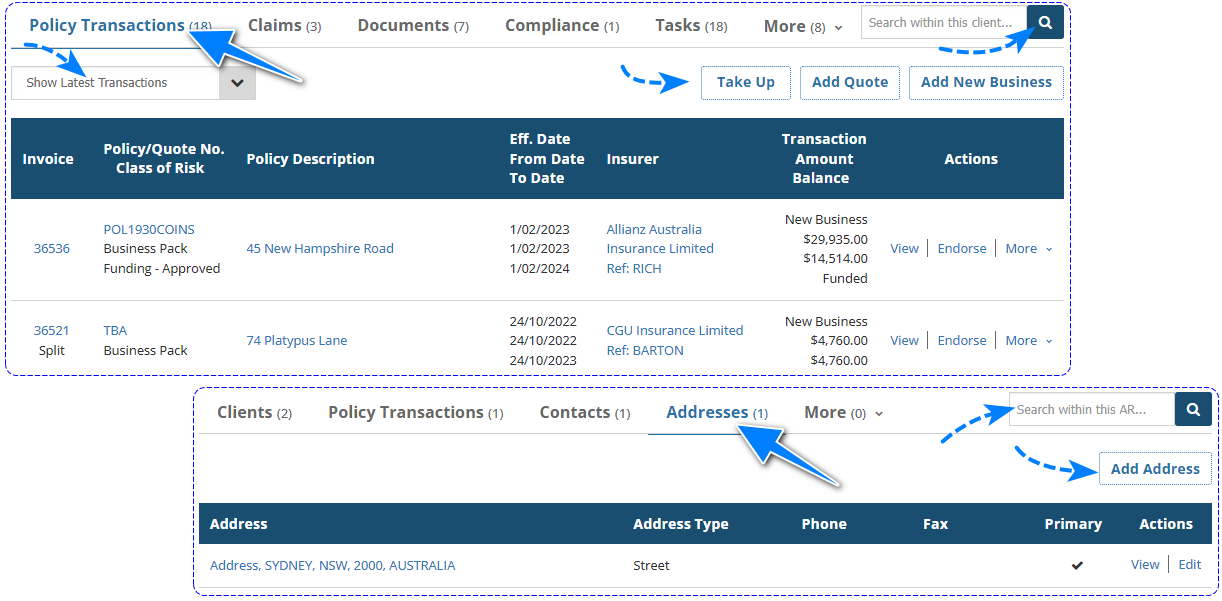
By default, the bottom section will display the information of the first tab that has content. For example, if a client has no policy transactions, but has documents, it will display the content in the Documents tab. To navigate through the tabs, refer to the following points:
- You can change its display display by selecting a different tab.
- The tab that you're currently on will be in blue text, while the others will be in black text.
- The mini search bar will ONLY search the contents of the tabs. Search results will be organised by tabs and displayed in this section. Once done with your search, clear the bar and select search again to return to the original display.
- When appropriate the display may include a filter - For example, the Policy Transactions tab includes a filter with Show Latest Transactions, as well as Show Quote, Lapsed, Take Up, Open Balance and All Transactions.
- The display may also include action buttons - For example, the Policy Transactions tab has buttons for Take Up, Add Quote and Add New Business. Each button will take you to the respective wizard so that you can create the relevant transaction.

Was this article helpful?
That’s Great!
Thank you for your feedback
Sorry! We couldn't be helpful
Thank you for your feedback
Feedback sent
We appreciate your effort and will try to fix the article