Click to go to:
Introduction
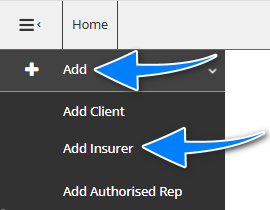
If you have permission to add an insurer, you can use the Add menu and select Add Insurer.
Alternatively, you can first search for the insurer you wish to add and check if they are already in the system. When the insurer is not found in the search results, select New Insurer to create the entity.
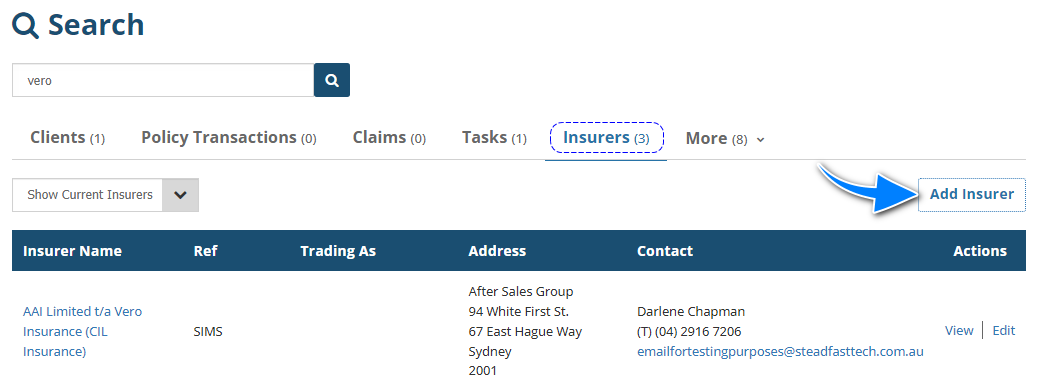
Regardless of how you choose to create the insurer, you'll be directed to the Add Insurer wizard, where you'll complete the Profile, Classification, Bank and Instalments pages of the wizard.
- Most of the fields on the pages are self-explanatory, however, we'll highlight fields that require further explanation.
- All fields marked as Required must be completed before proceeding to the next page.
Profile
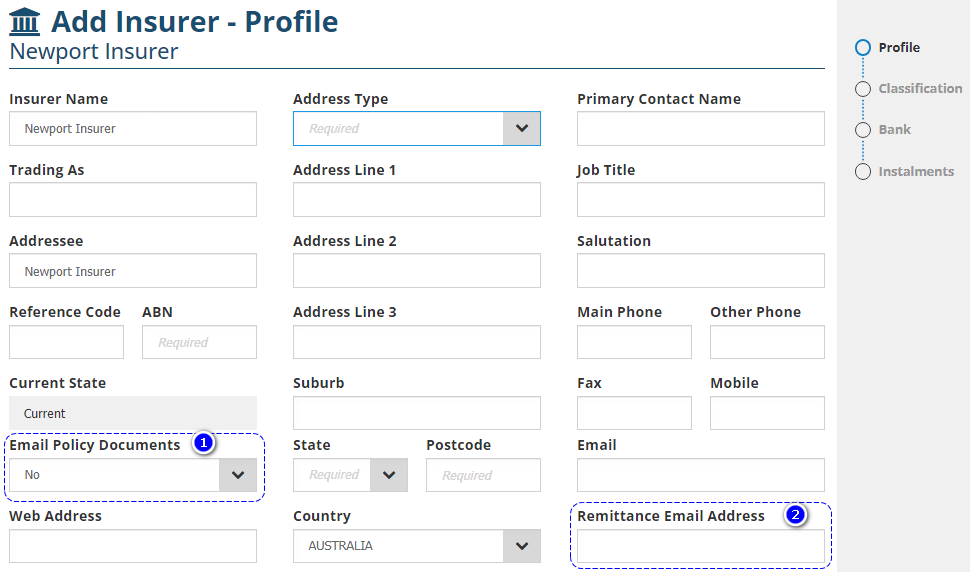
1. Email Policy Documents - There are 2 options for this field:
- Yes: Will default to selecting Email as an Output method when sending the Closing.
- No: Will NOT default to selecting any Output methods when sending the Closing.
2. Remittance Email Address - This is specifically for the recipient of the insurer remittance.
Classification
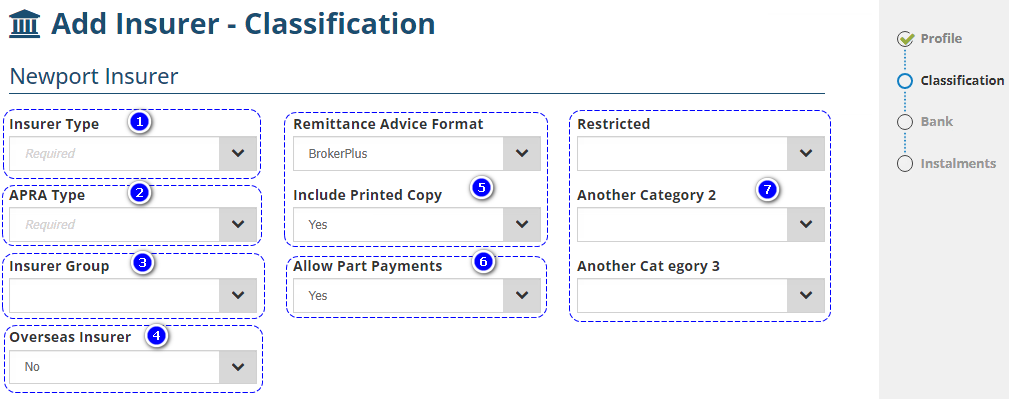
1. Insurer Type - Defines how the Insurer profile is used in INSIGHT. Refer to the article What is an Insurer Type? for further information.
2. APRA Type - Refer to the APRA website or your compliance team to complete this field. Selections made here will impact the data displayed in the APRA Form 701 report.
3. Insurer Group - If used by your business, Administrators will set up different Insurer Groups to group insurers together for reporting purposes.
4. Overseas Insurer - Used to identify an insurer as a Non-Resident Insurance Tax (NRIT) insurer.
5. Remittance Advice Format & Include Printed Copy - Both fields are inherited from a previous version of INSIGHT and are no longer in use - please leave them as is.
6. Allow Part Payments - When using the New Insurer Payment wizard, this includes the insurer in the Insurer payments list when the list is filtered to Include partially paid payments by the client.
7. Insurer Category 1 - 3 - Administrators can create up to 3 additional Insurer Categories to further classify insurers - Kindly refer to your own business practices for when to use these fields.
Bank
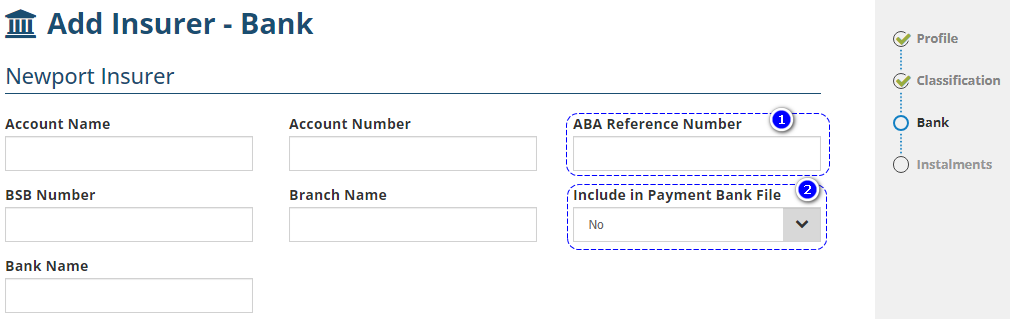
1. ABA Reference Number - When applicable, this is provided by the bank if the insurer is being paid via Payment Bank (ABA) File.
2. Include in Payment Bank File - Defines if payments to this insurer are included in the Payment Bank (ABA) File.
Instalments
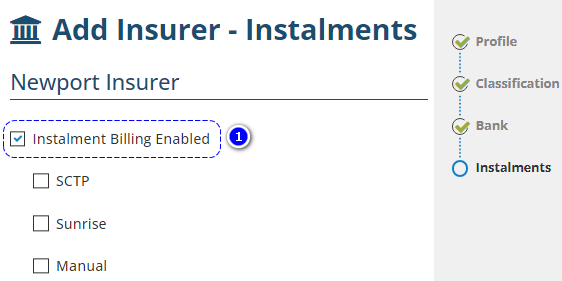
1. Instalment Billing Enabled - Enables the Instalments function when the insurer is used in transactions created through SCTP, Sunrise or Manual interfaces.
How to Edit
Once an insurer is added to INSIGHT, you can make changes or updates to the profile as needed.
If you aren't currently viewing the Insurer, search for and locate the insurer, then select Edit.
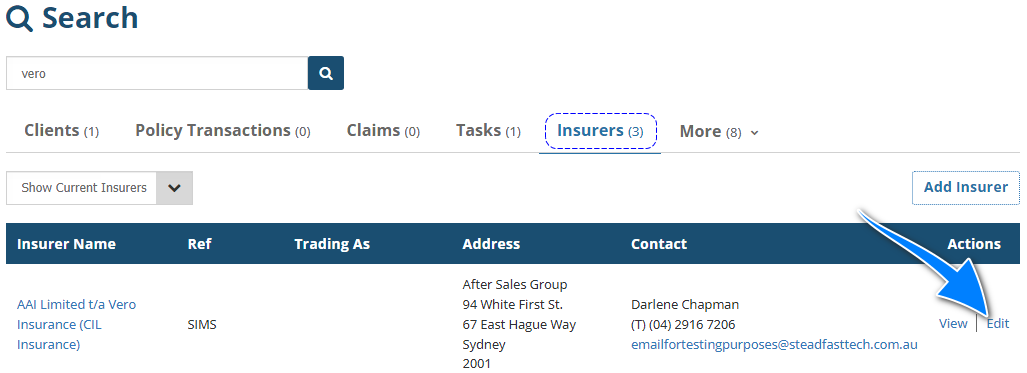
 NOTE: Ensure you select the Insurers tab to view the appropriate search results.
If you are currently viewing the Insurer, select Menu, then Edit this insurer.
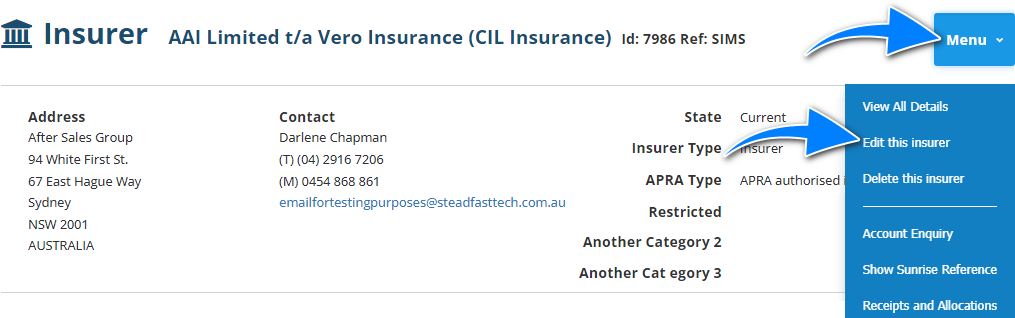
When you're in the 'edit' mode of the profile, make your changes and either select Exit, then Save or navigate to the end of the wizard and select Save.
In the event you don't wish to save your changes, select Exit, then Don't Save.
Was this article helpful?
That’s Great!
Thank you for your feedback
Sorry! We couldn't be helpful
Thank you for your feedback
Feedback sent
We appreciate your effort and will try to fix the article