Click to go to:
Introduction
INSIGHT Tasks can also be used for storing documents inside the relevant Client, Policy or Claim Task. The steps to do so are as follows:
 | Locate the Client, Policy or Claim task you wish to add the document to | |
 | View the task | |
 | Select the Documents tab | |
 | Choose the option you wish to use to add the document:
| |
 | Complete the New Task Document wizard |
Drag & Drop
This feature consists of dragging a document from the document folder (source) & dropping it into INSIGHT (destination).
Both the source & destination need to be visible on your computer screen to complete this action.
Guidelines:
 | Alter the INSIGHT browser size so that instead of INSIGHT displaying on the full computer screen, it only displays on half the screen. |
 | On the opposite half of the screen, open the document folder that contains the document to be added to the task. |
 | From there, select & hold the document from the source, drag this document & drop it into the destination. |
 | Notice that as the document is dragged to the destination, an outlined box forms to indicate where the document can be dropped into INSIGHT. |
 | After dropping inside the outlined box, the document will be uploaded into INSIGHT. From there, you can review, update and save the document using the New Task Document Wizard. |
Browse
This feature allows you to browse your computer’s folders to locate the document you wish to add to INSIGHT.
Guidelines:
 | Once the document is selected, select Open to upload it into INSIGHT. |
 | From there, you can review, update and save the document using the New Task Document Wizard. |
Generate from template
This feature allows users to create a document using a document template and add this document to INSIGHT.
Guidelines:
 | The available document templates will be displayed in the template dropdown selection. |
 | Once the template is chosen, select Next to enter into the New Task Document Wizard. |
 | From there, you can fill in the blanks in the template, upload it into INSIGHT and save the document using the New Task Document Wizard. |
New Task Document wizard
Regardless of how the task document was uploaded into INSIGHT (Drag & Drop, Browse or Generate), you will be presented with the relevant New Task Document Wizard – this can be used to review and update the document prior to saving it in INSIGHT.
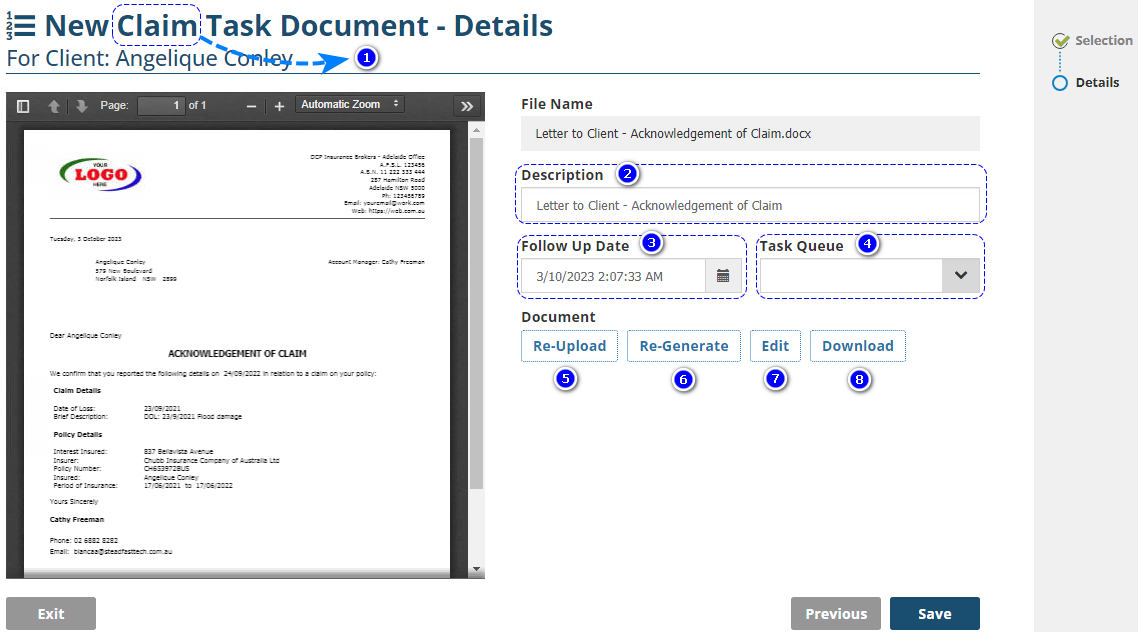
1. Wizard Name - The name of the wizard will differ depending on the type of task the document is being added to. For example, this could display "New Client Task Document", "New Policy Task Document" or "New Claim Task Document".
2. Description - By default, the file name will be inserted as the Description. However, you can change this to better describe the document so that it is easier to locate or search for the document in INSIGHT.
3. Follow Up Date - Represents the date and time the document was added to INSIGHT.
4. Task Queue - This is a legacy field from a prior version of INSIGHT. Please leave this as is.
5. Re-Upload - Allows you to browse your computer’s document folders, re-select a document and re-upload it into INSIGHT in case the wrong document was uploaded from your computer.
6. Re-Generate - ONLY applicable when generating from a document template. This allows you to replace the document template and re-upload it into INSIGHT in case the wrong document template was selected.
7. Edit - ONLY applicable for document formats that are editable, ie: Word and Excel but NOT Email and PDF. This allows you to further edit the document and upload those changes back into INSIGHT.
8. Download - Allows you to download the document to your computer.
 IMPORTANT: Once all changes in the wizard are complete, select Save to add the document.
Was this article helpful?
That’s Great!
Thank you for your feedback
Sorry! We couldn't be helpful
Thank you for your feedback
Feedback sent
We appreciate your effort and will try to fix the article