Click to go to:
Introduction
INSIGHT gives you the ability to bulk email more than one invoice to your client, or closings to an insurer through the Client Email Document feature:
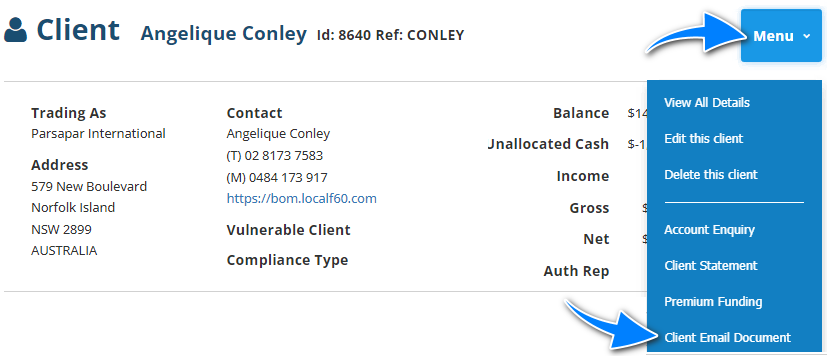
The Client Email Document wizard is made up of the following pages:
 | Policies |  | Other |
 | Task |  | Create |
 | Preview |  | Finish |
 | Prem. Funding |
Policies
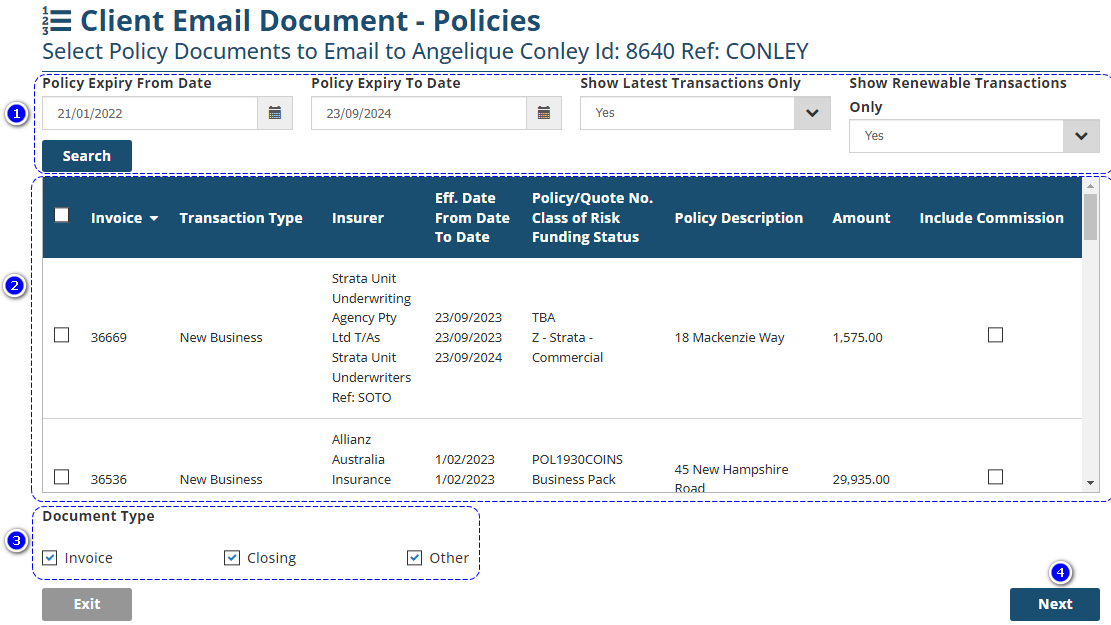
 | Use the filters to obtain the transactions to wish to generate documents for. For example, if you wish to send quotations, change Show Latest Transaction Only and Show Renewable Transactions Only from Yes to No. Once you've chosen your filters, select Search to update the transaction list. |
 | Select the checkbox or checkboxes beside the transactions you wish to generate documents for. |
 | Select which documents you wish to generate for these transactions. |
 | Select Next. |
Task
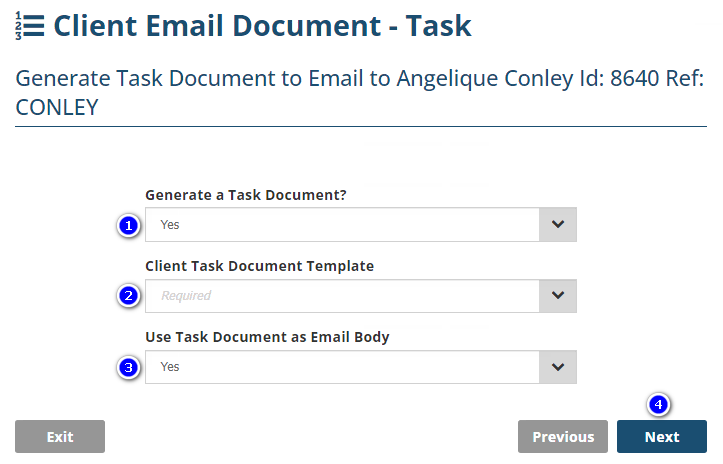
 | If you wish to generate a task document, select Yes, and complete the following 2 fields. Otherwise, select No and Next. |
 | Make your selection from the Client Task Document Template dropdown - this displays the templates available in Configuration. |
 | If you wish to use the client task document template as the email body, select Yes. Otherwise, select No. |
 | Select Next. |
Prem. Funding
This page was part of an older version of INSIGHT and has been disabled, please select Next.
Other
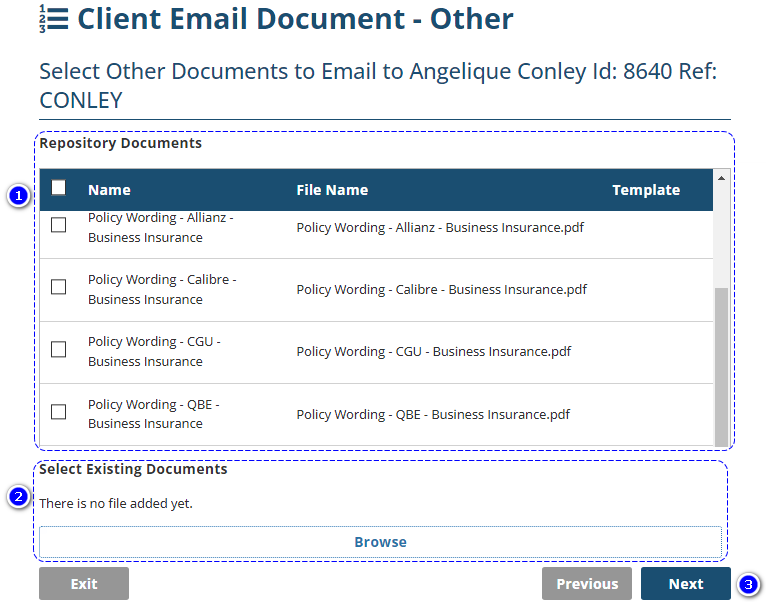
 | This displays any documents that have been uploaded by your Administrator as Repository documents - you can select as many as you need. |
 | Select Browse to add documents from your computer, otherwise, select Next. Note: INSIGHT allows you to attach one document at a time and returns you to this page where you can re-select Browse to continue adding as many as you need. |
 | Select Next. |
Create
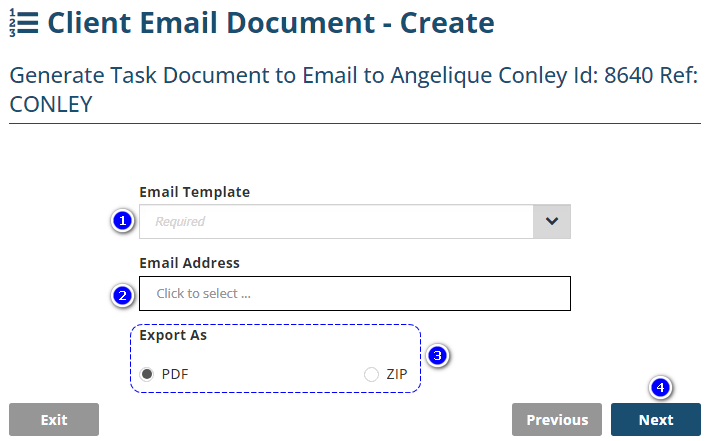
 | Select an email template - this displays the email templates available in Configuration. |
 | Select an email address - this displays the client's and contact's email addresses. |
 | Choose whether the documents appear as separate PDF files or compressed inside a ZIP folder. |
 | Select Next to automatically generate the email with the selected document attachments. |
Finish
The email will be generated outside of INSIGHT for your review, finalise the email and send it as normal.
When you return to INSIGHT, the following confirmation page will display, then select Finish.

Was this article helpful?
That’s Great!
Thank you for your feedback
Sorry! We couldn't be helpful
Thank you for your feedback
Feedback sent
We appreciate your effort and will try to fix the article