Communicating with Clients, Made Easy
Clear, timely communication is key to delivering great service. Whether you're sending a proposal, confirming a policy, or updating a claim, the built-in email builder helps you stay professional, consistent and efficient.
QUICK TIP: Want to personalise your emails with a personal touch? Learn how to create and manage your email signature in Steadfast Apps in this guide
Steadfast Apps comes with pre-built email templates to help you send professional, consistent messages with ease. These templates are available by default and managed at an admin level if you need customisation, reach out to your system administrator.
Why Use the Built-In Email Builder?
- Pre-configured templates save time and ensure consistency
- Automatic document attachment from the relevant document section
- Streamlined communication directly from the platform
Where to go from here? Choose where you are emailing from below
Select the location you need help with, then click the Details button to view step by step instructions.
Email from an Application in Steadfast Apps
Now that you've added your quotes and generated your client proposals, it's time to take the final step - emailing your clients. With Steadfast Apps’ built-in email builder, this process is seamless, efficient, and professional.
Step-by-Step: Emailing Clients in Steadfast Apps from an Application
1. Launch the Email Builder
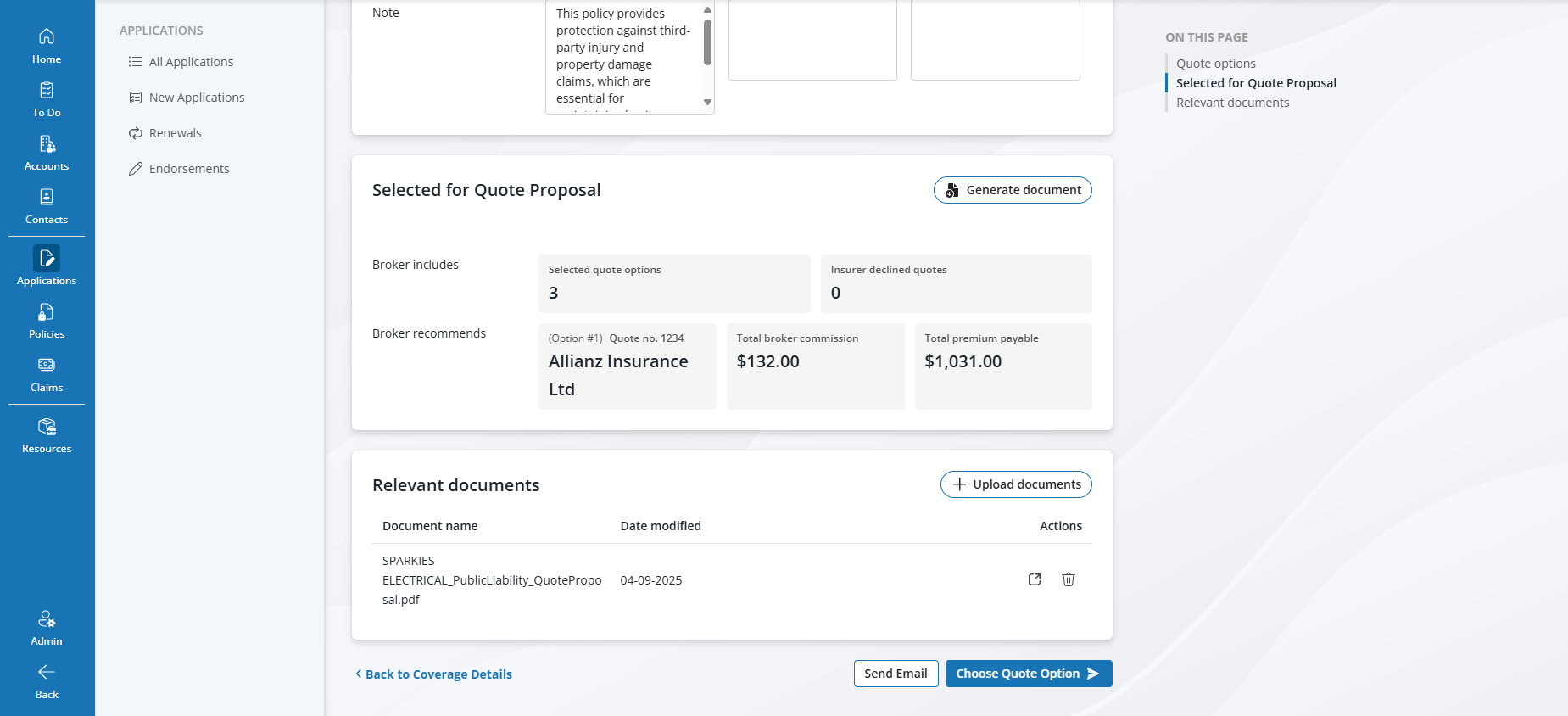
Navigate to the bottom of an Applications Quote Details page and click on the "Send Email" button located on the bottom right.
2. Choose a Pre-Configured Email Template
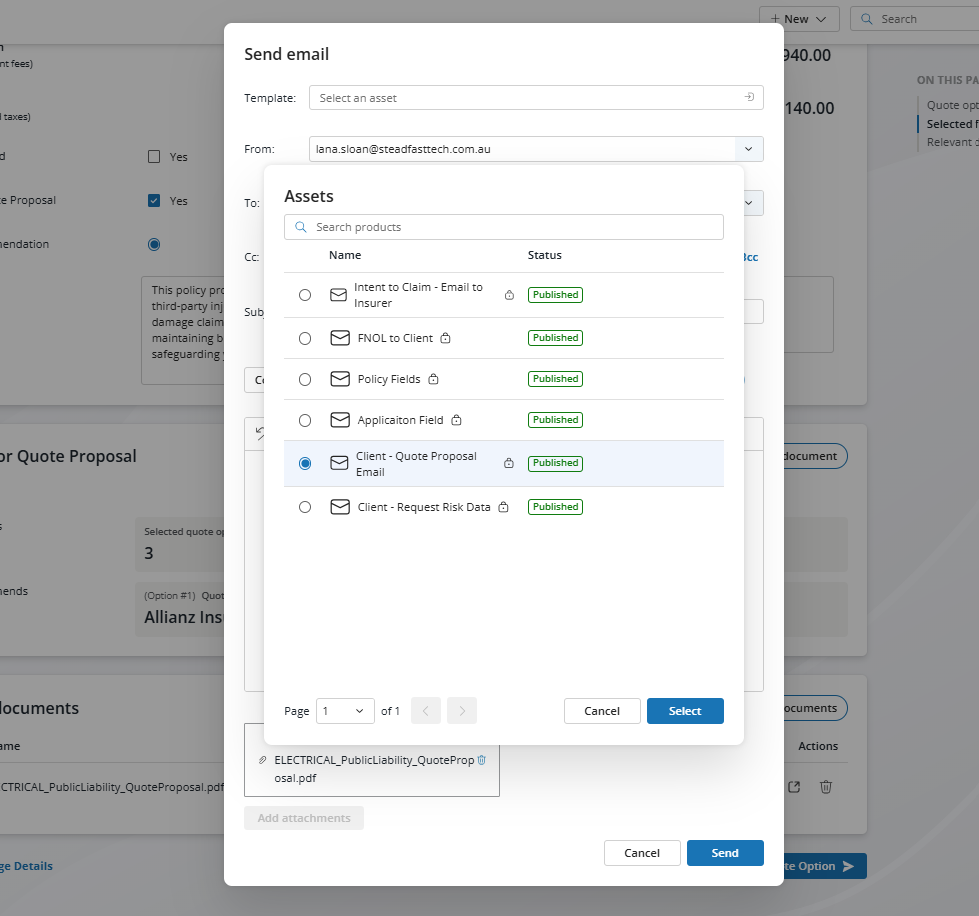
Select from templates tailored for proposals, quotes, or general communication. These templates are designed to be professional and editable.
 3. Review Attached Documents
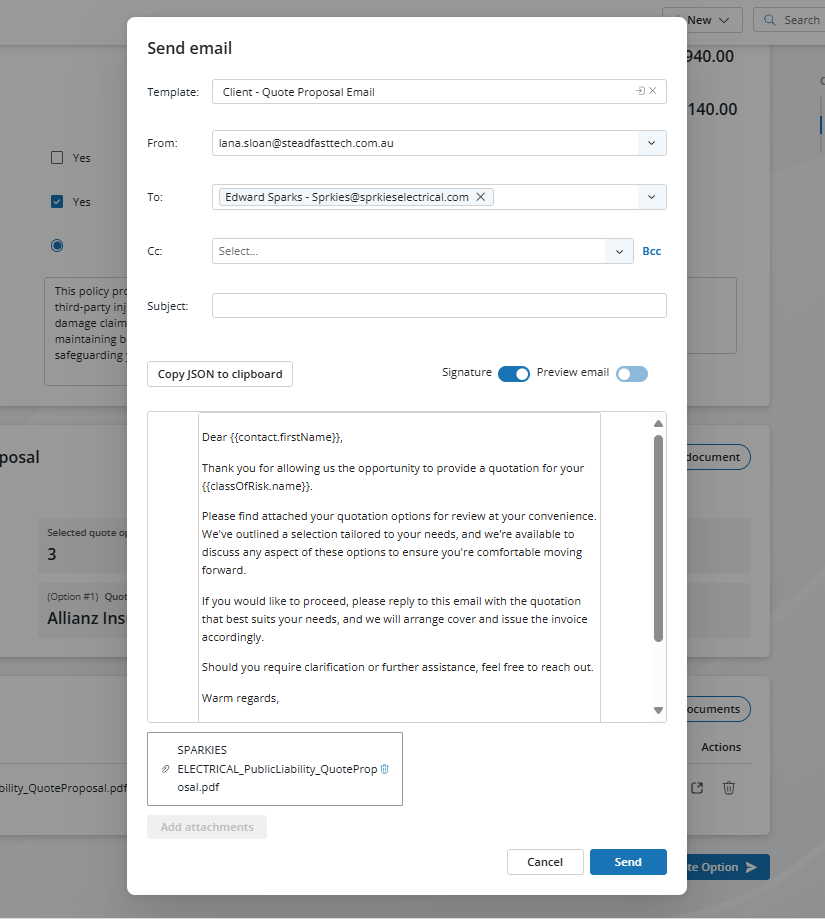
Any files uploaded to the Documents section (e.g., proposals, quotes, terms) will automatically attach to the email. You can add or remove attachments as needed.
4. Check the Recipient
The email will default to the primary contact listed on the application. You can also type to add additional recipients or use the CC field to include others.
5. Add Subject to email
6.Toggle the preview email to ensure the merge fields have populated
Use the Preview Email toggle to check that all merge fields have populated correctly - this ensures client names, policy details, and other dynamic fields are displaying as expected.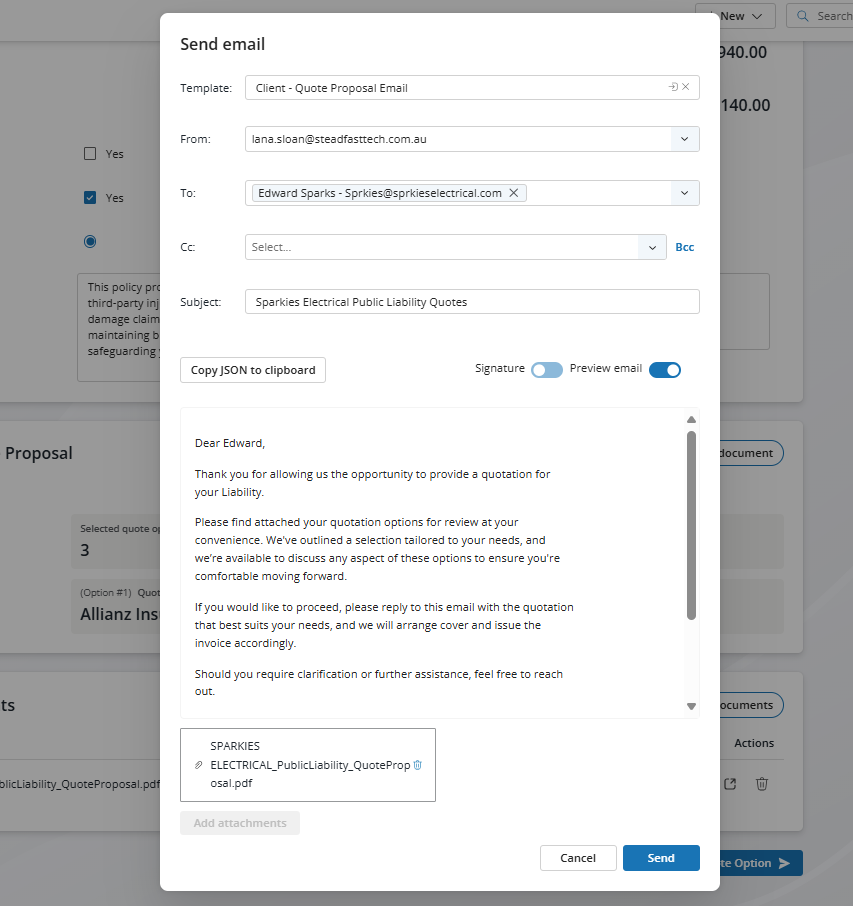
7. Click Send!
Your attachments are in place, your merge fields have populated correctly, and your application is good to go.
Email from a Policy in Steadfast Apps
Once a policy has been finalised, the associated application is marked as Placement Complete, and a Policy-level record is created. At this point, the ability to send emails from the application is no longer available.
Use the search bar or navigate via the Policies tab in the left-hand menu to find the relevant policy.
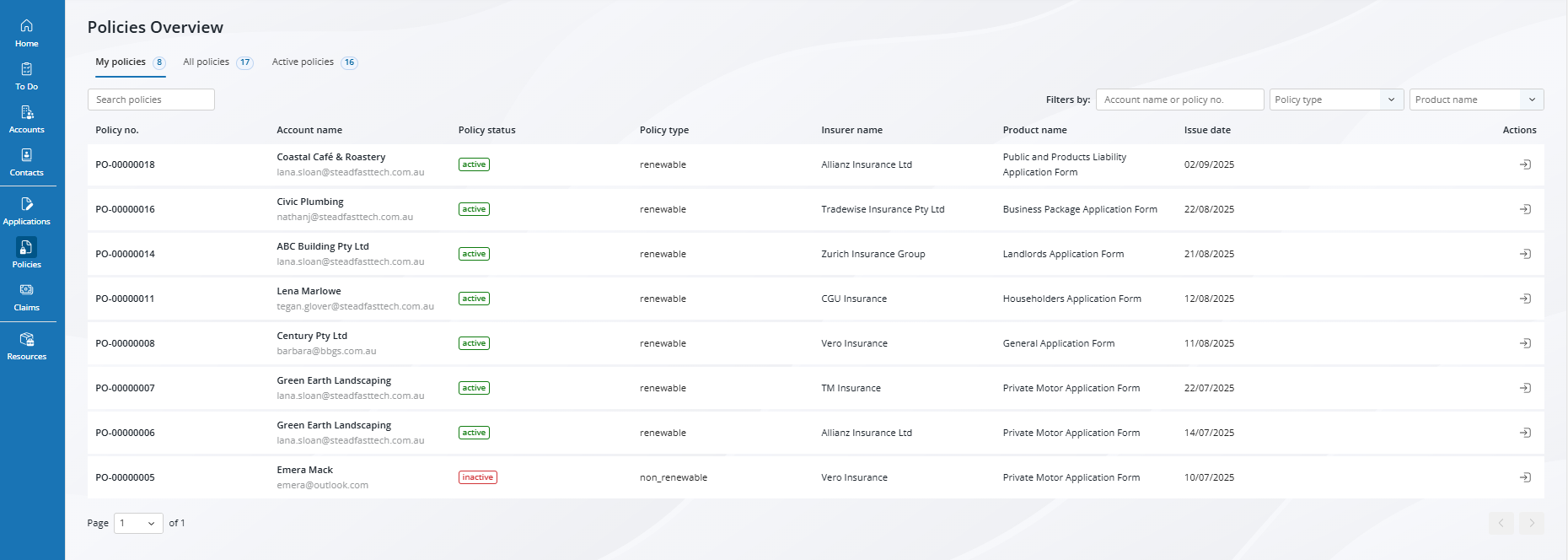
2. Open the Policy Using the Quick Tool
Click into the policy record to access its details.
3. Go to “More Actions”
In the top-right corner of the policy screen, click the More Actions menu.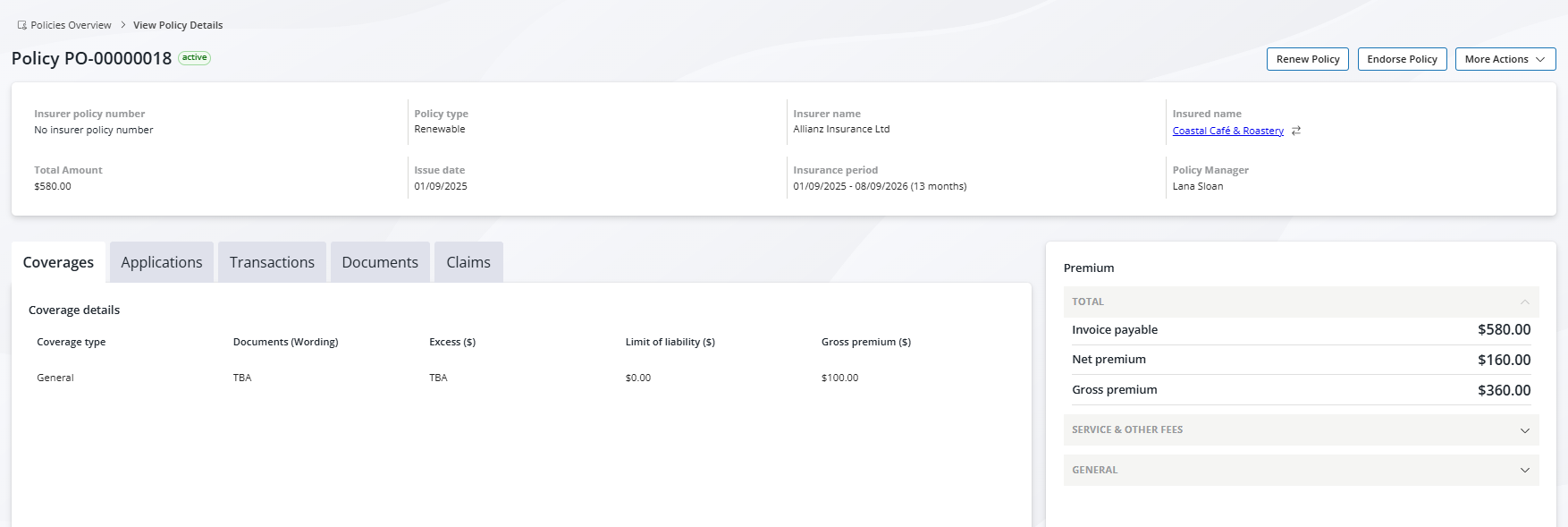
4. Select “Send Email”
This will launch the built-in email builder.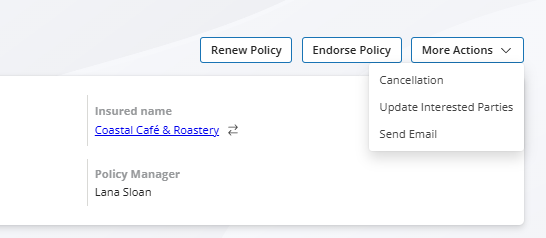
5. Follow the Standard Email Steps
- Choose a template from the pre-configured options
- Review and attach documents from the policy’s Documents section
- Check merge fields by toggling the preview to ensure all dynamic fields have populated correctly
- Confirm recipients, which will default to the policy contact - you can add others or use the CC field
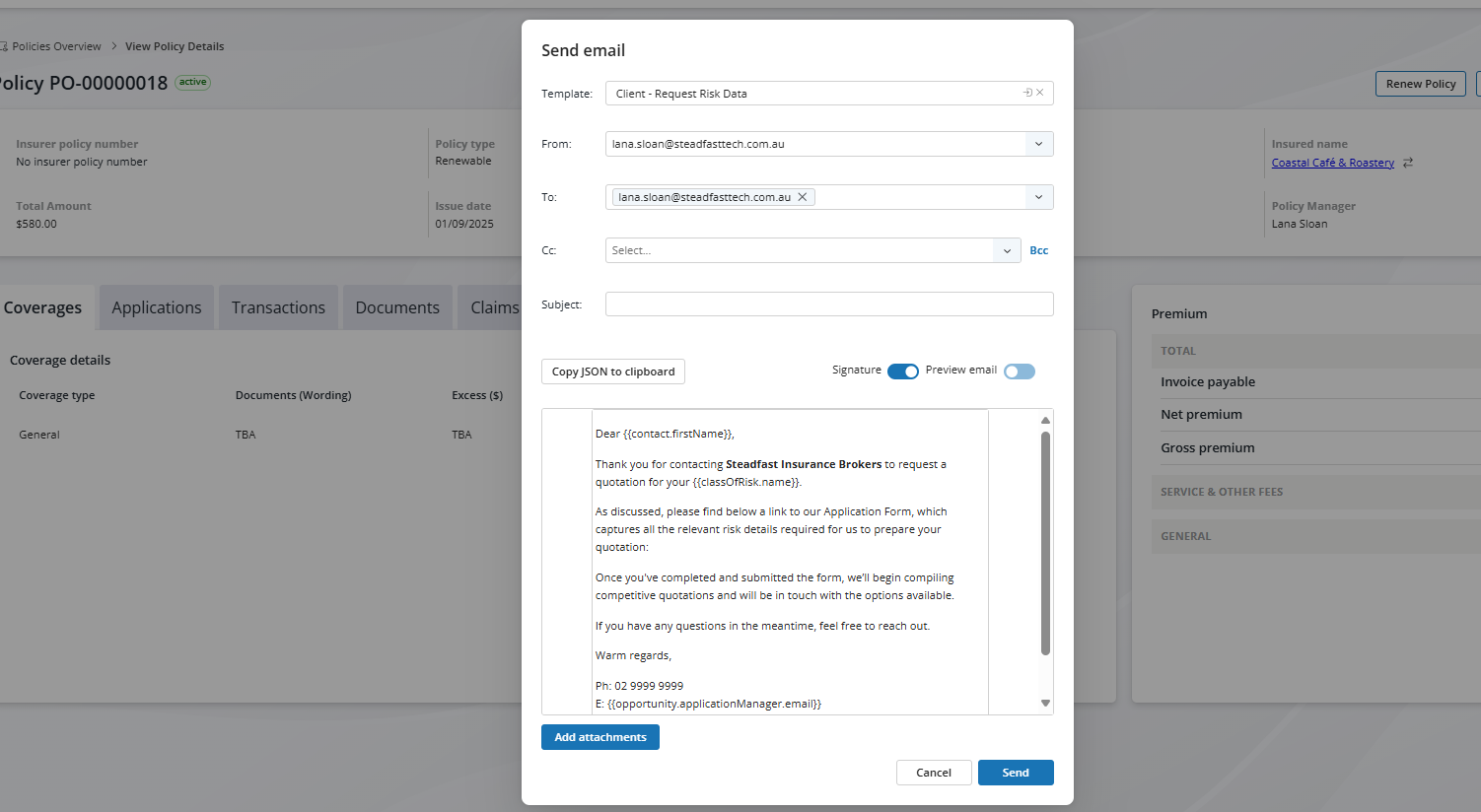
7. Click “Send”
Your attachments are in place, your merge fields have populated correctly, and your application is good to go.
Email from a Claim in Steadfast Apps
Need to update a client about a claim? Steadfast Apps makes it easy to send professional, well-documented emails directly from an open claim. Whether you're confirming lodgement, providing a status update, or sharing documents, the built-in email builder ensures your communication is consistent and efficient.
To send an email related to a claim, follow these steps:
1. Locate the Claim
Use the search bar or the Claims tab in the left-hand menu to find the claim you wish to email about.
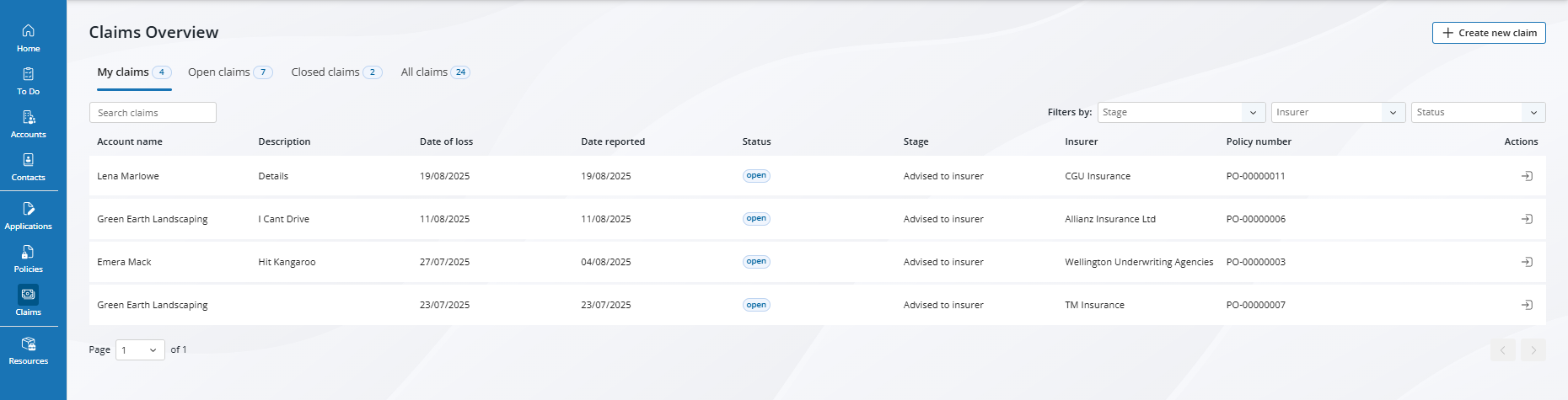
2. Open the Claim Using Quick Tools
Click into the open claim using the quick access tool.
3. Navigate to Claim Details
Click Continue to Claim Details, then click Continue to Other Details.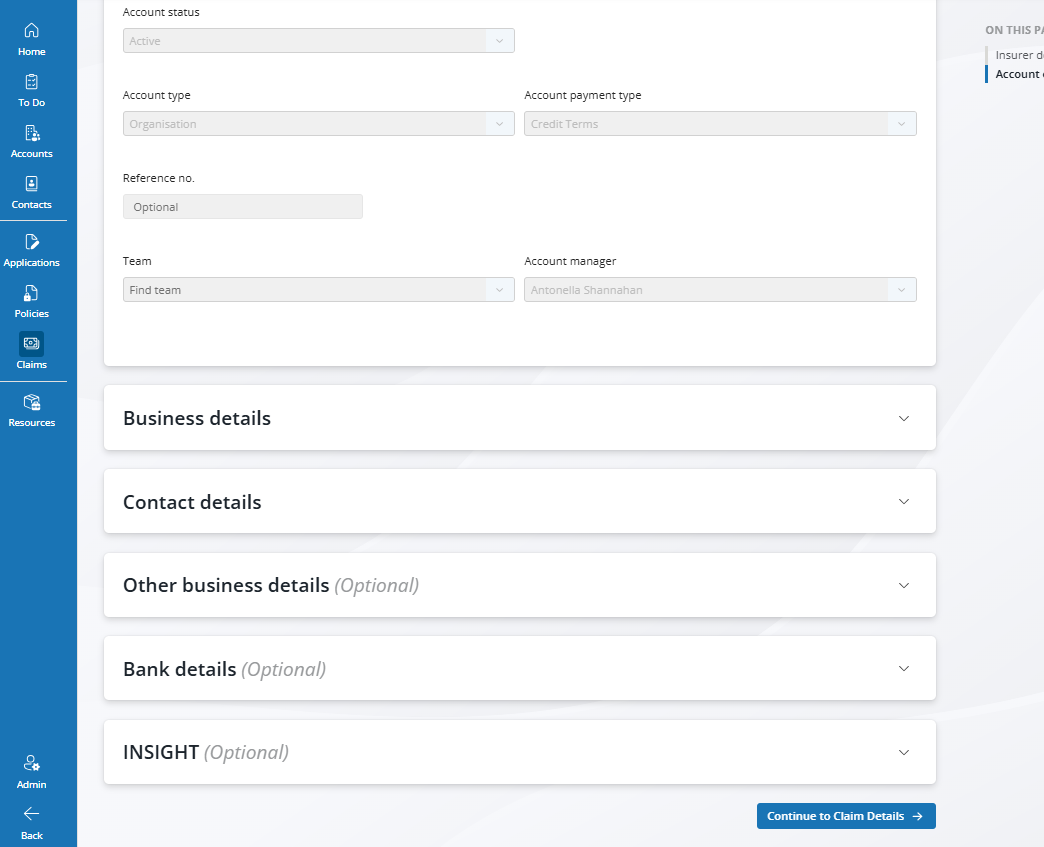
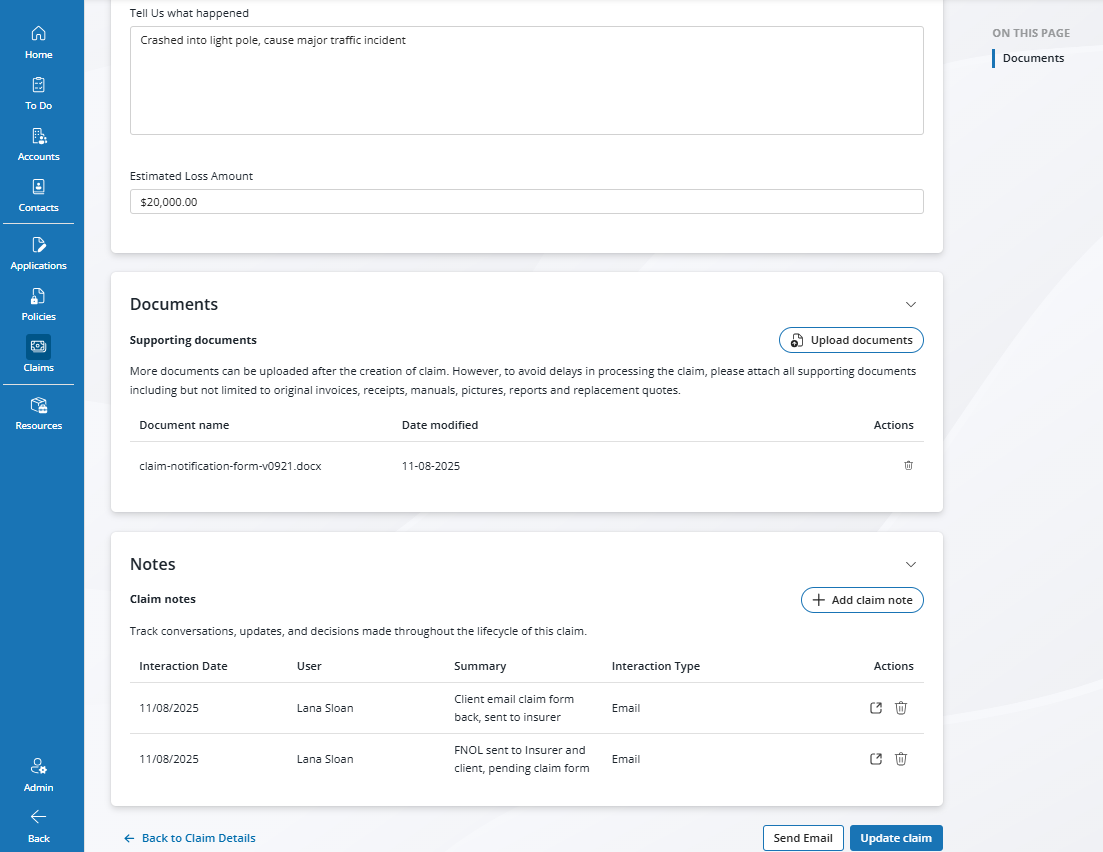
4. Scroll to the Bottom of the Page
You’ll find the Send Email button at the bottom.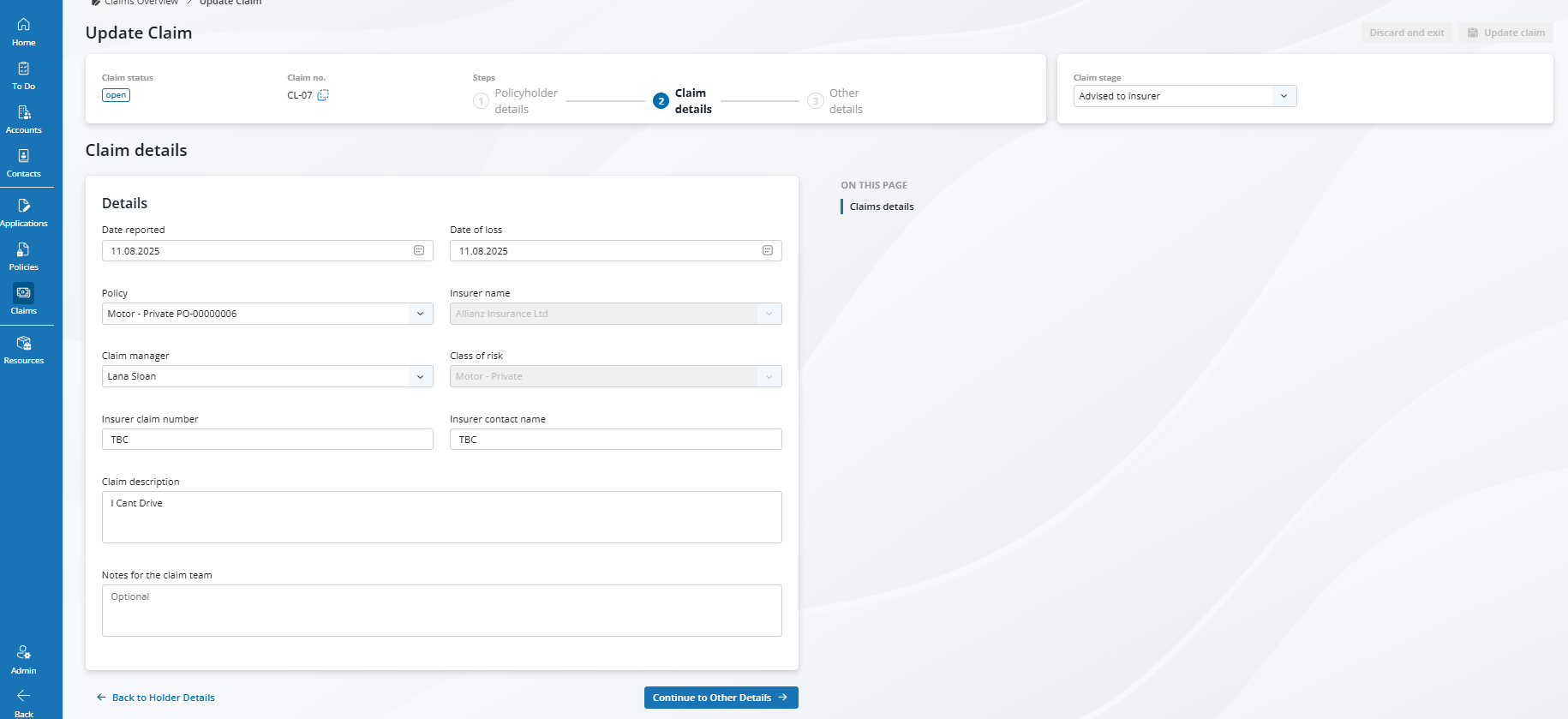
5. Launch the Email Builder
Click Send Email to open the email builder.
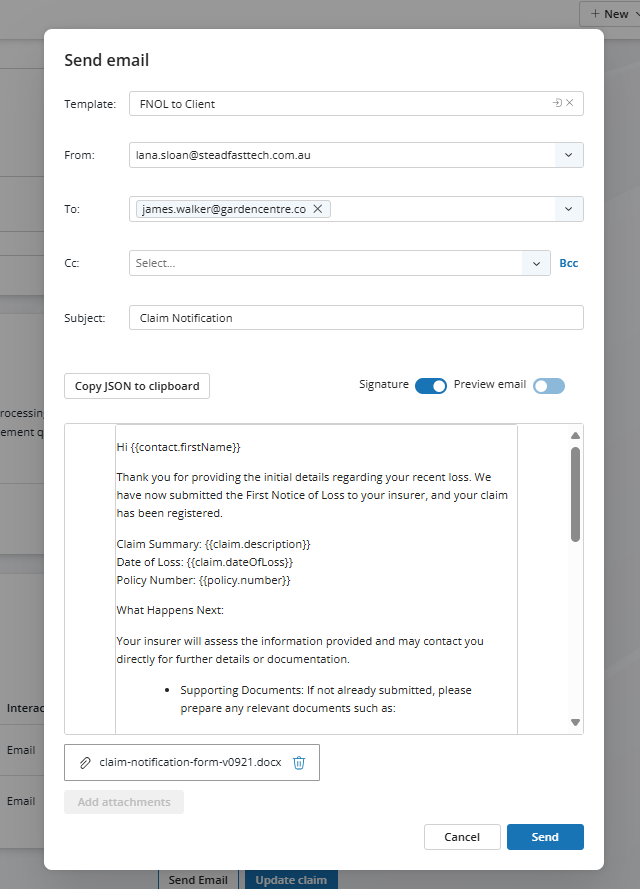
6. Complete the Email Setup
- Select a template from the pre-configured options
- Check the “To” and “CC” fields—the primary contact will populate by default, but you can add others
- Add a subject line
- Review merge fields using the preview toggle to ensure all dynamic content has populated correctly
- Review attachments—documents from the claim will be attached automatically, but you can add or remove files as needed
7. Click “Send”
Something got you stumped?
Our team is here to help! We know change can be tricky, but we've got your back.

Contact our support team here and well get back to you shortly
Was this article helpful?
That’s Great!
Thank you for your feedback
Sorry! We couldn't be helpful
Thank you for your feedback
Feedback sent
We appreciate your effort and will try to fix the article